Tags in Hostinger Reach label contacts by how they were collected or what they represent, so you can build targeted segments and campaigns. Hostinger Reach creates tags automatically from website forms and CSV imports, and you can create, assign, and remove tags manually from the Tags and Contacts pages. Each Hostinger Reach account supports up to 180 unique tags, with up to 50 tags per contact.
What are tags in Hostinger Reach?
A tag is a label applied to contacts that helps categorize them based on how they were collected or what they represent.
Tags are mainly used for:
- Organizing contacts
- Creating precise audience segments
- Targeting specific groups in campaigns and automations
For example:
- You upload a CSV file and assign a tag like VIP clients
- Later, you create a segment that includes only contacts with this tag
- You send campaigns exclusively to that audience
How tags are used in segmentation
Tags are most powerful when combined with segments.
When creating a segment, you can:
- Include contacts that have a specific tag
- Exclude contacts that do not have a specific tag
- Combine multiple tag conditions
Example segment logic
Contacts that:
- Have Tag A
- AND have Tag B
- AND do not have Tag C
This allows you to create highly targeted audiences using simple tag-based rules.
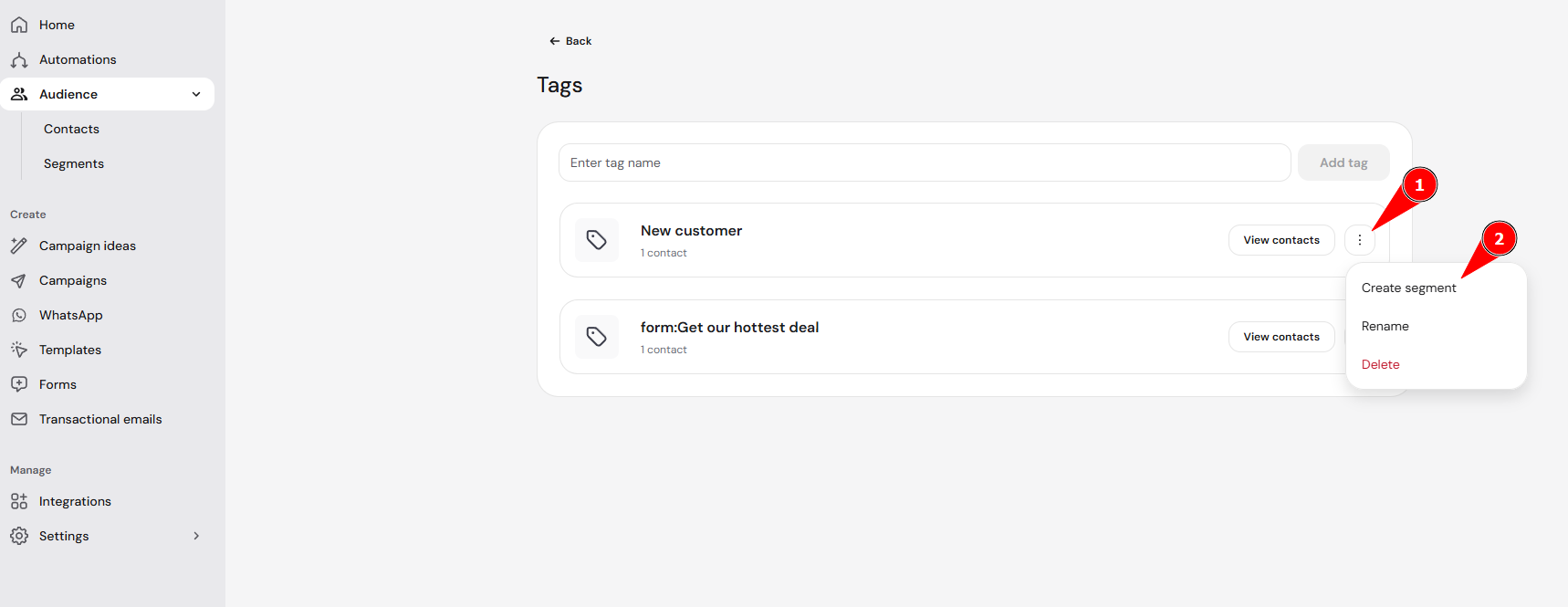
You can also create a segment directly from a specific tag on the Tags page, under Audience → Contacts → Manage → Tags.
How tags are created in Hostinger Reach
Tags can be created automatically or manually, depending on how contacts are added and managed.
Tags from website forms (Hostinger AI Builder & WordPress)
When you connect a:
- Hostinger AI Builder site, or
- WordPress site
and your site has subscription forms:
- Reach automatically creates a tag using the form’s title
- A segment based on that tag is also created automatically
This gives you an immediate starting point for targeting contacts who subscribed through a specific form.
Tags from CSV imports
When uploading contacts via a CSV file:
- You are prompted to assign a tag to the import
- You can select an existing tag or create a new one
- Reach suggests a tag automatically when uploading a .CSV file, including:
- Import date
- CSV file name
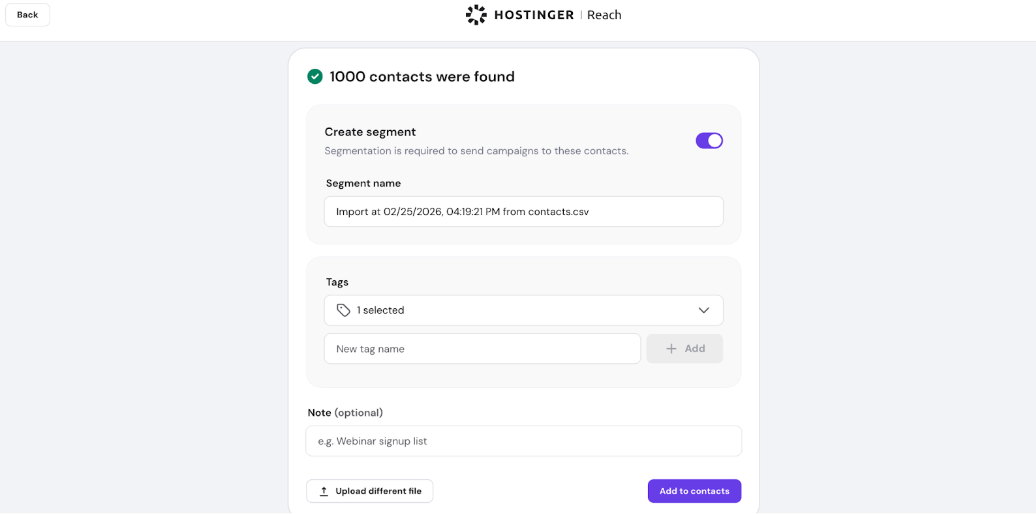
Once the import is completed:
- The tag is applied to all imported contacts
- A segment based on that tag can be created during import (if you selected to create one)
Managing tags
You can create tags manually at any time.
To create and manage tags:
- Go to Audience → Contacts.
- Click Manage in the top-right corner.
- Select Tags.

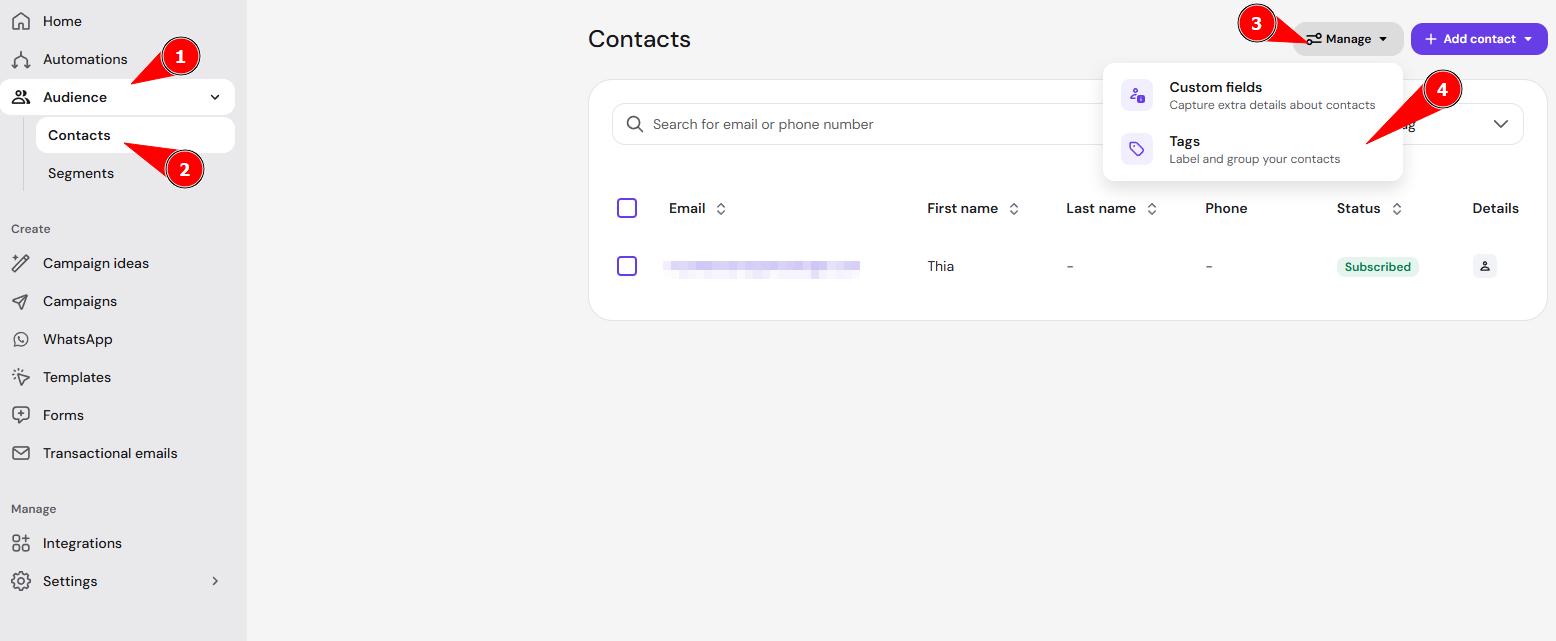
From the Tags page, you can:
- View all tags in your account
- See how many contacts are assigned to each tag
- Open a tag to review associated contacts
- Rename tags
- Delete tags
- Create a segment based on a specific tag
This gives you full control over how contacts are organized.
Assigning or removing tags from contacts
You can assign or remove tags for a single contact from the contact’s profile, or for multiple contacts at once from the Contacts list.
Assign or remove tags for a single contact
- Go to Audience → Contacts.
- Select the contact you want to assign the tag.
- Open the Tags dropdown.
- Select the tags to assign, or clear the checkboxes of tags to remove.
- To create a new tag, enter its name in the Create new tag field and click the plus (+) icon.

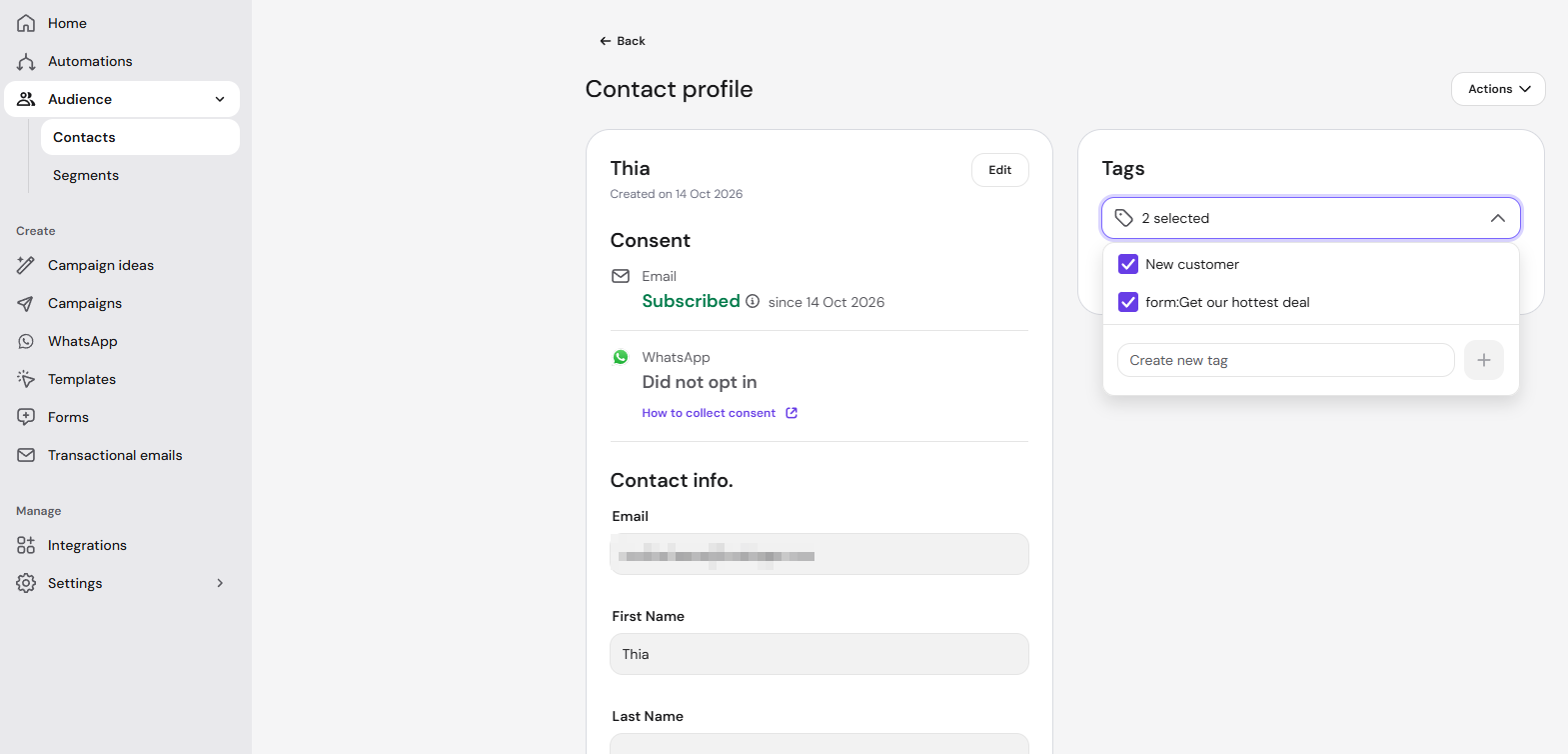
This allows you to update contact categorization at any time.
View contact tags in the Hostinger Reach contacts table
The Tags column in the Hostinger Reach contacts table shows each contact’s tags as labels, without opening the contact profile. Contacts without tags show a dash (—), and +N shows tags that don’t fit in the cell. To show only contacts with a specific tag, use the Filter by tag dropdown above the table. Learn more about the table in Hostinger Reach: How to view and search your contacts.
Tag limits
To ensure optimal performance, the following limits apply to tags in Hostinger Reach:
- You can create up to 180 unique tags per account
- Each contact can have up to 50 tags assigned at the same time
If you reach these limits, you’ll need to remove unused tags before creating or applying new ones.
Summary
With the current functionality, you can:
- Assign tags manually
- When adding contacts manually
- When importing .CSV file
- In Contacts page when specific contacts are selected
- Automatically generate tags from forms
- Create, delete, rename tags in Tags page
- Apply or remove tags from contacts in Contacts page when specific contacts are selected
Once your contacts are tagged, use those tags as conditions in Hostinger Reach segments to target campaigns and automations.