Hostinger Agent follow-up emails go to leads who haven’t replied, sent from your own Gmail address, and Hostinger Agent logs each one in your Google Sheets lead tracker. To automate sales follow-ups, connect Gmail and Google Sheets, ask Hostinger Agent to find leads who need a follow-up, send the emails, and log the date in your sheet. Then turn on Auto-approve actions for both apps and save the routine as a Job that runs every weekday.
This article covers one-to-one sales follow-ups sent from your own inbox, not Hostinger Reach email marketing campaigns.
Before you start
- Jobs are included in the Agent Plus subscription. See Hostinger Agent pricing for what Agent Plus includes.
- Keep your leads in a Google Sheet with one row per lead and these columns: lead name, business, email, service interest, Last contacted, and Replied.
- Enter dates in the Last contacted column in YYYY-MM-DD format, for example 2026-10-20.
Connect Gmail and Google Sheets to Hostinger Agent
Hostinger Agent sends follow-up emails through your connected Gmail account and reads your leads from your connected Google Sheets account. To connect both apps:
- Select Apps in the Hostinger Agent sidebar. The Connections page opens.
- Search for Gmail and select Connect.

- Sign in to your Google account and allow access.
- Repeat the steps for Google Sheets.
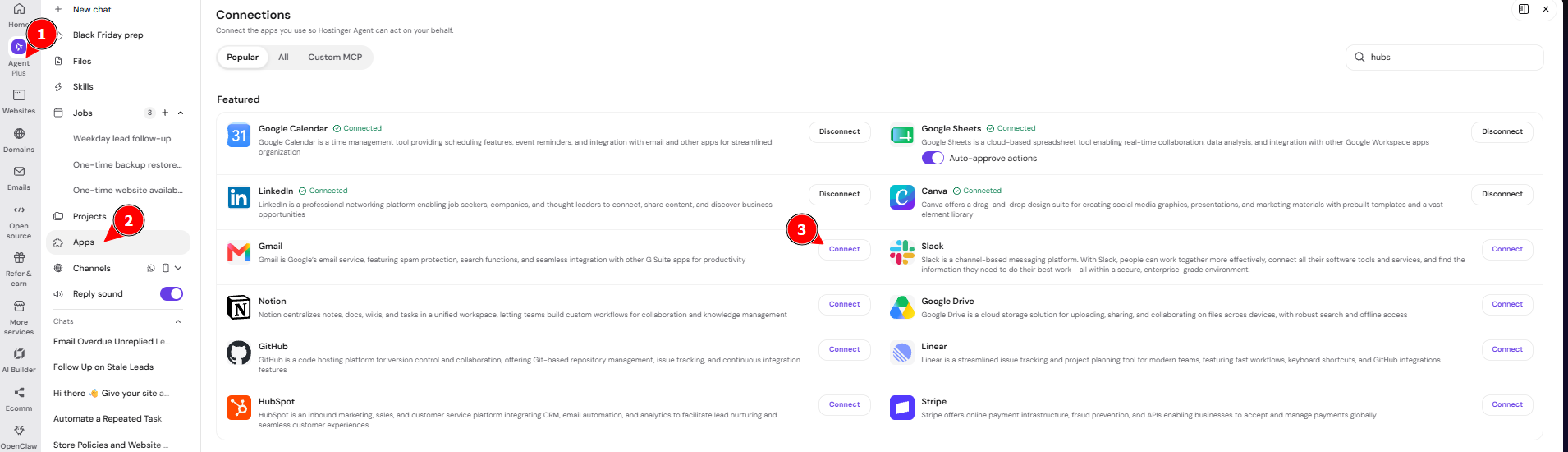
A Connected label appears next to each connected app. Hostinger Agent also shows a Connect card in the chat when a task needs an app that isn’t connected yet. See connect apps and custom MCP servers to Hostinger Agent for how app connections work. For other tasks Hostinger Agent handles with connected apps, see Hostinger Agent: Features and overview.
NOTE
- Outlook and HubSpot are also available on the Connections page under the All tab.
Find leads that need a follow-up with Hostinger Agent
Hostinger Agent reads your lead sheet and finds the leads that match the conditions you set, such as no reply 5 days after your last contact. Reading your sheet doesn’t need your approval. Ask Hostinger Agent to find the leads, for example:
Open my Leads Google Sheet. Find every lead where the Last contacted date is more than 5 days ago and the Replied column is empty. List each lead’s name, business, and service interest.
Name the sheet, the columns, and the exact conditions in your prompt for the most accurate list. See Hostinger Agent: tips for getting better results for more prompt tips.
Hostinger Agent applies the conditions in your prompt to every row. In testing, there were four results to account for when you set up your sheet:
- A lead last contacted exactly 5 days ago is skipped, because the date is not more than 5 days old.
- A lead with an empty Last contacted cell is skipped.
- Any value in the Replied column counts as a reply, including No. Leave the cell empty for leads who haven’t replied.
- A lead with no email address is skipped and isn’t mentioned in the reply. Fill in the email column for every lead.
Send follow-up emails from your Gmail with Hostinger Agent
Hostinger Agent writes one personalized follow-up email per lead and sends it from your connected Gmail account after you approve it. Each email mentions the lead’s business and service interest. To send the follow-ups:
- Ask Hostinger Agent to write and send the emails, for example: For each lead on that list, write a short, friendly follow-up email mentioning their business and service interest. Send them from my Gmail.
- Review the list of leads Hostinger Agent will email. Hostinger Agent may also show each email’s subject line and a short summary.
- Choose an option on the card that says Your agent wants to run an action on a connected app:
- Deny cancels the emails.
- Allow once sends these emails only.
- Allow all Gmail sends these emails and turns on Auto-approve actions for Gmail.

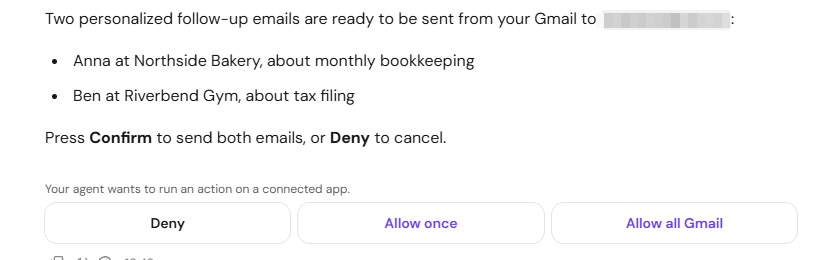
Hostinger Agent confirms in the chat which emails were sent. Each follow-up email is sent from your own Gmail address, not from a Hostinger address.
Hostinger Agent uses the Sales outreach skill for this task. See how to use Hostinger Agent for business planning, research and sales for more about the Sales outreach skill. To start a skill directly from the chat, see how to use Hostinger Agent skills.
NOTE
- The wording and subject line of each follow-up email change from run to run, even with the same prompt.
Log follow-ups in your Google Sheets lead tracker
Hostinger Agent updates the Last contacted date for each lead it emailed, so your sheet shows when you last followed up. To log the follow-ups:
- Ask Hostinger Agent to update the sheet, for example: In my Leads sheet, set the Last contacted date to today’s date for every lead you just emailed. Leave the Replied and Notes columns unchanged.
- Review the change Hostinger Agent describes, including the leads and the new date.
- Select Allow once, or select the Allow all option for Google Sheets to also turn on Auto-approve actions for Google Sheets.

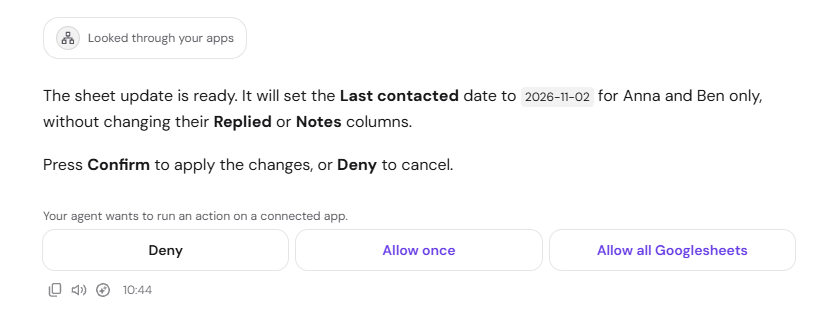
Hostinger Agent sets the Last contacted date to today’s date in YYYY-MM-DD format and leaves other rows and columns unchanged. Hostinger Agent writes these dates as text, and later follow-up runs read them correctly.
Turn on Auto-approve actions for Gmail and Google Sheets in Hostinger Agent
A scheduled Job sends follow-up emails and updates your sheet only when Auto-approve actions is on for Gmail and Google Sheets. A Job runs without you in the chat, so nobody is there to select Allow once. A run without Auto-approve actions reports that Gmail and Google Sheets are unavailable, and sends no emails.
To turn on Auto-approve actions, select the Allow all option on the approval card for each app. The setting then appears under each app on the Connections page. To turn Auto-approve actions off:
- Select Apps in the Hostinger Agent sidebar.
- Switch off the Auto-approve actions toggle under Gmail or Google Sheets.

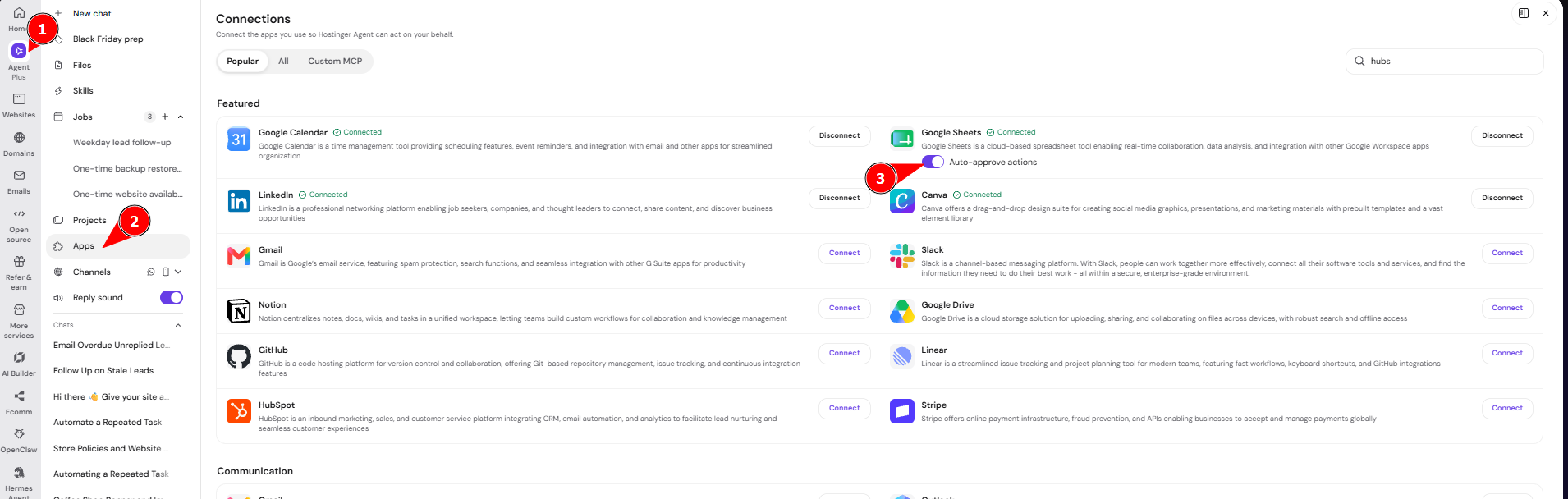
Hostinger Agent asks for your approval again the next time it sends an email or edits a sheet with that app. See Hostinger Agent: Data handling and privacy for how Hostinger Agent handles data from your connected apps.
With Auto-approve actions on, Hostinger Agent sends emails and edits sheets for that app without asking first.
Schedule follow-up emails every weekday with a Hostinger Agent Job
Hostinger Agent turns the find, send, and log steps into a Job that runs on a fixed schedule, such as every weekday at 09:00. To create the Job:
- Describe the full routine and the schedule in one message, for example: Every weekday at 09:00, repeat this follow-up routine. Find every lead in my Leads sheet where the Last contacted date is more than 5 days ago and the Replied column is empty. Write a short, friendly follow-up for each, mentioning their business and service interest. Send each one from my Gmail. Then set Last contacted to today’s date for every lead you emailed.
- Review the Schedule this job? card. It shows the Job name, the schedule, such as Every Mon, Tue, Wed, Thu, Fri at 09:00, and the full instructions.
- Select Confirm to schedule the Job, or Deny to cancel it.

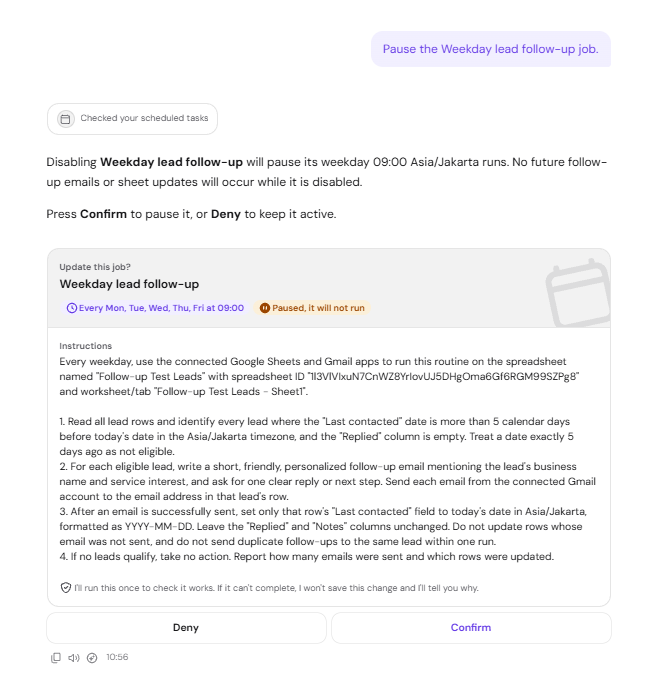
Hostinger Agent schedules the Job in your local time zone and names it in its reply. Hostinger Agent asks for a time if your message doesn’t include one. The Job appears under Jobs in the Hostinger Agent sidebar. To find other repetitive tasks worth scheduling, see how to plan automations with Hostinger Agent.
Check and manage the follow-up Job
Select the Job under Jobs in the sidebar to open its page. The Job page shows the schedule, the next run time, and the Job’s instructions. From the Job page, you can:
- Select Run now to run the Job immediately, outside its schedule.
- Select Edit next to Instructions to change what the Job does.
- Use the toggle to pause or resume the Job. A paused Job shows a Paused label and does not run.
- Check Runs for each run’s date, duration, and credits used.
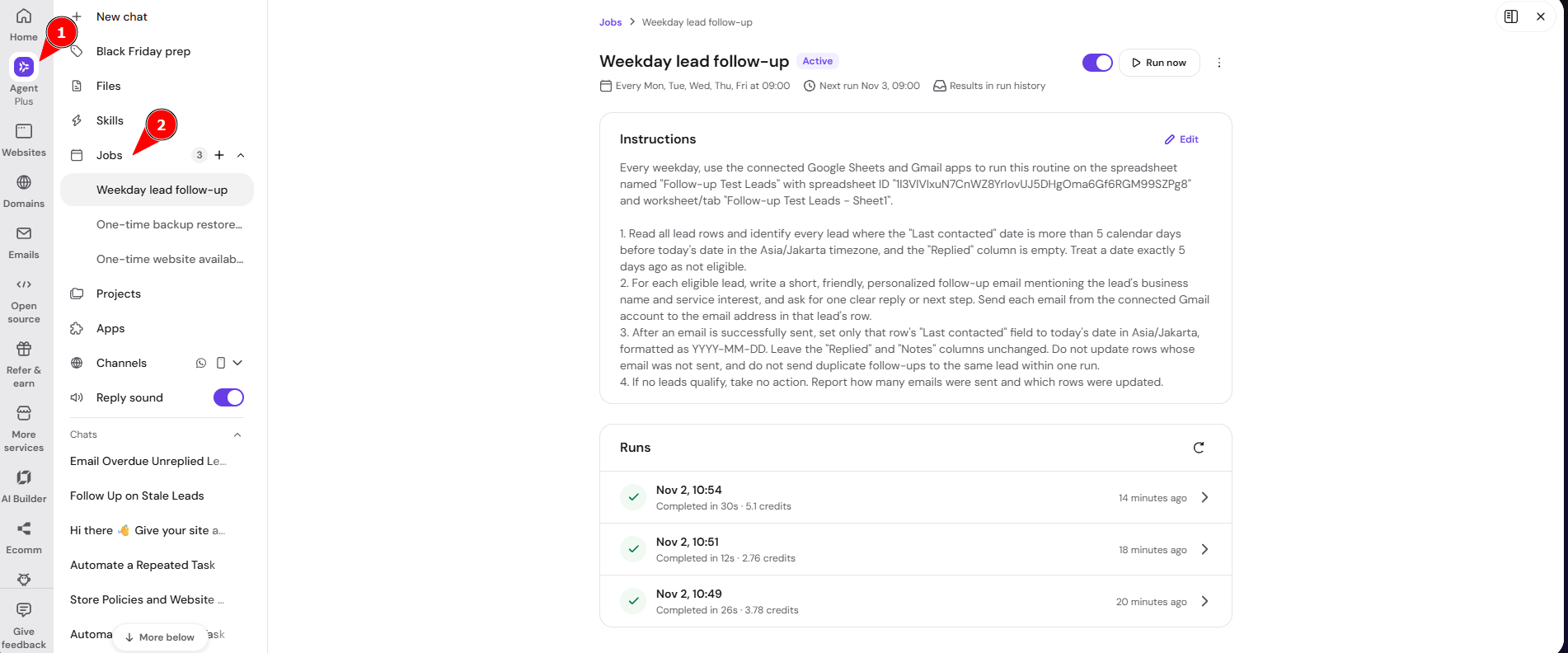
Select a run to open its report, which shows how many emails were sent and which rows were updated. To pause the Job from the chat, ask Hostinger Agent, for example: Pause the Weekday lead follow-up job. Hostinger Agent shows an Update this job? card, and the Job pauses after you select Confirm.
See how to ask Hostinger Agent to check something at regular intervals for more about Jobs.
NOTES
- Each run uses Hostinger Agent credits, even when no leads qualify and no emails are sent. See Hostinger AI credits: How the shared balance works for how credits are shared across Hostinger AI tools.
- Hostinger Agent skips a scheduled run if your credit balance is empty. See how to check your Hostinger credit balance and spending to track how many credits your Job uses.
- A run shows Completed even when it couldn’t reach Gmail or Google Sheets. Open the run’s report to confirm how many emails were sent.
Your follow-up Job now finds unreplied leads, emails them from your Gmail, and updates your lead sheet every weekday. Check the Runs list on the Job page to see who was emailed after each run.
FAQ
Why did my follow-up Job send no emails?
A follow-up Job sends no emails when no lead meets the conditions, or when Auto-approve actions is off for Gmail or Google Sheets. Open the run’s report under Runs to see which one happened. Turn on Auto-approve actions for both apps if the report says the apps are unavailable.
Will Hostinger Agent email the same lead every day?
Hostinger Agent emails a lead again only after the Last contacted date is more than 5 days old again, because each run sets that date to today. A lead with any value in the Replied column is not emailed.
Do follow-up emails come from a Hostinger email address?
Follow-up emails come from the Gmail address you connected to Hostinger Agent. Replies from leads go to that Gmail inbox.
How are Hostinger Agent follow-up emails different from Hostinger Reach follow-up emails?
Hostinger Agent sends one-to-one sales follow-ups from your own Gmail address, based on your lead sheet. Hostinger Reach sends marketing follow-up emails to your Hostinger Reach contacts through automations. See Hostinger Reach: How to Use Re-Engagement Automations for Follow-Up Emails for the Hostinger Reach option.