Google Search Console is a tool that helps understand how a website performs in the Google search engine. In this article, we’ll briefly introduce the following warnings by GSC:
The solutions below apply specifically to websites created with Hostinger AI Builder
URL is not on Google
This warning is usually complemented by the following phrase: “This page is not in the index, but not because of the error. See the details below to learn why it wasn’t indexed”.
This means that Google crawled the page but, during indexing, decided that the page was probably not intended to be indexed. It also means that the URL can’t appear in the search results.
Solution
- Check if the correct URL appears in GSC:
- The URL must include HTTPS (not HTTP).
- The URL should include the www prefix only if it’s enabled in the general website settings.
- For manual mode: Check if the option Hide from search engines is not enabled in the page SEO settings:
- The option Hide from search results adds a “noindex” tag to a page.
- Therefore, the page gets deleted from the website’s sitemap, which prevents the page from getting indexed.
- Check the content of that page:
- Is there enough content?
- Is it high-quality?
- Are there any errors?
- Find more recommendations here: Getting your website on Google.
- Finally, update your website and submit the correct URL for indexing.
Learn more: Understanding the results of URL inspection tool.
Discovered – currently not indexed
It means that Google knows about the page but hasn’t crawled (and therefore indexed) it yet.
Solution
Typically, it gets naturally resolved with time. If the issue remains, check the quality of the content — it could be that Google doesn’t think it’s worth their time. The issues related to the quality of content aren’t limited to any particular URL, so ensure you have high-quality content site-wide. You may find more recommendations here: Get your website on Google 💡
Learn more: Discovered – currently not indexed, Most Common Issues from the “Excluded” List, Index Coverage report: Not indexed.
Crawled – currently not indexed
It means that Google has already crawled the page but hasn’t indexed it yet.
Solution
Usually, it gets naturally resolved with time. If the issue remains, try the following:
-
Add a link to that page (that’s crawled but not indexed) to your other pages that are already indexed.
-
Make sure the content is of high quality and doesn’t duplicate (valuable, authentic, not plagiarized); you may find more recommendations here: Get your website on Google.
-
Learn more: Crawled – currently not indexed, Index Coverage report: Not indexed.
Duplicate without user-selected canonical
This means that Google found duplicate URLs that were not canonicalized to a preferred version.
Solution
Google doesn’t index duplicate URLs, but a similar page is most likely already indexed — check that by following this guide: How to make a website appear on Google.
For example, this page is already indexed:
https://domain.com/about-us And this one (www) is identified as a duplicate without user-selected canonical:
https://www.domain.com/about-usOr vice versa: the page with www is indexed, and the page without www is identified as a duplicate without user-selected canonical. Therefore, you may see such a warning in GSC.
Canonical links are not yet supported in Hostinger AI Builder. Thus, you wouldn’t be able to tell Google which URL is canonical. Here are the steps for you to fix:
- Check which version of your URL is indexed using the URL Inspection tool in Google Search Console — the same tool used when you verify a URL property at Google Search Console. Paste in both the www and non-www version of the page to see which one Google has indexed.
- Enable the www prefix setting in your website’s general settings if the www version is indexed. Disable it if the non-www version is indexed.
- Make sure your XML sitemap only includes the clean, preferred URLs you want Google to index.
- You can also set up 301 redirect in Cloudflare to fix it. Make sure the Proxy is enabled.
Learn more: Duplicate without user-selected canonical, Most Common Issues from the “Excluded” List.
Submitted URL marked “noindex”
This means that you’ve chosen not to index the page.
Solution
-
Check if the option Hide from search engines is not enabled in the page SEO settings:
-
The option Hide from search results adds a “noindex” tag to a page.
-
Therefore, the page gets deleted from the website’s sitemap, which prevents the page from getting indexed.
-
-
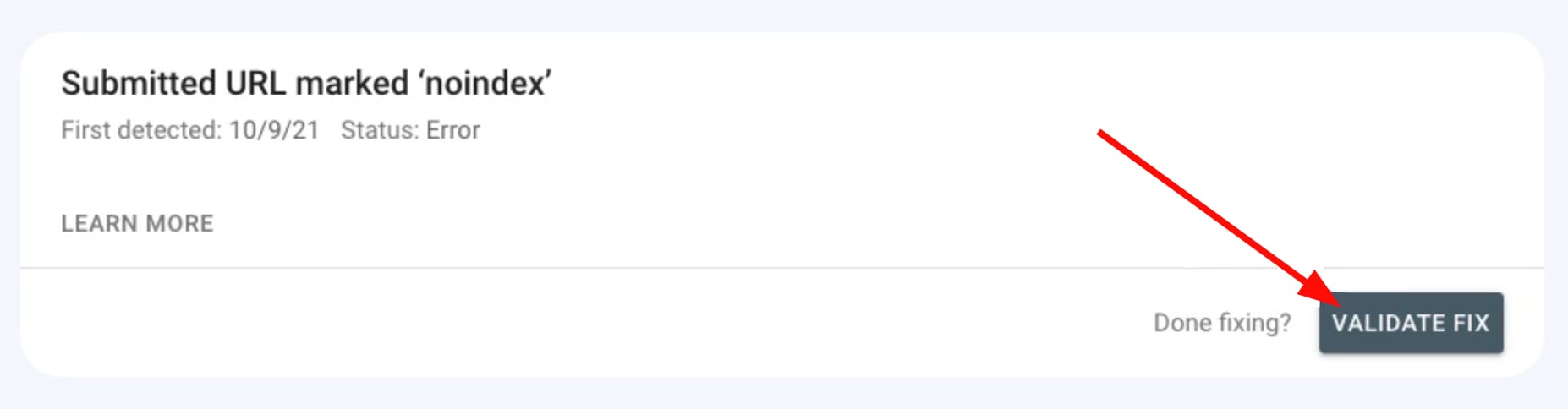
Then, update the website and click on Validate fix in GSC:
-
Learn more: GSC Index Coverage Most Common “Errors” List.
Excluded by “noindex” tag and blocked by robots.txt
Websites created with Hostinger AI Builder don’t have rorbots.txt files. The page might have the “noindex” tag.
Solution
-
Check if the option Hide from search engines is not enabled in the page SEO settings:
-
The option Hide from search results adds a “noindex” tag to a page.
-
Therefore, the page gets deleted from the website’s sitemap, which prevents the page from getting indexed.
-
-
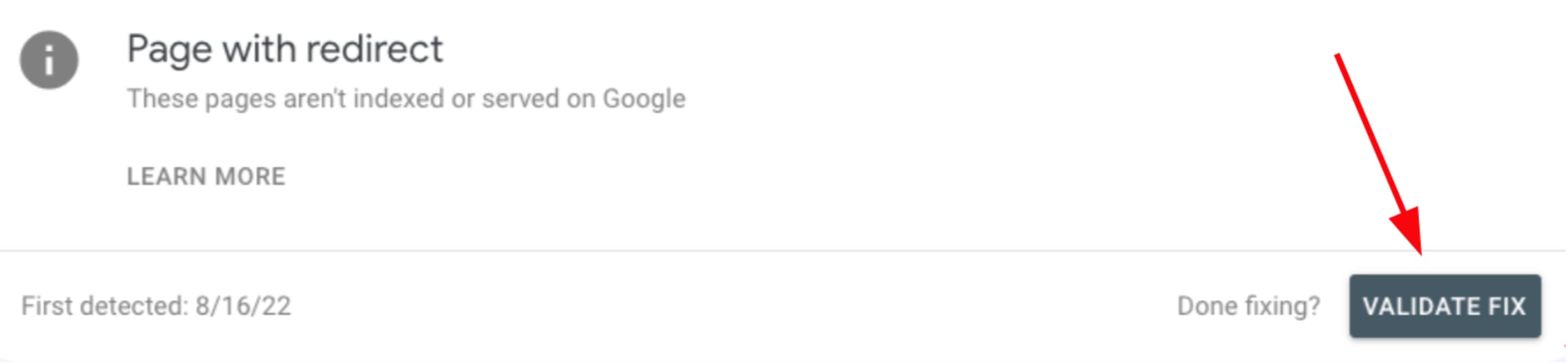
Then, update the website and click on Validate fix in GSC:
-
Learn more: Most Common Issues from the “Excluded” List.
Server error (5xx)
This indicates that there was a problem with the server where your website is hosted.
Solution
-
Check if the URL of the page opens correctly.
-
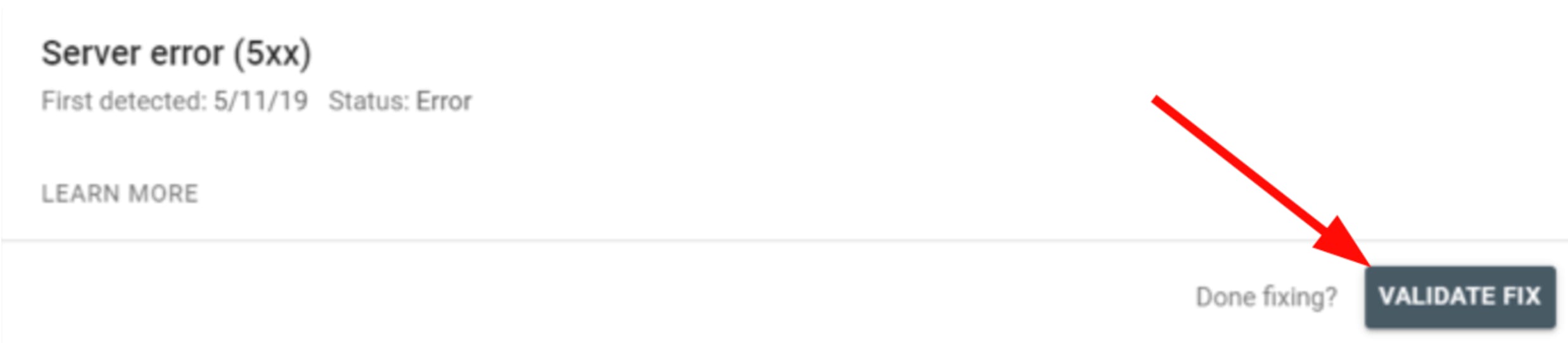
If you can access the page, update the website, and click on Validate fix in GSC:
-
Learn more: GSC Index Coverage Most Common “Errors” List.
Redirect error
This means that the page is not indexed due to a redirect error.
A common example: instead of https://domain.com/about-us, you’re asking to index http://domain.com/about-us.
All websites created with Hostinger AI Builder automatically use HTTPS. Therefore, all the URLs of your website should include HTTPS when asking Google to index them. This error usually appears if you previously had indexed your website pages with HTTP or if you’ve submitted an HTTP URL for indexing manually.
Solution
-
Check if the page isn’t indexed on another URL: Check If a Website Is on Google.
-
Update the website and upload your website’s sitemap to GSC.
-
Learn more: GSC Index Coverage Most Common “Errors” List.
Submitted URL not found (404)
This warning means that the page doesn’t exist or was unreachable. It can be caused by deleting a page from the website, making DNS changes, or experiencing temporary downtime.
Solution
-
Open the page in question to check if you can properly access it.
-
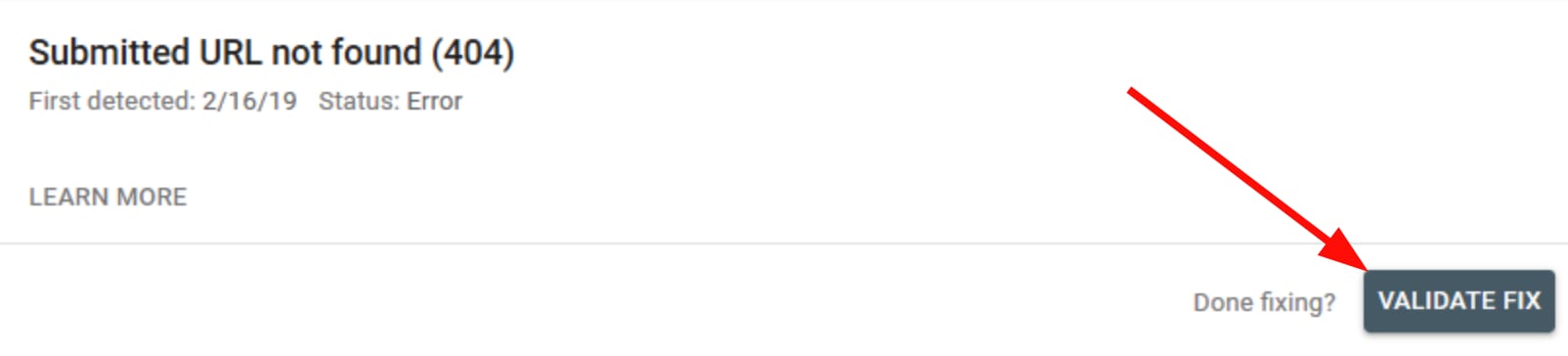
Once you make sure that the page is accessible, update the website and click on Validate fix in GSC:
-
Learn more: GSC Index Coverage Most Common “Errors” List.
Blocked by page removal tool
This means that the URL is currently blocked by the Google Removals tool. This tool suspends a page’s indexation for 90 days. After that, Google may index the page again.
Solution
-
If you want the page indexed, cancel the request to remove the page from the search results in GSC.
-
If you don’t want the page to be indexed ever again, enable the option Hide from search results in the page SEO settings:
-
The option Hide from search results adds a “noindex” tag to a page.
-
Therefore, the page gets deleted from the website’s sitemap, which prevents the page from getting indexed.
-
-
Learn more: Most Common Issues from the “Excluded” List, Removals Tool.
Indexed but not submitted in sitemap URL
This warning means that your page is indexed but not found in your sitemap. Don’t worry; there is no actual problem with your page.
Solution
-
Finally, update the website and click on Validate fix in GSC:
-
Learn more: Indexed, not submitted in sitemap: what does it mean and how to fix?
Resolving these warnings helps Google properly crawl, index, and rank your website’s pages.