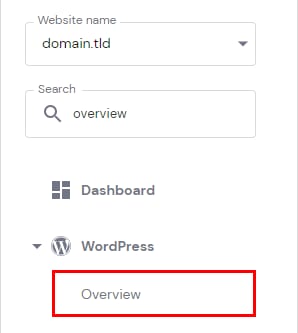
WordPress Overview in Hostinger dashboard lets you manage a WordPress website’s core settings, updates, staging, backups, and PHP and WordPress versions without logging in to the WordPress Admin area. Open it from Websites → Manage site, then select WordPress → Overview on the sidebar.
NOTES
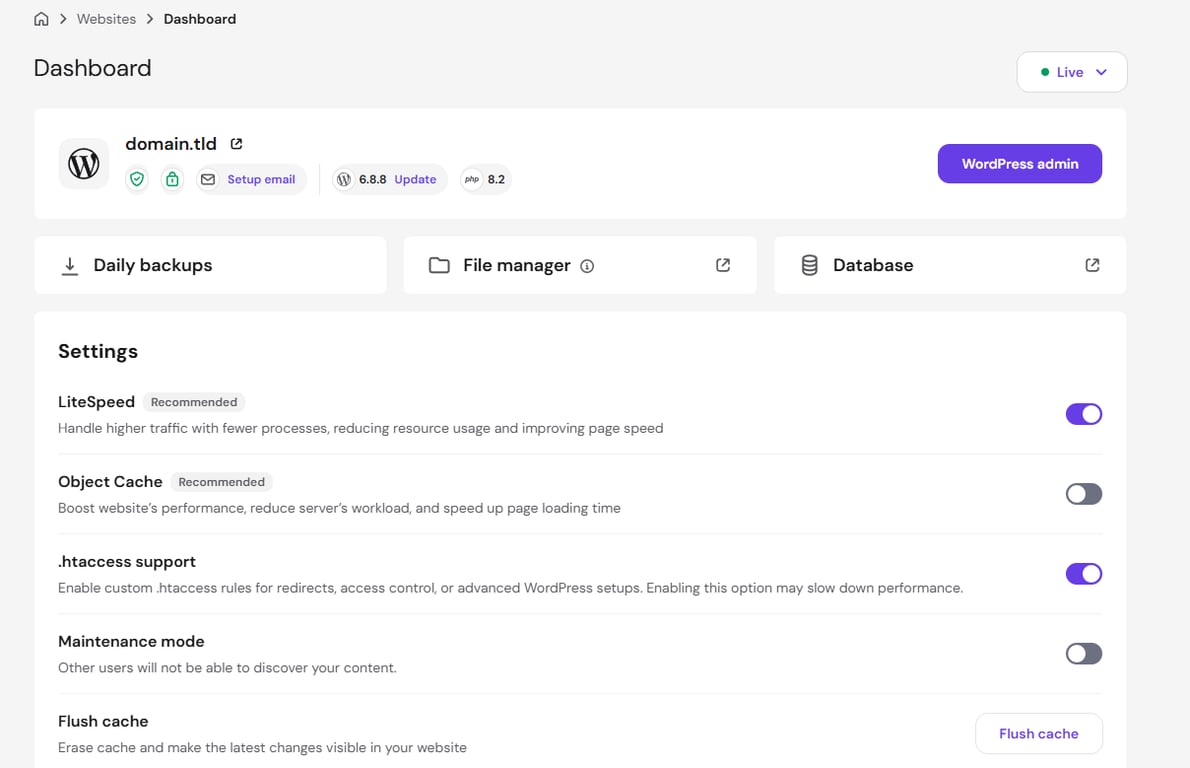
- Agency Hosting plans do not have a separate WordPress Overview page. Some of the features described in this article are available directly on the website’s main Dashboard page instead, including WordPress and PHP version updates, daily backups, file manager, database access, LiteSpeed cache, Object Cache, .htaccess support, maintenance mode, and flush cache.
- If you’ve installed WordPress manually and don’t see these buttons, you can enable WordPress Overview manually.
Once there, you will be presented with these sections:
-
Overview – the main section of WordPress Dashboard; here you can see all the information about your website.
-
Updates – here, you can manage your themes and plugins, including checking their current versions, updating, and disabling them without access to the WordPress Admin Dashboard.
-
AI Troubleshooter – automated troubleshooting to make sure your website is always in prime condition.
-
Staging – create a staging environment for your WordPress website (available on Business/Unlimited plans or above)
-
Copy website – here, you can copy the website’s content to another domain or subdomain.
-
Presets – you can create a preset of a WordPress website that could be re-used multiple times to create new websites for your clients.
-
Video tutorials – here, you will find useful video tutorials and Webinars from Hostinger Academy (this section might not be visible for some brands).
As well as these options:
-
A button to update the website information, such as name and database, so the latest changes are reflected on the Overview
-
If you have WordPress installed on one or more subdomains, a drop-down list will appear from which you will be able to select which WordPress website you want to manage
Overview
This page provides you with all the required information for your website with the most important configurations.
Core
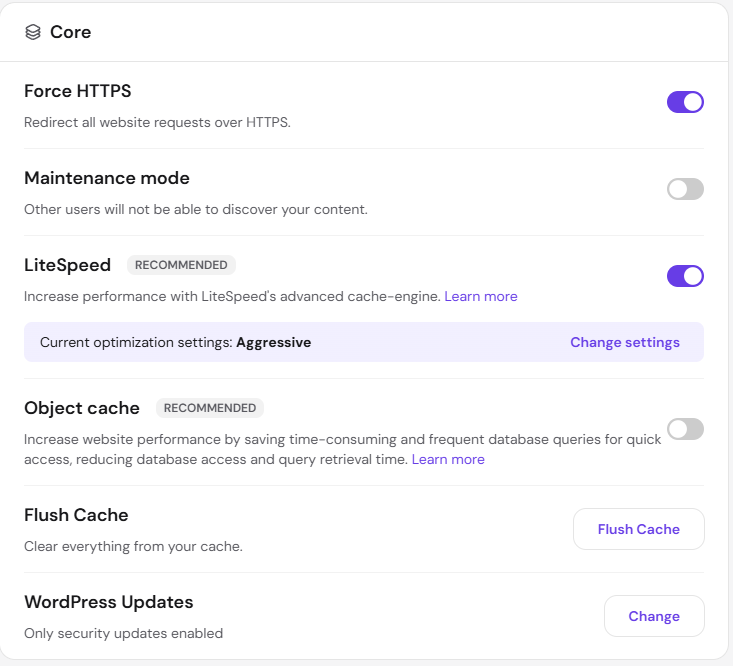
Here, you can easily do the following:
-
Force HTTPS – makes your website work with secure HTTPS protocol by adding forcing rules to the .htaccess file (requires an SSL certificate).
-
Turn on Maintenance mode – very useful when you are making changes to your website and don’t want your visitors to see your website temporarily. An alternative to this is using a maintenance plugin.
-
Enable the LiteSpeed cache plugin (highly recommended).
-
Enable Object cache if you have a Web Business plan or greater.
-
Flush Cache – clears your server cache. It is useful when recent changes are not reflected on your website.
-
WordPress updates – here, you can manage your updates settings: only update minor versions, don’t update, or always update to the latest version .
LLM optimization
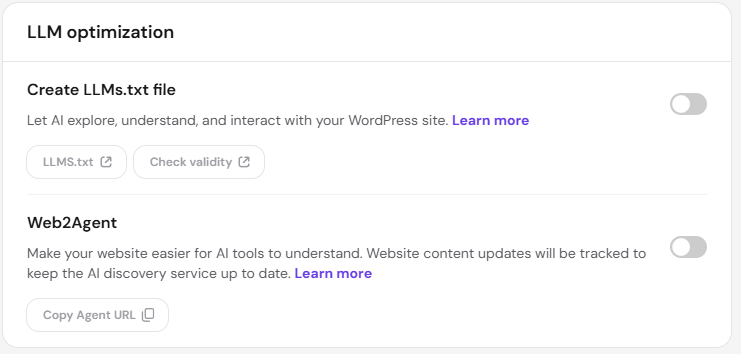
Here, you can help AI tools discover and interact with your website using two toggles.
- Create LLMs.txt file – lets AI explore, understand, and interact with your WordPress site. Use the LLMS.txt and Check validity buttons to view the file and confirm it’s set up correctly.
- Web2Agent – makes your website easier for AI tools to understand. Website content updates are tracked to keep the AI discovery service up to date. Use the Copy Agent URL button to get the URL for this service.
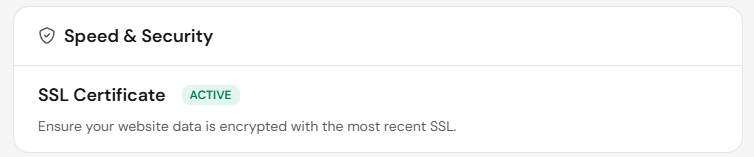
Speed & Security
Here you can see if SSL is active on your website or enable it to improve your website security.
Recommended installations
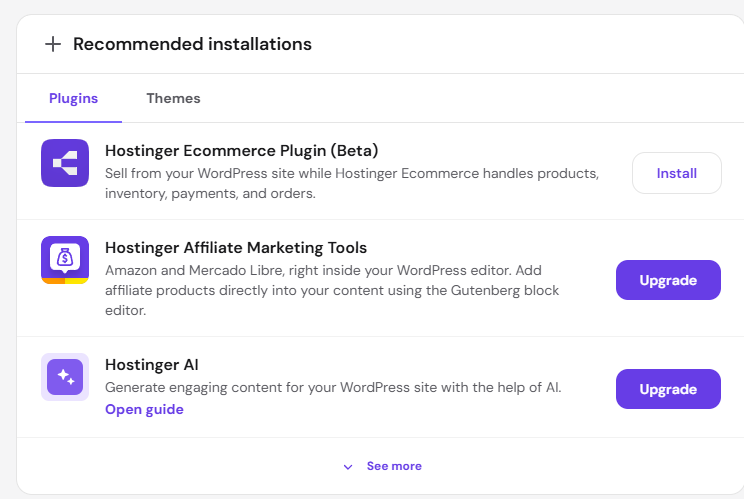
This section suggests WordPress plugins and themes for your website, split into Plugins and Themes tabs. Suggestions include these plugins below:
- Hostinger Ecommerce Plugin, which lets you sell from your WordPress site while Hostinger Ecommerce handles products, inventory, payments, and orders
- Hostinger Affiliate Marketing Tools, which add Amazon and Mercado Libre affiliate products directly into your content through the Gutenberg block editor
- Hostinger AI, which generates content for your WordPress site. Select See more to view additional suggestions.
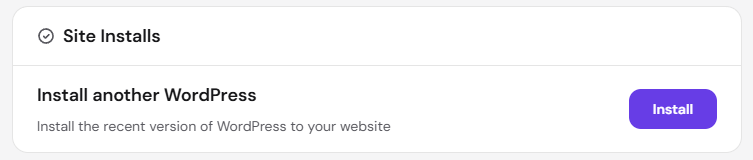
Site Installs
In this section, you can easily install another WordPress for your domains or subdomains.
Right Side Section
In WordPress → Overview, you’ll also find additional tools on the right.
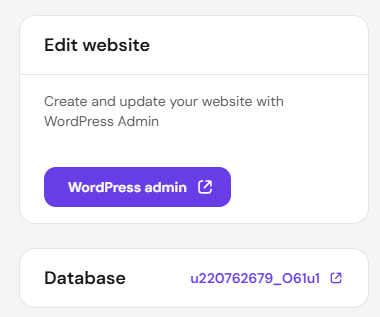
Edit Website and Database
Here you can find a shortcut straight to /wp-admin, which will not require you to enter the password, as well as which database is used for the website and a shortcut to open it in phpMyAdmin.
If you use the Safari browser, make sure to allow pop-ups for all the features to work properly: Allow or block pop-ups in Safari on Mac
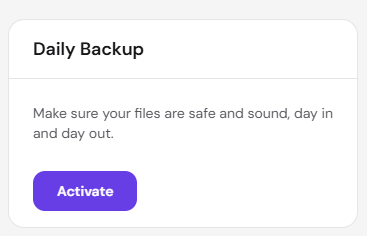
Daily backup
You can enable daily backups here if they are not already included in your hosting plan.
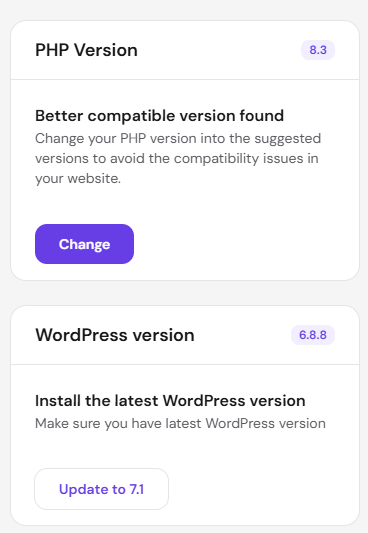
PHP version and WordPress version
This section provides you with the PHP version and WordPress version numbers, as well as the ability to update manually if needed.
NOTES
-
If you already have the recommended versions, you won’t see the update option.
-
Alternatively, you can change the PHP version from the PHP Configuration page.
With WordPress Overview, you manage your WordPress website’s key settings and tools from one page in Hostinger dashboard.