Setting up maintenance mode for WordPress at Hostinger shows visitors a maintenance page while you run technical updates, change your website design, or build a new site. Turn it on with the Maintenance Mode toggle of the Hostinger Tools plugin, under Hostinger → Tools in the WordPress Admin area.
Pre-requisites
-
An active WordPress installation on a Hostinger hosting plan.
-
The Hostinger Tools plugin installed (usually included by default with the Hostinger Auto-installer).
- If you’re not familiar with WordPress management tools in Hostinger dashboard, see how to use the WordPress Overview in Hostinger dashboard at Hostinger.
How to enable Maintenance Mode
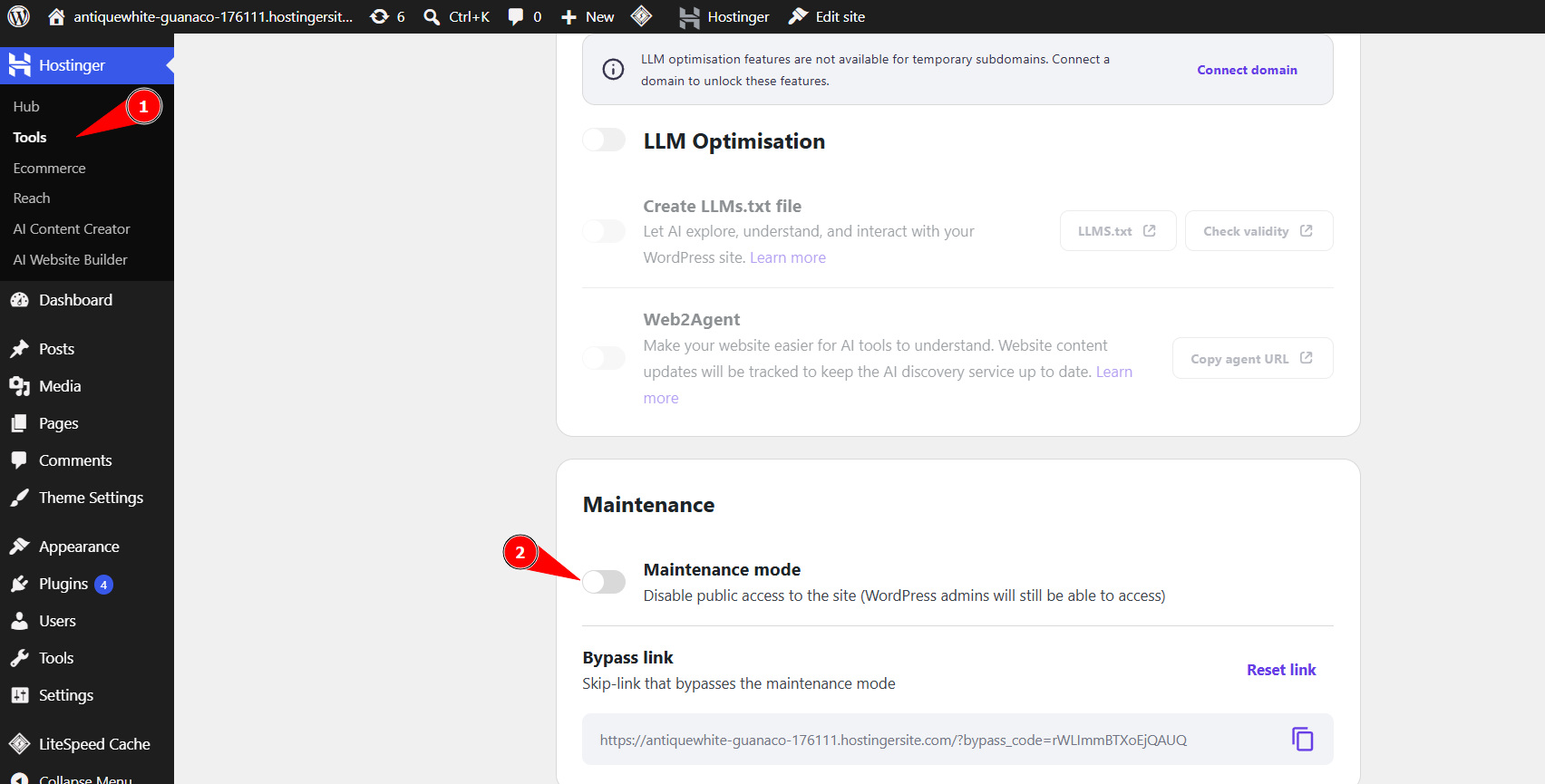
The maintenance mode settings are located within the native Hostinger plugin menu in your WordPress dashboard:
-
Log in to your WordPress Admin area.
-
On the left-hand sidebar, click on Hostinger.
-
Select the Tools tab from the top menu.
-
Locate the Maintenance Mode section.
-
Click the toggle switch to the On position.

-
A confirmation message will appear, and the toggle will turn blue.
Bypass Maintenance Mode for Administrators
While maintenance mode is active, you can still view and edit your website normally as long as you are logged in to your WordPress Admin area. To see what your visitors see, open your website in an Incognito or Private browser window.
Using the Hostinger Tools plugin is the most efficient way to manage your site’s visibility during development. It ensures a professional experience for your visitors while allowing you to work on your website without interruptions.
Your website now shows a maintenance page to visitors, while you keep working on it as a logged-in administrator.
NOTES
- If you do not see the Hostinger menu in your dashboard, ensure the Hostinger Tools plugin is installed and activated in the Plugins section.
- Remember to toggle Maintenance Mode to Off once your updates are complete to make your site public again.