There are two ways to disable WordPress plugins at Hostinger without access to the WordPress Admin area: the plugin toggles in Hostinger dashboard, or renaming plugin folders in File Manager. Disabling plugins this way helps restore a website broken by a faulty plugin.
NOTE
- Agency Hosting plans do not have the WordPress dashboard’s Updates page. Disable plugins using the file manager instead.
Disabling plugins via the WordPress dashboard
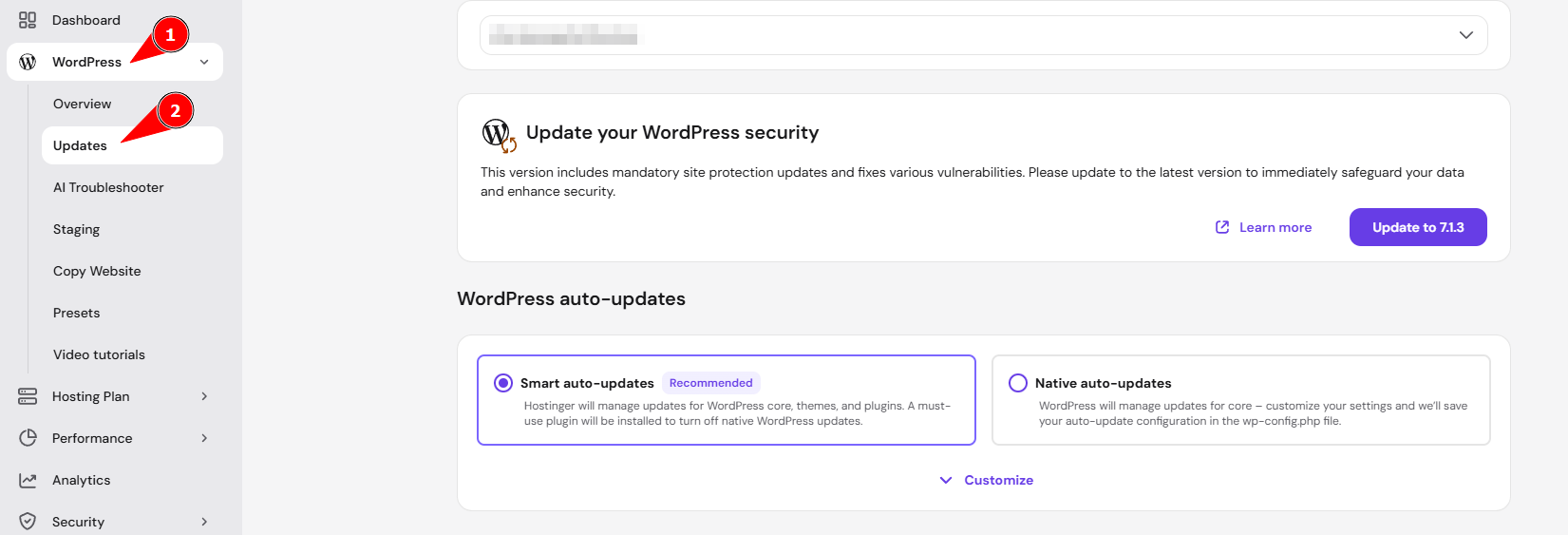
In your Hostinger account, go to Websites → Dashboard next to the site in question. Then, search for Updates on the sidebar and click on it:
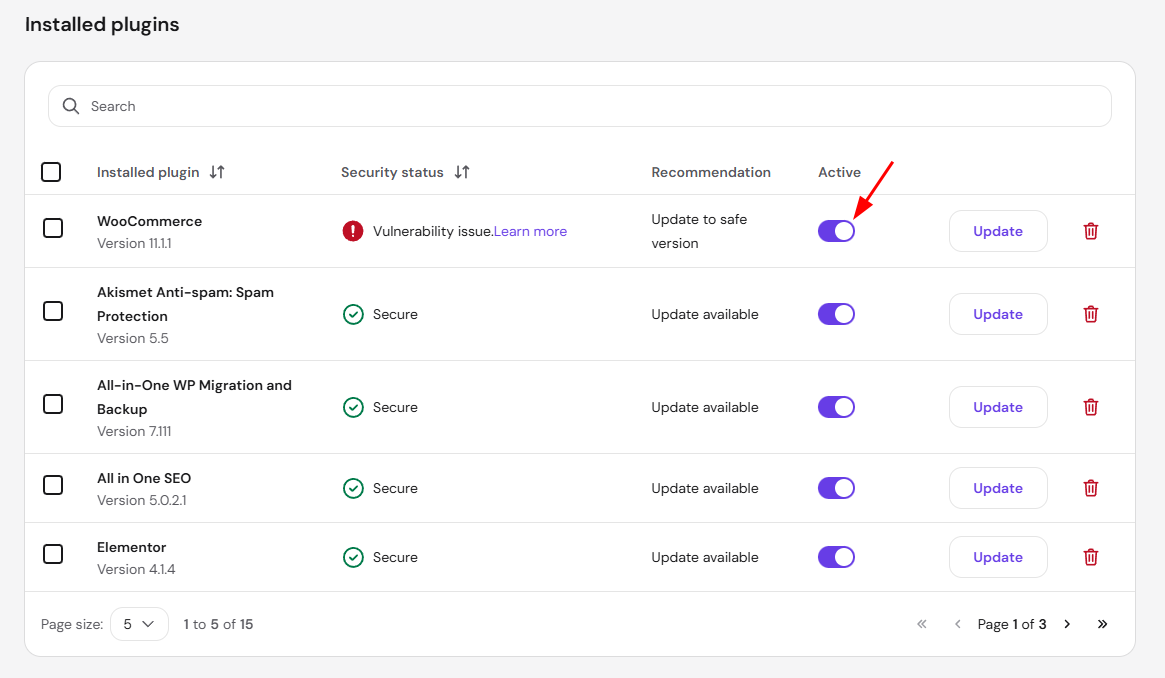
Scroll down to the section Installed plugins to find all the plugins currently installed on your website. Move the toggle to disable or enable them:
Disabling plugins via the file manager
If you don’t have the WordPress dashboard enabled or prefer managing data via files, you can disable the plugins using the file manager.
Step 1 – Go to the file manager
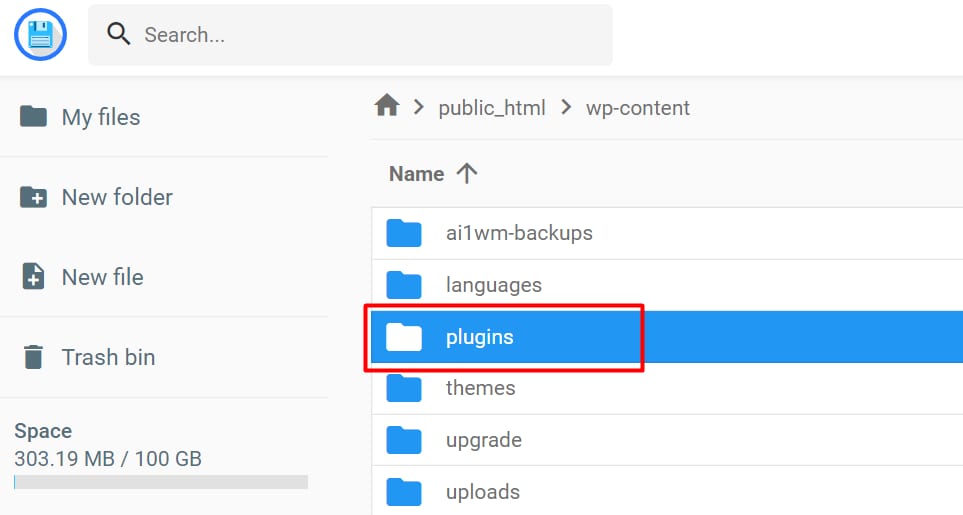
Open your website’s File Manager and access its wp-content folder (domains/domain.tld/public_html/wp-content). There, you’ll find the plugins folder:
Step 2 – Check and disable plugins
If you don’t use Elementor on your website, rename the entire plugins folder to plugins_disabled (or any different name) – this way, you’ll disable all the plugins inside this folder:
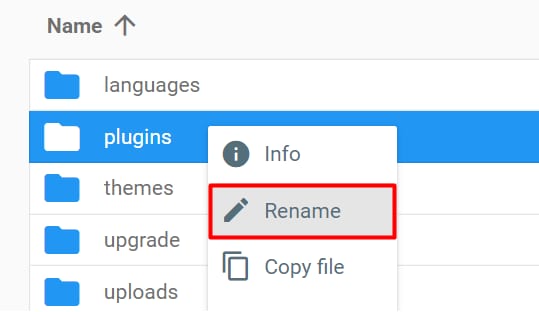
If you do use Elementor, rename every folder within the plugins folder except Elementor. Alternatively, you may create a new folder and move all the plugins’ folders there except Elementor.
Due to the specific architecture of Elementor, changing the plugin’s folder name can cause a website crash. Therefore, make sure not to change the Elementor folder name.
Both options – renaming the folders or creating a new folder and moving the plugins there – will disable plugins, as the path to files will be altered. Renaming the folders to their original names or moving them back to the /plugins directory will enable the plugins again.
Troubleshooting plugins
If a website starts working after disabling all plugins, it’s necessary to identify which specific plugin causes the trouble:
-
Disable all plugins – you can do it via the WordPress dashboard or the file manager.
-
Enable plugins one by one, and check the website via the incognito browser window after enabling each plugin.
Enabling plugins one at a time identifies the faulty plugin, so you can keep only that plugin disabled and restore the rest of your website.