At Hostinger, your account currency is determined by the specific regional brand (Hostinger website) you select during your initial registration. This setting is permanent and cannot be altered once the account is created.
This article explains why currency limitations exist, how to select the correct Hostinger brand for your preferred currency, and the steps to register on the regional site that best matches your needs.
Why Hostinger account currency is fixed
Each Hostinger regional brand operates as an independent legal and financial entity with its own localized pricing, tax structures, and payment processors. Because your account currency is directly tied to the regulatory framework of that specific brand, it cannot be changed or transferred to another regional billing system after creation.
Choosing a Hostinger regional brand for your account
The table below shows a few common Hostinger brands and their associated currencies. Before completing your first purchase, make sure you are located on the hosting brand of your preferred location and currency.
|
Hostinger brand |
Currency |
|
hostinger.com (Global) |
USD ($) |
|
hostinger.com/in (India) |
INR (₹) |
|
hostinger.com/br (Brazil) |
BRL (R$) |
|
hostinger.com/fr (France) |
EUR (€) |
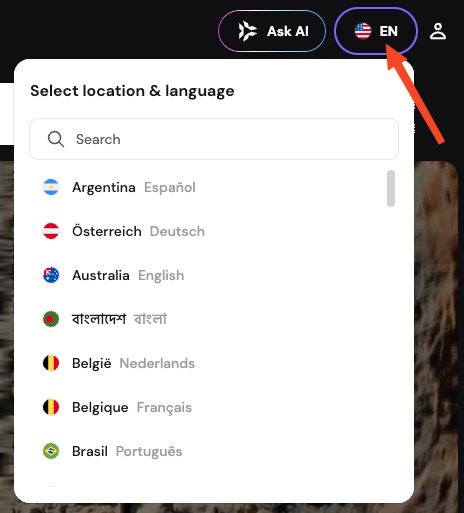
Hostinger offers more than 40 regional locations, so you can choose the country or region that matches your currency. To find your preferred location, click the language selector to scroll or use the search bar. Note that some countries are listed multiple times to support different languages; choosing a regional language for a country applies its same currency.
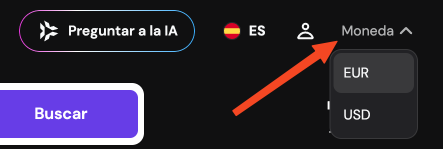
For Spanish-speaking countries other than Spain, Argentina, Colombia and Mexico, choose Spain and change the currency to USD if needed.
NOTES
- Local payment methods like UPI (India) or PIX (Brazil) are only available on their respective regional brands.
- If a specific local payment method is unavailable after choosing the respective location, it may not be currently supported.
- For any other location not listed, choose the Hostinger global brand and pay in USD.
How to set a new Hostinger account currency
If you have already created a hosting account using a different currency, you will need to create a new account on the corresponding regional site following one of the options below.
Option 1 – Use a new email address
This is the recommended method because it ensures your existing services remain active.
- Navigate to the specific Hostinger regional site (for example, hostinger.com/ng for Nigeria).
- Select the services and complete the purchase. You will be guided to create a new account. Use an email address that is not currently associated with Hostinger.
- Alternatively, you can create a new account by clicking on the profile icon and selecting a social login method. You will be able to complete any purchases later from the Hostinger dashboard marketplace.
- Complete your purchase in the local currency.
Option 2 – Re-register with the same email address
Use this method only if you have no active services, no remaining Hostinger balance, and wish to reuse your current email address.
- Log in to Hostinger dashboard and click on the profile icon.
- Select Account Information.
- Scroll to the bottom of the page and click Delete Account.
- Confirm the deletion via the verification link sent to your email.
- Go to the desired Hostinger regional site and register a new account using that same email address.
NOTE
- Account deletion is permanent and irreversible.
Troubleshooting Hostinger regional redirects
If the website continuously redirects you to the global site (hostinger.com) while you attempt to access a regional URL, your browser may be storing outdated session data. To resolve this:
- Log out of all Hostinger accounts.
- Clear your browser cookies or open a private (incognito) window.
- Navigate directly to the regional URL (such as hostinger.com/id for Indonesia).
Frequently Asked Questions
- Can the account currency be changed manually or via support?
No. The currency is fixed at account creation and is tied to the regional brand’s billing system. Hostinger Support agents cannot override this limitation. - What happens to active services on the previous account with the unwanted currency?
If the account has active services, you will not be able to delete it. You can move your domain names to the new account. For other services, you can refund them if eligible. Otherwise, disable auto-renewal and you can continue using them until their expiration - Is managed account access lost if a profile is deleted?
Yes, deleting your profile permanently revokes your access to any managed accounts. However, you can request access to those accounts again from your new regional account once it is created. - Why was the account automatically created in USD?
This typically happens if the registration occurred via a link pointing to the global site (hostinger.com) rather than a regional site. Always confirm the domain in the browser address bar before registering.
By following these steps, you can ensure your billing is handled in your preferred currency.