You can’t restore a deleted product or store in Hostinger Ecommerce, because there is no restore option for deleted items. Keep your own copy of your product data so you can rebuild if something gets deleted. This guide explains what each action removes, how to check whether a product is only hidden, and how to back up your products and orders.
What you can and can’t restore in Hostinger Ecommerce
|
Item |
Can you restore it yourself? |
What to do |
|
Deleted product |
No |
Create the product again, or import it from your own spreadsheet. See How to import products to your online store. |
|
Deleted store |
No |
Rebuild the store from your own backup. See How to add products to your store. |
|
Disconnected sales channel |
Nothing to restore, because disconnecting doesn’t delete your store or products |
Add the sales channel again. See How to add a sales channel. |
|
Hidden product |
Nothing to restore, because the product still exists |
Turn the product on again for the sales channel. See Manage product visibility in the online store. |
|
Printful product |
Products stay in your Printful account |
Click Sync Printful products again. See How to create and edit print-on-demand products. |
A store is deleted only when you delete it from the Hostinger dashboard, and a deleted store or product can’t be restored. Removing or disconnecting a sales channel in the website editor doesn’t delete your Hostinger Ecommerce store. See How to switch sales channels for how each sales channel type is removed, and How to add a sales channel to add it again.
Check whether a product is hidden and not deleted
A product that doesn’t appear in your store may be set to Inactive, or switched off for a sales channel.
- In Store Manager, go to Products.
- Search for the product. If it appears in the list, it isn’t deleted.
- Open the product and scroll to the Sales channels card.
- Check whether the sales channel is under Hidden from. If it is, select it and turn the toggle on. See How to manage product visibility for the full steps.
- Click Save.
If the product isn’t in the list, it was deleted.
Back up your Hostinger Ecommerce products and orders
Hostinger Ecommerce doesn’t offer a product export, so keep your own copy of your product data.
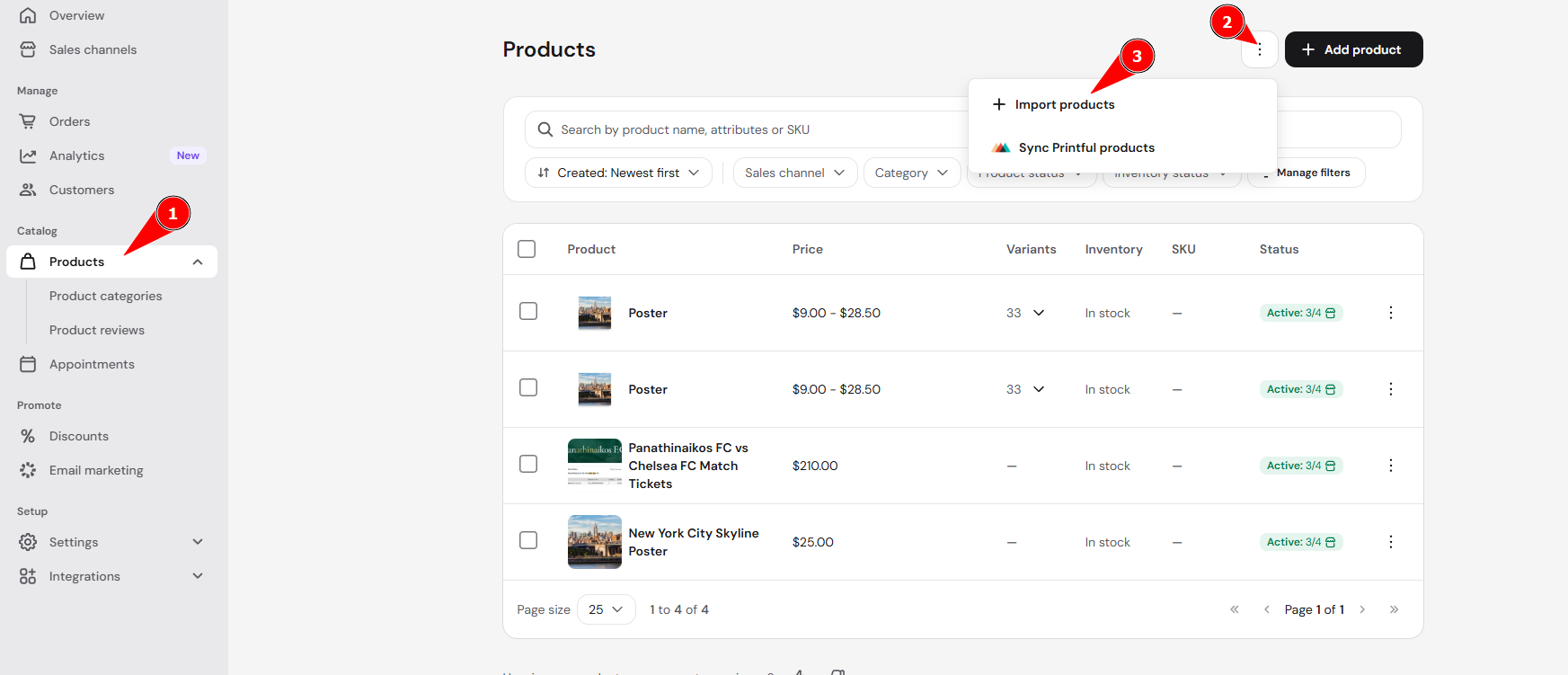
- In Store Manager, click the three-dot icon (⋮), then click Import products.
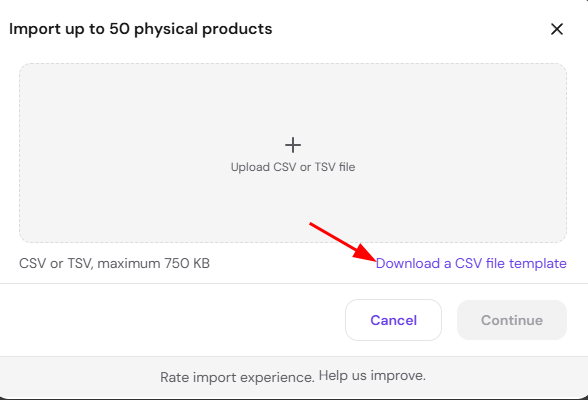
- Click Download a CSV file template. The template shows which columns the import file needs.
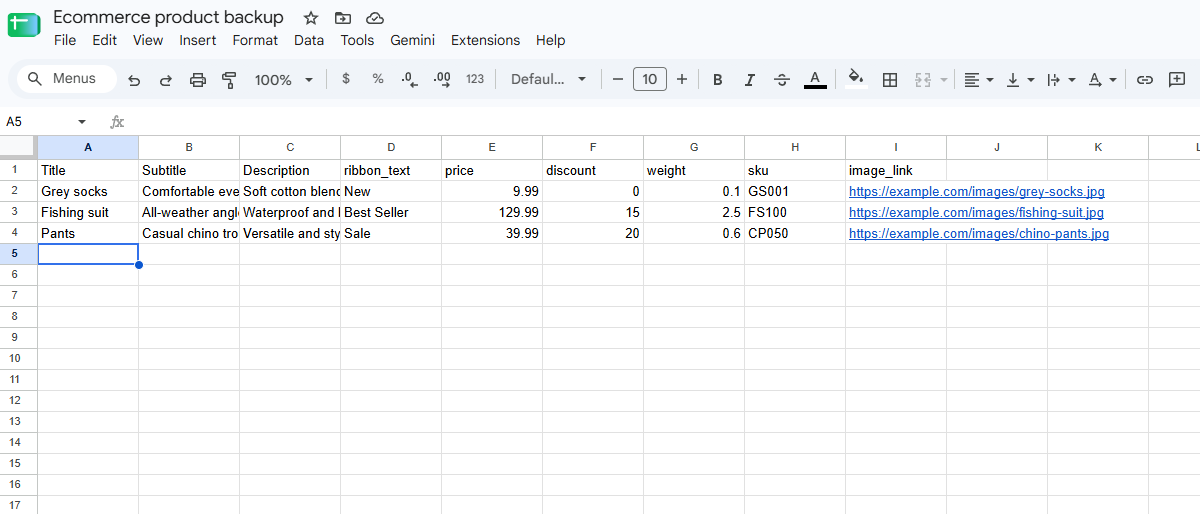
- Fill in the template with your products, and save the file in a safe place, such as cloud storage. See How to import products to your online store for the full import steps.
- Keep the original product images and digital product files on your computer or in cloud storage.
- Update the spreadsheet each time you add or change products.
- To add products back from your spreadsheet, upload the file with Import products.
- Before you delete a product or a store, update your spreadsheet and export your orders.
NOTES
- To save your orders, go to Orders in Store Manager and click Export to CSV. See How to manage orders to filter orders before you export.
- Printful products stay in your Printful account. If they go missing from your store, see How to fix Printful sync issues to sync them again.
With a spreadsheet of your products, your original images, and an order export, you can rebuild your Hostinger Ecommerce store if something gets deleted.