Create and edit print-on-demand products for your Hostinger Ecommerce online store using your connected Printful integration.
Print-on-demand product (integrated with Printful) is only available for Hostinger AI Builder manual mode, custom sales channel, and quick link stores.
Create new print on demand products
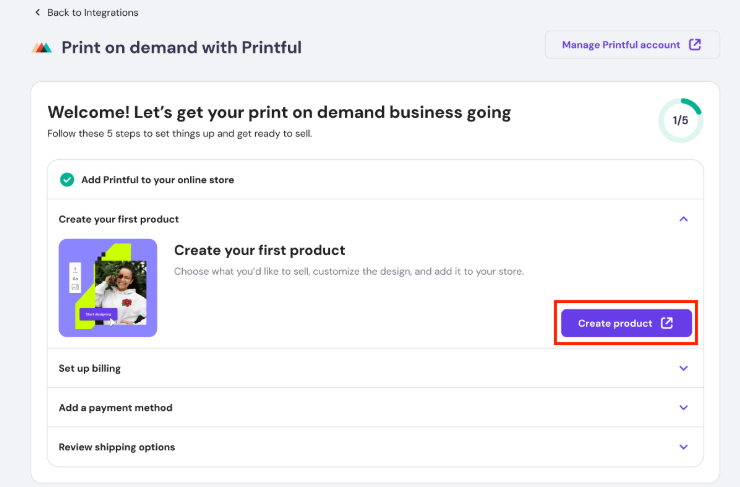
- Once your store is connected with Printful, you can start adding products right away and follow the checklist by clicking Create product

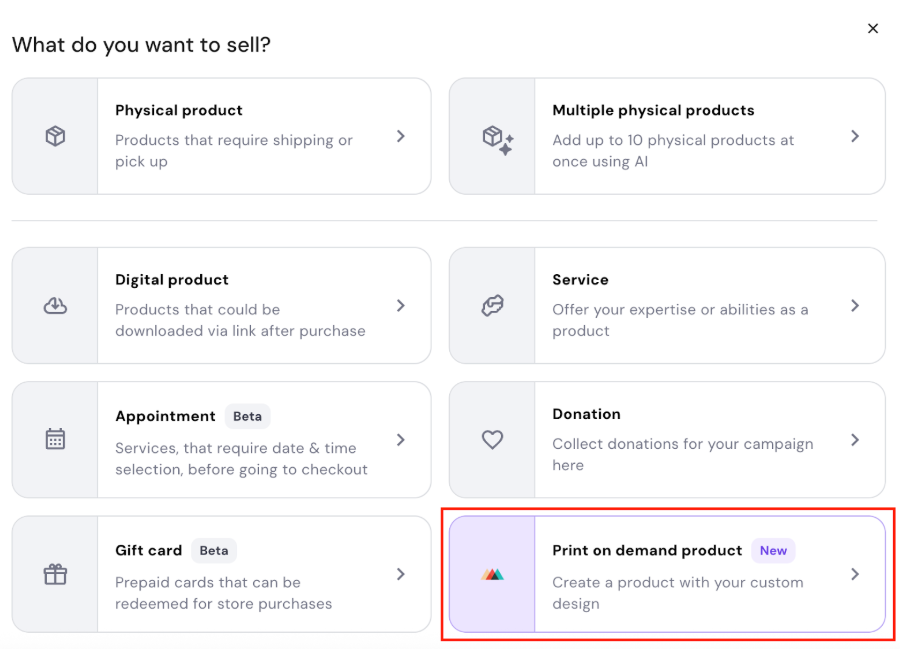
- In case you already created a print on demand product before, go to Products → Add product and select Print on demand product option.

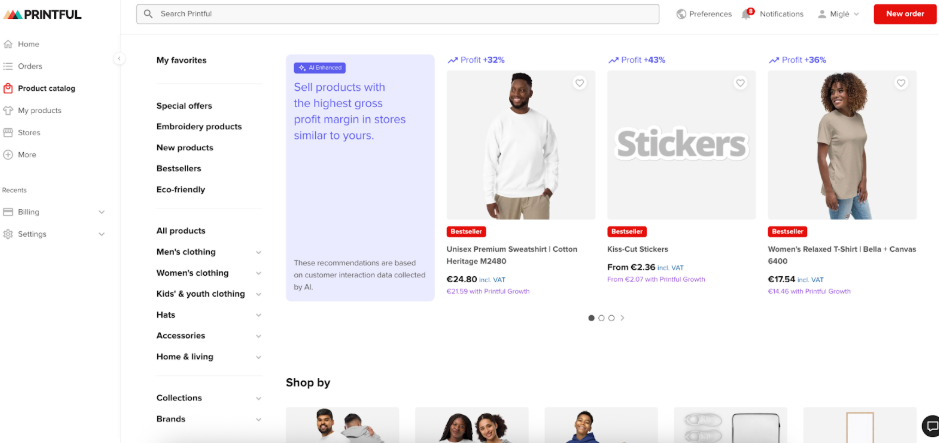
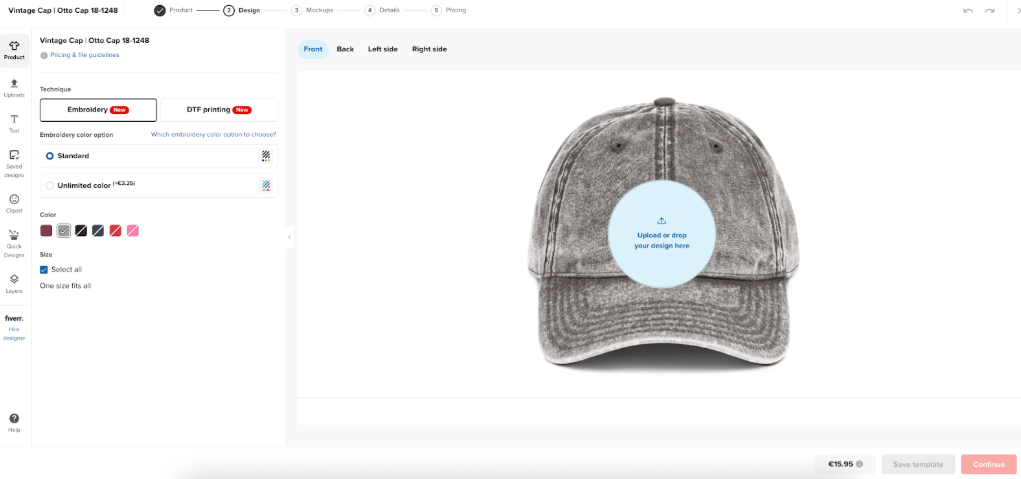
- You will be taken to Printful’s product catalog. Choose the next product you’d like to customize with your design and offer in your store.

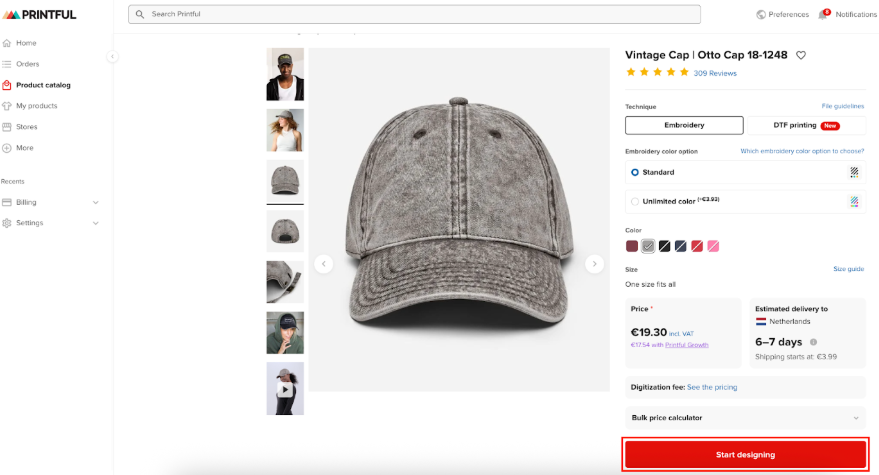
- Once a product is selected, add colours, sizes and click Start designing.

- Add your design, write your product description, choose mockup images, and set your prices.

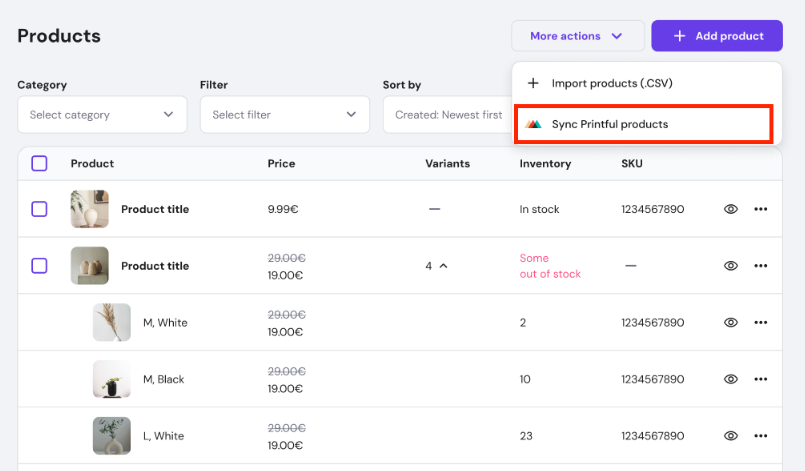
- Products are automatically published and added to your Hostinger Ecommerce store. This process may take a few minutes. If newly created Printful products are not visible, manually sync your store by clicking the Sync Printful products button in your product list.

- Make sure to publish your store for the products to appear in your store!
Edit print on demand products
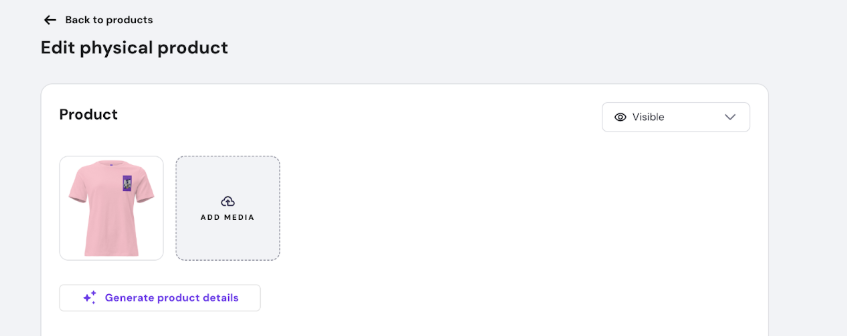
You can edit print-on-demand products directly within your store manager, but these changes (excluding product name) will not sync with your Printful store. For example, price adjustments or discounts applied in your store manager will not be reflected on Printful.
Conversely, any edits made to product details within your Printful dashboard will synchronize with your store, with the exception of price changes.
NOTES
- Some Printful products show Product options can only be managed on Printful at the moment in the Options section of the Store Manager.
- For these products, change the option names and values in Printful, not in Hostinger.
Your print-on-demand products are now created and ready to manage across both your store and Printful.