Hostinger Ecommerce lets you track, filter, and fulfill every order placed across your sales channels from the Orders page. Filter orders by status, date, or product, open an Order Details page to review payment and customer information, edit tracking and invoices, log notes on the order timeline, and collect extra information from customers with custom product input fields.
To access Orders page, go to Store Manager then head to Orders.
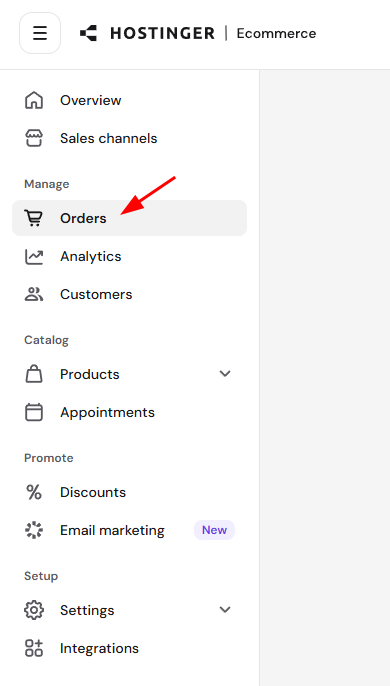
Find orders on the Orders page
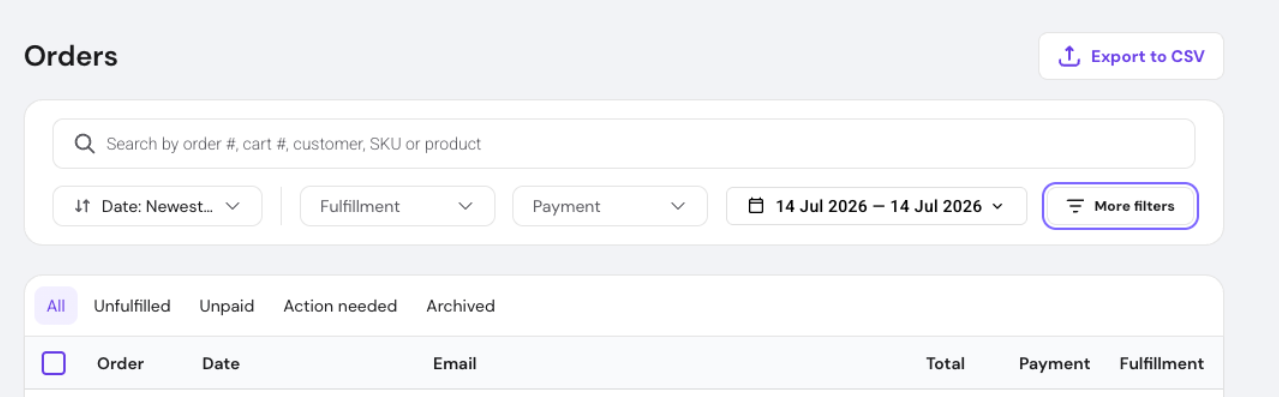
Search orders by order number, cart number, customer, SKU, or product, or filter by any of the following:
- Fulfillment status
- Payment status
- Date
- Product type
- Shipping method
- Country
- Order notes
- Order ID
- Cart ID
- Product title
- Product SKU
- Discount
Click Manage filters to customize which filters are visible and in what order they appear. Orders are paginated, with a page size selector at the bottom of the table to control how many orders are shown per page. Click Export to CSV to download your order data.
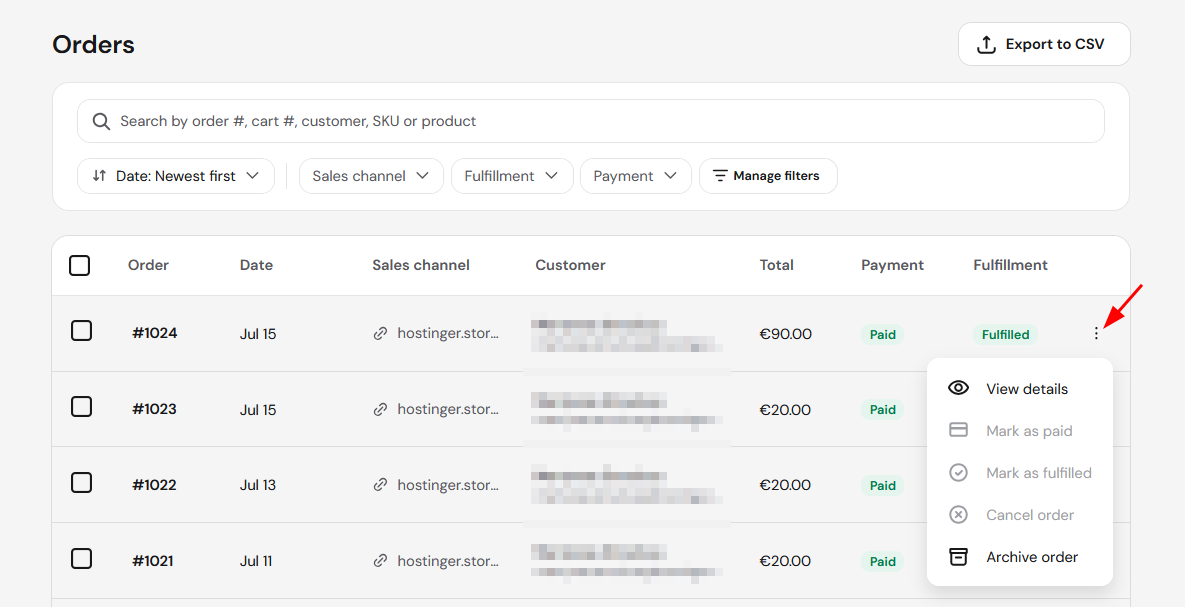
Each order row includes an actions menu (⋮) with: View details, Mark as paid, Mark as fulfilled, Cancel order, and Archive order. Mark as paid and Mark as fulfilled are unavailable once an order already has that status.
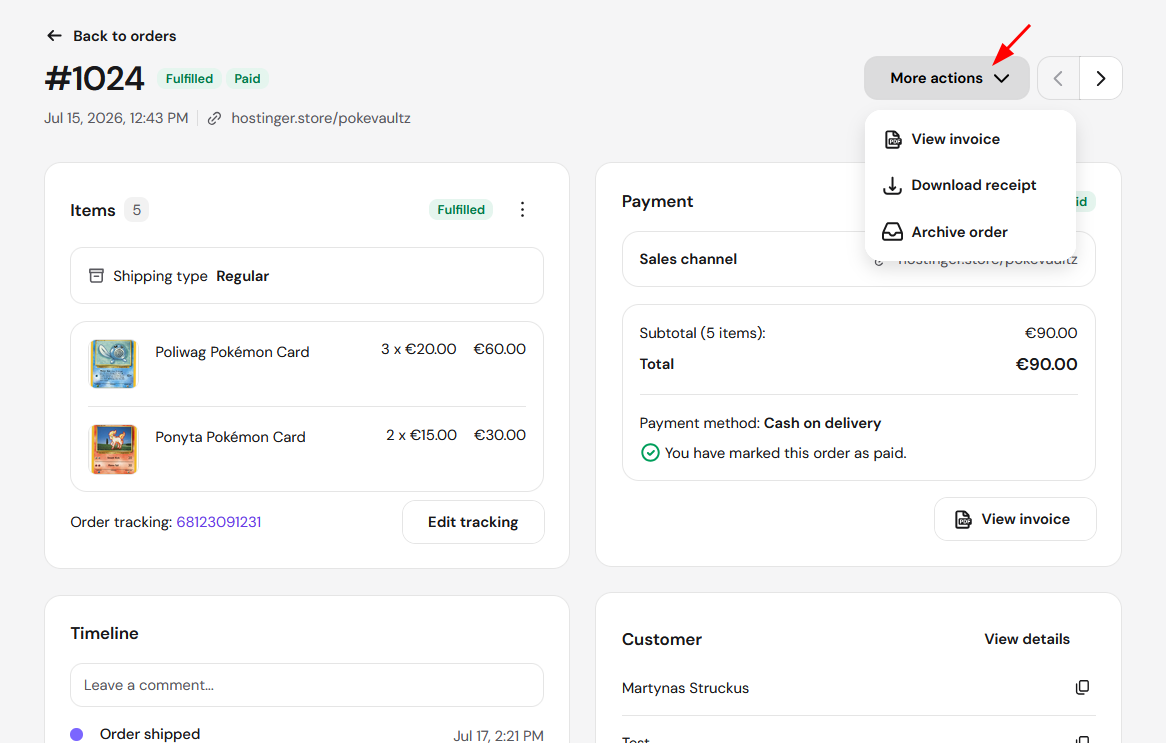
Review the Order Details page
Opening an order shows a two-column Order Details page, with Back to orders at the top to return to the list. Items and the order timeline appear on the left, and payment and customer information appear in the sidebar on the right.
Fulfillment and payment status chips (for example Fulfilled and Paid) appear next to the order number, along with the order date, time, and a link to the sales channel it was placed on. Use the arrow buttons next to More actions to move to the previous or next order without going back to the list. Click More actions for View invoice, Download receipt, or Archive order.
Items and shipping
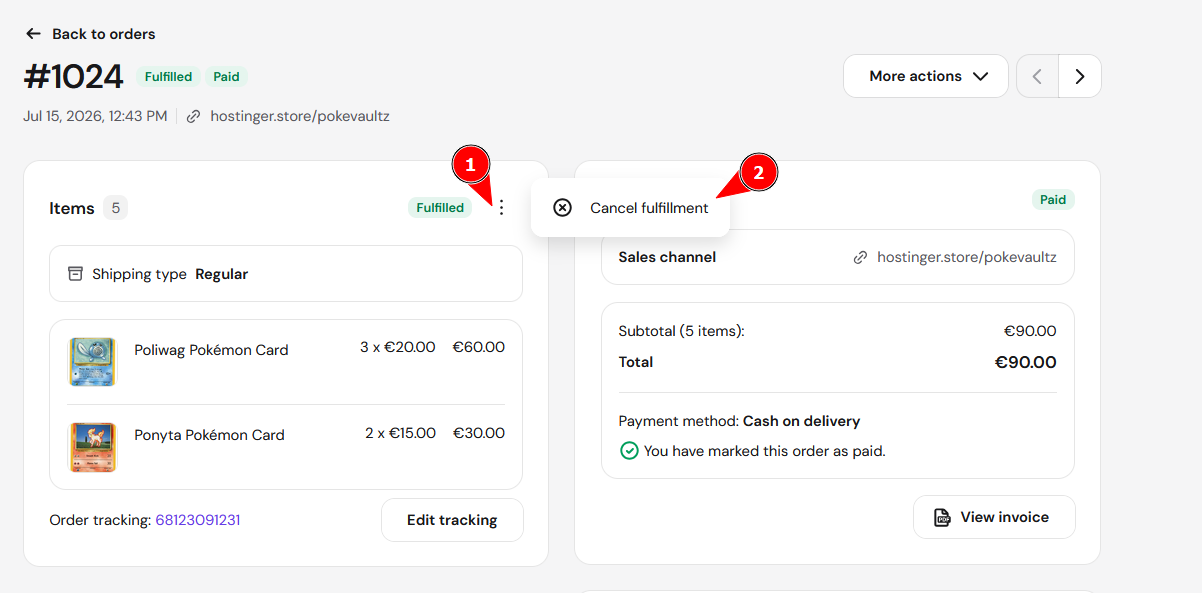
The Items card shows the number of items in the order and its fulfillment status. Click the card’s actions menu (⋮) to Cancel fulfillment if needed. Shipping type (for example, Regular) is listed alongside the ordered items, and each line item shows its image, name, quantity, unit price, and line total.
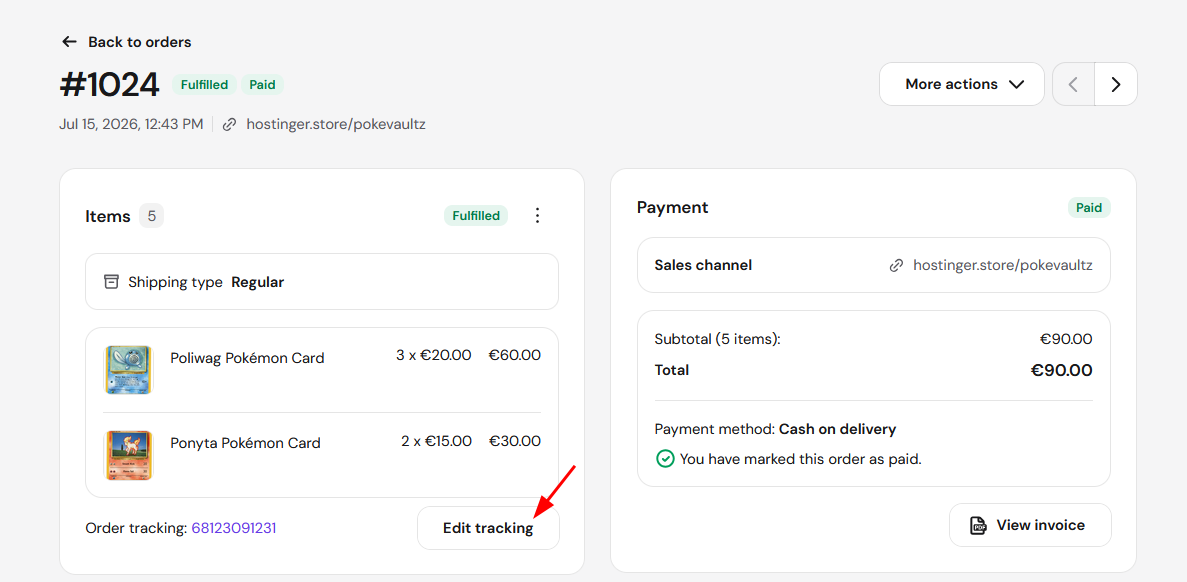
If the order has tracking, the tracking number appears below the items with an Edit tracking button.
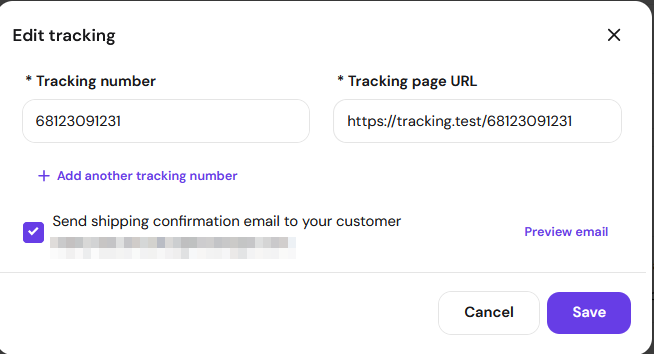
Editing tracking lets you set a tracking number and tracking page URL, add another tracking number if the order ships in multiple parcels, and choose whether to send the customer a shipping confirmation email, with a Preview email option before sending.
Payment and invoice
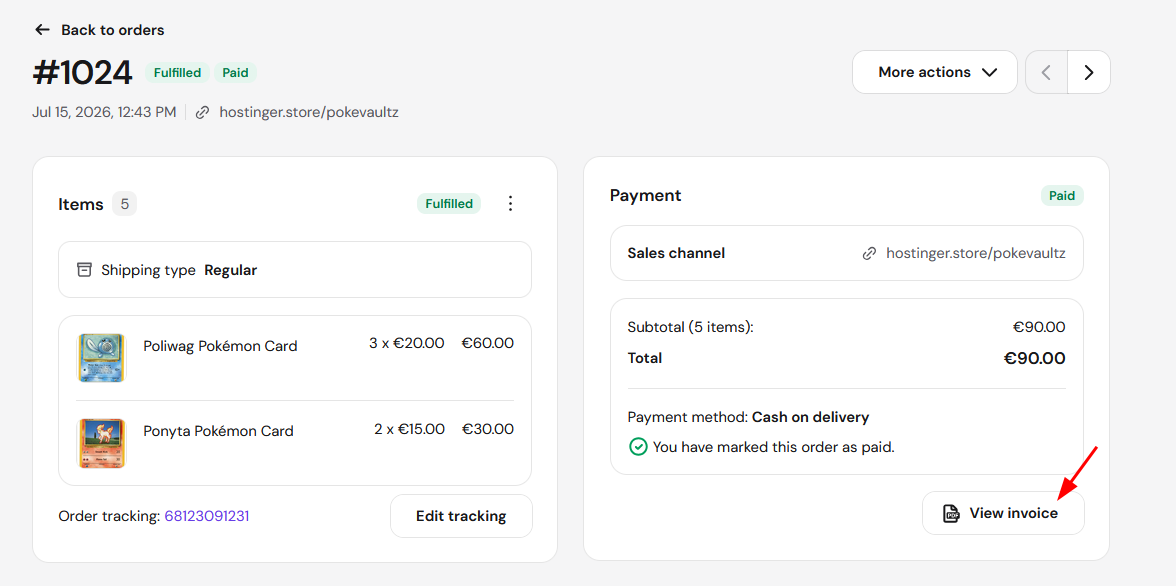
The Payment card shows the payment status, a link to the sales channel, the order subtotal and total, and the payment method used (for example, Cash on delivery). If you manually marked the order as paid, a confirmation note appears here.
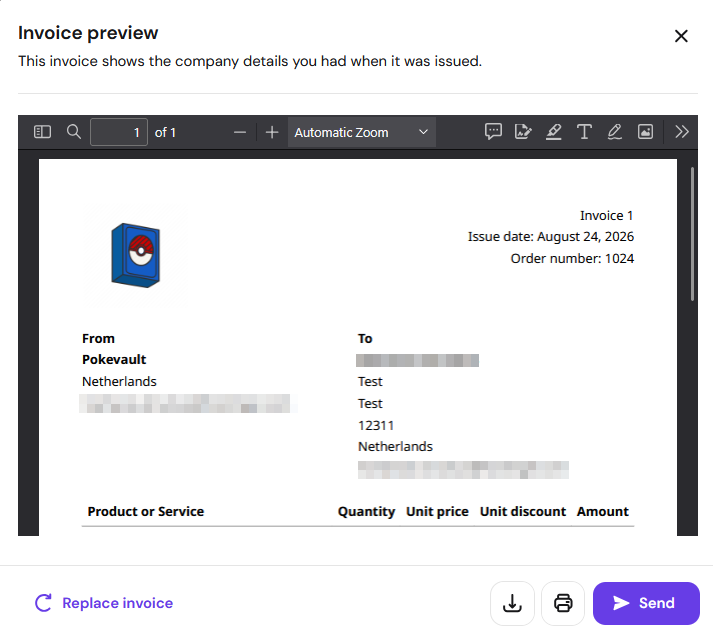
Click View invoice to open a preview showing the invoice number, issue date, order number, your business details as they were when the invoice was issued, the customer’s billing details, and a line-item table with quantity, unit price, unit discount, and amount.
From the preview, download or print the invoice, replace it, or send it directly to the customer.
Customer details
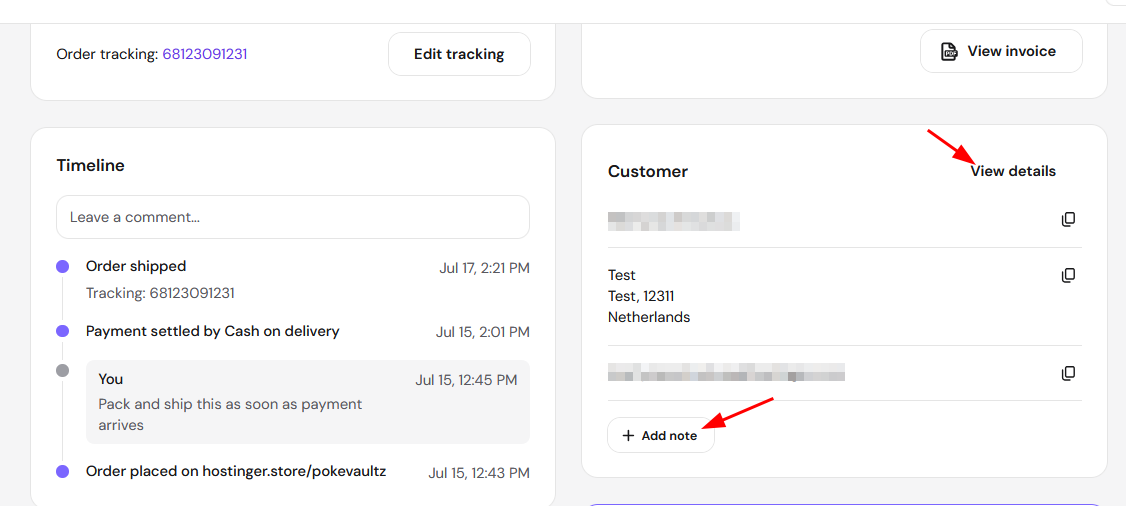
The Customer card shows the customer’s name, address, and email, each with a copy icon for quick access. Click View details to see the customer’s full profile, or Add note to leave a note on their record.
Track the order timeline
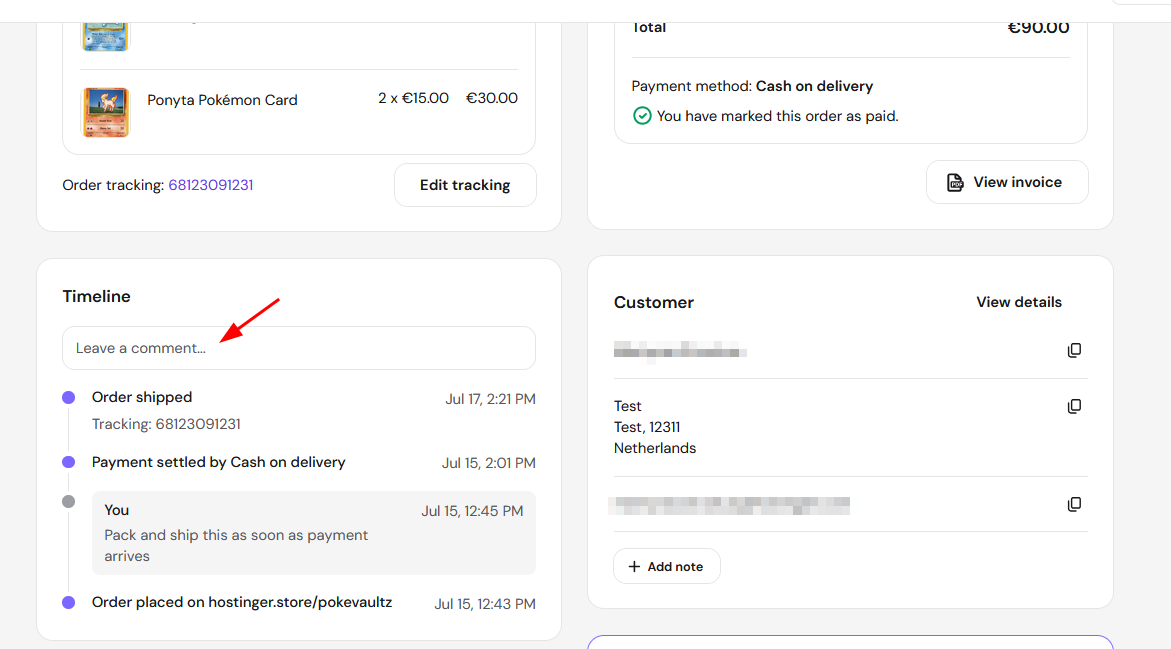
The Timeline card lists a chronological log of key events for the order, such as when it was placed, when payment was settled, and when it shipped, each with a timestamp.
Leave internal comments on the timeline using the Leave a comment box, for example to note next steps for your team. These comments are private, shown under your account name, and are never visible to your customers.
With orders filtered, reviewed, and annotated on the timeline, you have full visibility into every sale as it moves from placed to fulfilled.