Hostinger AI Builder manual mode includes eight AI tools in the AI tools panel of the website editor: AI Image Generator, AI Writer, AI Page Generator, AI Section Generator, AI Blog Generator, AI Product Details Generator, AI SEO Assistant, and AI Logo Maker. Six of them work directly in the editor on every plan, with no upgrade needed. AI Product Details Generator opens Hostinger Ecommerce, and AI Logo Maker opens Hostinger Agent.
Open AI tools in Hostinger AI Builder manual mode
Open AI tools from the left sidebar of the Hostinger AI Builder manual mode editor.
- Open your website in the Hostinger AI Builder manual mode editor.
- Click AI tools in the left sidebar.
- Select the AI tool you want to use.
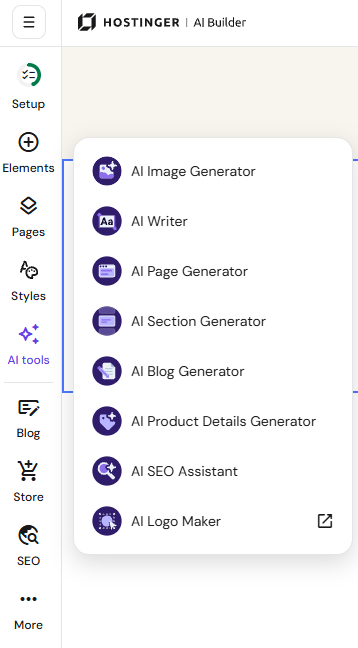
AI tools availability on Hostinger AI Builder plans
AI Writer, AI Blog Generator, AI Page Generator, AI Section Generator, AI Image Generator, and AI SEO Assistant are available on every plan that includes Hostinger AI Builder manual mode. You don’t need to upgrade your plan to use them.
Write text with AI Writer in manual mode
AI Writer creates text of any length, style, or tone from your description, which you then paste into a text element.
- Select AI tools → AI Writer.
- Describe what you want to write in the Describe what you want to write field, using up to 3,000 characters. Click See examples for ideas.
- Click Create text.
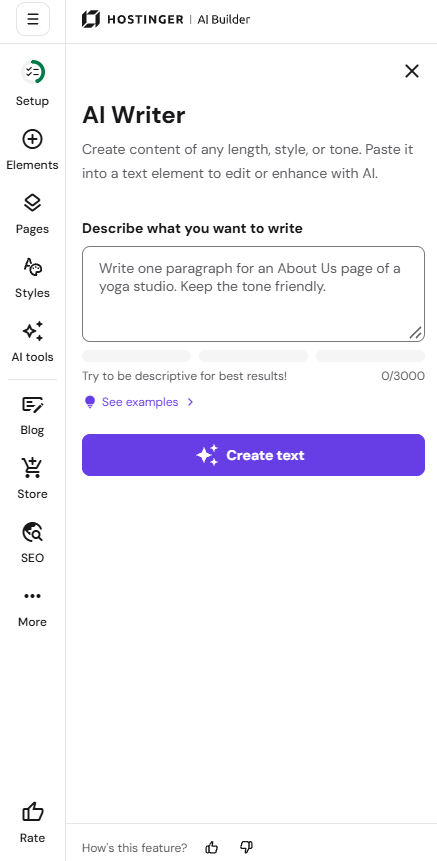
- Paste the generated text into a text element on your page.
Generate a blog post with AI Blog Generator in manual mode
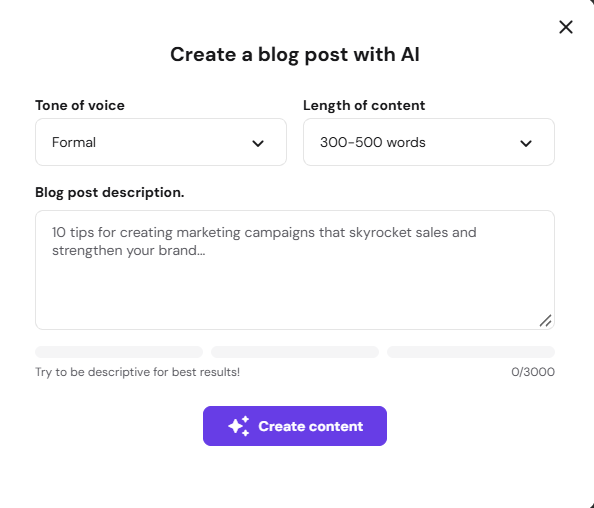
AI Blog Generator creates a blog post from your description, in the tone and length you choose.
- Select AI tools → AI Blog Generator.
- In the Create a blog post with AI window, choose a Tone of voice, such as Formal.
- Choose a Length of content, such as 300–500 words.
- Describe the post in the Blog post description field, using up to 3,000 characters.
- Click Create content.
Generate images with AI Image Generator in manual mode
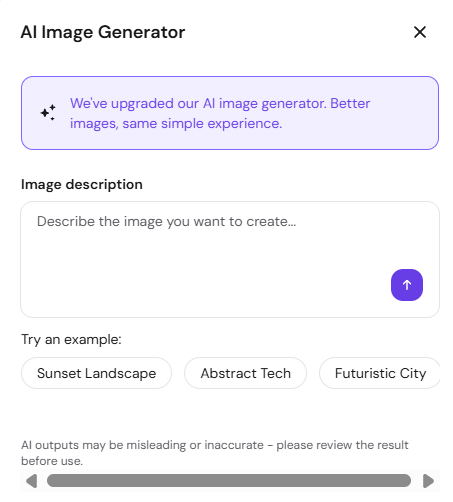
Select AI tools → AI Image Generator, describe the image in the Image description field or select one of the suggested examples, and submit your description. See Hostinger AI Builder: AI image generator in manual mode for the full steps.
Generate pages and sections with AI Page Generator and AI Section Generator in manual mode
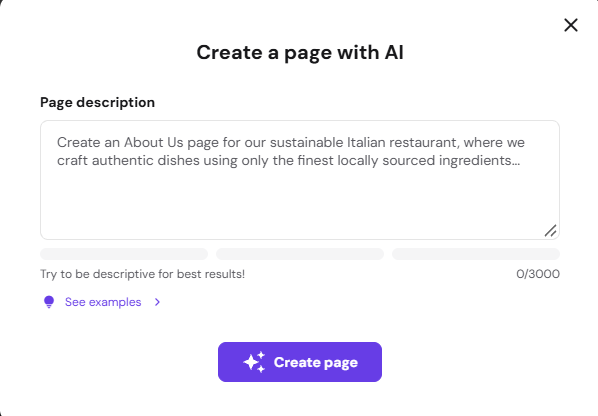
Select AI tools → AI Page Generator to open the Create a page with AI window, where you can describe the page in up to 3,000 characters.
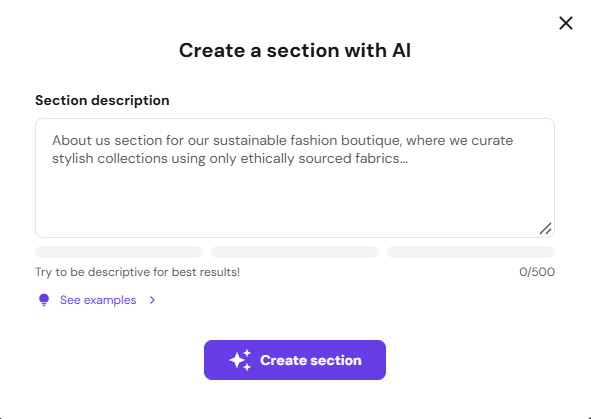
Select AI Section Generator to open the Create a section with AI window, where you can describe the section in up to 500 characters. See Hostinger AI Builder: How to generate pages and sections in manual mode for the full steps.
Generate product details with AI Product Details Generator
AI Product Details Generator opens product creation in Hostinger Ecommerce, where you can select Add products with AI, upload a product photo, and let AI fill in the product details. See Hostinger Ecommerce: How to add products to your store for the full steps.
Improve SEO with AI SEO Assistant in manual mode
AI SEO Assistant opens the SEO panel, where AI generates an SEO title and meta description for each page from your business name, page description, and keywords. See Hostinger AI Builder: SEO settings in manual mode for the full steps.
Design a logo with AI Logo Maker
AI Logo Maker opens Hostinger Agent in a new tab, where you can describe the logo you want. See How to design a logo with Hostinger Agent for the full steps.
With AI tools in Hostinger AI Builder manual mode, you can create text, images, pages, sections, blog posts, and SEO content without leaving the editor.