Add Google Analytics 4, Google Tag Manager, Meta Pixel, and Google Ads conversion tracking to your Hostinger AI Builder agentic mode website by sending your tracking ID in the chat. Hostinger AI Builder adds the tag to every page and adds a cookie notice, so tags collect data only after visitors give consent. Agentic mode has no separate integrations settings for these tools, unlike manual mode, so each tool is added with a prompt and starts tracking after you publish your website.
Before you start
- These steps apply to Hostinger AI Builder agentic mode websites. For manual mode, see how to connect Google Analytics in manual mode, how to connect Google Tag Manager in manual mode, and how to connect Meta Pixel in manual mode.
- For a Hostinger Ecommerce store, you can also add Google Analytics and Meta Pixel from the Store Manager, as explained in how to connect Google Analytics and Meta Pixel.
- Have your tracking ID ready: a Google Analytics 4 Measurement ID (G-XXXXXXXXXX), a Google Tag Manager container ID (GTM-XXXXXXX), a Meta Pixel ID, or a Google Ads tag ID (AW-XXXXXXXXX) with a conversion label.
- Each request uses AI credits, as explained in AI credits and top-ups in agentic mode.
Add Google Analytics 4 in Hostinger AI Builder agentic mode
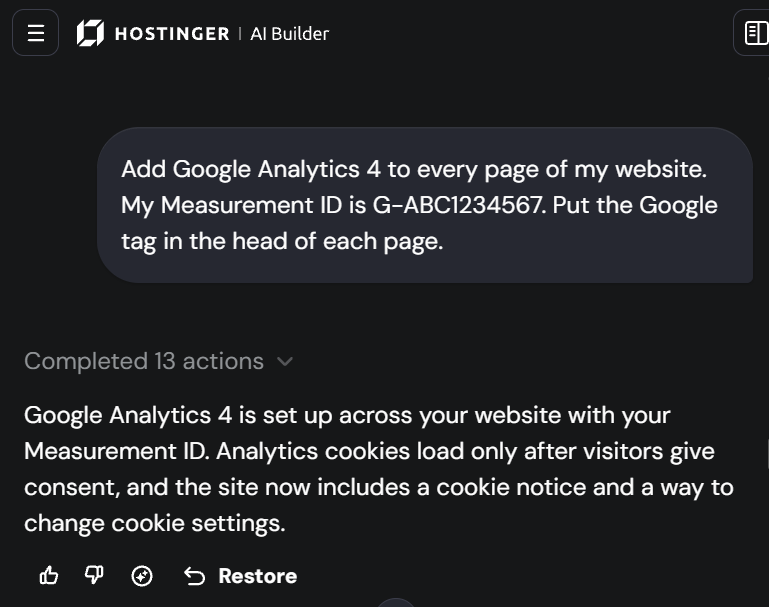
Send your Google Analytics 4 Measurement ID in the chat, and Hostinger AI Builder adds the Google tag to the head of every page.
- Copy your Measurement ID from your Google Analytics 4 property. The ID starts with G-.
- Open your project in Hostinger AI Builder and send a prompt with the ID, for example: Add Google Analytics 4 to every page of my website. My Measurement ID is G-XXXXXXXXXX. Put the Google tag in the head of each page.

- Publish your website to start tracking.
Add Google Tag Manager in Hostinger AI Builder agentic mode
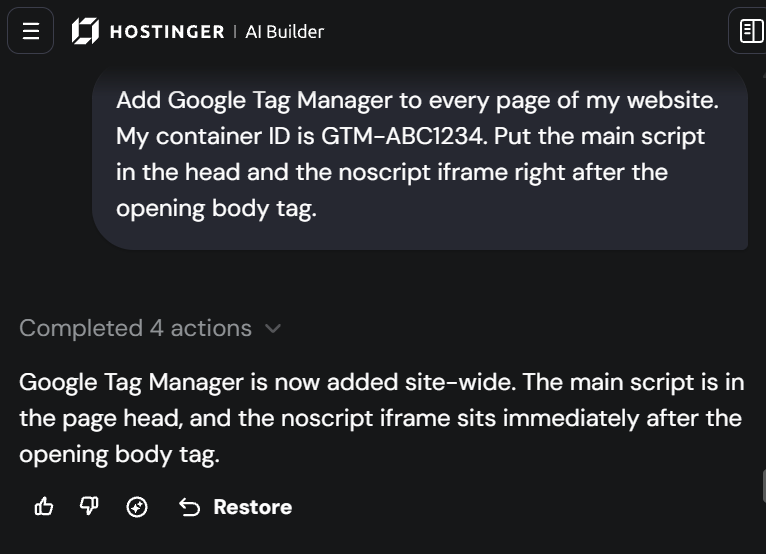
Send your Google Tag Manager container ID in the chat, and Hostinger AI Builder adds the container code to every page. Manage your other tags, such as Google Analytics or Google Ads, from your Google Tag Manager account afterward.
- Copy your container ID from your Google Tag Manager account. The ID starts with GTM-.
- Send a prompt with the ID, for example: Add Google Tag Manager to every page of my website. My container ID is GTM-XXXXXXX. Put the main script in the head and the noscript iframe right after the opening body tag.

- Publish your website to start tracking.
Add Meta Pixel in Hostinger AI Builder agentic mode
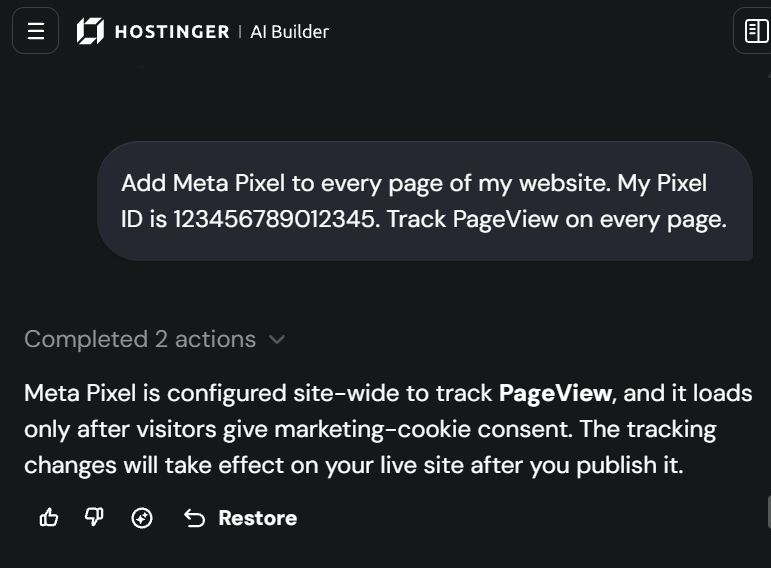
Send your Meta Pixel ID in the chat, and Hostinger AI Builder adds Meta Pixel to every page and tracks page views.
- Copy your Pixel ID (dataset ID) from Meta Events Manager.
- Send a prompt with the ID, for example: Add Meta Pixel to every page of my website. My Pixel ID is 123456789012345. Track PageView on every page.

- Publish your website to start tracking.
Add Google Ads conversion tracking with a Google tag in agentic mode
Send your Google Ads tag ID and conversion label in the chat, and Hostinger AI Builder loads the Google tag on every page and sends a conversion event when the action you choose happens, such as a contact form submission.
- Copy your Google tag ID and conversion label from your Google Ads conversion action. The tag ID starts with AW-.
- Send a prompt with both values, for example: Add Google Ads conversion tracking to my website. My Google tag ID is AW-XXXXXXXXX and my conversion label is XXXXXXXXXXXXXXXXX. Load the Google tag on every page and send the conversion event when the contact form is submitted successfully.

- Publish your website to start tracking.
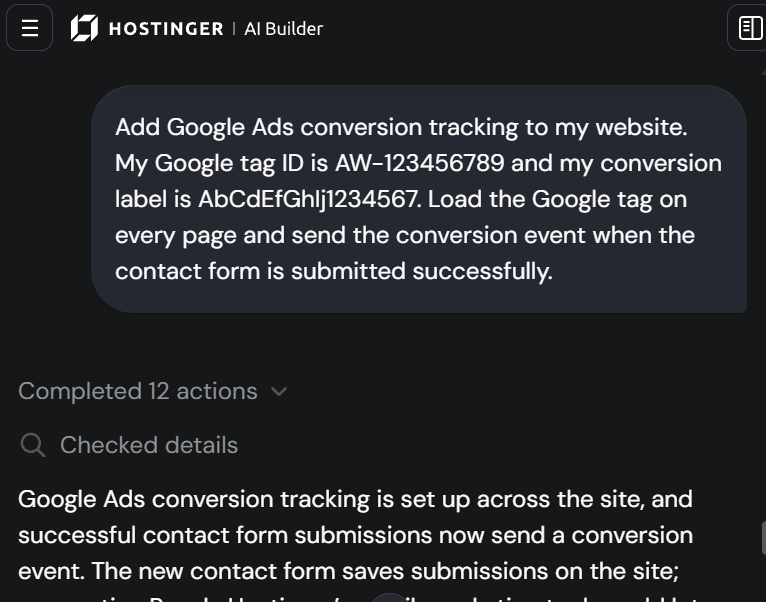
Hostinger AI Builder creates a contact form if your website doesn’t have one. Hostinger AI Builder may also suggest connecting Hostinger Reach for email marketing. Select Not now to skip it.
Cookie consent for tracking tags in Hostinger AI Builder
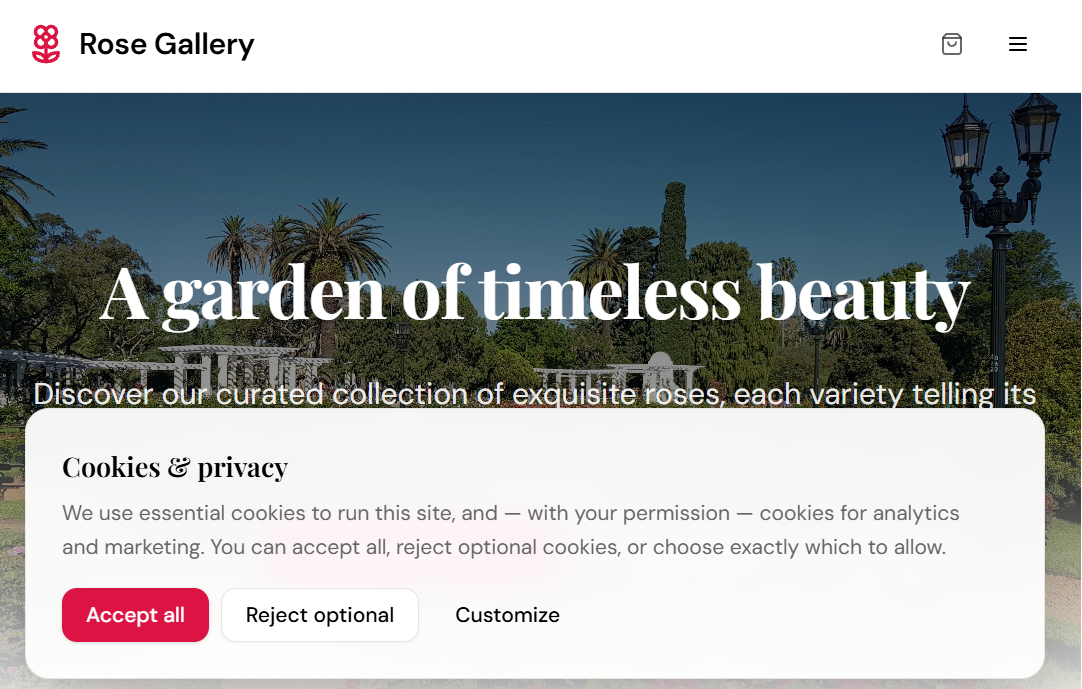
Hostinger AI Builder adds a Cookies & privacy notice when you add a tracking tag, and the tags collect data only after visitors give consent. Visitors choose from three options:
- Accept all: allows essential cookies plus optional analytics and marketing cookies, so all tracking tags collect data.
- Reject optional: allows only the essential cookies the website needs to work, so optional tracking stays off.
- Customize: lets visitors choose which optional cookie categories to allow.
Google Analytics needs analytics consent, while Google Ads and Meta Pixel need marketing consent.
Check that your tracking tags work on your Hostinger AI Builder website
Check your tags on the published website, because tags don’t run in the Hostinger AI Builder preview.
- Open your published website and click Accept all on the cookie notice.
- Check that data arrives in the tool, such as the Realtime report in Google Analytics, Preview in Google Tag Manager, or Meta Events Manager.
- View the page source to confirm the code is on the page if no data arrives. Press Ctrl+U on Windows or Cmd+Option+U on Mac, then search for your tracking ID.

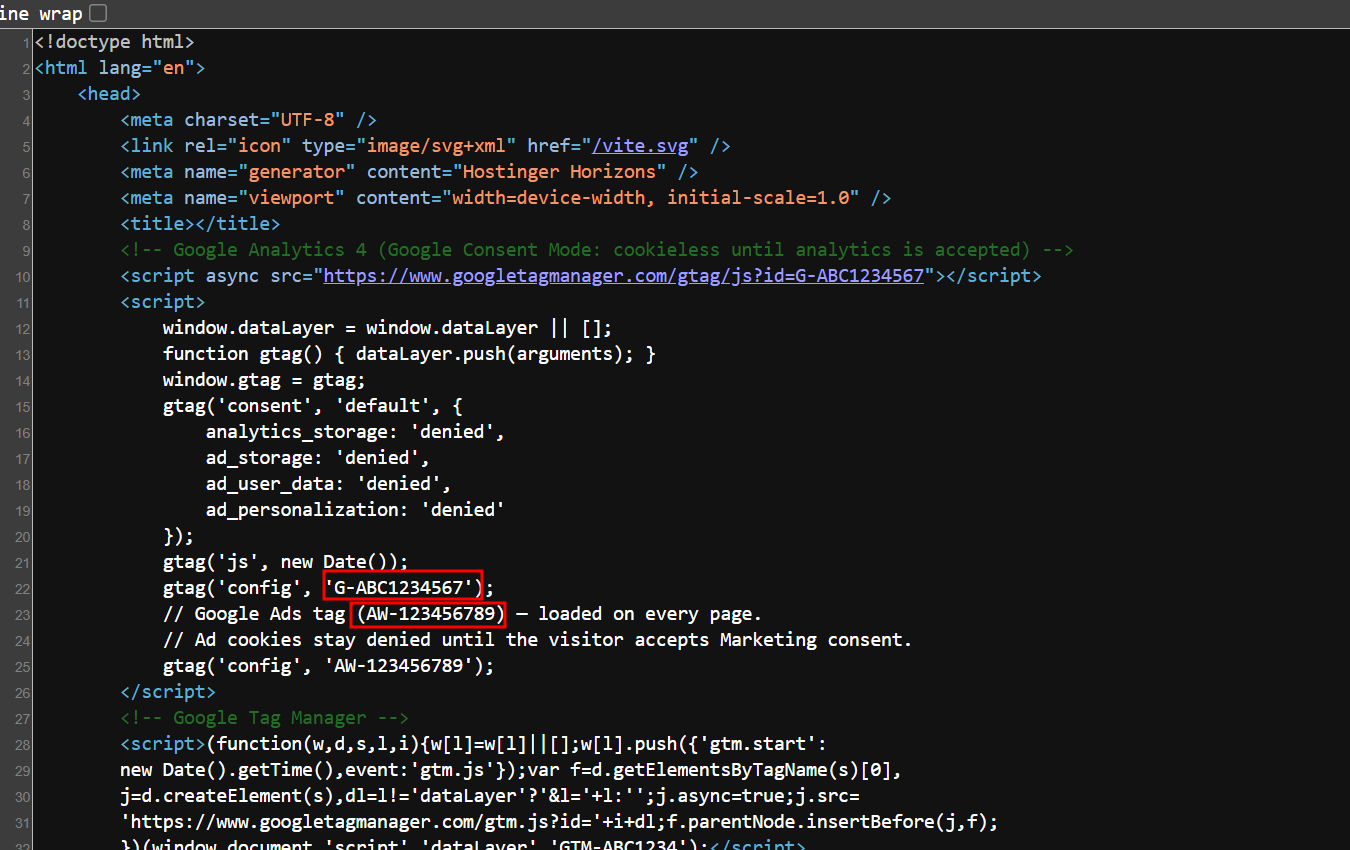
Your website now sends visits and conversions to your tracking tools, once visitors accept cookies.
NOTES
- Add each tracking ID only once, because duplicate tags cause double counting in your reports.
- Add other third-party tools, such as Stripe, Mailchimp, or Zapier, with a prompt in the same way, as explained in how to use integrations in agentic mode.
- Tracking data can take up to 24–48 hours to appear in standard Google Analytics reports, while the Realtime report updates within minutes.
Frequently asked questions
Does Hostinger AI Builder agentic mode have Google Analytics settings?
No. Agentic mode has no separate integrations settings for Google Analytics, Google Tag Manager, or Meta Pixel. Add these tools by sending your tracking ID to Hostinger AI Builder in the chat.
Why doesn’t Google Analytics show any data from my Hostinger AI Builder website?
Google Analytics collects data only from visitors who accept analytics cookies. Make sure your website is published, click Accept all on the cookie notice, and check the Realtime report.
Can I add Google tags to my Hostinger AI Builder website without AI credits?
No. Adding a tracking tag in agentic mode is a request to Hostinger AI Builder, so it uses AI credits.