You can track conversions and measure the performance of your Google Ads campaigns on your Hostinger AI Builder manual mode website by adding a Google Tag.
This method supports the following tag formats:
-
AW-XXXXXXXXXX — Google Ads conversion tracking
-
G-XXXXXXXXXX — Google Analytics 4
-
GT-XXXXXXXXXX — Google Tag (unified)
Before you start
Before connecting your tag, ensure that you have:
-
An active Google Ads account.
-
Created at least one campaign.
-
Your unique Google Tag ID.
Find your Google Tag ID in Google Ads
-
Log in to your Google Ads account.
-
Navigate to Tools → Data Manager (or Google Tag under Setup).
-
Copy your tag ID, which begins with AW-.
Add the Google Tag to Hostinger AI Builder
-
Open your website in the Hostinger AI Builder.
-
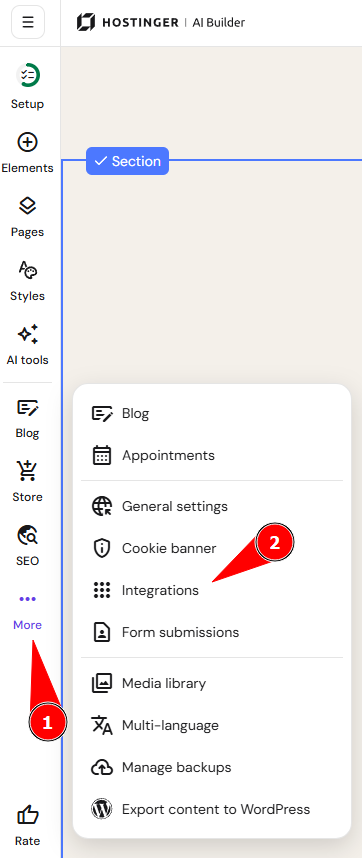
Navigate to More → Integrations.
-
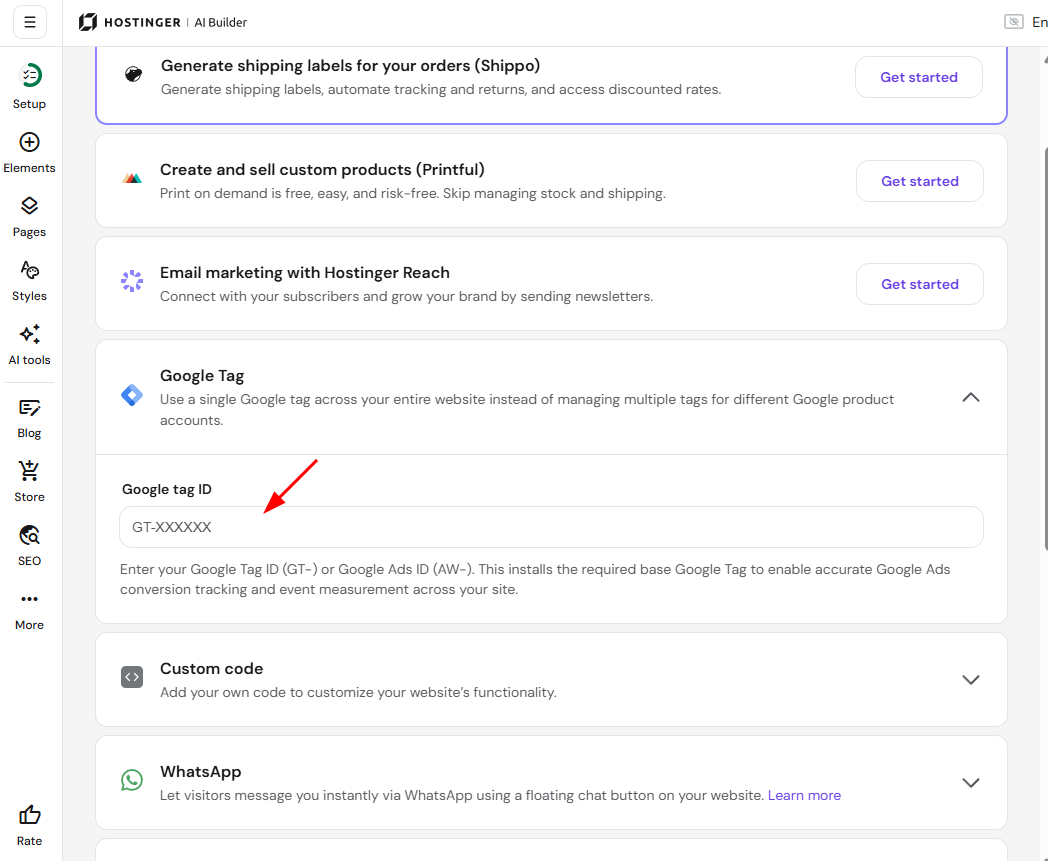
Locate the Google Tag section.
-
Paste your tag ID into the designated field.
-
Click Save changes.
-
Click Publish in the top-right corner to make the integration live.
Your Google Tag is now integrated, and data will begin populating in your Google Ads account as visitors interact with your website.