When working on Hostinger AI Builder manual mode, ensure you are using the Google Chrome browser for the best experience with the platform.
Website looks different on mobile
The Hostinger AI Builder manual mode features independent editors for desktop and mobile devices. This allows you to create a unique layout for each screen size.
-
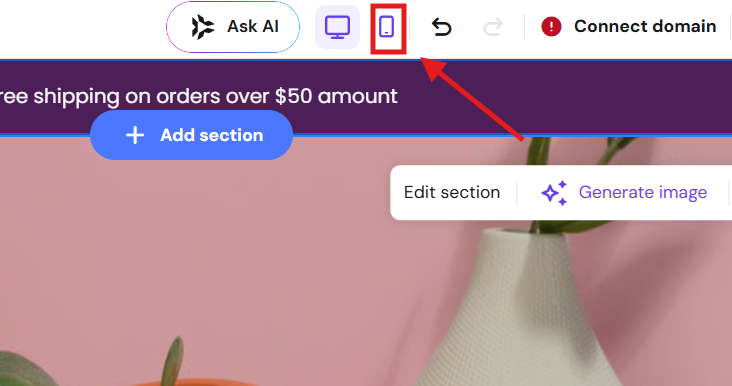
In the editor, click the phone icon in the top navigation bar to switch to the mobile view.
-
Review the element placement. If objects are out of order, drag and drop them to the desired position within their section. Avoid moving elements between different sections in mobile view, as this can affect the desktop layout.
-
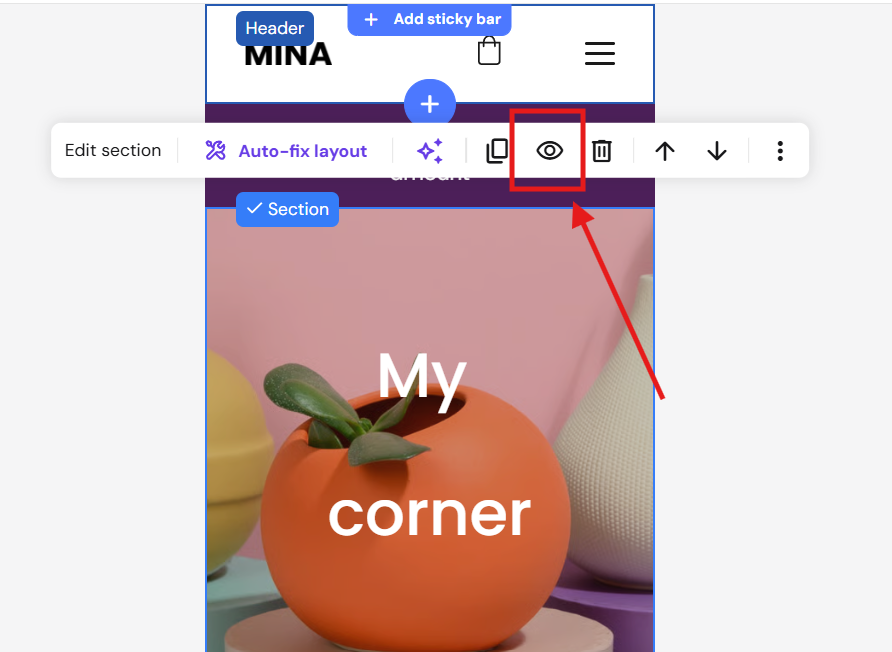
Use the eye icon in the layers panel to hide specific elements on one device type if you want different content to appear on mobile versus desktop.
-
Click Update website in the top-right corner to publish your changes.
Website errors after adding custom code
Custom code snippets can sometimes conflict with the builder’s infrastructure. Use this process to determine if custom code is causing your display issues.
-
Navigate to More (⋯) menu → Integrations.
-
Copy your code to a safe place for backup, then remove all snippets from the Custom code field.
-
Check your pages for Embed code elements and temporarily remove the code within them.
-
Click Update website.
-
Open your live website in a new tab.
-
If the site works correctly, your custom code contains an error. Re-add snippets one by one to identify the problematic code.
-
The problem is unrelated to custom code. Try clearing your browser cache and opening the site in a private/incognito window. If it still doesn’t work, contact Hostinger Support via Hostinger dashboard chat.
-
Image or media file upload failure
If you cannot upload files to the Hostinger AI Builder manual mode, verify the following requirements:
File Size: The maximum supported file size is 15 MB. For better performance, keep images under 10 MB and use the .webp format.
File Format: Supported formats include .jpg, .jpeg, .png, .gif, .svg, and .webp.
- Hostinger AI Builder manual mode does not support .heic or .tiff files.
- Use a free converter to change these to .jpg before uploading.
Filenames: Ensure filenames contain only Latin characters and numbers. Avoid spaces or symbols like #, @, or !.
Video Content: You cannot upload video files directly. To display videos, use the Video element to embed links from YouTube or Vimeo.
By following these steps, you can ensure your Hostinger AI Builder manual mode site is responsive, functional, and visually consistent across all devices. If you encounter a technical error that persists after removing custom code or following upload requirements, contact Hostinger Support for manual assistance.