Resolve common technical issues in your Hostinger AI Builder agentic mode project, such as failed network requests or script errors in the preview window, using automated fix tools and by providing the AI with technical context for complex bugs.
Step 1 – Use the Ask to Fix feature
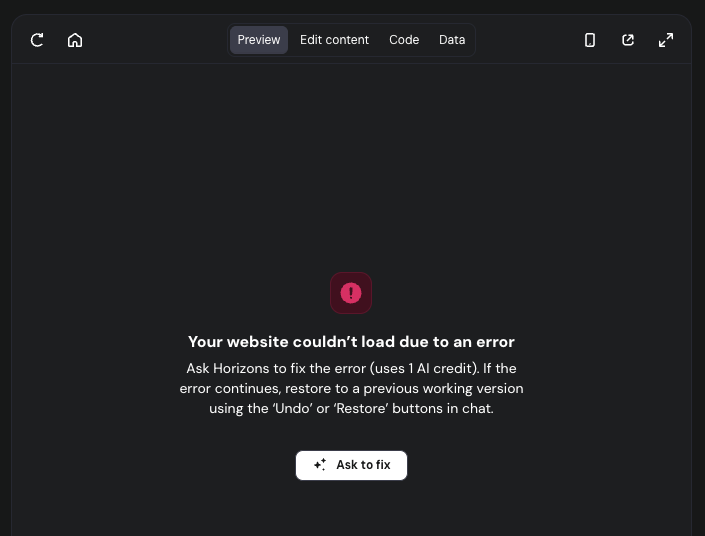
When Hostinger AI Builder detects an error in your preview, it often provides an automated solution directly in the interface.
- Locate the error message in the preview window.
- Click the Ask to Fix button. This action requires credit usage.

- Wait for the AI to process the request.
- If the fix fails, do not repeat the same request. Repeatedly asking for the same fix can create additional errors or break other parts of your website. If the first try fails, proceed to providing manual context or undoing the change.
Step 2 – Create a technical log
If the automated fix fails, you can improve the AI’s success rate by providing a “repro bundle”, that is, a clear description of the error backed by technical data from your browser.
- Open the site preview, right-click anywhere, and select Inspect.
- Go to the Network tab and perform the action that triggers the error.

- Click on the failed request (usually highlighted in red) and copy the following:
- Request URL
- Request Payload (the data sent)
- Response (the error message from the server)
- Go to the Console tab and copy the most recent error logs as text.
- Send a new message to Hostinger AI Builder including the exact steps you took, what happened, and the logs you copied.
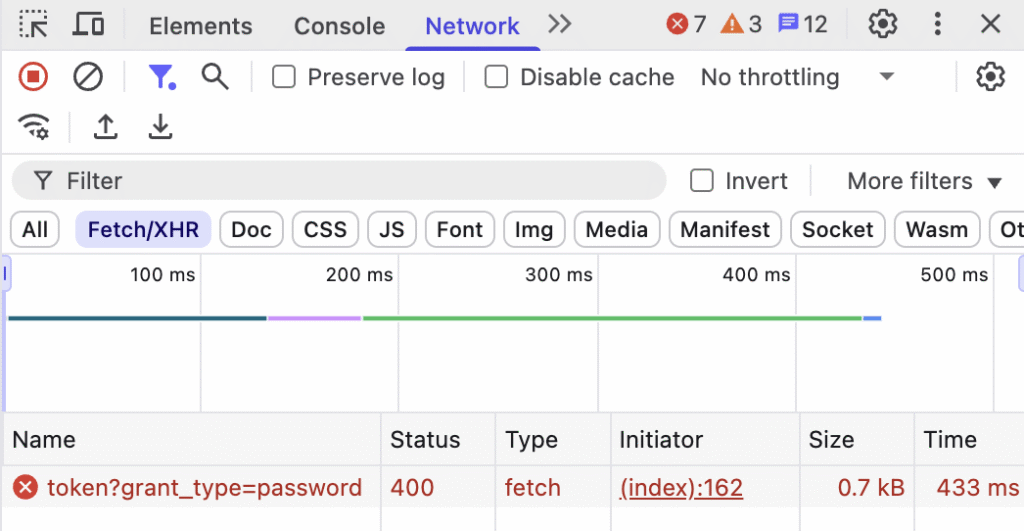
Example of an effective diagnostic message:
When I click the “Submit” button, I get a console error Network request failed. The Network tab shows a POST request to /api/save with payload { id: 101 } and a response { “error”: “database_connection_failed” }. Please fix this connection logic.
Using these logs allows the AI to better address any technical issues. If providing logs does not resolve the issue, consider restoring your project to a previous stable state to avoid further complications.
Related Hostinger AI Builder agentic mode resources
- Publish your app once errors are resolved.
- Restore a deleted website if your project was removed.
- Possible and restricted actions the AI can take in your project.