Tracking inventory allows you to automatically manage product availability, ensuring you never oversell an item. This feature updates stock levels in real-time based on customer purchases and order cancellations.
How to track inventory
Follow these steps to manage stock levels for your products:
- In your Hostinger store management area, go to the Products section.
- Click on the product you want to edit.
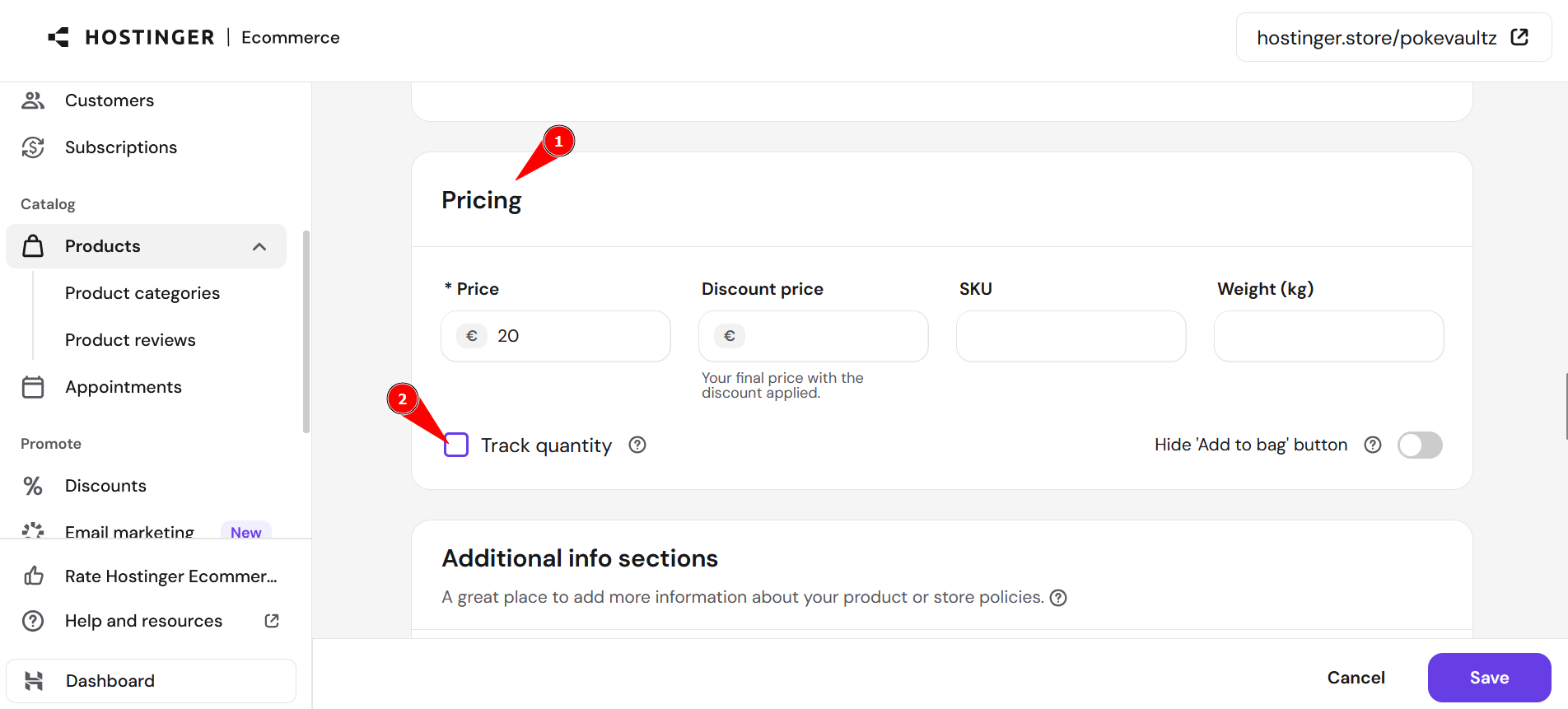
- In the product settings, scroll to the Pricing then Track quantity and tick the box to enable inventory tracking.

- Specify the number of items currently in stock in the Quantity field.
- Save the changes.
If your product has multiple variations (like different sizes or colors), you can track them individually:
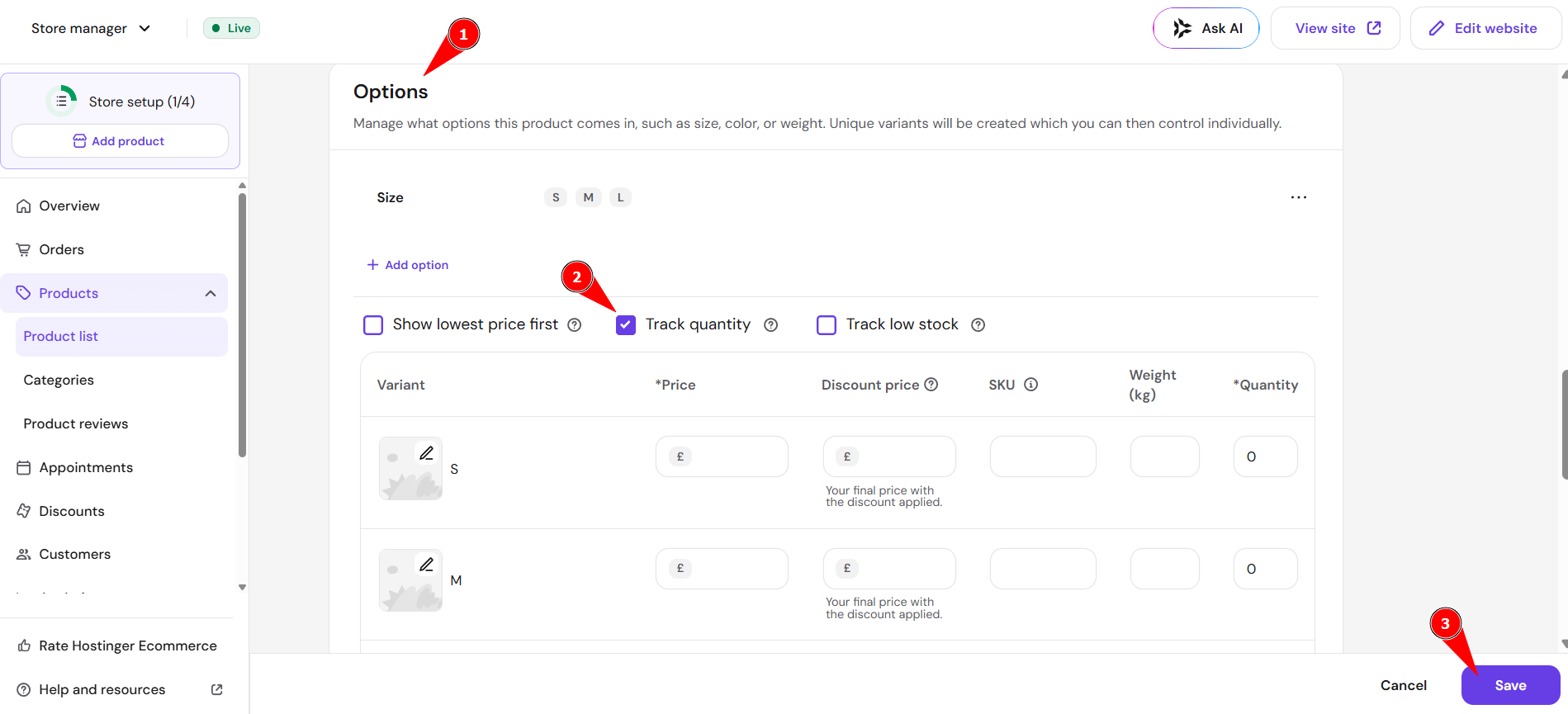
- Scroll to Options.
- Click the Track quantity for each specific variant. Enter the specific stock quantity for each option.
- Save the changes.

Once configured, your Hostinger store automatically reduces the stock count with every sale and restores it if an order is canceled. This ensures that if a product reaches zero, customers will no longer be able to add it to their cart, preventing stock inconsistencies.
NOTE
- Inventory tracking does not apply to appointments and gift cards.