Resolve common technical issues in your Hostinger AI Builder agentic mode project, such as failed network requests or script errors in the preview window, using automated fix tools and by providing the AI with technical context for complex bugs. You can also fix the Something went wrong on our end error and find changes that don’t appear after Hostinger AI Builder reports them as done.
Step 1 – Use the Ask to Fix feature
When Hostinger AI Builder detects an error in your preview, it often provides an automated solution directly in the interface. Ask to Fix in Hostinger AI Builder is free for all users, up to 10 fixes per day, even when your Hostinger Credits balance is 0.
- Locate the error message in the preview window.
- Click the Ask to Fix button to ask the AI to fix the error. To undo the latest change without confirmation, click the Undo last change button. Each fix counts toward your daily allowance of 10 free fixes. After the free fixes run out, each fix uses Hostinger Credits.
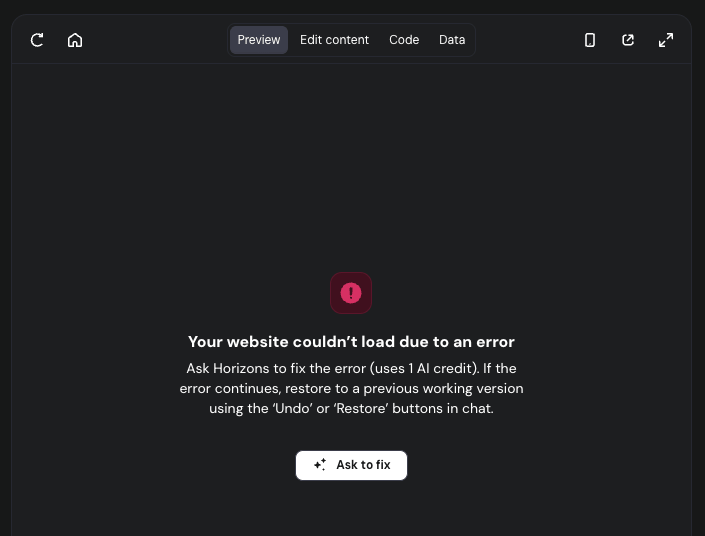
- Wait for the AI to process the request.
- If the fix fails, do not repeat the same request. Repeatedly asking for the same fix can create additional errors or break other parts of your website. If the first try fails, proceed to providing manual context or undoing the change.
Step 2 – Create a technical log
If the automated fix fails, you can improve the AI’s success rate by providing a “repro bundle”, that is, a clear description of the error backed by technical data from your browser.
- Open the site preview, right-click anywhere, and select Inspect.
- Go to the Network tab and perform the action that triggers the error.
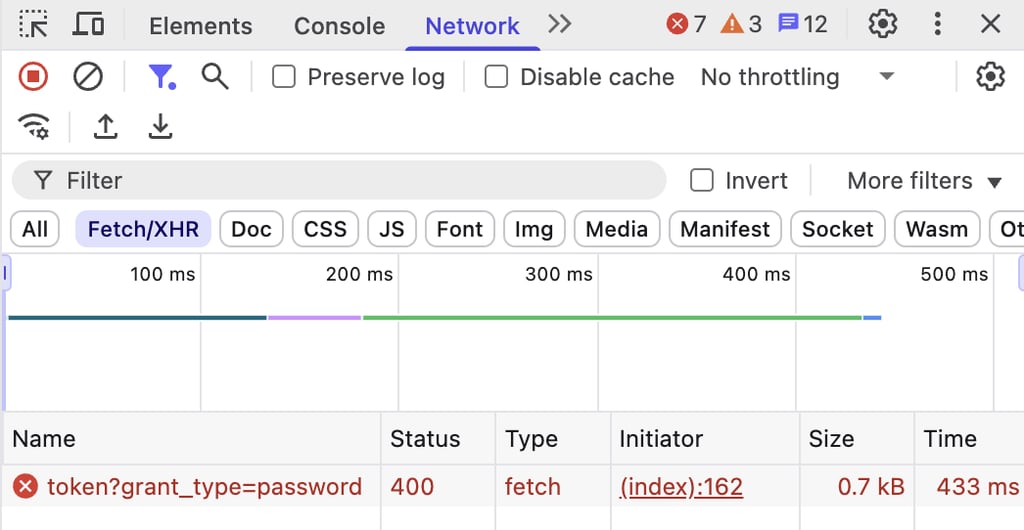
- Click on the failed request (usually highlighted in red) and copy the following:
- Request URL
- Request Payload (the data sent)
- Response (the error message from the server)
- Go to the Console tab and copy the most recent error logs as text.
- Send a new message to Hostinger AI Builder including the exact steps you took, what happened, and the logs you copied.
Example of an effective diagnostic message:
When I click the “Submit” button, I get a console error Network request failed. The Network tab shows a POST request to /api/save with payload { id: 101 } and a response { “error”: “database_connection_failed” }. Please fix this connection logic.
Using these logs allows the AI to better address any technical issues. If providing logs does not resolve the issue, consider restoring your project to a previous stable state to avoid further complications.
NOTE
- Disable your ad blocker or open the preview in a private window if buttons or features don’t respond and the Console tab shows ERR_BLOCKED_BY_CLIENT.
Fix the Something went wrong on our end error in Hostinger AI Builder
The Something went wrong on our end message means Hostinger AI Builder couldn’t complete your request. Large requests that ask for many changes at once are more likely to fail.
- Click Try again on the error message.
- Top up your Hostinger Credits first, then click Try again if your balance is at 0.
- Split the request into smaller requests if the error repeats, with one change per message. See how to write effective prompts in agentic mode for examples.
- Click Undo last change or restore an earlier version if the preview stops working after the error. See how to undo changes in agentic mode.
Fix changes that don’t appear after Hostinger AI Builder says they’re done
A change that Hostinger AI Builder reports as done may be visible only in the preview, because your live website shows the last published version.
- Read the summary at the end of the Hostinger AI Builder reply. The summary lists requested changes that weren’t made.
- Check the preview in the Hostinger AI Builder editor.
- Publish your website if the change appears in the preview. See how to publish your app in agentic mode.
- Refresh the live website page to load the latest version.
- Send a new request that names the exact page and element if the change is missing from the preview too, for example: On the Contact page, change the hero section button text to Book now. Attach a screenshot of the element to make the request clearer.
- Paste text directly into the chat instead of asking Hostinger AI Builder to copy content from a PDF file.
Related Hostinger AI Builder agentic mode resources
- Publish your app once errors are resolved.
- Restore a deleted website if your project was removed.
- Possible and restricted actions the AI can take in your project.