When a Hostinger Ecommerce plan expires, its store stays in the Hostinger dashboard, but its sales channels turn off and customers can’t place orders until you renew. When a Hostinger Ecommerce plan is canceled, the plan no longer appears in the Hostinger dashboard, so you lose access to its store, products, and orders. Renew an expired plan from the Ecommerce section, or move its sales channels to a new Hostinger Ecommerce plan, and save your products and orders before you cancel.
What happens when your Hostinger Ecommerce plan expires
An expired Hostinger Ecommerce plan keeps your store and its data in the Hostinger dashboard, but your sales channels stop taking orders.
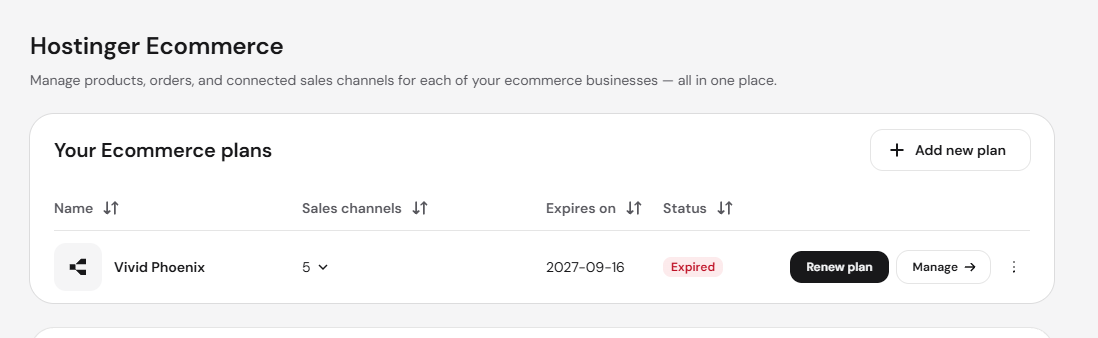
- In Ecommerce, the plan shows the Expired status in the Your Ecommerce plans list.
- On the Sales channels page, your sales channels are marked Inactive with the message Payments are disabled, so customers can’t buy from them.
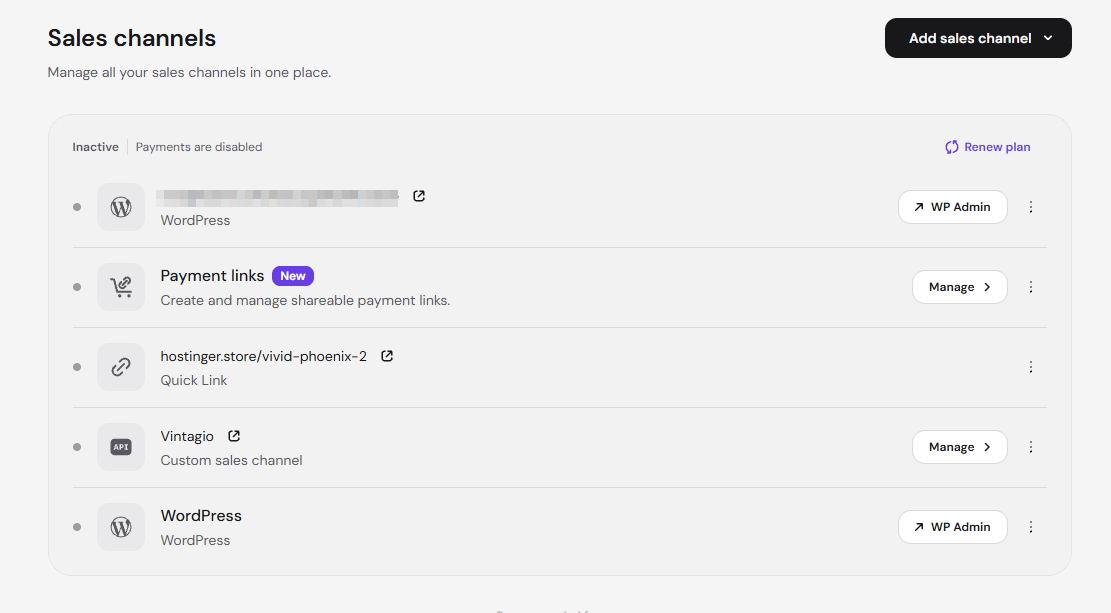
- You can still open the store and manage products, orders, customers, appointments, discounts, analytics, and settings.
How to renew an expired Hostinger Ecommerce plan
Renew the plan from the Ecommerce section to turn your sales channels back on.
- Log in to the Hostinger dashboard and go to Ecommerce.
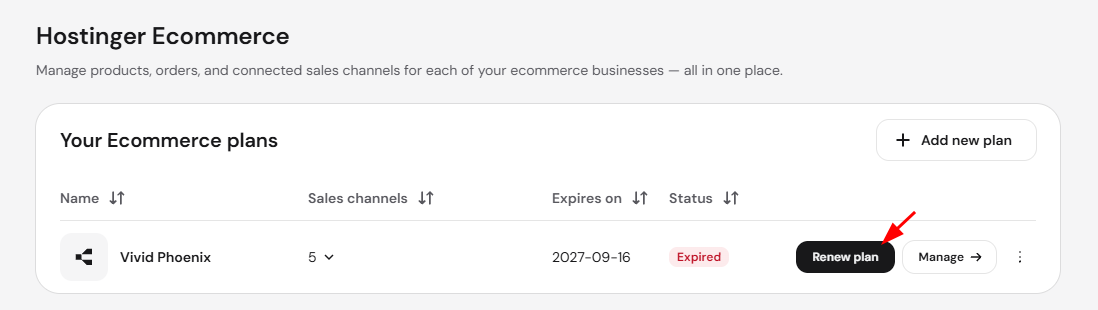
- In the Your Ecommerce plans list, click Renew plan next to the expired plan.
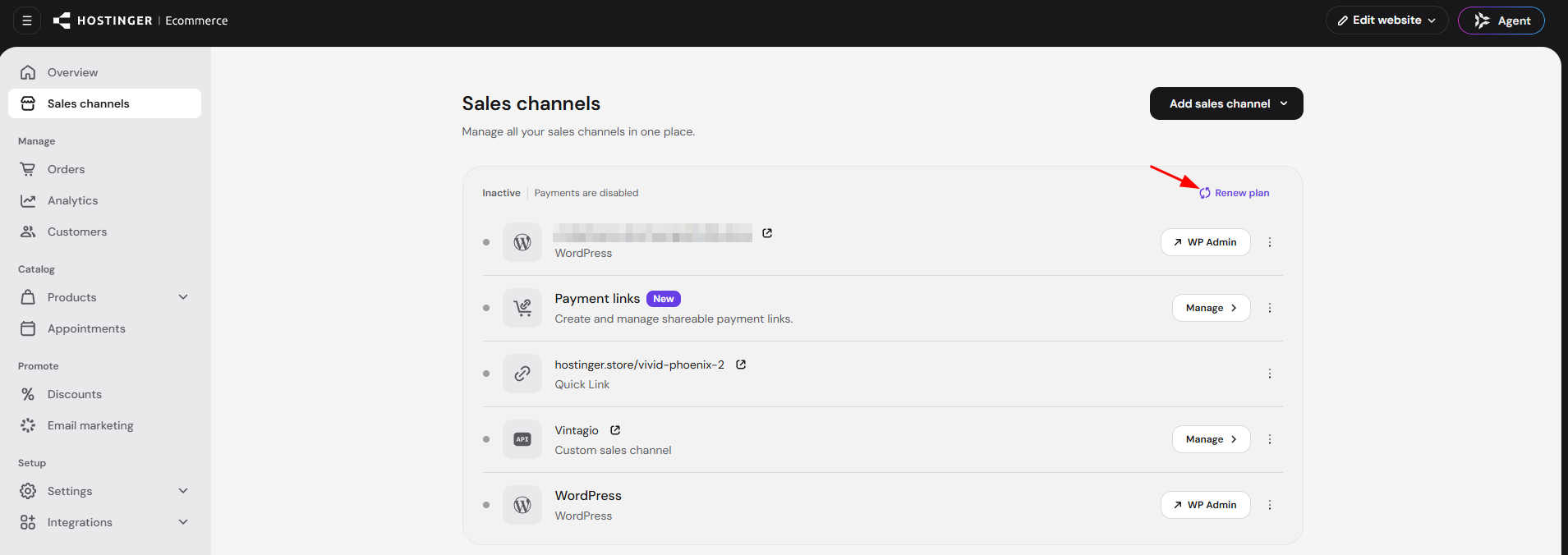
The Renew plan link on the Sales channels page works too.
- Complete the payment.
To keep the plan from expiring again, see how to automatically renew Hostinger services.
Move your sales channels to a new Hostinger Ecommerce plan
Products are stored in the Hostinger Ecommerce store, not in the sales channel, so they don’t move to a new plan with your sales channels. To sell from a new Hostinger Ecommerce plan, back up your products, move your sales channels, and import the products into the new plan’s store.
- Back up your products and export your orders from the expired store. See back up your Hostinger Ecommerce products and orders.
- Remove your sales channels from the expired store:
- Quick link store, Payment links, or Custom sales channel: click the three-dot icon next to the sales channel and select Delete.
- Hostinger AI Builder or WordPress website: see How to switch sales channels for the steps for your sales channel type.
- Open the new plan’s store and add your sales channels.
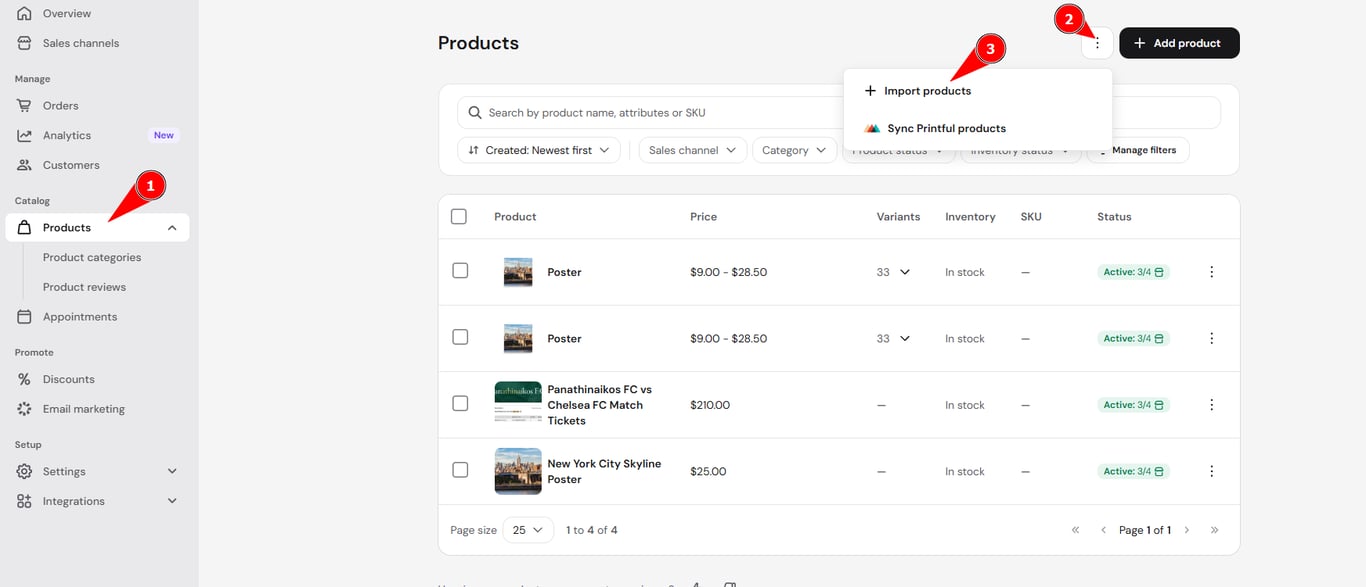
- In the new plan’s Store Manager, go to Products, click the three-dot icon (⋮) next to Add product, then click Import products and upload your product spreadsheet.
What happens when your Hostinger Ecommerce plan is canceled
A canceled Hostinger Ecommerce plan no longer appears in the Hostinger dashboard, so you can’t open its store, products, or orders.
Before you cancel, export your orders and save your product data. See Hostinger Ecommerce: What you can restore after deleting a product or store to back up your products and orders. To cancel the plan, see how to cancel a Hostinger service.
With an expired plan, renewing brings your store back to selling. With a planned cancellation, a saved copy of your products and orders lets you rebuild your store later.