Inactive with the message Payments are disabled appears on the Sales channels page in Hostinger Ecommerce when a sales channel can’t take payments. It happens in two situations: your hosting plan doesn’t include Hostinger Ecommerce, or you added a sales channel to a store whose one sales channel slot was already used. A Hostinger Ecommerce plan fixes both. You can also free the slot and connect the sales channel again.
Find out why your Hostinger Ecommerce sales channel is inactive
Open the Sales channels page and read the message next to Inactive. It says: Payments are disabled. Get Ecommerce plan to activate sales channels.
- Log in to the Hostinger dashboard and go to Ecommerce.
- Open your Store Manager.
- Click Sales channels in the side menu.
|
Situation |
Why the sales channel is inactive |
Fix |
|
Your hosting plan doesn’t include Hostinger Ecommerce |
New Unlimited and Cloud hosting plans no longer include Hostinger Ecommerce, and a store without a Hostinger Ecommerce plan can’t take payments. |
Get a Hostinger Ecommerce plan. |
|
You added a sales channel to a store from an older Cloud or Business hosting plan |
The store includes one sales channel, so the new one is added as inactive. |
Get a Hostinger Ecommerce plan, or remove the sales channel and connect again. |
Fix Payments are disabled with a Hostinger Ecommerce plan
Get a Hostinger Ecommerce plan to activate your sales channels. Removing a different sales channel doesn’t activate an inactive one. See Hostinger Ecommerce: Product overview for more explanations about the plans.
- On the Sales channels page, click Get Ecommerce plan.
- Complete the purchase.

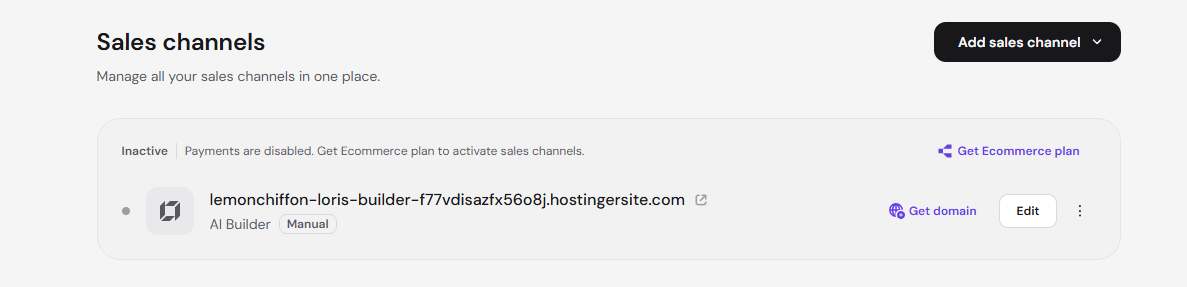
Fix Payments are disabled by disconnecting a sales channel
Use this fix when your store comes from an older Cloud or Business hosting plan and you prefer not to buy a Hostinger Ecommerce plan yet. Removing another sales channel doesn’t activate the inactive one on its own. Disconnect the current sales channel, then connect the new sales channel.
- Remove the sales channel you don’t need.
- Click the three-dot icon next to the inactive sales channel and select Disconnect.

- Connect the website to your store. See How to add a sales channel for the available options.
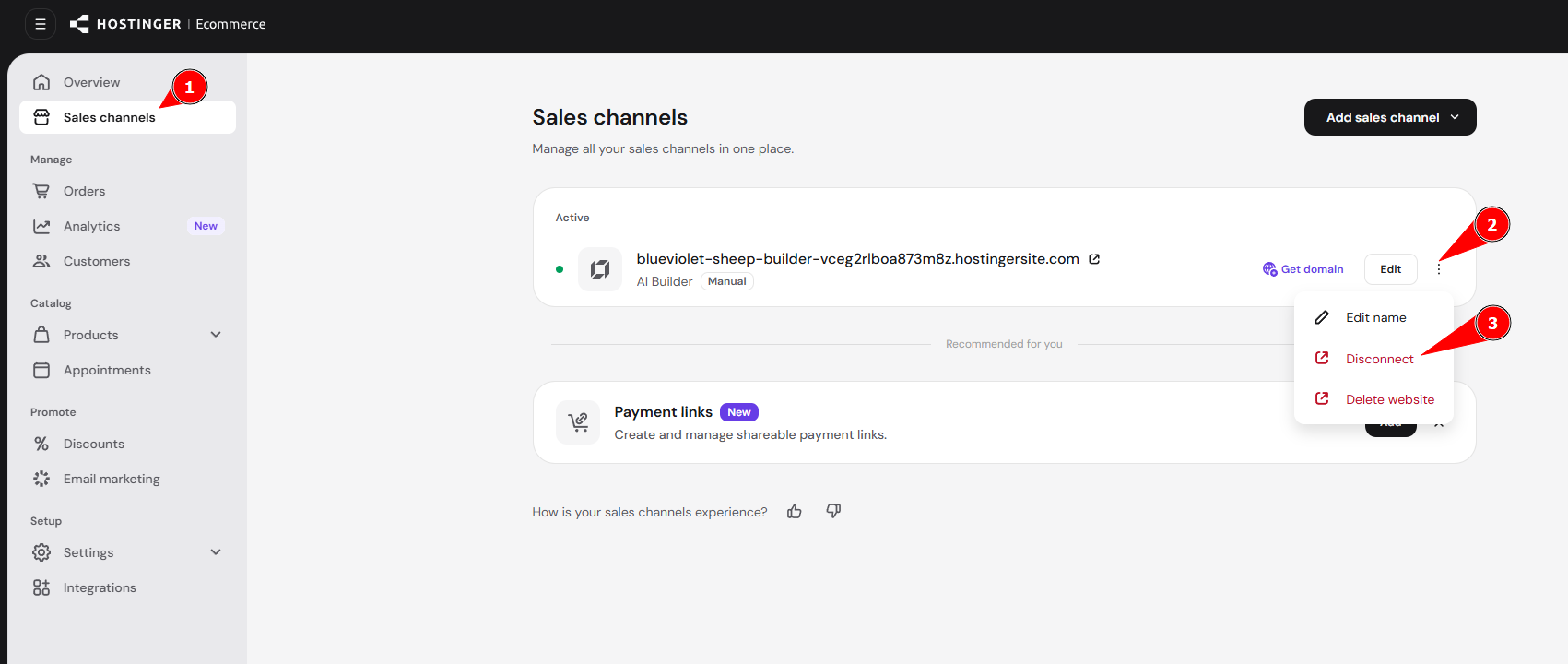
Hostinger AI Builder agentic mode and WordPress sales channels don’t offer Disconnect on the Sales channels page. See How to switch sales channels to check the alternative.
If you already removed the active sales channel by accident and the new sales channel still shows Inactive, disconnect the inactive sales channel too. Make sure that your store has no sales channels left, then connect the sales channel again.
- On the Sales channels page, click the three-dot icon next to the inactive sales channel and select Disconnect.
 Select Disconnect, not Delete website. Delete website deletes the website itself.
 - Make sure that Sales channels page shows Create your first sales channel.

- Click Add a new sales channel and select the sales channel you want. See How to add a sales channel for the options.

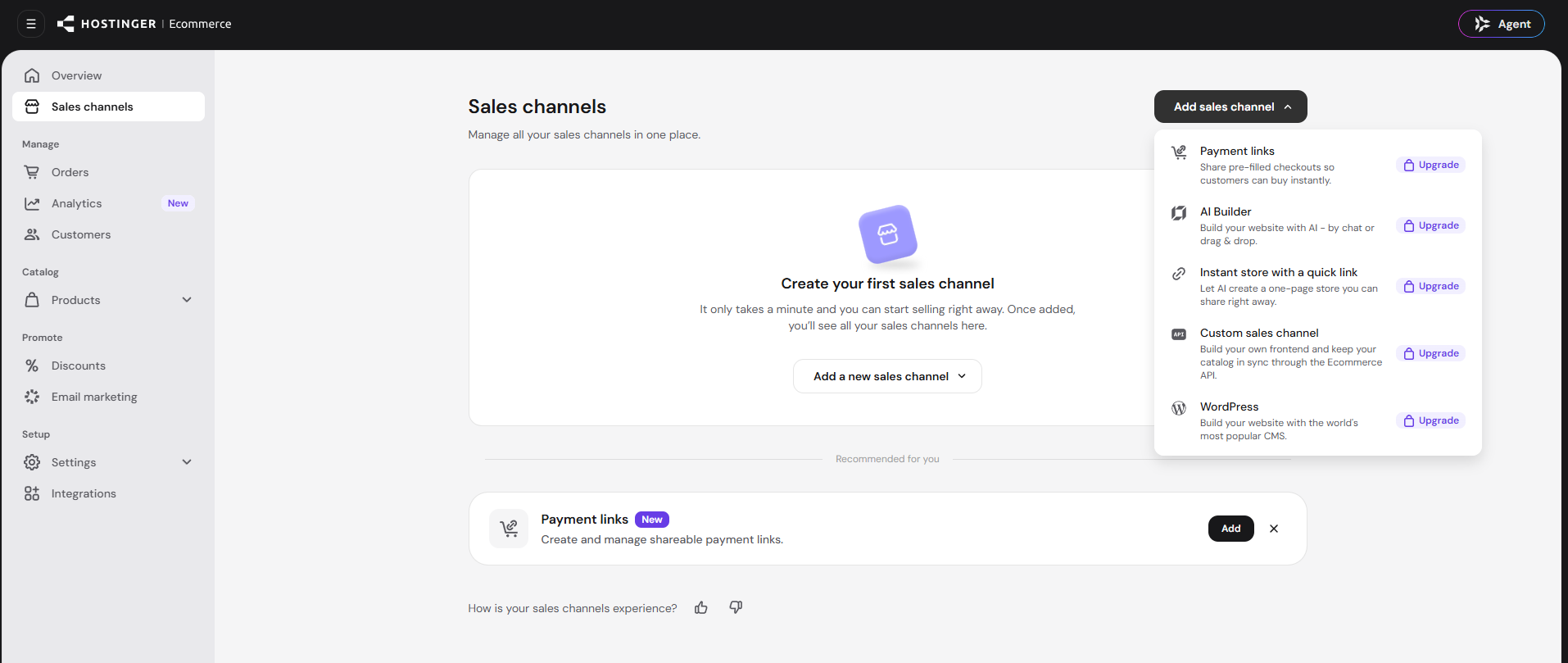
Avoid Payments are disabled when you switch a sales channel
Remove the current sales channel before you add a new one, so the store never has more sales channels than it includes. When you connect an existing website, choose a Ecommerce store with an available sales channel slot or a Ecommerce store on a Hostinger Ecommerce plan. For example, you can choose Ecommerce store that has 0 sales channel.
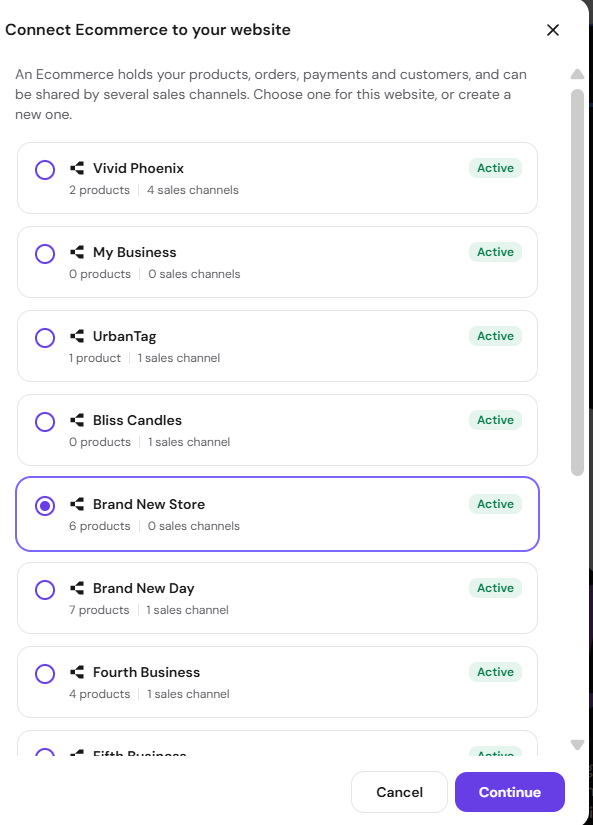
Contact Hostinger support if the message stays
Contact Hostinger support if you have an active Hostinger Ecommerce plan and the sales channel is still inactive. Don’t buy another plan. Include your store name, the sales channel address, your plan name and expiry date, and a screenshot of the message.
After the fix, your sales channel appears under Active on the Sales channels page. Place a test order to confirm it takes payments.
NOTES
- If a checkout page shows Some items may no longer be available or Checkout is temporarily unavailable, see Hostinger Ecommerce: How to fix cart and checkout unavailable errors.
- If checkout shows Sorry, there was an error processing your order, see Hostinger Ecommerce: How to fix “Sorry, there was an error processing your order”.