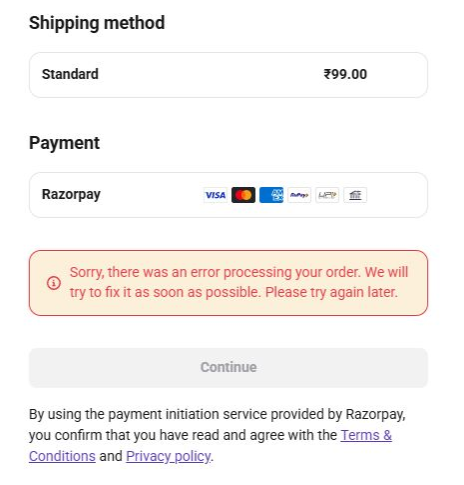
Sorry, there was an error processing your order appears at Hostinger Ecommerce checkout when the order can’t be created or paid. Check your sales channel, payment method, and order amount first. Razorpay and dLocal Go each have extra causes.
Find the cause of your order processing error
|
Cause |
Applies to |
Where to check |
|
The sales channel is inactive |
All payment methods |
Check that your sales channel is active |
|
The payment method isn’t connected or the connection isn’t finished |
All payment methods |
Check that your payment method is connected and working |
|
Your payment provider account isn’t active |
All payment methods |
Check that your payment provider account is active |
|
The order total is below the minimum |
Stripe, dLocal Go, Razorpay |
Check the minimum order amount |
|
The order total is above the maximum, with the message Amount exceeds maximum amount allowed |
Razorpay |
Check the maximum order amount for Razorpay |
|
The connection expired |
Razorpay |
Reconnect Razorpay if your connection expired |
|
The store currency doesn’t match the customer’s country |
dLocal Go |
Check the store currency and customer country for dLocal Go |
Check that your sales channel is active
Checkout is blocked for an inactive sales channel, so this message can follow Payments are disabled. Open the Sales channels page in your store. If a sales channel shows Inactive, see How to fix “Payments are disabled” on a sales channel to fix it.
Check that your payment method is connected and working
- Go to Settings → Payments.
- Check that each payment provider shows as connected.
- Finish any connection you started and didn’t complete.
If you started connecting Stripe but didn’t finish, checkout can still show the Stripe card option, and the payment fails. See How to enable Stripe payments to finish connecting Stripe, or How to remove payment methods to remove the payment method.
Check that your payment provider account is active
Payments fail when your account with the payment provider isn’t active. For example, Stripe can restrict an account that needs action, and dLocal Go can’t create payments while your account is under fraud review. Check the status of your account with every payment provider you use.
- Go to Settings → Payments.
- Click Manage next to the payment provider, then open the provider’s account.
- Check the account status in the provider’s dashboard.
- Fix anything the provider asks for, such as a restriction, a verification, or a review, then try the payment again.
- When Stripe restricts your account, an Action required badge and a red warning banner appear in your payment methods list in Hostinger Ecommerce. See How to enable Stripe payments for what to do.
- Contact the payment provider if the account stays inactive or under review.
Check the minimum order amount
Stripe, Razorpay, and dLocal Go enforce a minimum payment amount, and an order below it fails with this message. For example, a €0.10 order fails with Stripe because Stripe’s minimum is €0.50.
|
Payment provider |
Minimum order amount |
|
Stripe |
0.50 USD, 0.50 EUR, and 0.30 GBP. Other currencies vary. See Stripe’s minimum charge amounts. |
|
Razorpay |
₹1 (100 paise) for orders in Indian rupees. See Razorpay’s API documentation. |
|
dLocal Go |
1 US dollar or the equivalent in your local currency. See dLocal Go’s minimum transaction amount. |
Stripe’s minimum depends on your settlement currency, and charges that need currency conversion must meet the equivalent minimum. To fix the error, raise the product price or order total above the minimum. See How to change the currency in the online store to change your store currency.
Check the maximum order amount for Razorpay
Razorpay returns the message Amount exceeds maximum amount allowed when the order total is above the limit for the payment method the customer chose. Each payment method has its own limit, so check the limit for that method.
To fix it, lower the order total, or ask the customer to pay with a method that has a higher limit. See Razorpay’s transaction limits for the current limitations.
Reconnect Razorpay if your connection expired
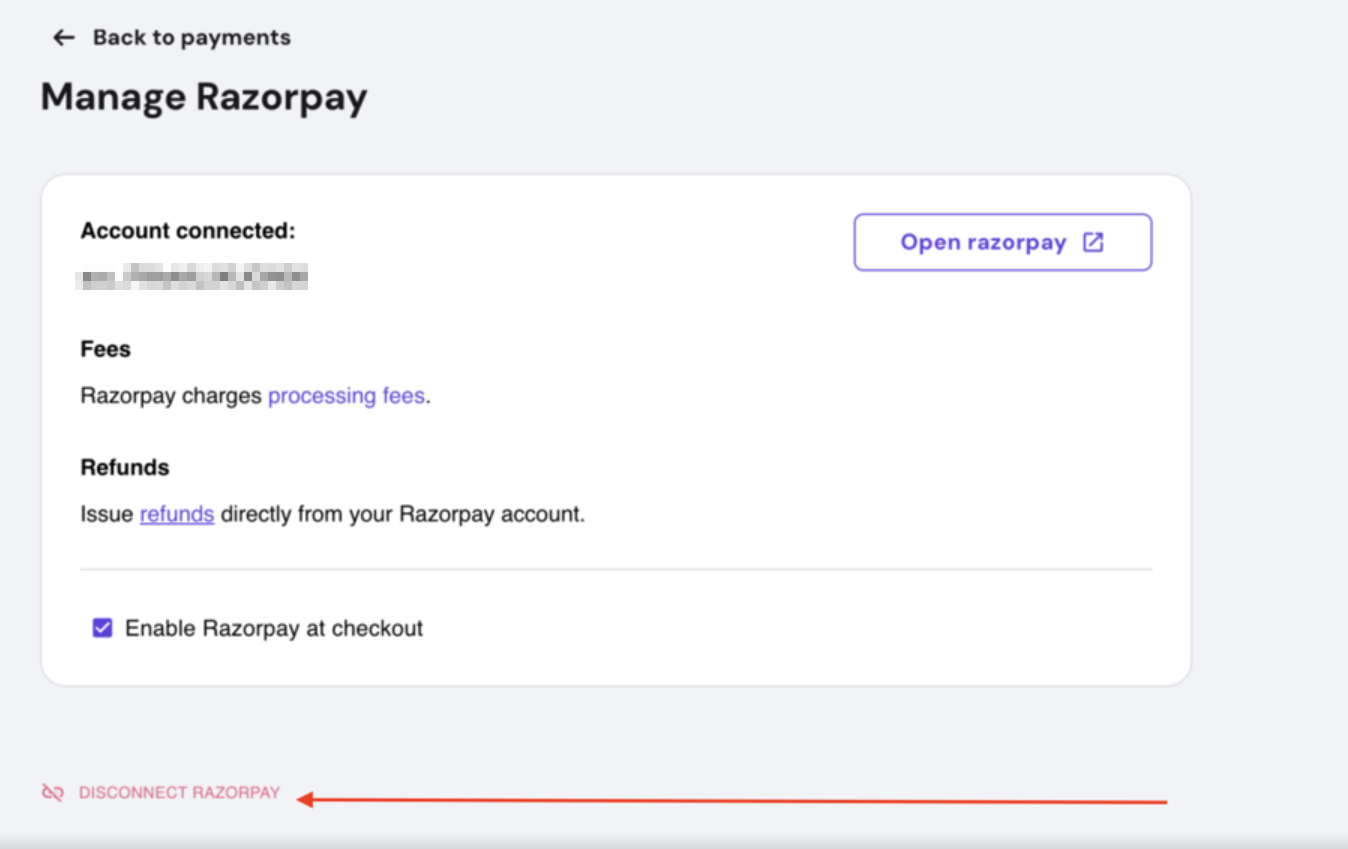
A Razorpay connection can expire, which makes payments fail. Disconnect Razorpay and connect it again. Turning Razorpay off and on isn’t enough.
- Go to Settings → Payments.
- Click Manage next to Razorpay.
- Click Disconnect Razorpay at the bottom of the page.

- See How to enable Razorpay payments to connect Razorpay again.
Check the store currency and customer country for dLocal Go
dLocal Go returns the error Local-to-local transactions are currently not supported in BR when the store currency and the customer’s country don’t work together. When the store currency is Brazilian real (BRL), only customers in Brazil can pay. With US dollars (USD), customers across Latin America can pay, in their own country’s currency.
|
Store currency |
Customer’s country |
Result |
|
BRL |
Brazil |
The payment works. |
|
BRL |
Another Latin American country, such as Argentina |
The payment doesn’t work, because the countries use different currencies. |
|
USD |
Brazil |
The payment works. The customer pays in BRL at the dLocal checkout. |
|
USD |
Another Latin American country |
The payment works. The customer pays in that country’s currency at the dLocal checkout. |
To accept customers from several Latin American countries, change your store currency to USD. See How to change the currency in the online store to change it, Supported currencies in the online store to check the supported currencies, and How to enable dLocal Go payments for connecting dLocal Go.
Contact Hostinger support about order processing errors
Contact Hostinger support when your sales channel, payment method, order amount, and provider account are all fine and the message stays. Include your store name, your website address, the payment method, the order total, and a screenshot of the message.
After the fix, your checkout completes the order. Place a test order to confirm.
NOTES
- If a sales channel shows Inactive, see How to fix “Payments are disabled” on a sales channel.
- If checkout shows Checkout is temporarily unavailable, see How to fix cart and checkout unavailable errors.
- For other payment problems, see How to fix payment and checkout issues.