Add a sales channel in Hostinger Ecommerce from the Sales channels page, or from your website if it already exists. Adding Hostinger AI Builder or WordPress from the Sales channels page creates a new website, so connect an existing website from its own dashboard. Quick link stores and Payment links are added from the Sales channels page.
Before you start
Make sure you have:
- A Hostinger Ecommerce store.
- A Hostinger hosting plan, if you want to create a new Hostinger AI Builder or WordPress website.
Choose how to add your sales channel in Hostinger Ecommerce
Use this table to pick the right starting point.
|
Sales channel |
Add it from |
Setup guide |
|
Quick link store |
The Sales channels page in Hostinger Ecommerce |
Hostinger Ecommerce: How to create and manage a Quick link store |
|
Payment links |
The Sales channels page in Hostinger Ecommerce |
|
|
Existing Hostinger AI Builder manual mode website |
The website’s own Hostinger AI Builder editor |
Hostinger AI Builder: How to connect Hostinger Ecommerce in manual mode |
|
Existing Hostinger AI Builder agentic mode website |
The website’s own Hostinger AI Builder project |
Hostinger AI Builder: How to connect Hostinger Ecommerce in agentic mode |
|
Existing WordPress website |
The website’s WordPress dashboard |
|
|
New Hostinger AI Builder website |
The Sales channels page in Hostinger Ecommerce |
|
|
New WordPress website |
The Sales channels page in Hostinger Ecommerce |
|
|
Custom sales channel |
The Sales channels page in Hostinger Ecommerce |
Open the Sales channels page in Hostinger Ecommerce
Open the Sales channels page in your Hostinger Ecommerce Store Manager to see your active sales channels and add new ones.
- Log in to Hostinger dashboard and go to Ecommerce.
- Open your Store Manager.
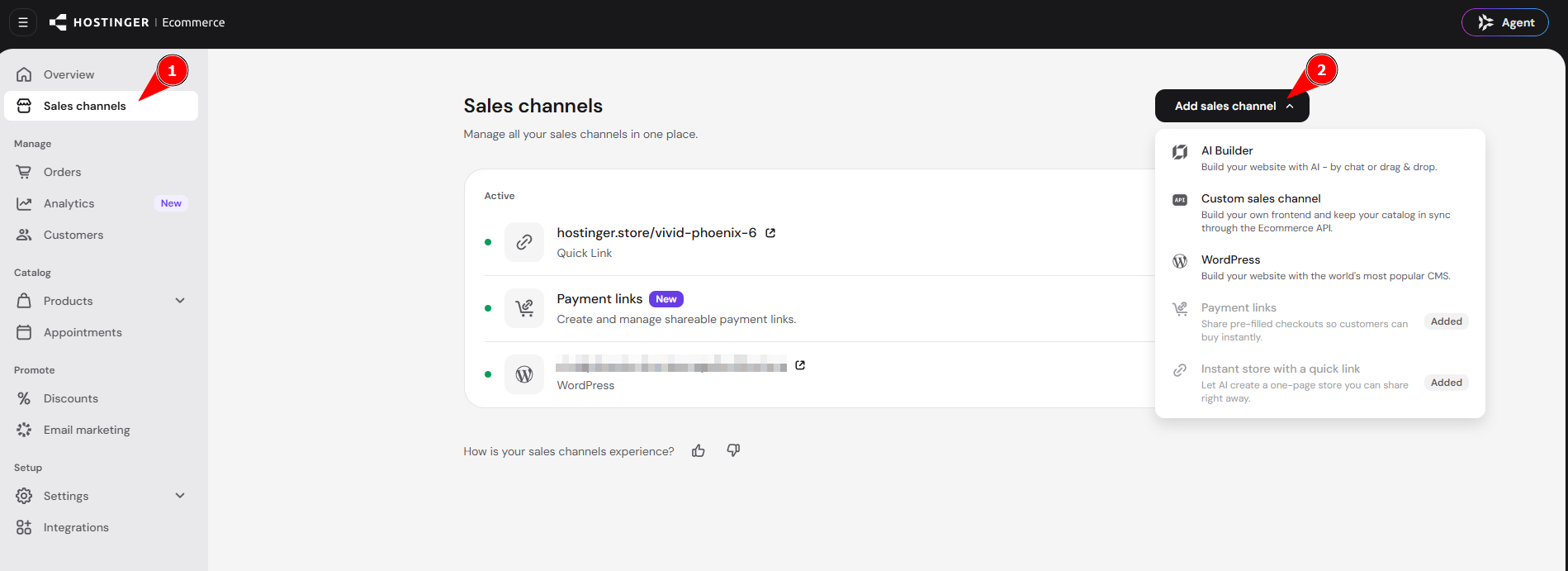
- Click Sales channels in the side menu.
- Click Add sales channel.
- The list shows Payment links, AI Builder, Instant store with a quick link, Custom sales channel, and WordPress.
Sales channel limits in Hostinger Ecommerce
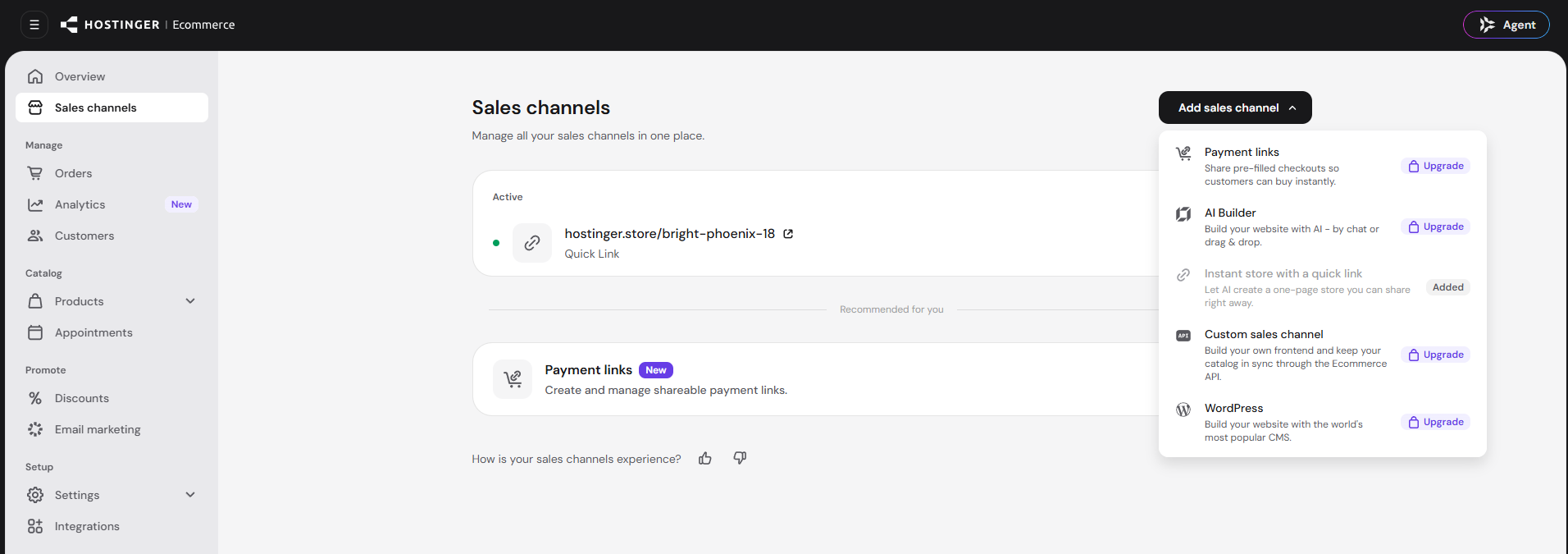
How many sales channels you can add depends on how you have Hostinger Ecommerce: bundled with an older hosting plan, or as a paid Hostinger Ecommerce plan. Upgrade appears next to a sales channel that your current access doesn’t include.
Hostinger Ecommerce bundled with an older hosting plan
If you never bought a Hostinger Ecommerce plan and your access comes with an older Cloud or Business hosting plan, Hostinger Ecommerce includes one sales channel. After you add that one, every other sales channel in the Add sales channel list shows Upgrade. For example, if a Quick link store is your one sales channel, Payment links, AI Builder, Custom sales channel, and WordPress all show Upgrade. New Unlimited and Cloud hosting plans no longer include Hostinger Ecommerce.
A paid Hostinger Ecommerce plan
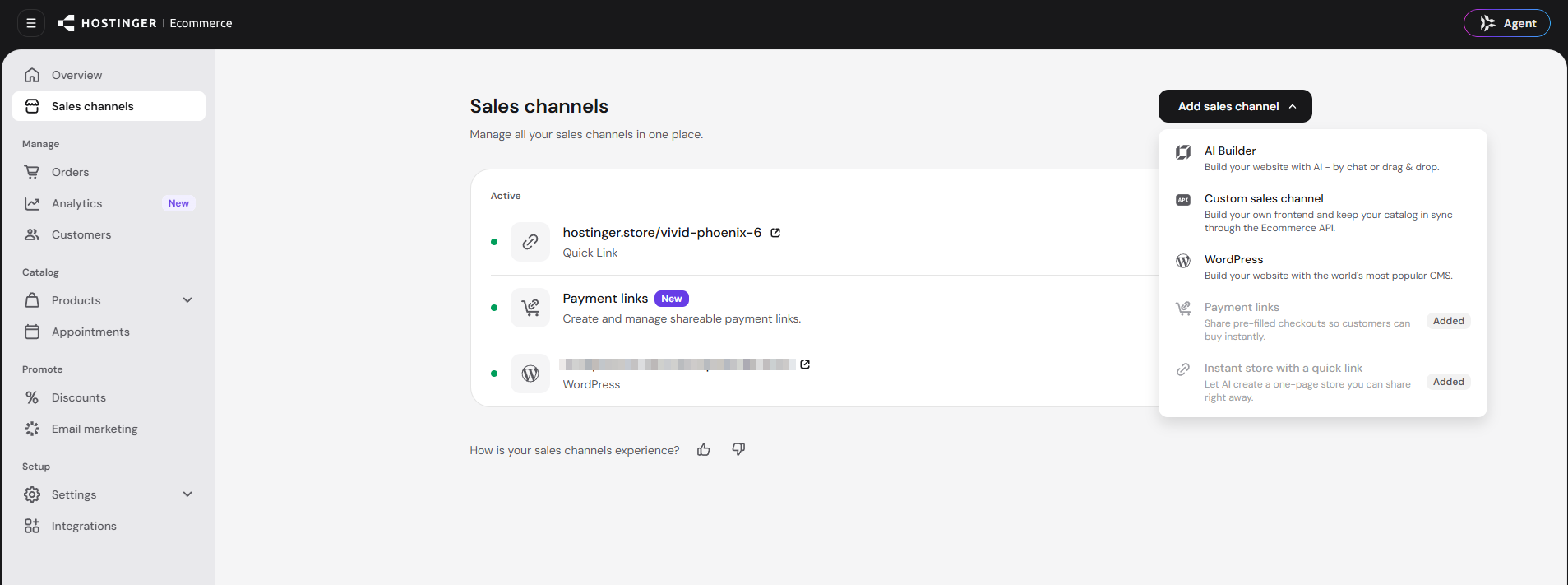
A paid Hostinger Ecommerce plan covers one store. It lets you add one Quick link store and one Payment links channel, and multiple Hostinger AI Builder, WordPress, and Custom sales channels. Those channels don’t show Upgrade. Added appears next to a sales channel you’ve already set up. Quick link store and Payment links show Added after you add one of each.
Add a Quick link store or Payment links
Select Instant store with a quick link or Payment links in the Add sales channel list, and follow the setup guide.
- For Quick link stores, see Hostinger Ecommerce: How to create and manage a Quick link store.
- For Payment links, see Hostinger Ecommerce: How to create a Payment Link.
Connect an existing Hostinger AI Builder or WordPress website
Connect an existing website to Hostinger Ecommerce from the website itself, not from the Sales channels page. Adding Hostinger AI Builder or WordPress from the Sales channels page creates a new website.
- For a Hostinger AI Builder manual mode website, follow Hostinger AI Builder: How to connect Hostinger Ecommerce in manual mode.
- For a Hostinger AI Builder agentic mode website, follow Hostinger AI Builder: How to connect Hostinger Ecommerce in agentic mode.
- For a WordPress website, follow How to set up the Hostinger Ecommerce plugin for WordPress.
Create a new Hostinger AI Builder website as a sales channel
Select AI Builder in the Add sales channel list to create a new Hostinger AI Builder website for your store. Hostinger asks you to select a hosting plan for the new website. Then follow How to Use Hostinger AI Builder to build it.
Create a new WordPress website as a sales channel
Select WordPress in the Add sales channel list to create a new WordPress website for your store. Hostinger asks you to select a hosting plan for the new website. Then follow How to Add a WordPress Website in Hostinger to set it up.
Add a Custom sales channel in Hostinger Ecommerce
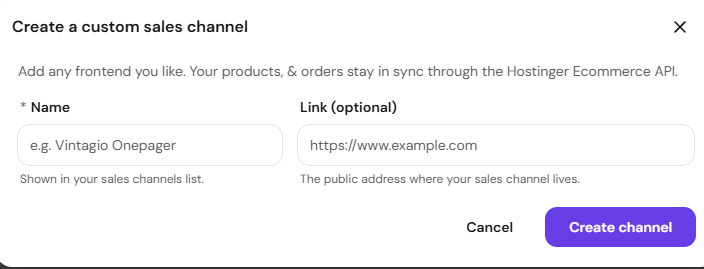
Add a Custom sales channel to connect your own frontend. Your products and orders stay in sync through the Hostinger Ecommerce API.
- In the Add sales channel list, select Custom sales channel.

- Enter a Name. It’s shown in your sales channels list.
- Optional: enter a Link, the public address where your sales channel lives.
- Click Create channel.

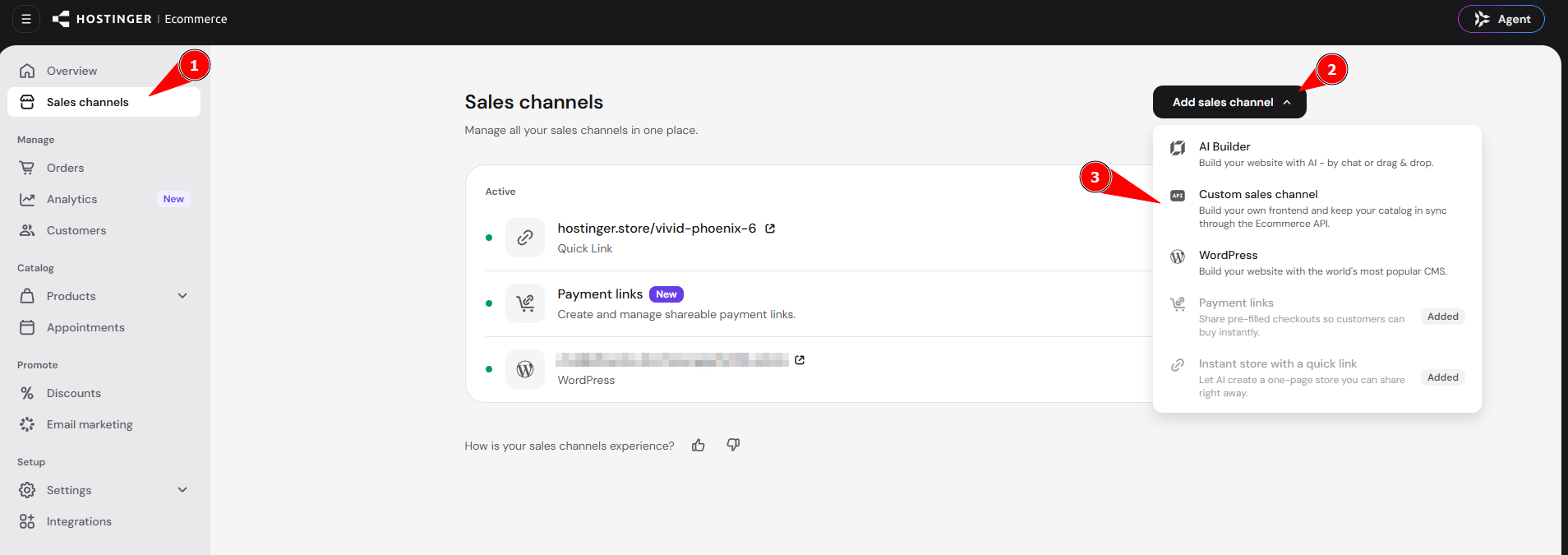
After you add a sales channel, it appears on the Sales channels page in Hostinger Ecommerce.
NOTES
- To change which sales channel your store uses, see How to switch sales channels.
- If a sales channel shows Inactive or Payments are disabled, see How to fix “Payments are disabled” on a sales channel.