Connect Hostinger Ecommerce, a separate subscription, to your Hostinger AI Builder agentic mode project for full online store functionality, without manually prompting databases, payment options, or shipping flows. Add products with AI, configure payments and shipping, and launch your shop in minutes.
What can I sell?
You can sell physical and digital products, gift cards, appointments, subscriptions, and donations.
When you describe an appointment-based business, Hostinger AI Builder builds the site, services, and booking flow together using Hostinger Ecommerce natively, without needing a third-party booking tool.
Supported appointment business types include:
- Beauty & grooming — barbershops, hair and nail salons, lash and brow studios, makeup artists, tattoo studios
- Health & wellbeing — massage therapists, physios, chiropractors, dentists, nutritionists, therapists and counsellors
- Fitness — personal trainers, yoga and pilates instructors, swim and tennis coaching
- Professional services— lawyers, accountants, business and career coaches, paid discovery calls
- Tutoring & lessons — language, music and maths tutors, driving instructors
- Home & auto — plumbers, electricians, cleaners, handymen, mobile valeting, garage service slots
- Pets — groomers, dog trainers, vets
- Creative — photographers, videographers, studio sessions
Customers select a date and time slot at checkout, and you manage appointment products from the Ecommerce store manager. See Hostinger AI Builder: How to accept appointments for full setup instructions.
You can sell subscription products directly through Hostinger Ecommerce. Ask Hostinger AI Builder in the chat to set up subscriptions for your project — see Subscriptions in online store for the full steps.
What payment methods are supported?
Choose from 100+ payment methods, like cards, PayPal, Google Pay, Apple Pay, and others. Payment methods available for your store depend on where you’re selling, your location, currency, and who you’re selling to.
See Hostinger AI Builder: Online payment gateways for more details.
What shipping methods are supported?
Once you connect an online store, you can define your shipping zones with up to 25 delivery options and set custom shipping rules based on order amount or item weight.
How do I connect an online store to my project?
You don’t need to set it up manually. Just ask Hostinger AI Builder in the chat to add an online store to your project — for example: “Add an online store to my project.” Hostinger AI Builder will connect Hostinger Ecommerce to your project automatically. You will be asked which Ecommerce store you want to connect your online store to.
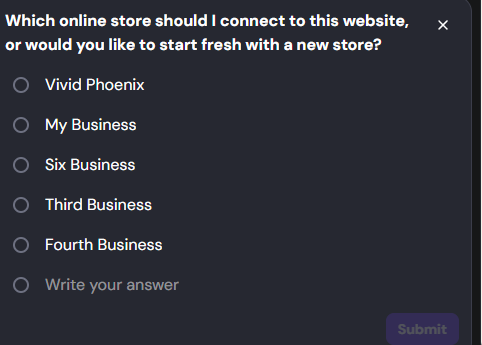
When you ask Hostinger AI Builder to add an online store, it connects your project to Hostinger Ecommerce, a separate subscription, by default. Connecting gives you access to the store manager, product catalog, payments, and shipping directly from your agentic mode project, but an eligible Ecommerce subscription determines what you can actually sell and how many sales channels you can use.
Once the store is connected, click Ecommerce in the top navigation bar to access the store manager, where you can add products, set up payments, update company information, and configure shipping.
Additionally, when creating a new Hostinger AI Builder project, you can connect it to an existing standalone Ecommerce store. The store and its products remain the single source of truth across all connected storefronts.
Checkout address for Hostinger AI Builder agentic mode stores
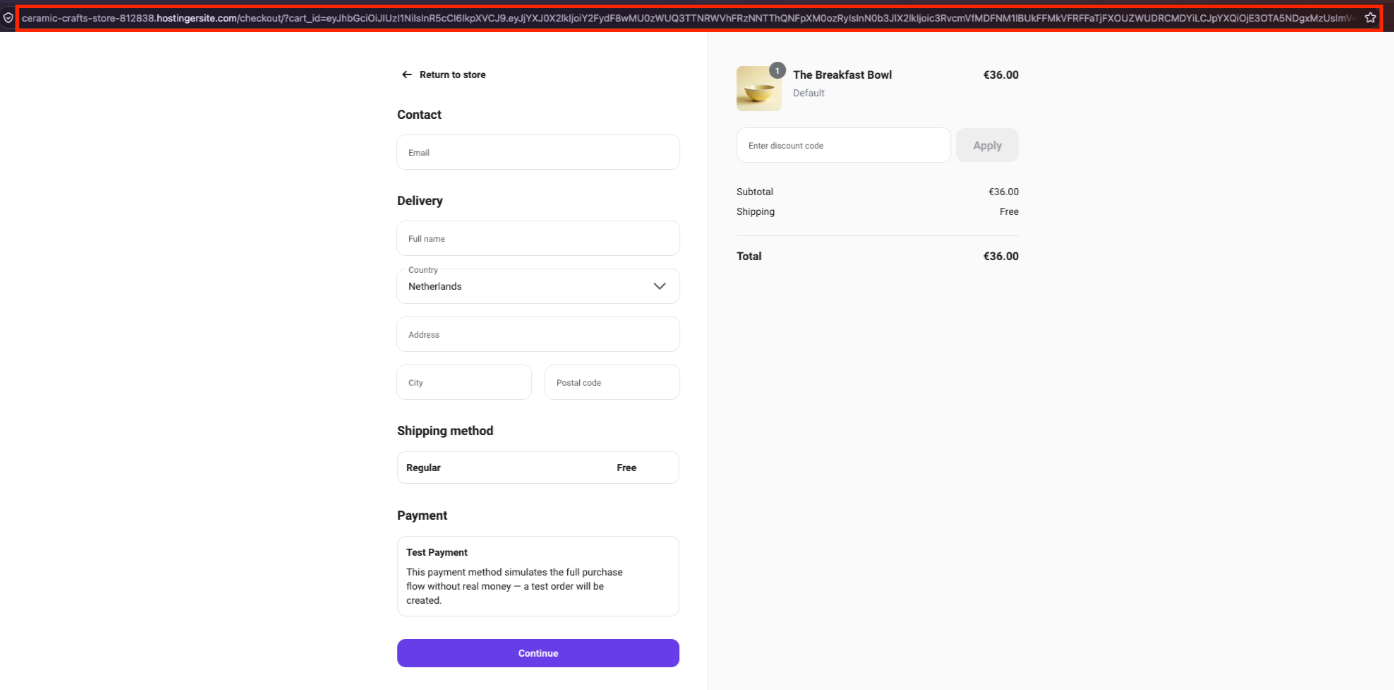
Checkout for a Hostinger AI Builder agentic mode store opens on your website’s own domain at /checkout, such as domain.tld/checkout, instead of checkout.hostinger.com. This applies to custom domains, preview domains, and temporary domains, such as store-name-123456.hostingersite.com/checkout. Existing websites use the website domain for checkout after you publish them again, and new websites use it automatically.
How do I edit my online store?
Via Ecommerce
You can manage your store anytime by clicking Ecommerce in the top navigation bar.
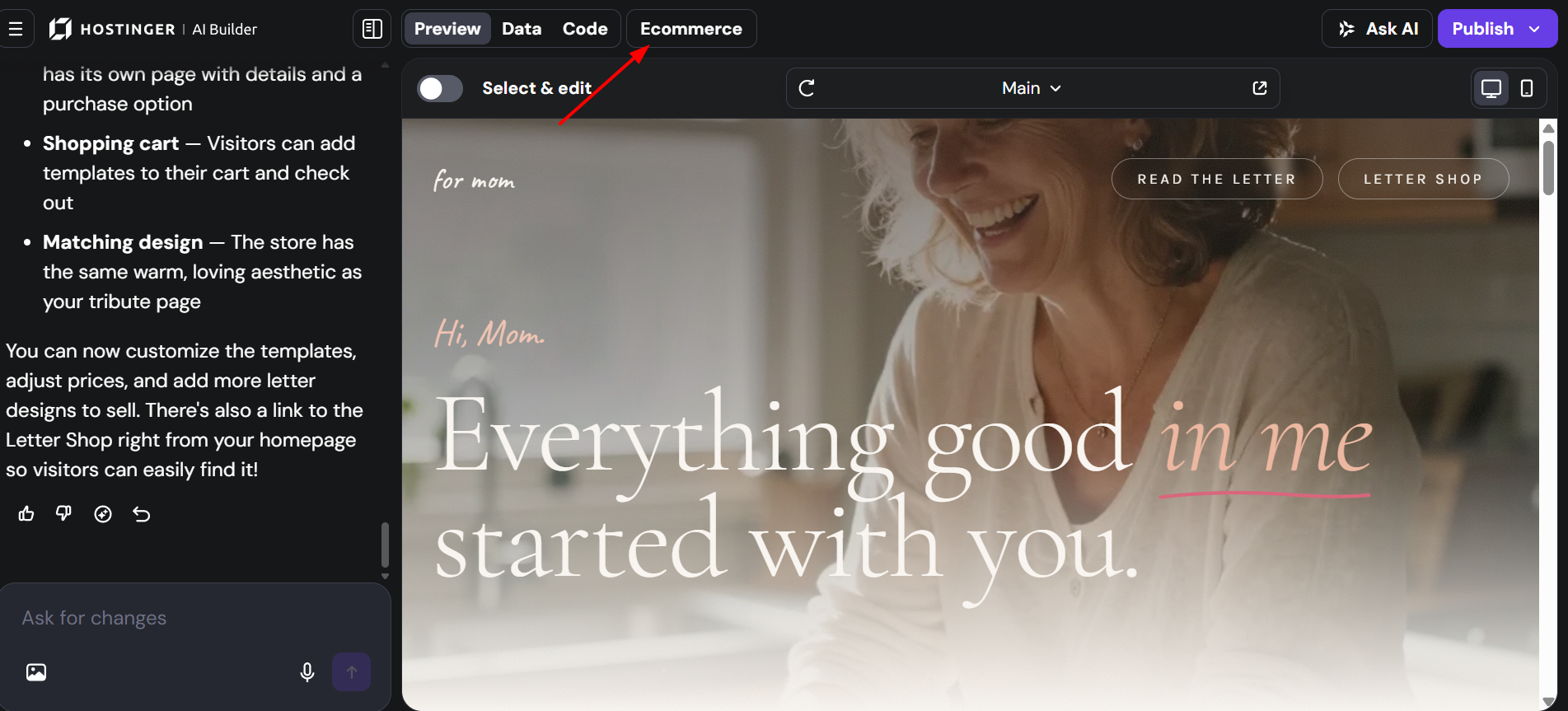
Once it’s connected, you’ll see links that will redirect you to the built-in store manager. From there, you can manage products, payments, and more – without any prompting needed. See How to access the online store settings to learn more about it.
Via Hostinger AI Builder chat
You can also create, update, and delete products directly from the Hostinger AI Builder chat — no need to open the store manager. This works for single or multiple products at once. When creating a product via chat, you can:
• Describe what you want and let AI generate the product details and image
• Attach your own image to the chat and use it for the product
If you want to edit the way your online store looks (like the layout of your product list), just ask AI in the chat to make changes.
Supported features and limitations
Before setting up your store, review the types of products and payment workflows supported by Hostinger AI Builder:
- What you can sell: Physical products, digital products, gift cards, appointments, subscriptions, and donations.
- Product limits: Hostinger AI Builder supports a maximum of 1,000-1,400 products. If you reach this milestone, the interface will display the message: You cannot add more products as the limit is reached.
See how to connect a store, add products with AI, configure payments and shipping, and launch — all in minutes.