Hostinger Reach tracks WhatsApp consent separately from other subscription types, and only contacts with recorded consent and a supported phone number can receive WhatsApp campaigns. This article covers collecting consent with a Hostinger Reach form, using consent gathered outside Reach, reading the recipient summary during campaign setup, and how unsubscribe replies update a contact’s status.
Before you start
- A valid phone number saved in the Hostinger Reach dashboard.
- WhatsApp consent recorded as Subscribed in Hostinger Reach, or valid consent collected elsewhere and confirmed during campaign setup.
- Connect your WhatsApp Business Account first in Hostinger Reach: Connect WhatsApp and complete Meta setup if you haven’t already.
NOTES
- United States phone numbers are excluded because Meta does not allow marketing messages to those numbers.
- You are responsible for obtaining and documenting consent that meets the rules that apply to your business and recipients. Hostinger Reach records the subscription status but does not determine whether your consent process is legally sufficient.
Collect WhatsApp consent with a Hostinger Reach form
Add a Phone number field and a WhatsApp consent checkbox to a Hostinger Reach form to collect both together at once.
- Open an existing Hostinger Reach form or create a new one.
- In the Edit tab, add or enable the Phone number field.
- Open WhatsApp consent and turn on Show WhatsApp checkbox.
- Use clear checkbox text that names your business and explains what the person will receive.
- Select Save and publish.

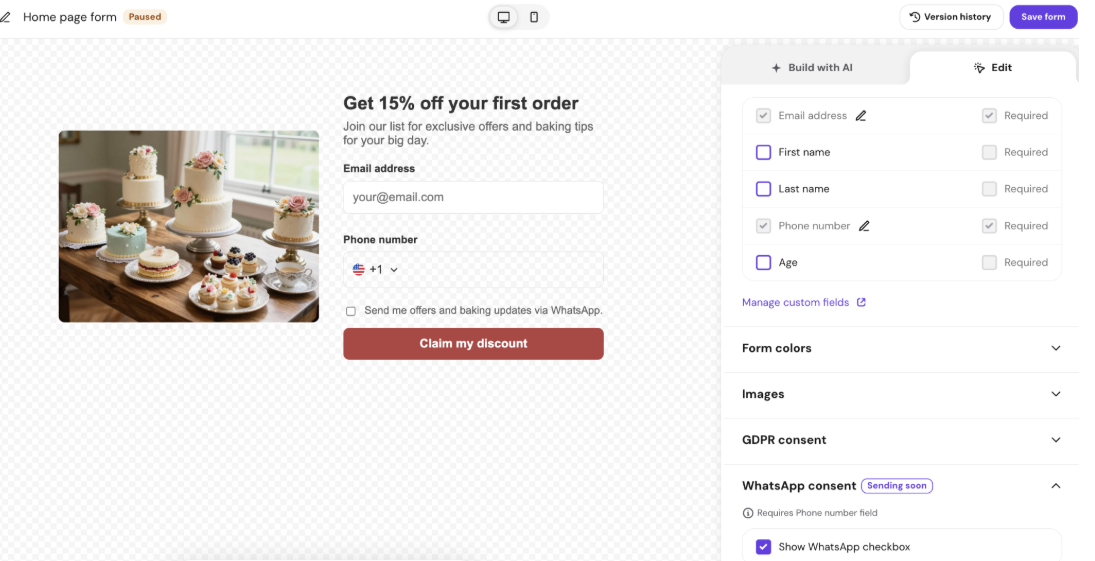
When a person submits the form with the WhatsApp checkbox selected, Hostinger Reach changes that contact’s WhatsApp status to Subscribed.
Use WhatsApp consent collected outside Hostinger Reach
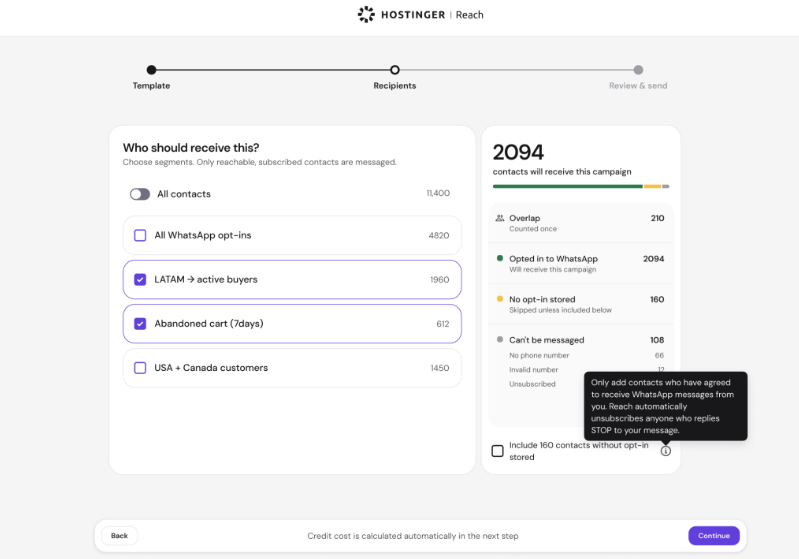
When you select campaign recipients, Hostinger Reach separates contacts with stored consent from contacts with no WhatsApp opt-in recorded, and skips contacts without stored consent by default.
- Select the groups or segments for the campaign.
- Review the recipient summary on the right side of the page.
- Select Include contacts without opt-in stored if some contacts have valid consent collected elsewhere, and confirm that you have permission to message them.

Understand the WhatsApp recipient summary in Hostinger Reach
|
Status |
How Hostinger Reach handles the contact |
|
Opted in to WhatsApp |
Included when the contact also has a valid, supported phone number. |
|
No opt-in stored |
Skipped unless you confirm that valid consent was collected elsewhere. |
|
Can’t be messaged |
Excluded because the phone number is missing or invalid, the contact is unsubscribed, or another eligibility rule applies. |
|
Overlap |
Counted once when the same contact appears in more than one selected group or segment. |
How WhatsApp unsubscribes work in Hostinger Reach
Hostinger Reach adds the fixed footer Reply STOP to unsubscribe to WhatsApp templates. When a recipient replies STOP, Hostinger Reach automatically changes that contact’s WhatsApp status to Unsubscribed and suppresses the contact from future WhatsApp campaigns.
Opt-outs are reported as an overall WhatsApp total rather than a metric for a specific campaign, because WhatsApp keeps messages in one conversation thread per contact and Hostinger Reach cannot reliably assign a reply or unsubscribe to one campaign.
NOTE
- Hostinger Reach does not provide a WhatsApp inbox or automatic replies at the moment. Include another support channel in your message or on the linked page if recipients may need help.
With consent recorded and reflected in the recipient summary, Hostinger Reach sends WhatsApp campaigns only to contacts who are eligible to receive them.