Connecting a WhatsApp Business Account to Hostinger Reach through Meta Embedded Signup lets you send approved WhatsApp marketing campaigns from Reach. WhatsApp campaigns are available with Reach 1000. To connect, prepare a dedicated phone number, sign in with a Facebook profile that has administrator access to the correct Meta business assets, and complete every step Meta requests.
Before you start
- Use a paid Reach 1000 plan. If you are on a lower plan, the WhatsApp page asks you to upgrade.
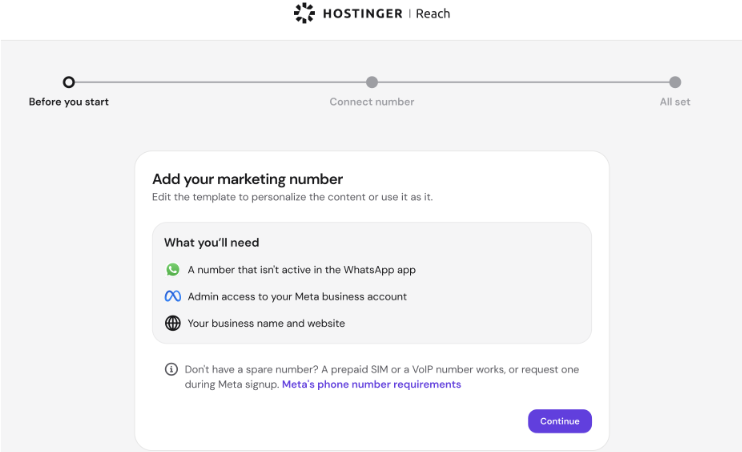
- Prepare a dedicated phone number that can receive the verification method offered by Meta. The number must not be active in the WhatsApp consumer app or WhatsApp Business app.
- Fully disconnect the number from any other WhatsApp provider before connecting it to Hostinger Reach.
- Sign in with a Facebook profile that has administrator access to the correct Meta Business Portfolio and WhatsApp Business Account.
- Have your business display name, company website, and matching business details ready. Meta may request business verification.
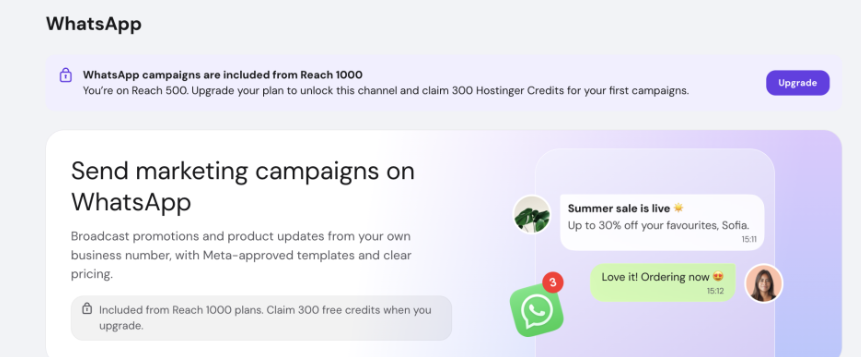
Connect WhatsApp in Hostinger Reach
Open WhatsApp in Hostinger Reach dashboard and complete Meta Embedded Signup to link your WhatsApp Business Account.
- Open WhatsApp in Hostinger Reach and start the connection flow.
- Review the setup requirements, then select Continue.

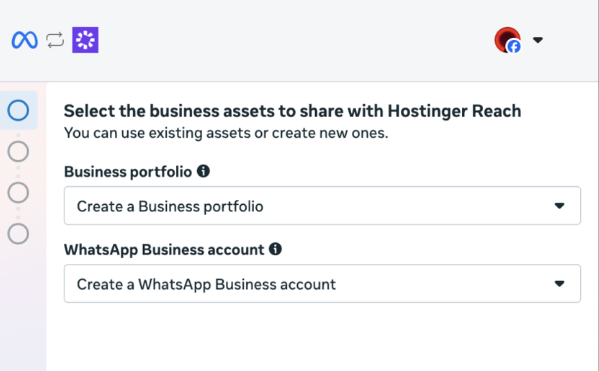
- In the Meta window, sign in with the Facebook profile that manages the business you want to connect.
- Choose an existing Meta Business Portfolio and WhatsApp Business Account, or create them during the flow.

- Add the dedicated phone number and complete the verification step offered by Meta.
- Complete every remaining Meta step and return to Hostinger Reach. The account connects only after Reach confirms that setup is complete.
- Claim the free 300 Hostinger Credits that appear after a successful connection.
What connecting WhatsApp enables in Hostinger Reach
After connection, you can create marketing message templates in Hostinger Reach, submit them to Meta, and send approved templates as one-off campaigns. Campaigns send when you select Send now.
The initial release does not include scheduled sending, a shared WhatsApp inbox, automatic replies, multiple phone numbers, or multiple WhatsApp Business Accounts per Reach account. Replies cannot be handled in Reach as a result.
Fix common WhatsApp connection problems in Hostinger Reach
|
What you see |
What to do |
|
The Meta window does not open |
Allow pop-ups and cookies for the session, use an updated browser, and start the connection again. |
|
The intended business or WhatsApp account is missing |
Confirm that you used the correct Facebook profile and that it has administrator access to the intended Meta business assets. |
|
Meta says the phone number is already in use |
Remove the number from the WhatsApp app or fully disconnect it from the previous provider, then retry. |
|
Verification remains pending |
Meta controls the review. Complete any requested action in Meta Business Suite and wait for the status to update. |
|
Meta shows a policy or account restriction |
Review the restriction in Meta. Reach cannot approve, bypass, or remove Meta restrictions. |
|
Meta setup finishes but Reach is not connected |
Return to Reach, refresh the page, and retry the connection. Contact Hostinger Agent with the time of the attempt, the visible status, and a screenshot with no credentials or verification codes if it still fails. |
Disconnect WhatsApp from Hostinger Reach
Disconnecting WhatsApp keeps your Hostinger Credits in your unified credit balance. WhatsApp campaigns and reports are hidden while no WhatsApp Business Account is connected and become available again after you connect another account.
Once connected, Hostinger Reach guides you through building templates, confirming contact consent, and tracking campaign costs, so your first WhatsApp campaign is ready to send.
Frequently asked questions
Why does Reach open a Meta window?
Meta manages the WhatsApp Business Platform account, phone number connection, business verification, and template approvals. Reach uses Meta Embedded Signup so you can authorize those assets without configuring a separate integration.
Can I use the number from my WhatsApp Business app?
No. Use a separate dedicated marketing number, since a number connected to Reach cannot remain active in the WhatsApp consumer app or WhatsApp Business app. Keep the number used for everyday customer conversations separate, because Reach does not include an inbox.
Can I connect a number used with another provider?
Yes, but first fully disconnect the number from the previous provider. Review the number in Meta Business Suite before retrying if Meta still reports that the number is in use.
Where can I check business verification?
Business verification and WhatsApp account details remain in Meta. Open WhatsApp Manager in Meta Business Suite to review the current status and any action requested by Meta.