Connect Hostinger Agentic Mail to your Managed OpenClaw application so your AI agent can send, read, and manage emails directly from an existing mailbox on your domain. Once connected, OpenClaw can handle email tasks like drafting replies, sending notifications, or monitoring an inbox without manual setup for each request.
Before you start
- An active Hostinger Email mailbox on the domain you want to use. Agentic Mail is available on all Hostinger Email plans.
- An active Managed OpenClaw application.
Step 1 – Generate an Agentic Mail API token
- Go to the Emails section of Hostinger dashboard and click Mailboxes next to the domain you want to connect.
- In the sidebar, go to Agentic Mail, then select API access.
- Click Create API token.
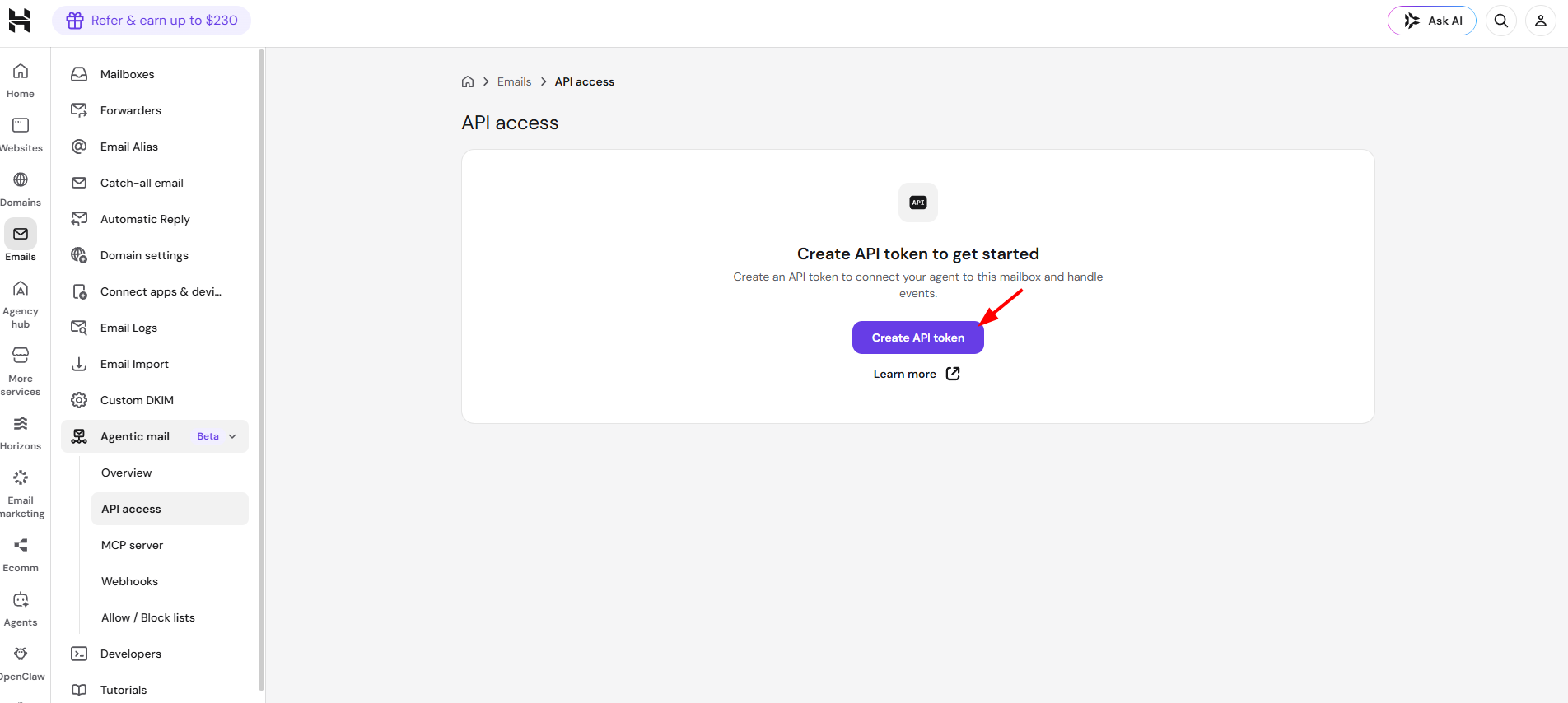
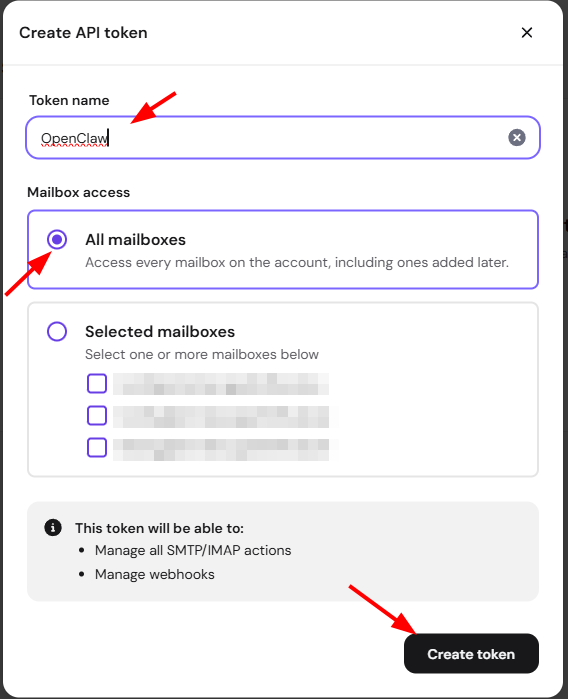
If you only need to connect OpenClaw to one specific mailbox, you can generate the token from Webmail instead: log in to Webmail for that mailbox, go to Settings, then Agentic Mail, then API access. - In the Create API token window, enter a name for the token so you can identify it later. Then select All mailboxes to allow the token to access every mailbox on the domain, including ones added later. Alternatively, select Selected mailboxes and choose specific mailboxes if you want to limit access. Then click Create token.
- Copy the API token immediately and store it in a password manager or secrets vault.
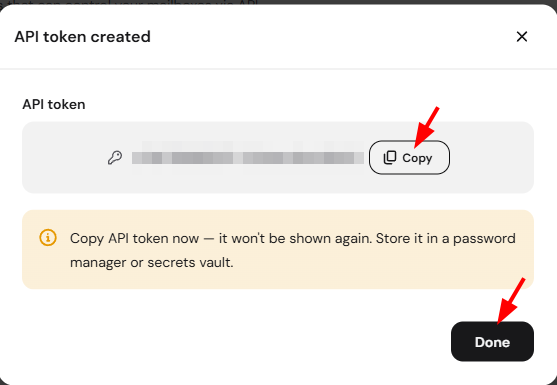
The API token is shown only once. If you lose it, you’ll need to generate a new one.
Step 2 – Add the API token to Managed OpenClaw
- Go to OpenClaw from the left sidebar.
- Next to your OpenClaw application, click Manage.
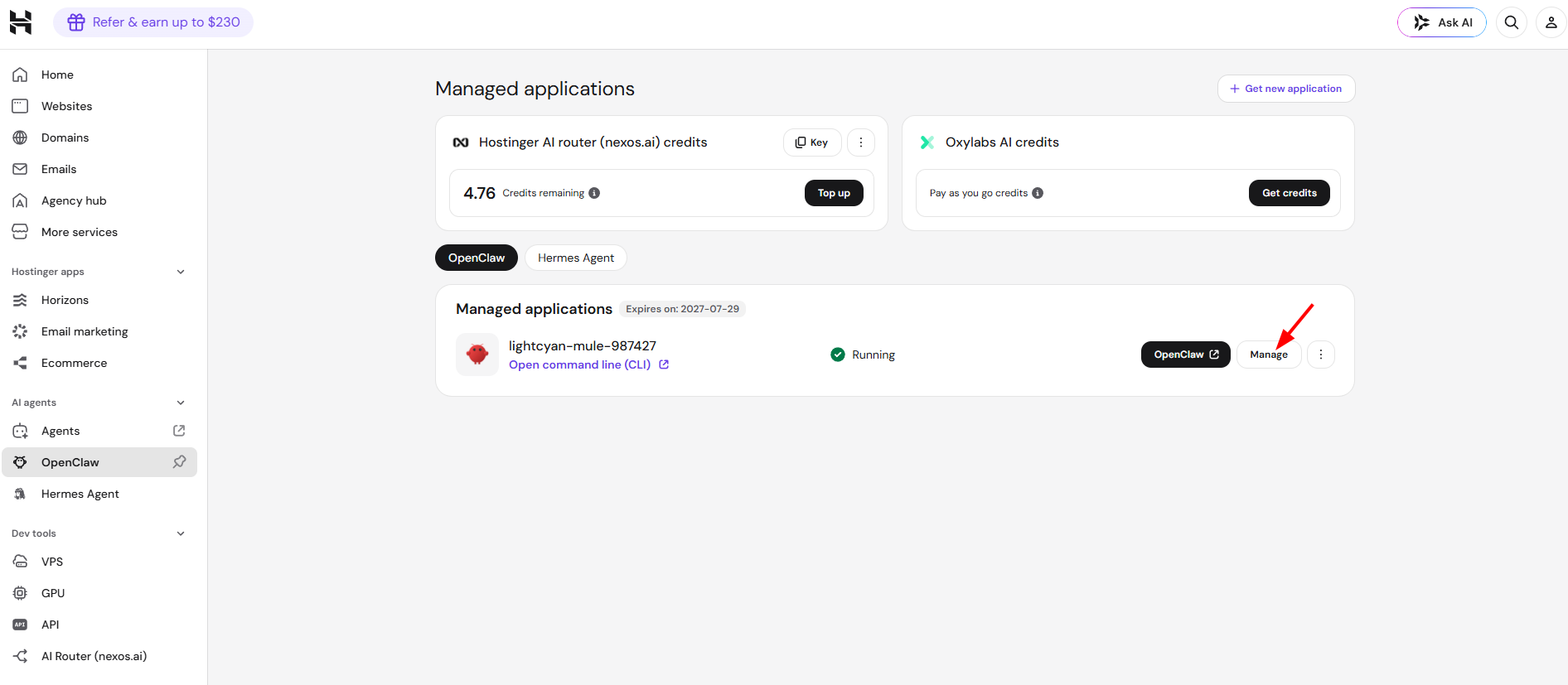
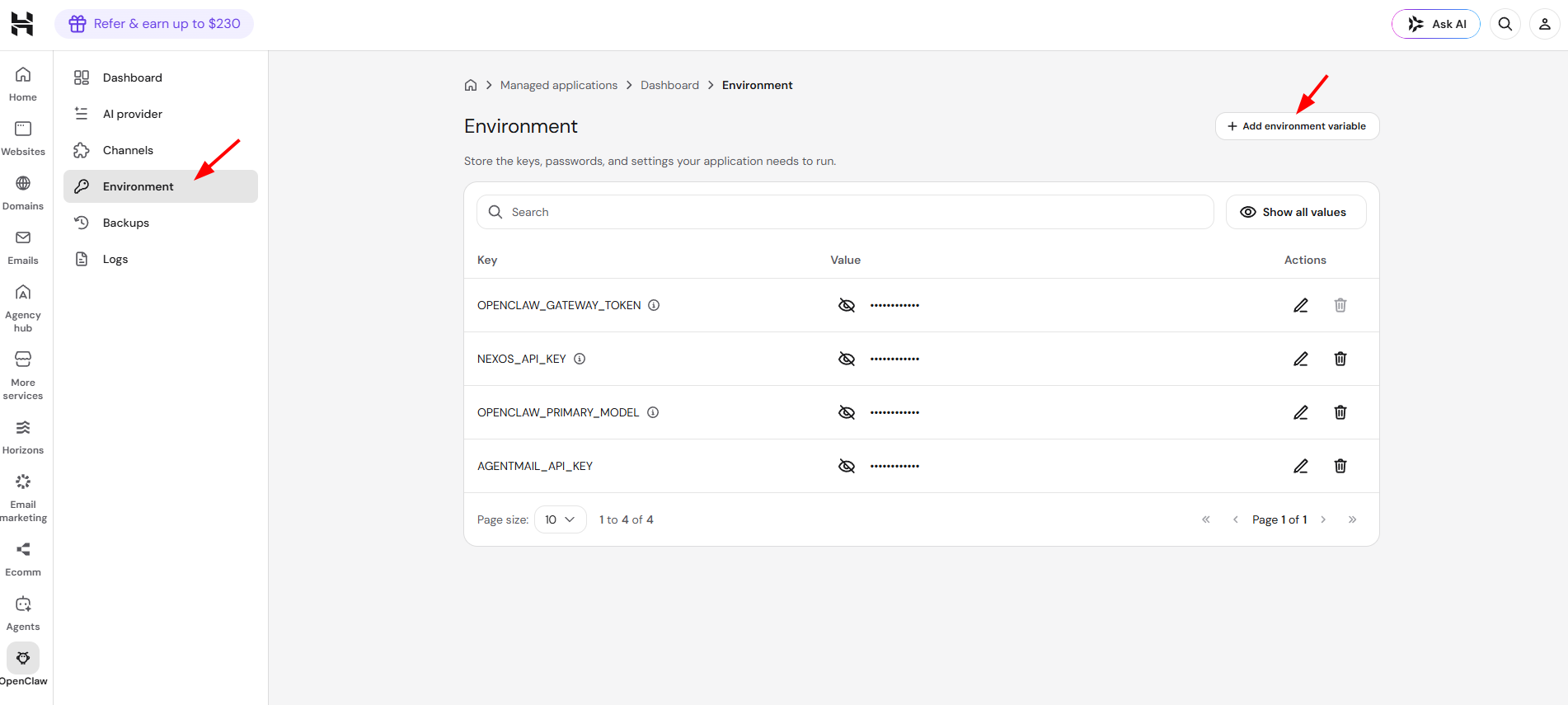
- In the sidebar, go to Environment, then click Add environment variables.
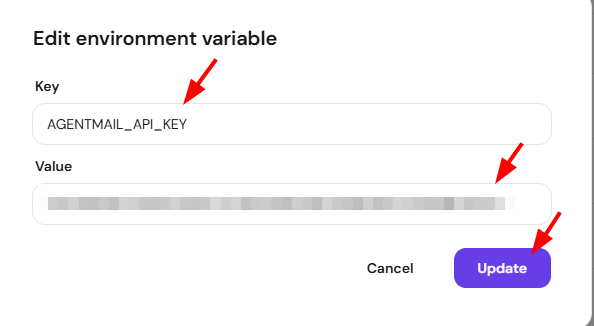
- Write the key name, such as AGENTMAIL_API_KEY, then paste the API token you copied in Step 1 into the Value field, and click Update.
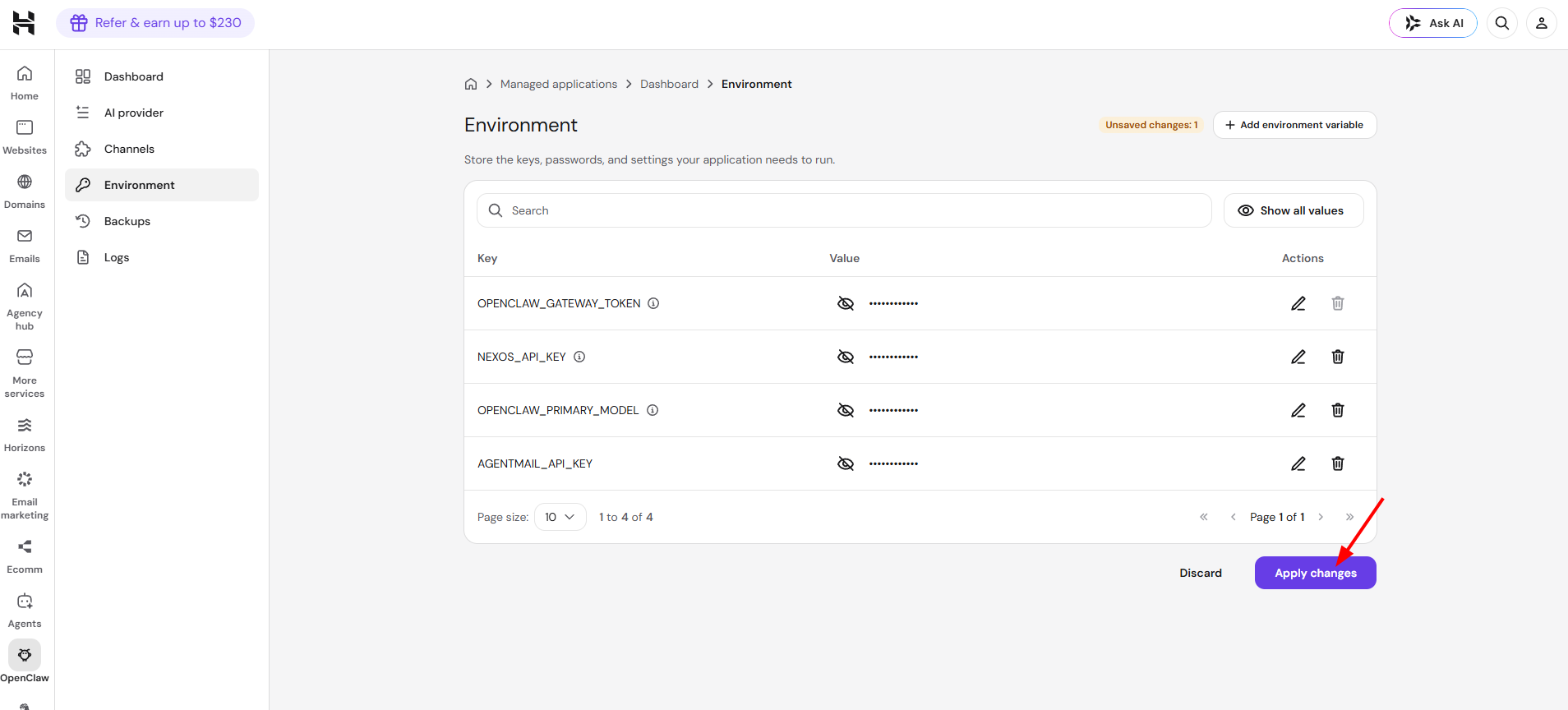
- Click Apply changes to save the environment variable.
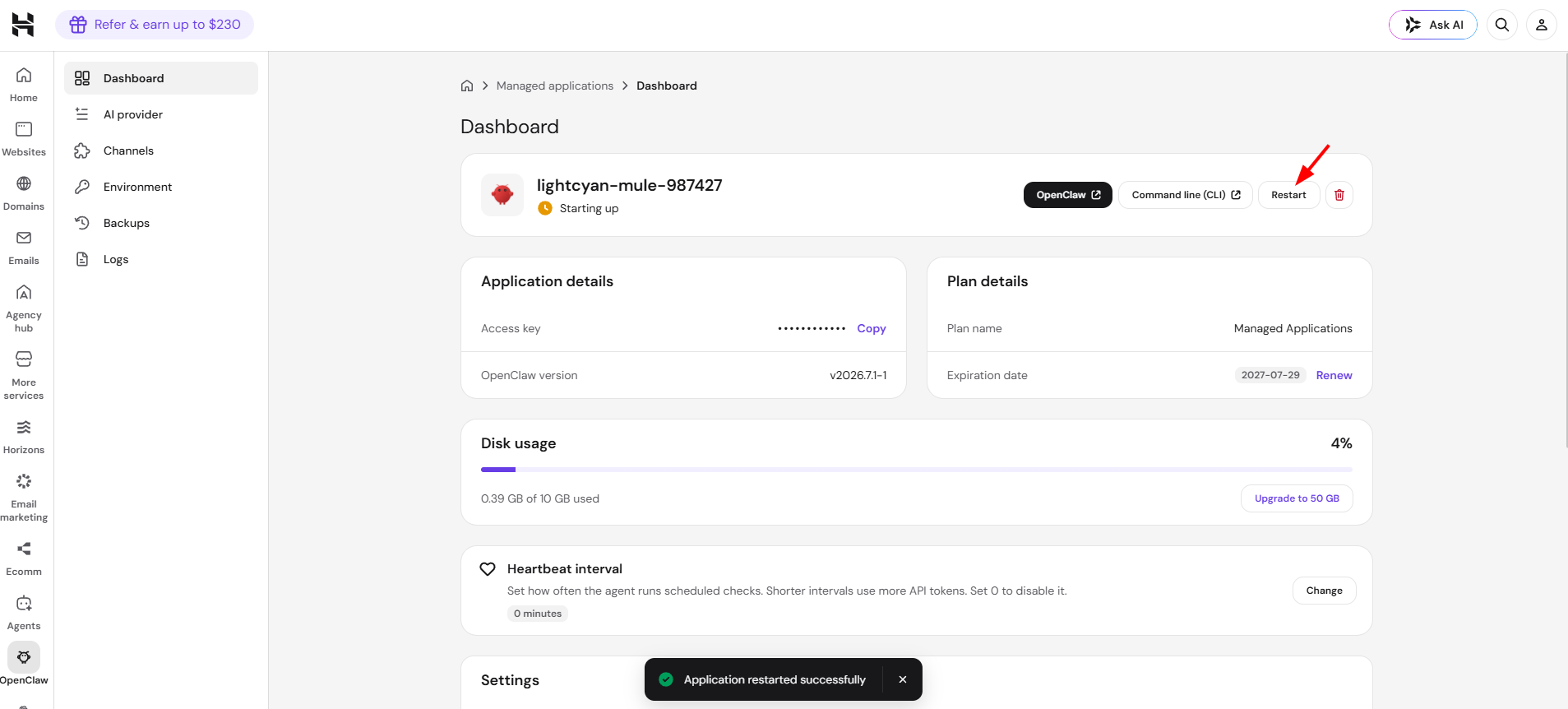
- Go back to the main Dashboard, then click Restart to restart the application with the updated environment variable.
Step 3 – Connect and test in OpenClaw
Once the application shows as Running, click OpenClaw to open its dashboard.
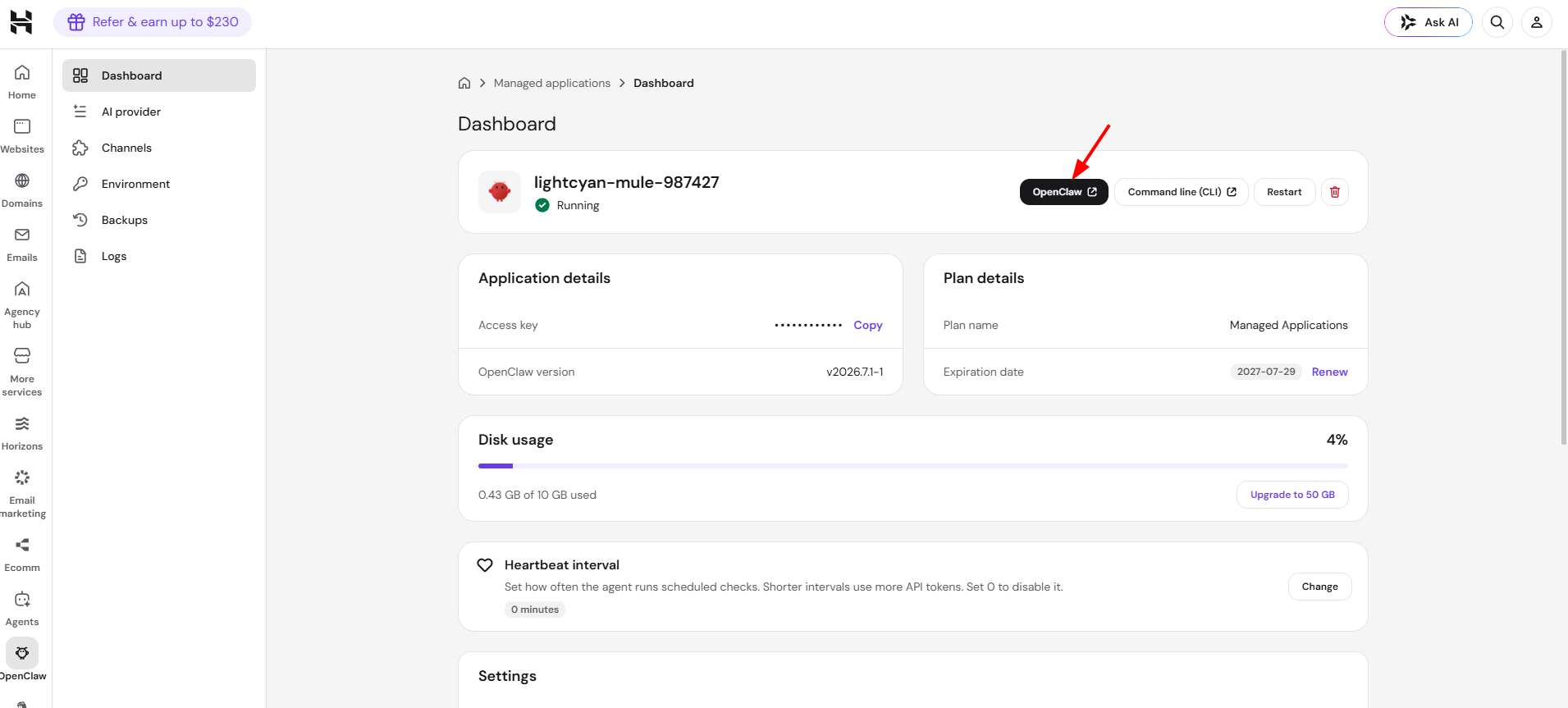
You can connect using either of the following methods.
Option 1 – Connect via the API
- Send a message asking OpenClaw to use the AGENTMAIL_API_KEY variable to connect to Hostinger’s Agentic Mail API at https://api.mail.hostinger.com/#description/introduction.
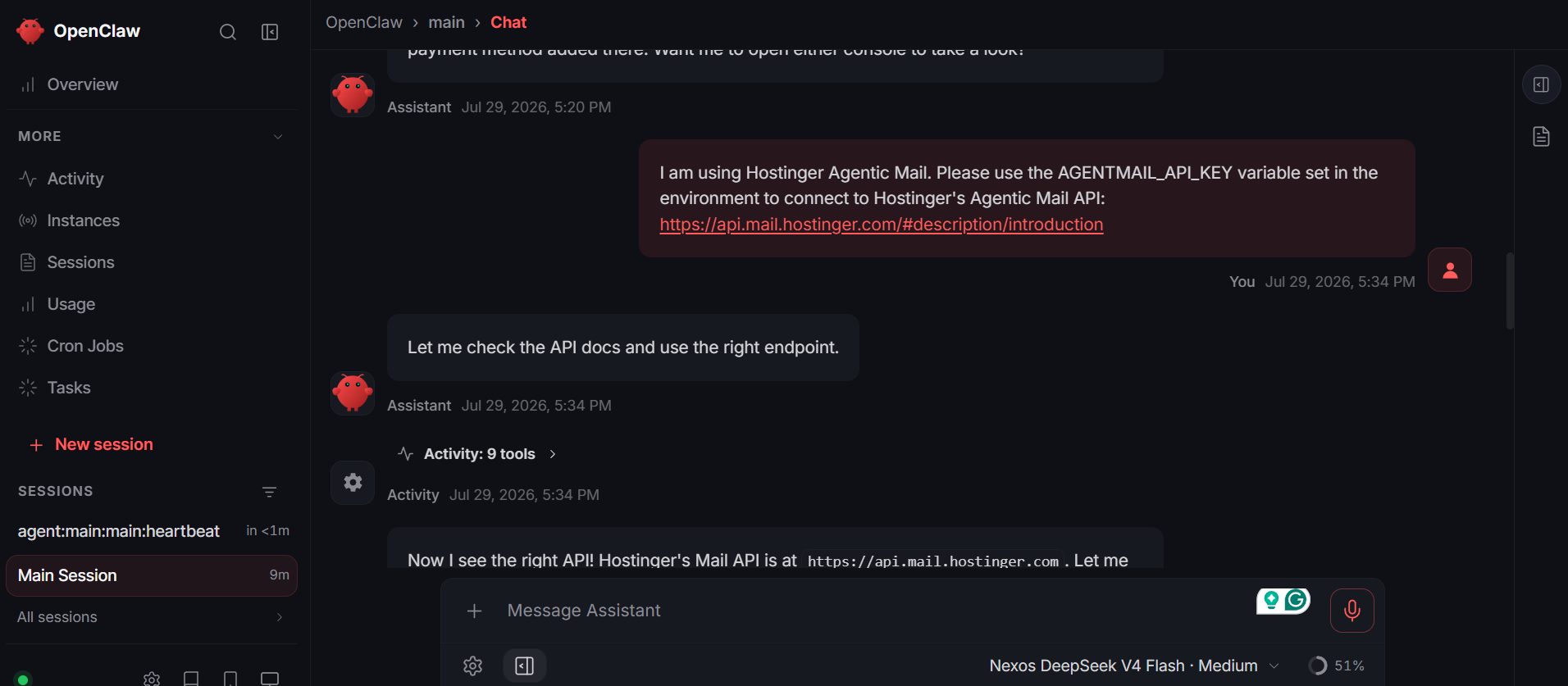
- OpenClaw will look up the correct API endpoint and confirm the connection. It can then list existing mailboxes on your domain.
- Test the connection by asking OpenClaw to send an email using one of your existing mailboxes as the sender.
Ensure you explicitly provide the full API URL (https://api.mail.hostinger.com/#description/introduction) so OpenClaw recognizes the Hostinger API endpoints.
Option 2 – Connect via MCP
- Send a message asking OpenClaw to connect to the MCP server at https://mcp.mail.hostinger.com/mcp using the token from the AGENTMAIL_API_KEY variable.
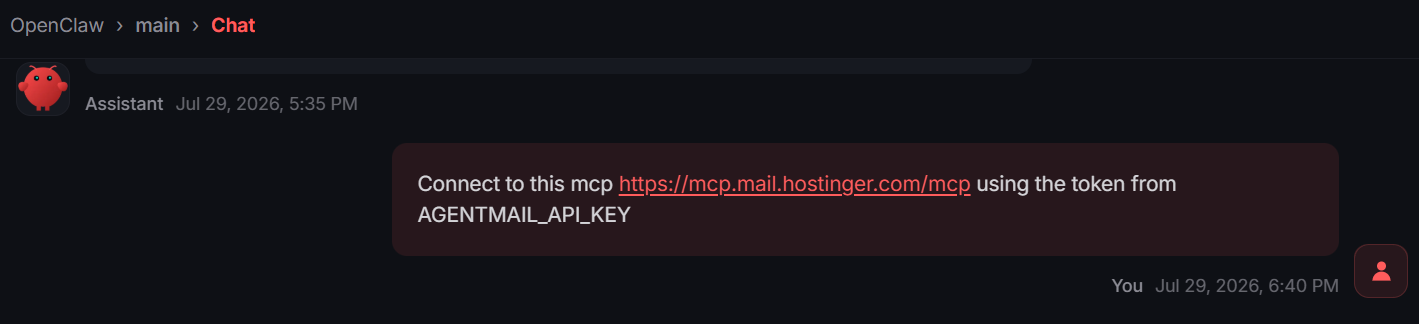
- OpenClaw will connect to the MCP server and confirm the connection.
- Test the connection by asking OpenClaw to send another email to confirm it can still send successfully through the new connection.
Ensure you explicitly provide the full MCP URL (https://mcp.mail.hostinger.com/mcp) so OpenClaw recognizes the Hostinger MCP server.
Once the test email sends successfully, OpenClaw is connected to your Hostinger Agentic Mail and ready to handle email tasks automatically.
NOTES
- Agentic Mail currently manages existing mailboxes only. There is no create-mailbox function available through the API, so new mailboxes must be created in Hostinger dashboard under Business Email first.
- To learn more about managing and using your automated email features, check how to use Agentic Mail.