Set up Managed OpenClaw with Hostinger Email to let your OpenClaw agent send and retrieve emails directly.
Before you start
- An active Hostinger hosting plan.
- An active Hostinger email account. If you don’t have one yet, see how to create and manage mailboxes for Hostinger Email.
- An OpenClaw workspace. If you’re not familiar with managing OpenClaw in Hostinger dashboard, see Hostinger Managed OpenClaw management in Hostinger dashboard.
If you have Hostinger Premium Business Email plan, explore the Agentic Mail feature for exposesing your mailboxes to code and AI agents
Connect OpenClaw to your Hostinger email
Navigate to your OpenClaw from Hostinger dashboard:
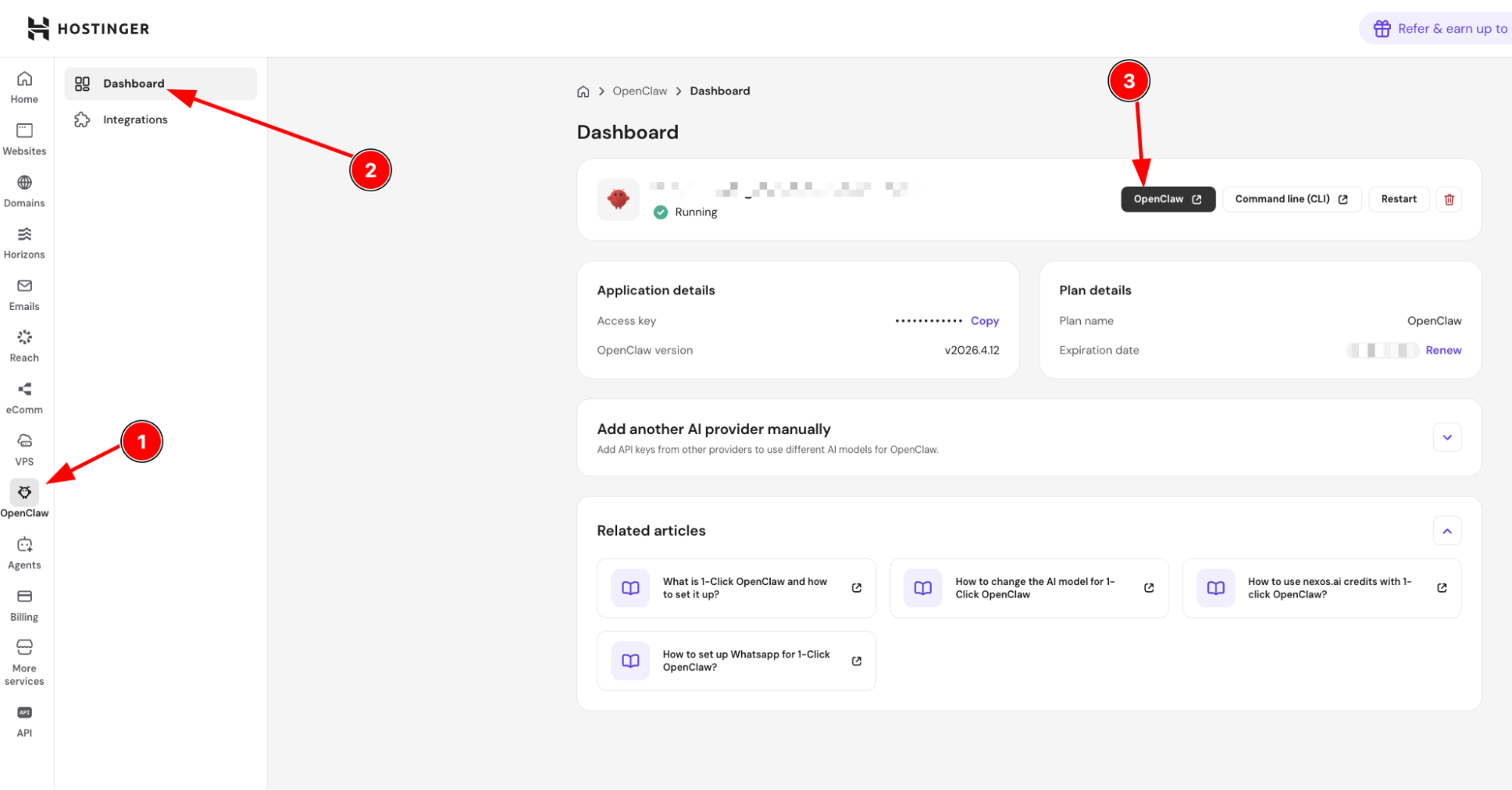
Once you have an active Hostinger email, all you have to do is write this phrase for OpenClaw:
Connect my OpenClaw with Hostinger mail
Once it is done, OpenClaw will ask you to provide some details to set it up for you:
- Email address (your Hostinger mailbox address).
- IMAP username (usually the full email address if you haven’t set it up differently).
- IMAP password (or an app password if 2FA is enabled).
- IMAP server + port + security (imap.hostinger.com: 993: SSL/TLS).
- SMTP server + port + security (smtp.hostinger.com: 465: SSL/TLS).
- From name (display name on outgoing emails).
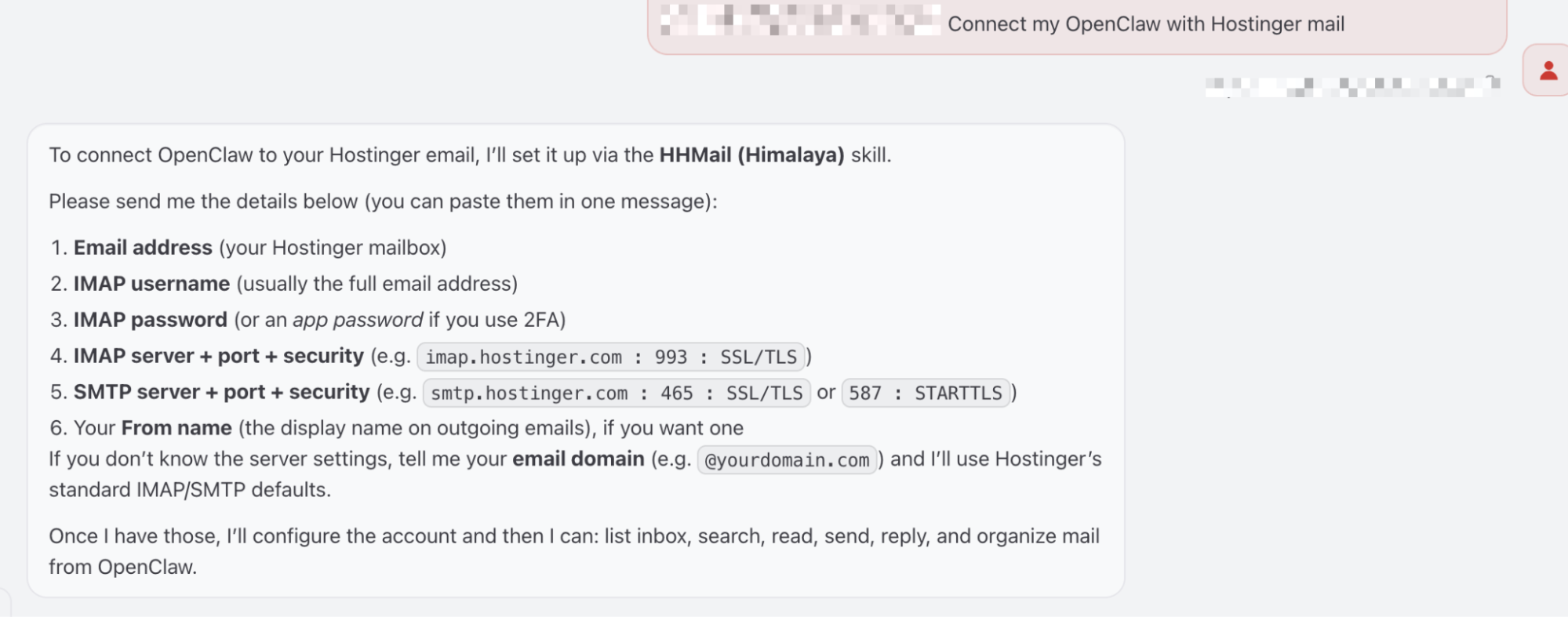
Once you provide all the details, wait till you receive a confirmation from your bot:
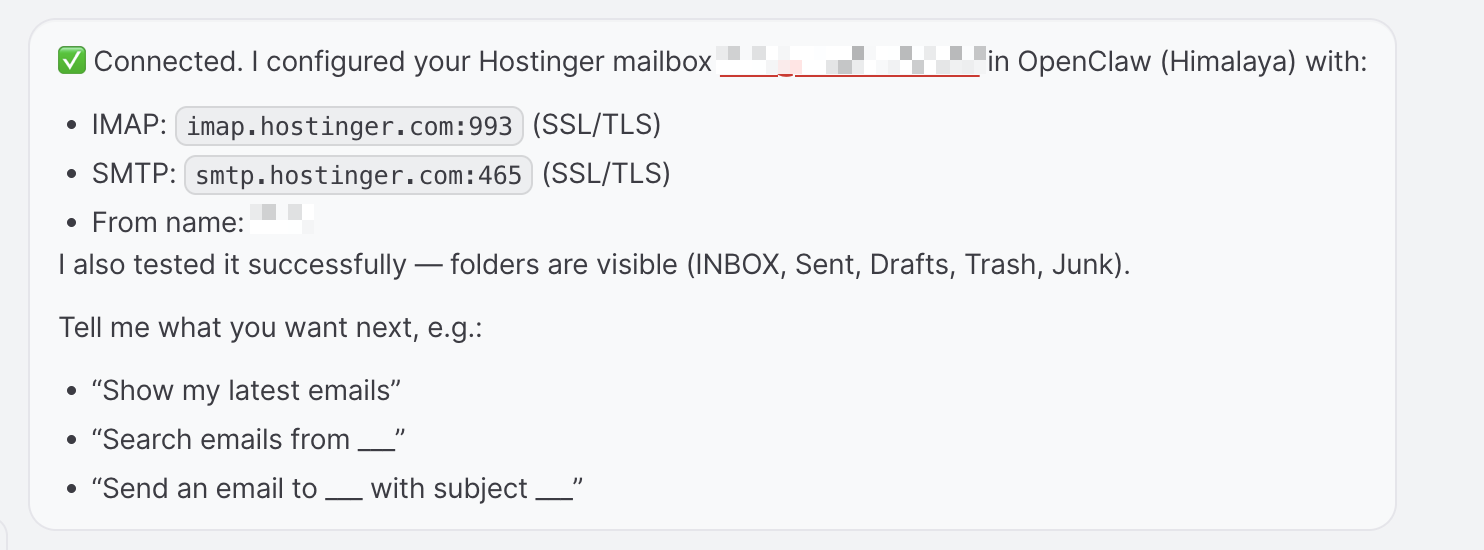
You’re all set! You can use it to retrieve search or send emails directly from your agent now!