MySQL databases can be managed within the Databases section under the Website section of Hostinger dashboard. This is where you view, create, and configure the databases used by your MySQL, an open-source relational database management system — see which database management system is used at Hostinger for more on how it works.
Access the Databases section
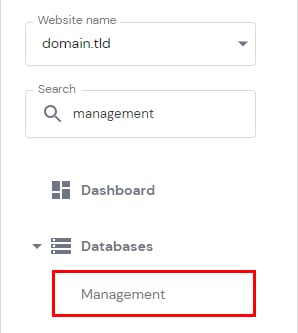
To access it, go to Websites → Dashboard, search for Databases Management on the sidebar and click on it:
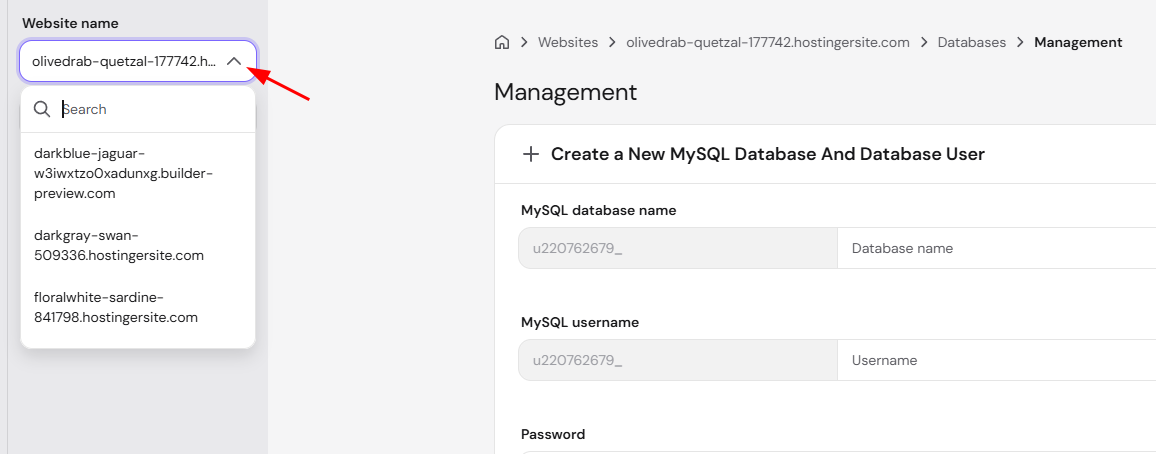
Once there, you can choose a website from the left drop-down menu to show its associated databases:
View and assign databases
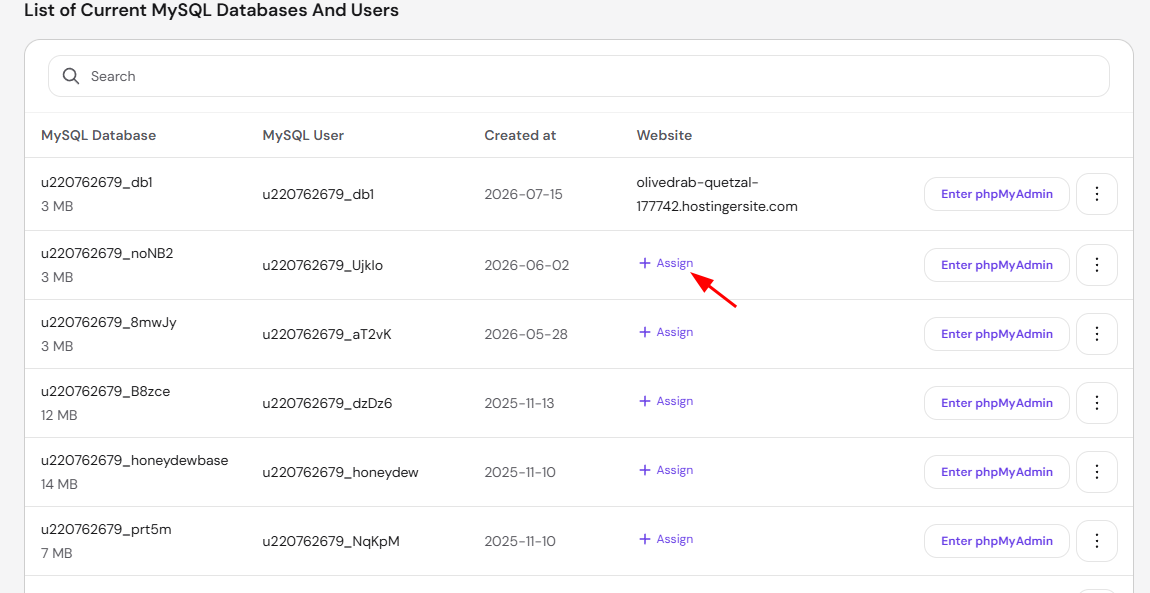
You will be presented with the List of Current MySQL Databases And Users section. Please note that all new databases will be assigned to the selected domain; if a database is not yet assigned to a website, you can do so by clicking on Assign:
Access your database via phpMyAdmin
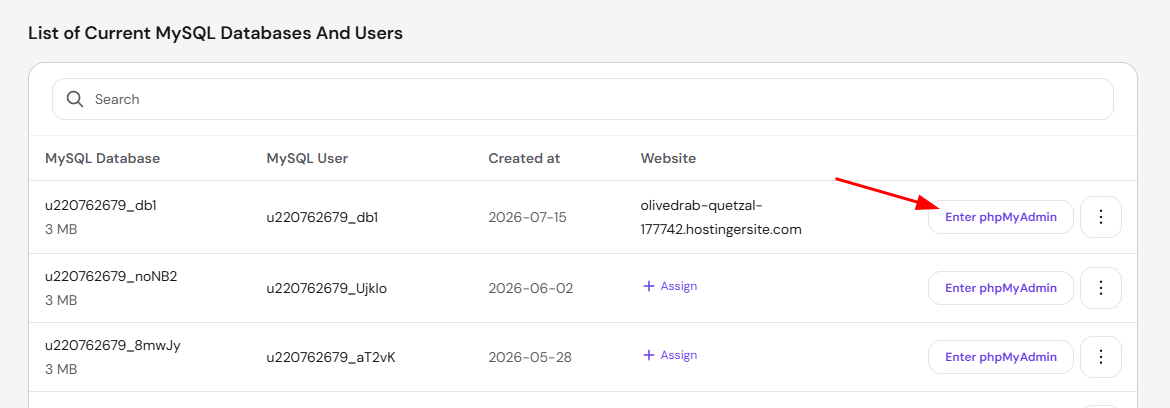
To access your database contents via phpMyAdmin, click on Enter phpMyAdmin:
Manage a database
If you need more options, select your desired database and click the ⋮ button:
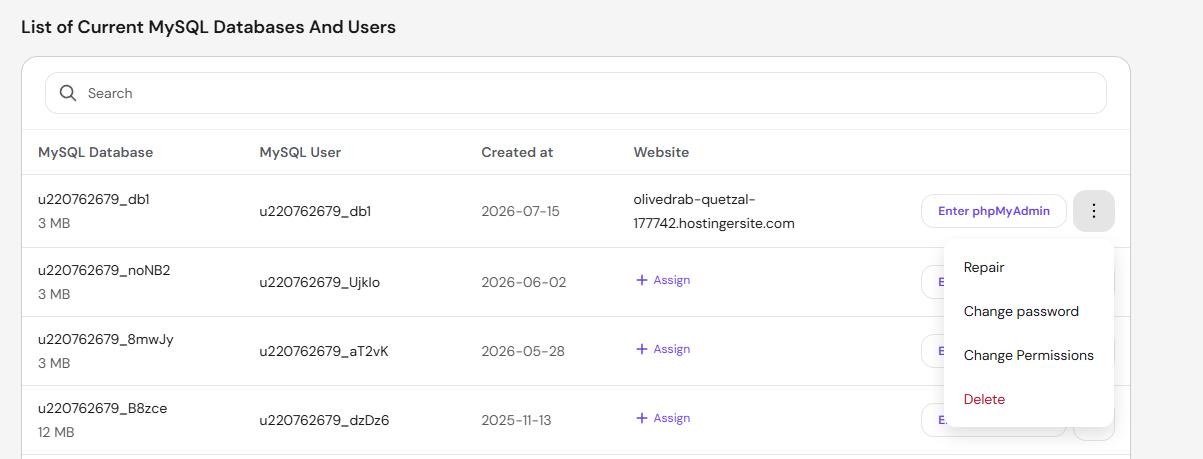
You will be able to do the following actions:
-
Repair the database – it will analyze and optimize your database tables, ensuring that the database is working perfectly fine
-
Change the current database password
-
Change various permissions
-
Delete the database completely