The Websites section in Hostinger dashboard groups every website by hosting plan and shows a live preview of each site. Each plan card holds the plan’s expiry date, resource usage, and the Create site and Import site buttons. Hover over a website to open it with Manage site or Edit site, add it to favorites, fix a flagged issue, or open more options from the options button (⋮).
Access the Websites section
Find all the websites added to your hosting plans in the Websites section of Hostinger dashboard. Click Websites in the left sidebar to open it:
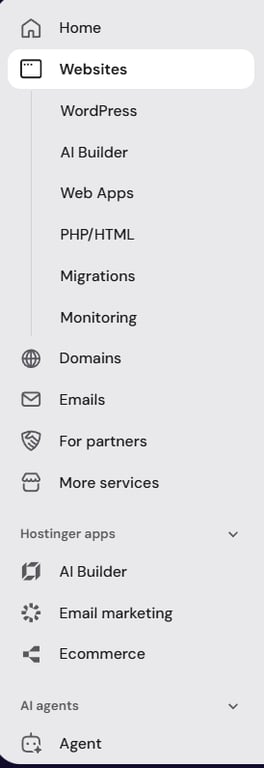
Each hosting plan has its own card showing:
- The hosting plan name and expiry date.
- The plan’s resource usage.
- The Import site and Create site buttons.
- The options button (⋮), with Renew, Upgrade, Hosting details, and Rename hosting.
- The websites on that plan, each with a preview image, its domain, its type, and its creation date.
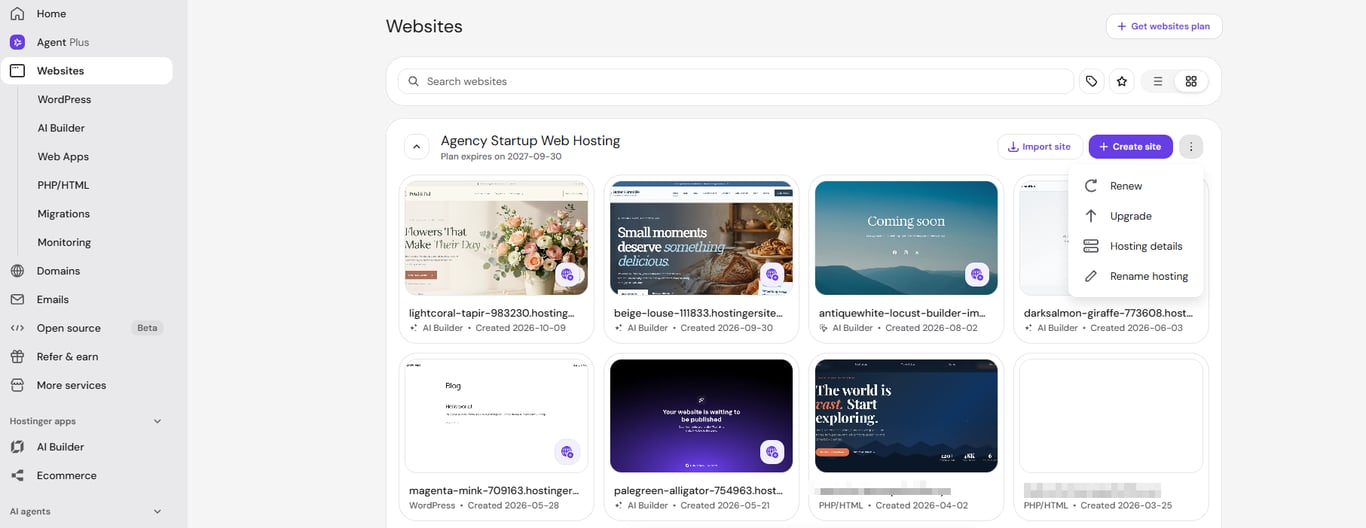
Plans with many websites split them across pages. Use Page size at the bottom of the card to change how many websites appear per page.
Manage a website from the Websites section
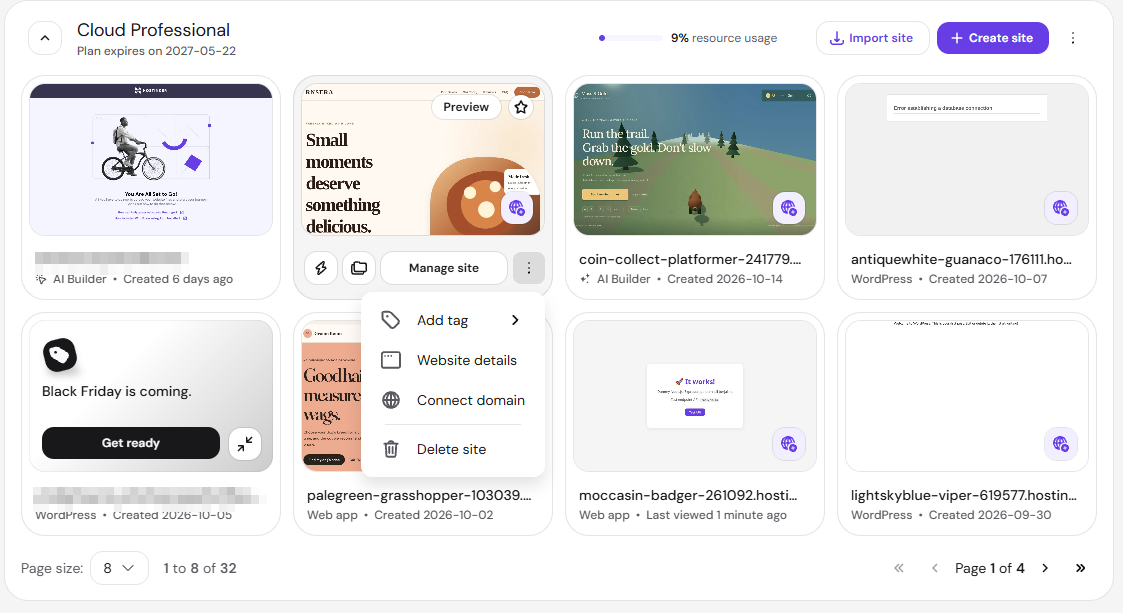
Click a website’s preview to open it. WordPress, PHP/HTML, and web app websites open in the hosting dashboard, and Hostinger AI Builder websites open in the AI editor. Hovering over a website also shows its actions: Manage site or Edit site, a Preview button, and a star icon that adds the website to your favorites.
|
Website type |
Main button |
Options menu (⋮) |
|
WordPress |
Manage site |
Add tag, Website details, Save as preset, Connect domain or Change domain, Transfer site, Delete site. |
|
PHP/HTML |
Manage site |
Add tag, Website details, Connect domain or Change domain, Delete site. |
|
Web app (Node.js) |
Manage site |
Add tag, Website details, Connect domain or Change domain, Delete site. |
|
Hostinger AI Builder manual mode |
Edit site |
Add tag, Duplicate site, Connect domain or Change domain, Delete site. |
|
Hostinger AI Builder agentic mode |
Edit site |
Add tag, Connect domain or Change domain, Delete site. |
Some website types also show shortcut icons next to the main button:
- WordPress websites show the WP Admin icon (WordPress logo), which opens the WordPress Admin area.

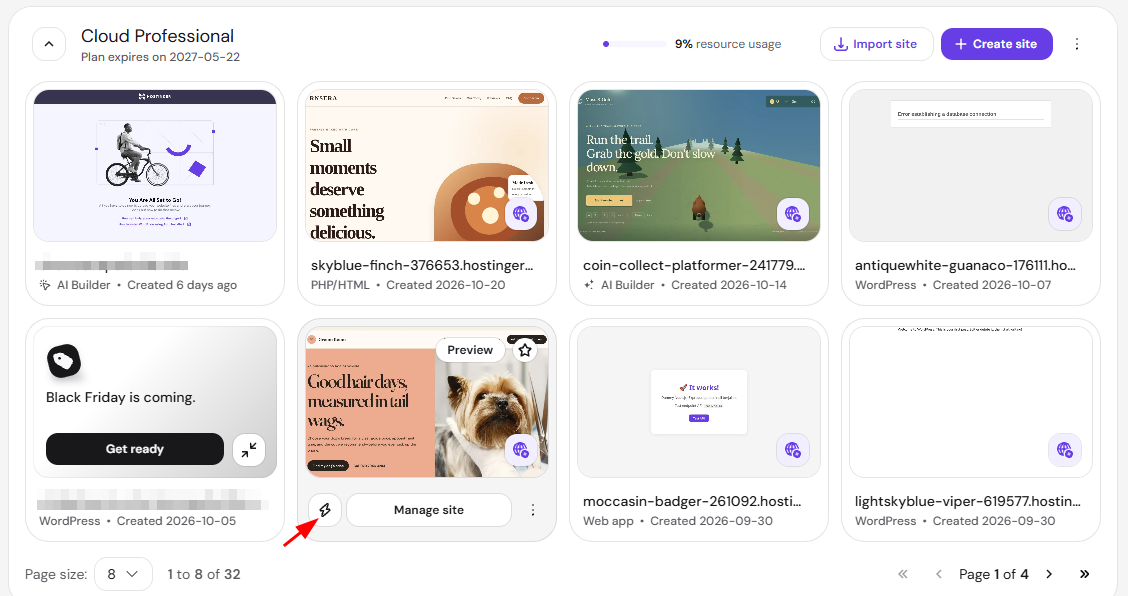
- PHP/HTML, Web app and WordPress websites show the lightning icon, which opens shortcuts such as File Manager and Analytics.

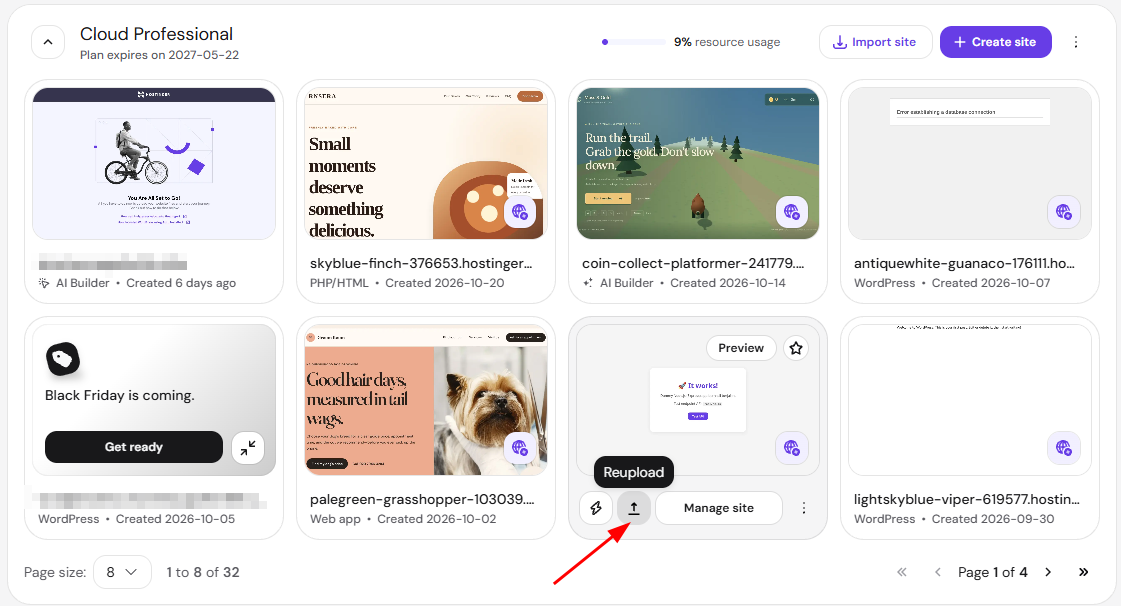
- Web app websites show reupload icon, which opens the option to redeploy.

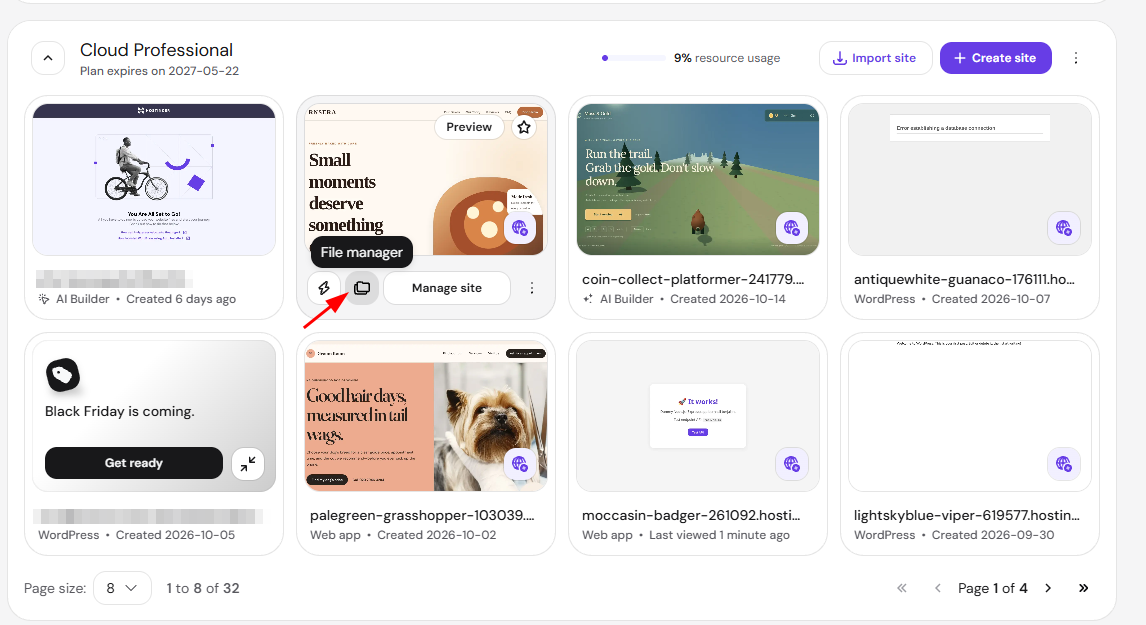
- PHP/HTML websites show file manager icon, which opens file manager.

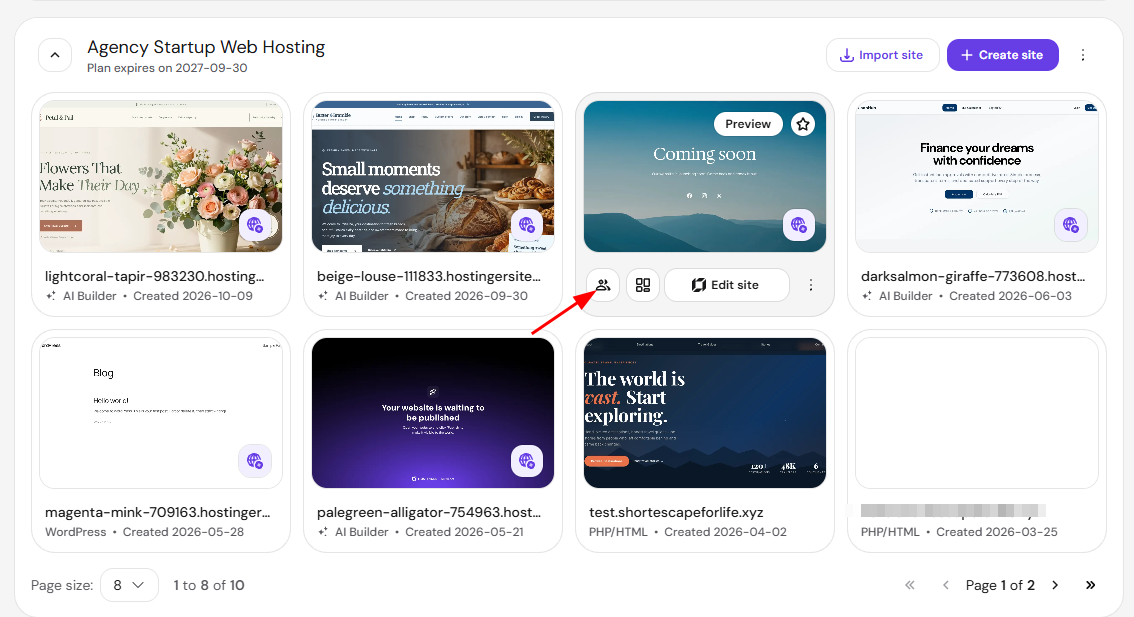
- Websites on Agency hosting plans show the team member icon, which shares access to that website with a collaborator.

- Hostinger AI Builder manual mode websites shows manage site icon, which opens Dashboard.

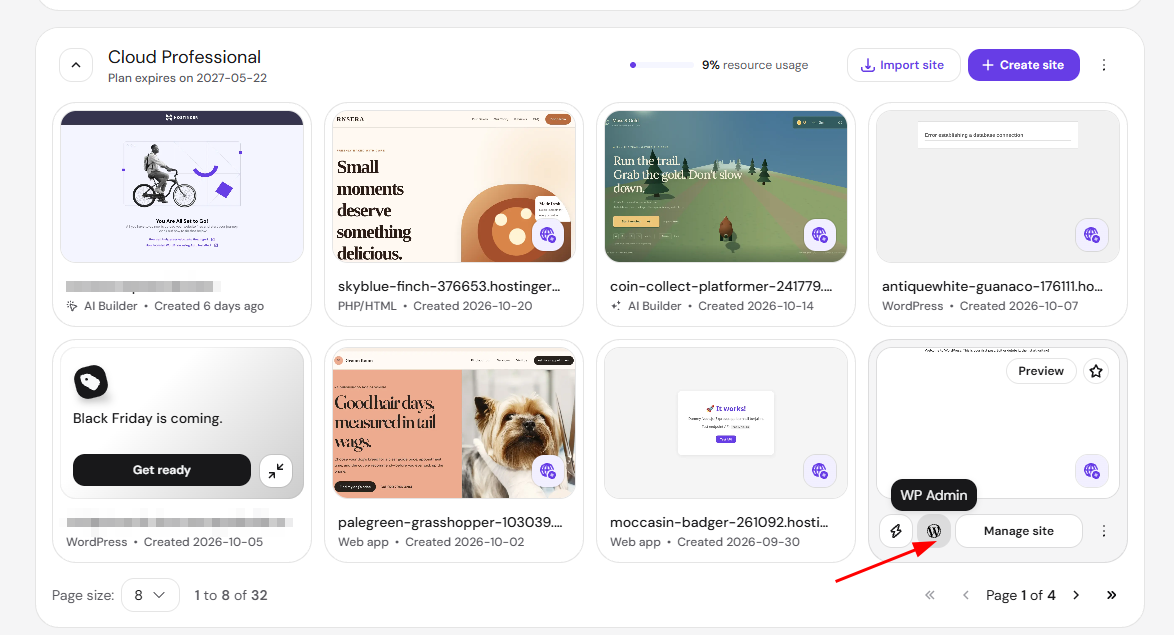
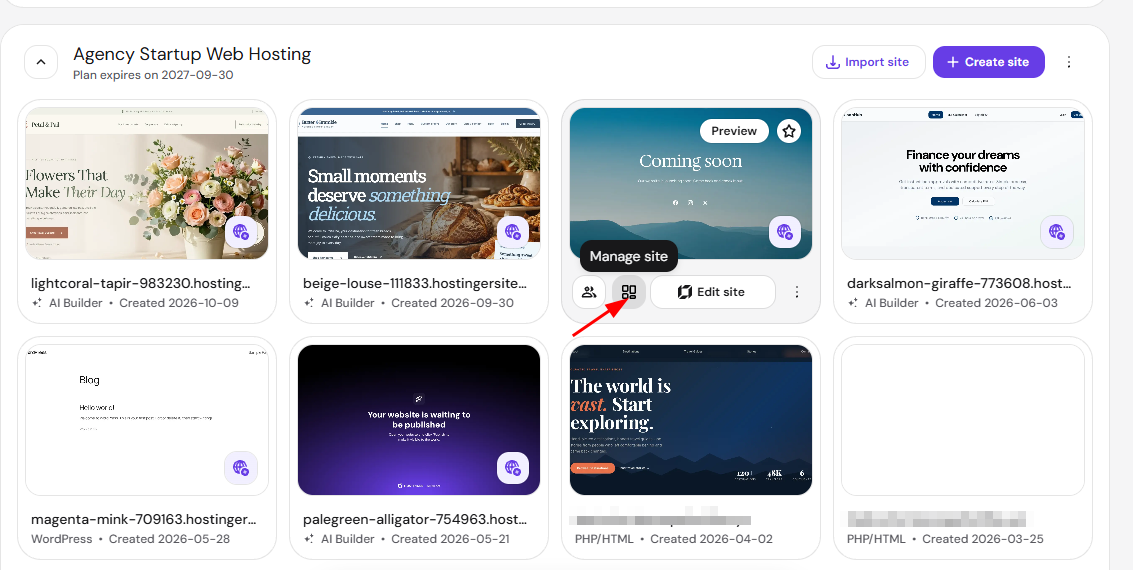
When a website needs attention, a single badge appears on its preview. Issues include a disconnected domain, a failed build, an ending trial, or a failed clone. For example, the globe icon means the website’s domain is not connected yet. Click the badge to open the issue details and fix it.
NOTE
- A website on a temporary domain shows Connect domain in its options menu. Once a custom domain is connected, Change domain replaces it.
Find and manage multiple websites
Use the search bar at the top of the Websites section to find a website by name. Next to it, the tag icon filters websites by custom website tags, and the star icon shows only your favorites. If other people share websites with you, switch between the Your websites and Shared websites tabs.
Websites appear in grid view by default. Use the view toggle on the right of the search bar to switch to list view. Hostinger dashboard remembers the view you choose.
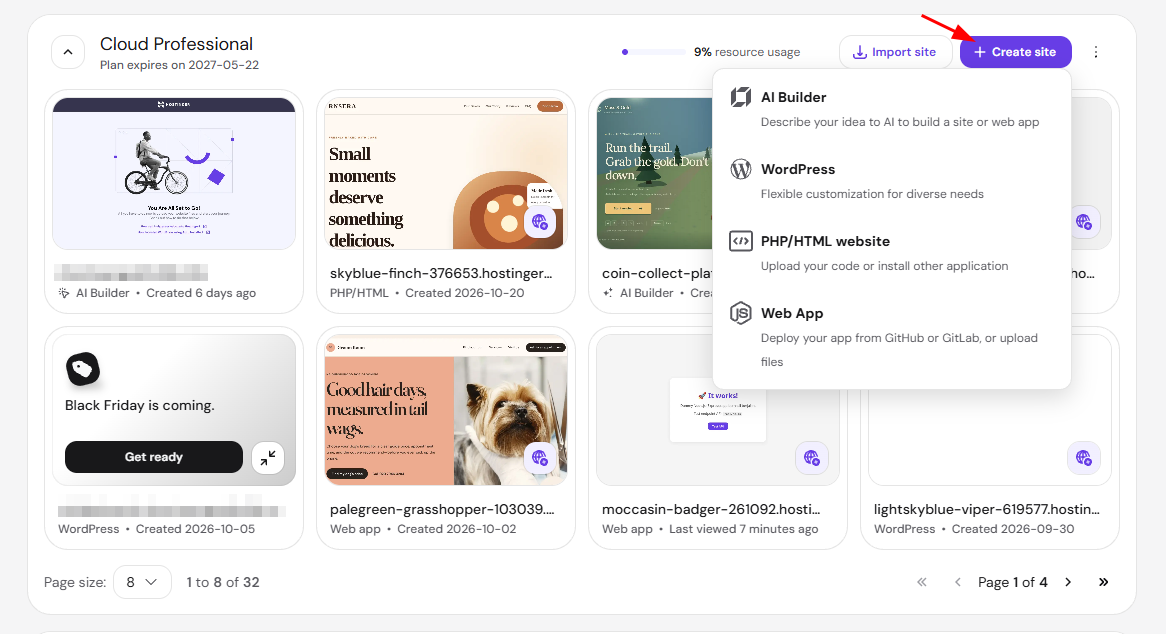
To add a website, click Create site on the hosting plan’s card.
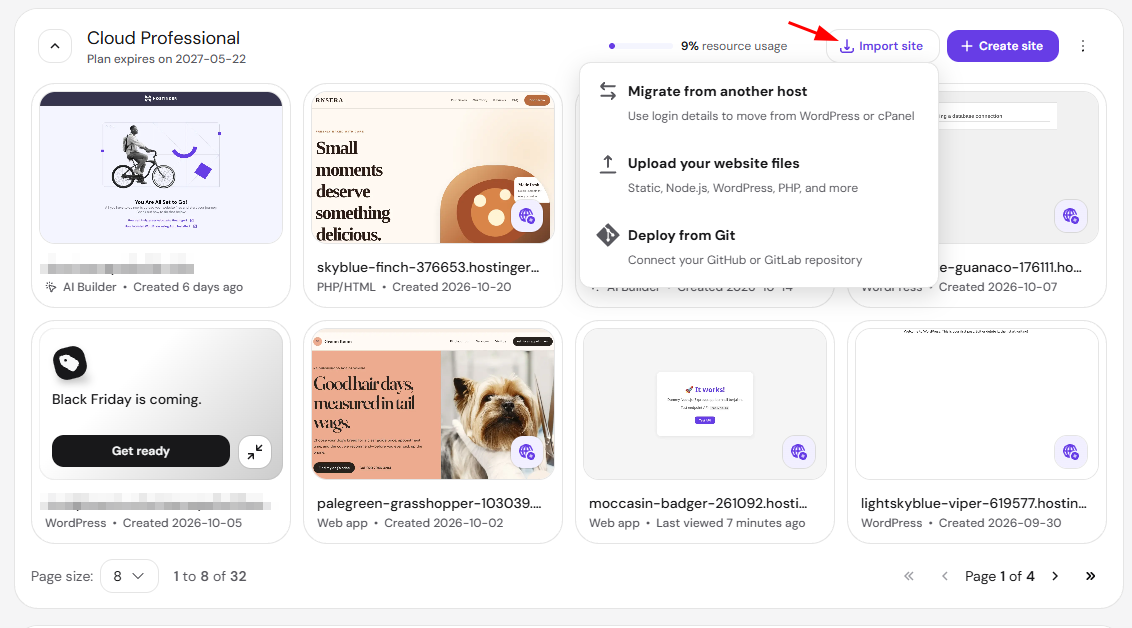
Import site opens three options: Migrate from another host, Upload your website files, and Deploy from GitHub. Each option leads to its own flow, covered in how to migrate a website to Hostinger and how to deploy a Git repository in Hostinger. On Agency hosting plans, the third option is Clone website instead of Deploy from GitHub.
All your websites are now grouped by hosting plan, so you can find any site, fix flagged issues, and open its tools from one page.