SEO-related changes you make on your website are not immediately reflected in search engines. Google, for example, normally takes from a few days to a few weeks to crawl and update this information in the search results.
If you haven’t already, learn how to make your website appear on Google for broader context on indexing and ranking, and confirm your website’s sitemap is set up so Google can crawl your pages efficiently.
Request indexing through Google Search Console
Google Search Console is a free-to-use tool developed by Google that will help you speed up the process! To manually request Google to index your website pages, follow the steps below.
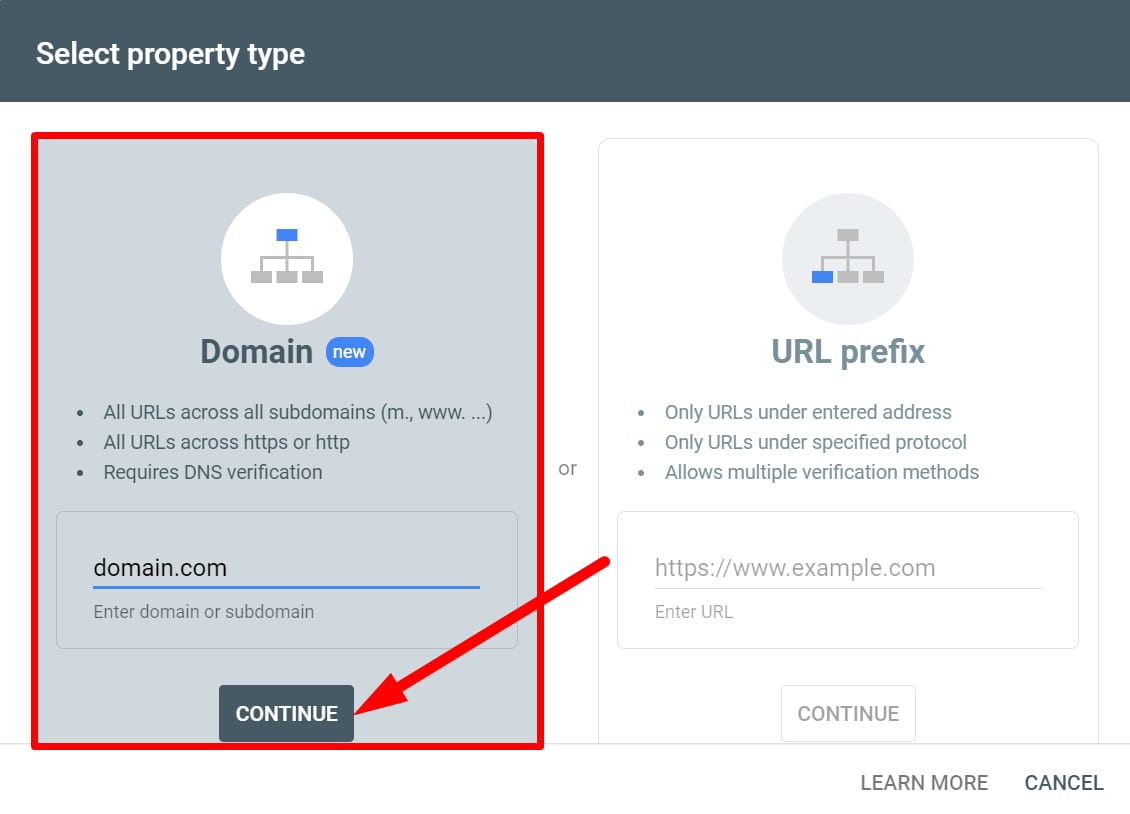
- Open your Google Search Console account. Insert your domain and click on Continue:
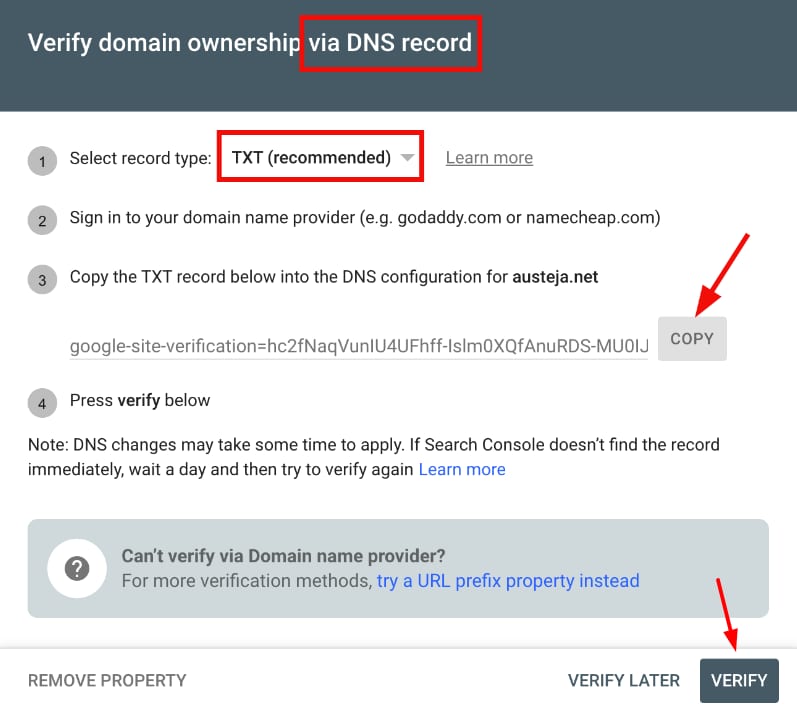
- Copy the respective TXT record that was provided by Google Search Console (make sure to select the TXT record, not HTML file):
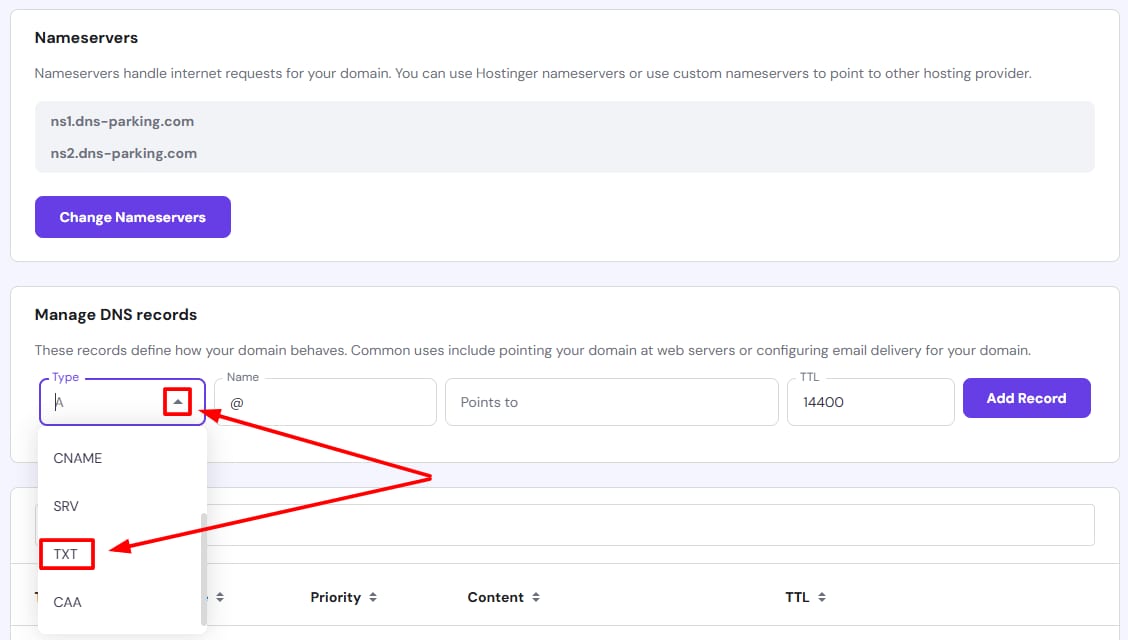
- Verify your domain ownership by adding the given TXT record to your domain’s DNS zone. This can be achieved by going to your Domains tab and clicking on “Manage” button for the desired domain. Then, you will click on “DNS / NameServers” on the left toolbar.
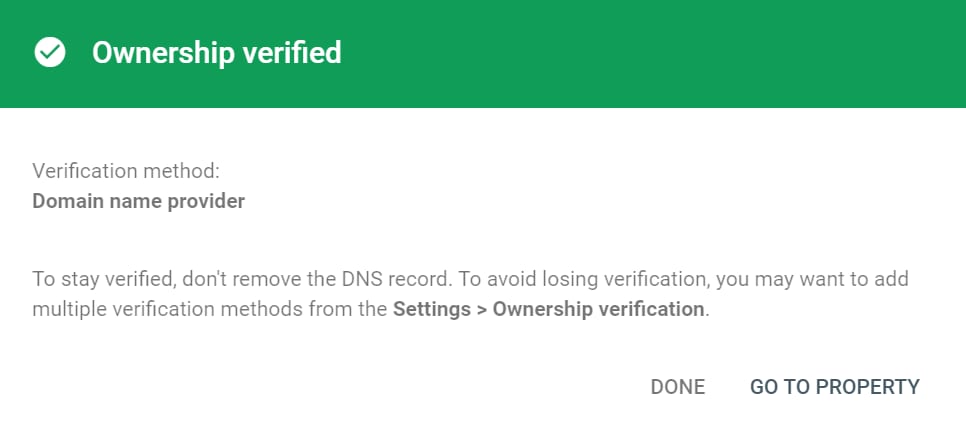
- Give the new TXT record 10–15 minutes to spread across all servers worldwide. After 10–15 minutes, go back to Google Search Console and click on Verify. You will see the following message once your domain is verified:
- Once your website is verified at Google Search Console, click on URL inspection on the left. Enter the URL of the page you’d like to index and click on Request indexing:
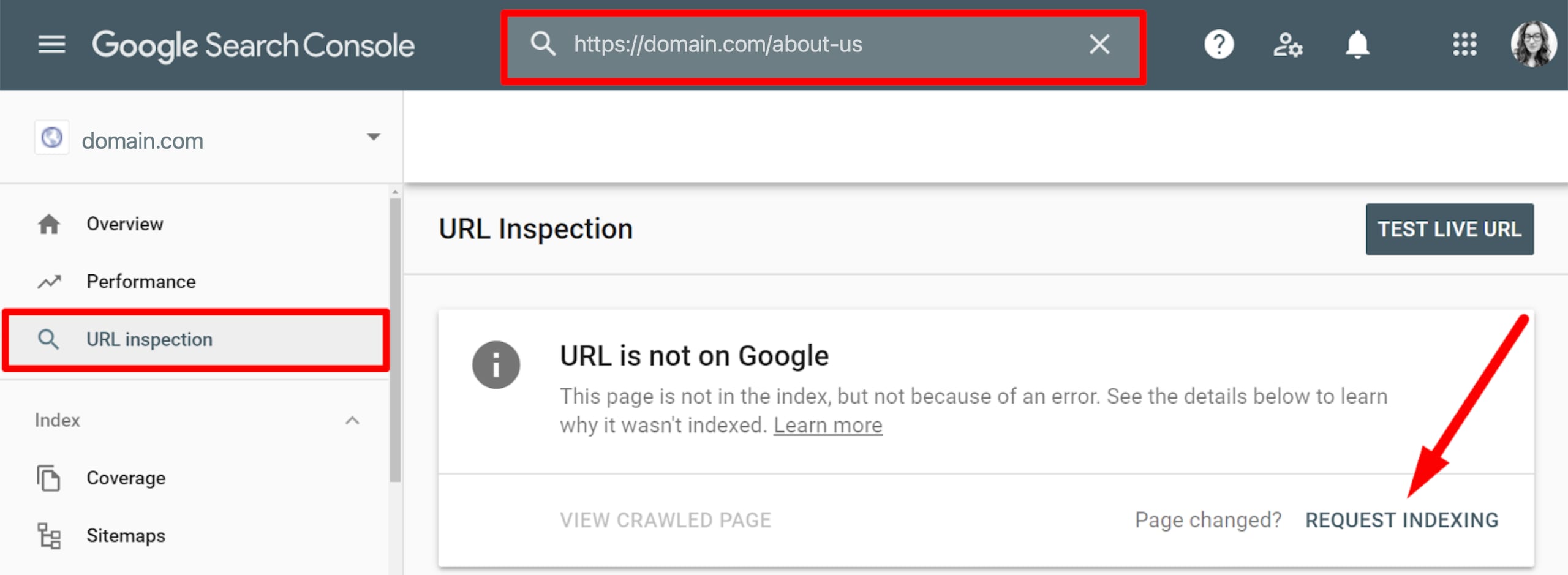
Repeat this step for the rest of the URLs you want Google to index.
The URL should contain WWW only if the WWW prefix is enabled in your website’s general settings in manual mode.
NOTES
- If you run into verification issues, check for common warnings in Google Search Console to help diagnose the problem.
- You can also verify a URL property at Google Search Console if you need to confirm ownership at the URL level instead of the domain level.
- If you later need to take a page out of search results instead, learn how to remove a page from Google search results.