Hostinger Email works in the new Outlook for Windows app as an IMAP account, using your full email address and mailbox password. To set it up, enter your email address, enter your mailbox password, and allow Outlook to sync your mailbox. A standard setup doesn’t need an app password.
Before you start
- Make sure you have created a Hostinger Email mailbox.
- Check that your domain has the correct Hostinger Email MX records.
- Have your mailbox password ready. It’s different from your Hostinger account password. If you forgot it, reset your Hostinger Email mailbox password.
- See Set up Hostinger Email on your applications and devices to use other email clients.
Step 1 – Add your email address in new Outlook
- Open the new Outlook app.
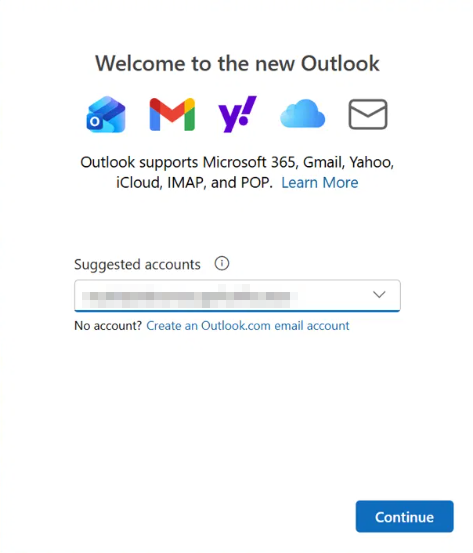
- On the Welcome to the new Outlook screen, enter your full Hostinger email address, for example
name@domain.tld, in the Suggested accounts field. - Click Continue.
If you already use another account in new Outlook, go to Settings → Accounts → Add account to add your Hostinger mailbox.
Step 2 – Enter your mailbox password
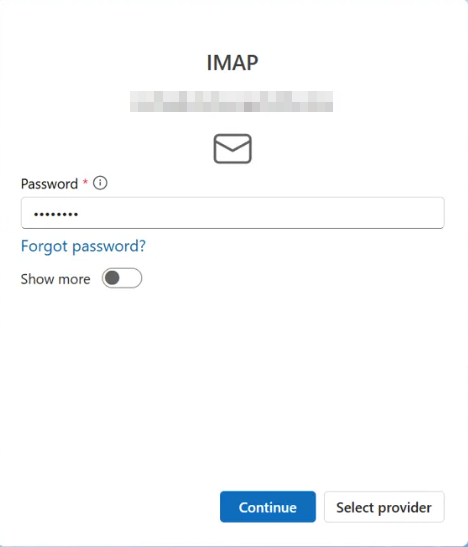
New Outlook detects your Hostinger mailbox as an IMAP account.
- Enter your mailbox password in the Password field.
- Click Continue.
Step 3 – Allow Outlook to sync your mailbox
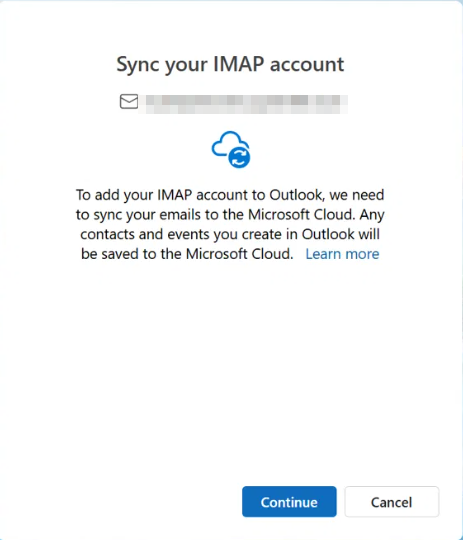
The Sync your IMAP account screen explains that new Outlook syncs your emails to the Microsoft Cloud. Contacts and calendar events you create in Outlook are also saved to the Microsoft Cloud. Click Continue to finish.
Your Hostinger mailbox appears in the folder list with its Inbox, Sent Items, and other folders.
Enter Hostinger Email server settings manually in new Outlook
If new Outlook can’t connect automatically, turn on Show more on the password screen and enter these settings:
- Incoming server (IMAP):
imap.hostinger.com, port993, SSL encryption. - Outgoing server (SMTP):
smtp.hostinger.com, port465, SSL encryption.
Use your full email address as the username and your mailbox password for both servers. If sending fails with SSL, use port 587 with TLS or STARTTLS for the outgoing server. For all settings, see How to get email account configuration details for Hostinger Email.
Test Hostinger Email in new Outlook
Send an email from new Outlook to another email address you own, then reply to it. If the reply reaches your Inbox in Outlook, sending and receiving both work.
You can now read and send Hostinger Email in new Outlook for Windows, alongside your other accounts.
Frequently asked questions
Do I need an app password to use Hostinger Email in new Outlook?
Usually not. A standard setup uses your mailbox password, the same one you use for Hostinger Webmail. If new Outlook shows an error saying an app password may be needed, or keeps asking for your password, create an app password for Hostinger Email and enter it instead of your mailbox password.
Why does new Outlook sync my Hostinger Email to the Microsoft Cloud?
New Outlook syncs IMAP accounts through the Microsoft Cloud to show them in the app. Your emails stay in your Hostinger mailbox, and you can still read them in Hostinger Webmail.
What if new Outlook still doesn’t connect to Hostinger Email?
Check that your mailbox password is correct and that your domain has the correct MX records. If it still fails, enter the server settings manually, or use Mozilla Thunderbird or Hostinger Webmail instead.