App passwords let third-party apps and services connect to your Hostinger Email mailbox without sharing your main password. They are ideal for setting up mobile email clients, AI Agents, OpenClaw, and other integrations that require mailbox access. Each app password can be revoked at any time without affecting your main login or other connected apps.
Before you start
- An active Hostinger Email mailbox is required.
- Confirm that your email plan supports app passwords before proceeding.
Create an app password for a Hostinger Email mailbox
- Go to the Emails section of Hostinger dashboard.
- Click on the domain associated with the mailbox you want to configure.
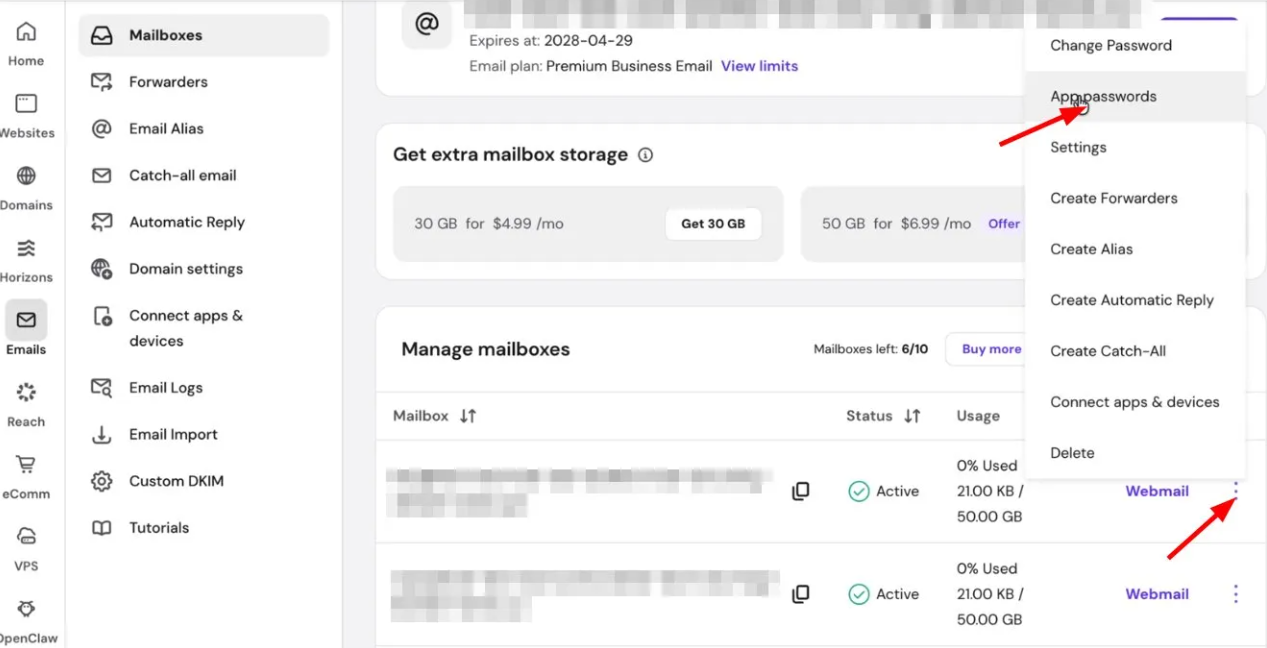
- Click Mailboxes on the left sidebar.
- Find the mailbox and click the Options ⋮ button next to it.
- Select App passwords from the menu.
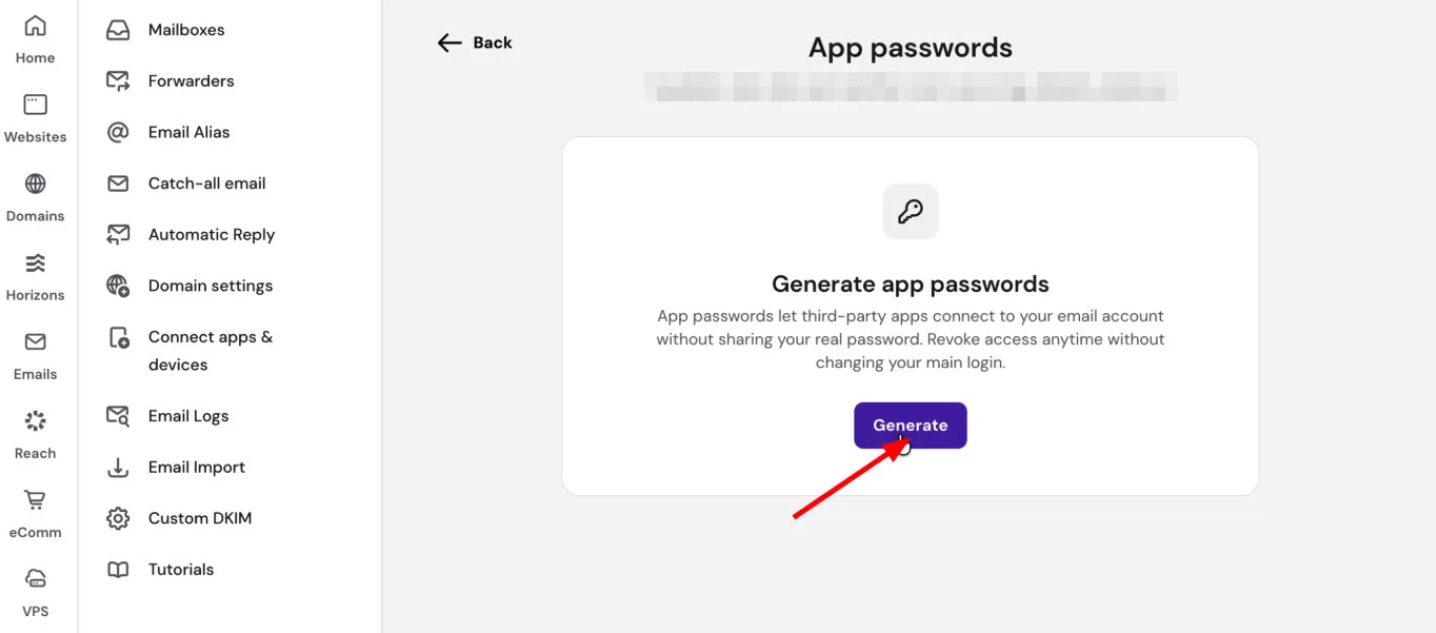
- Click Generate.
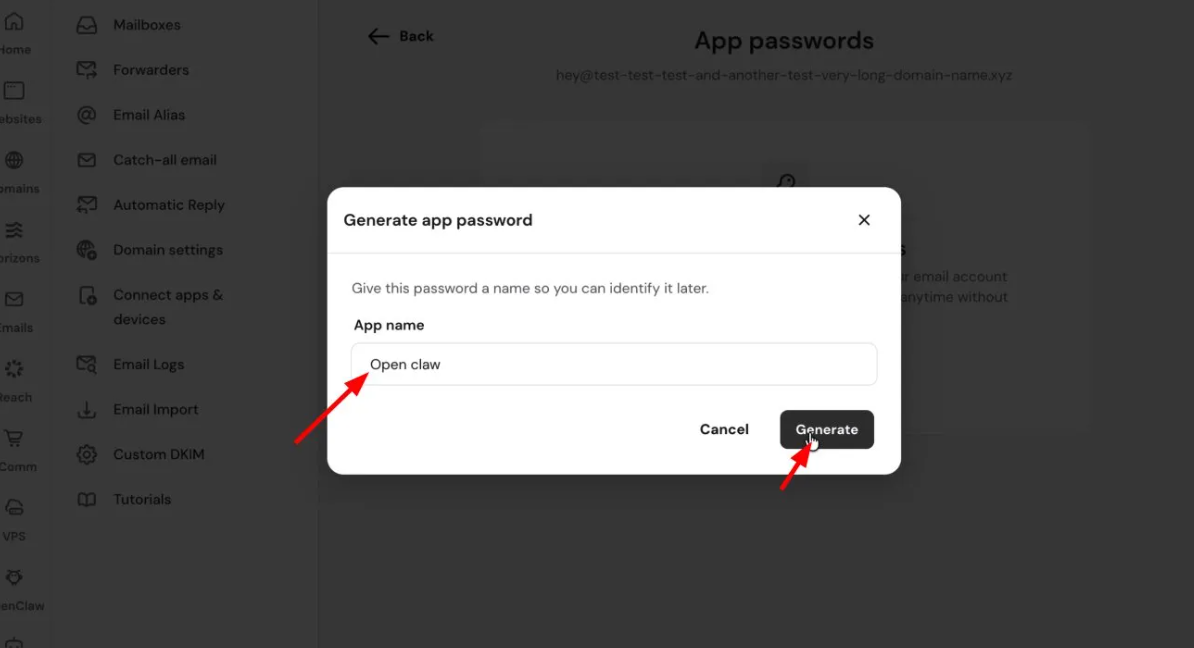
- Enter a name in the App name field — for example, openclaw or mobile-app — to identify this password later. Click Generate.
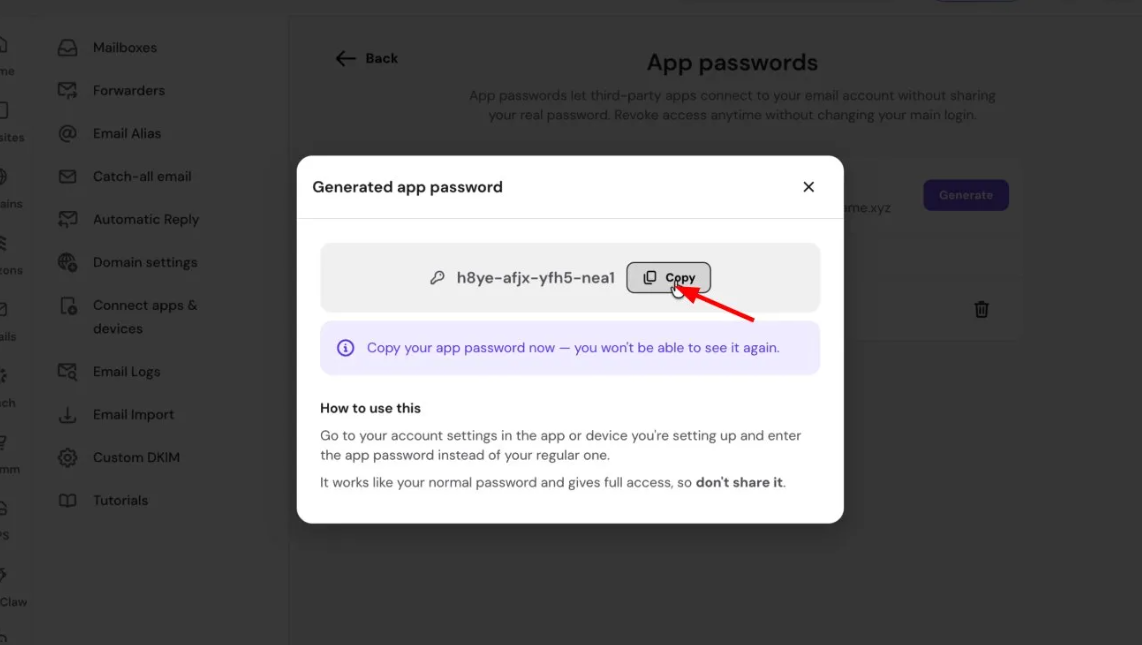
- Click Copy to copy the generated password.
NOTES
- The app password is displayed only once and cannot be retrieved after the window is closed. If lost, delete it and generate a new one.
- App passwords provide full mailbox access. Do not share them.
Connect the app using the app password
Go to the account settings of the app or device you are connecting. Enter your email address and the generated app password in place of your regular mailbox password. The app password works the same way as your main password for authentication purposes.
Revoke a Hostinger Email app password
- Go to the Emails section of Hostinger dashboard.
- Click on the relevant domain and select Mailboxes.
- Click the Options ⋮ button next to the mailbox and select App passwords.
- Click the trash icon next to the app password you want to remove.
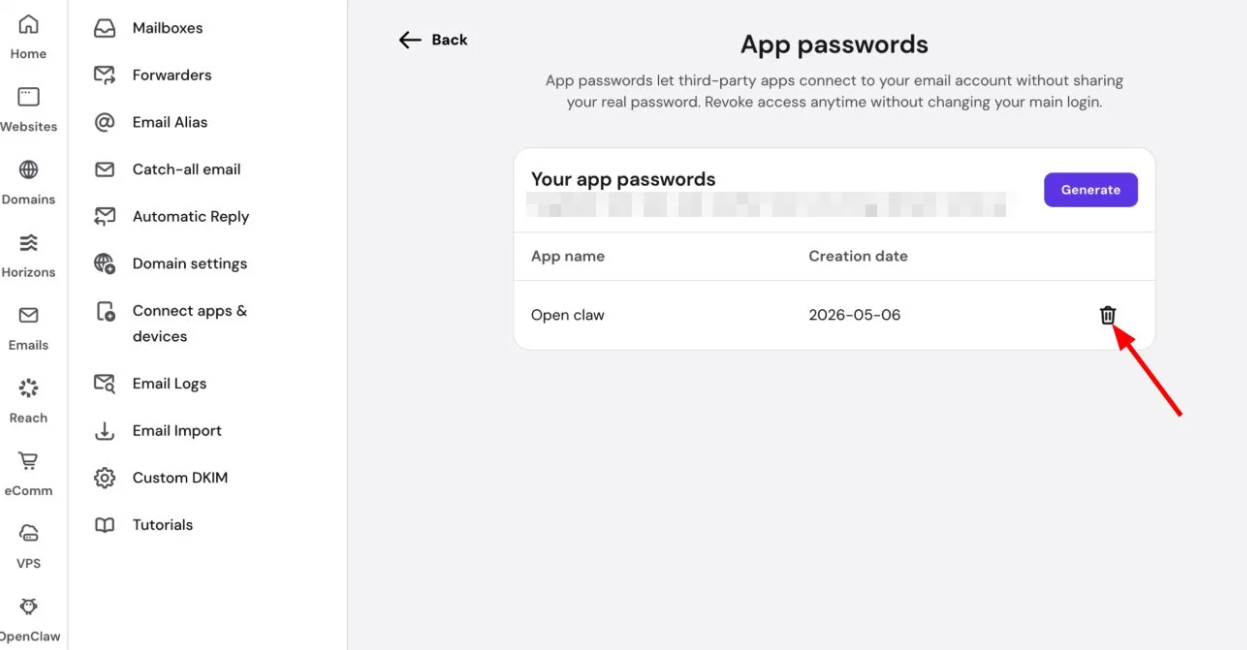
Access for that app is removed immediately. Your main password and any other app passwords remain unaffected.If you’re working through the steps to secure your Hostinger Email account after a suspected compromise, revoke any app passwords you don’t recognize.
The App passwords page lists all active app passwords for a mailbox, showing the app name and creation date.