Hostinger Headless lets you build a website’s frontend with your own AI coding tool, such as Claude Code, Codex, or Cursor, while Hostinger runs the hosting, backend, domain, and SSL. To create a project, select Hostinger Headless in the Hostinger dashboard, choose a domain, pick your AI tool, and send the prepared prompt. Your AI tool then asks what you want to build, builds the site, and deploys it to Hostinger. The backend is either headless WordPress for content or Hostinger Ecommerce for a store.
Before you start
- Have an active Hostinger hosting plan.
- Have access to an AI coding tool, such as VS Code, Cursor, Devin, Antigravity, Claude Code, or Codex.
- Hostinger Headless is being rolled out gradually, so the Hostinger Headless option may not appear under Create site on your account yet.
Create a Hostinger Headless project
Start a Hostinger Headless project from the Websites section of the Hostinger dashboard. Hostinger Agent sets up the website and domain, then prepares a prompt for your AI tool.
Step 1 – Start a Hostinger Headless project
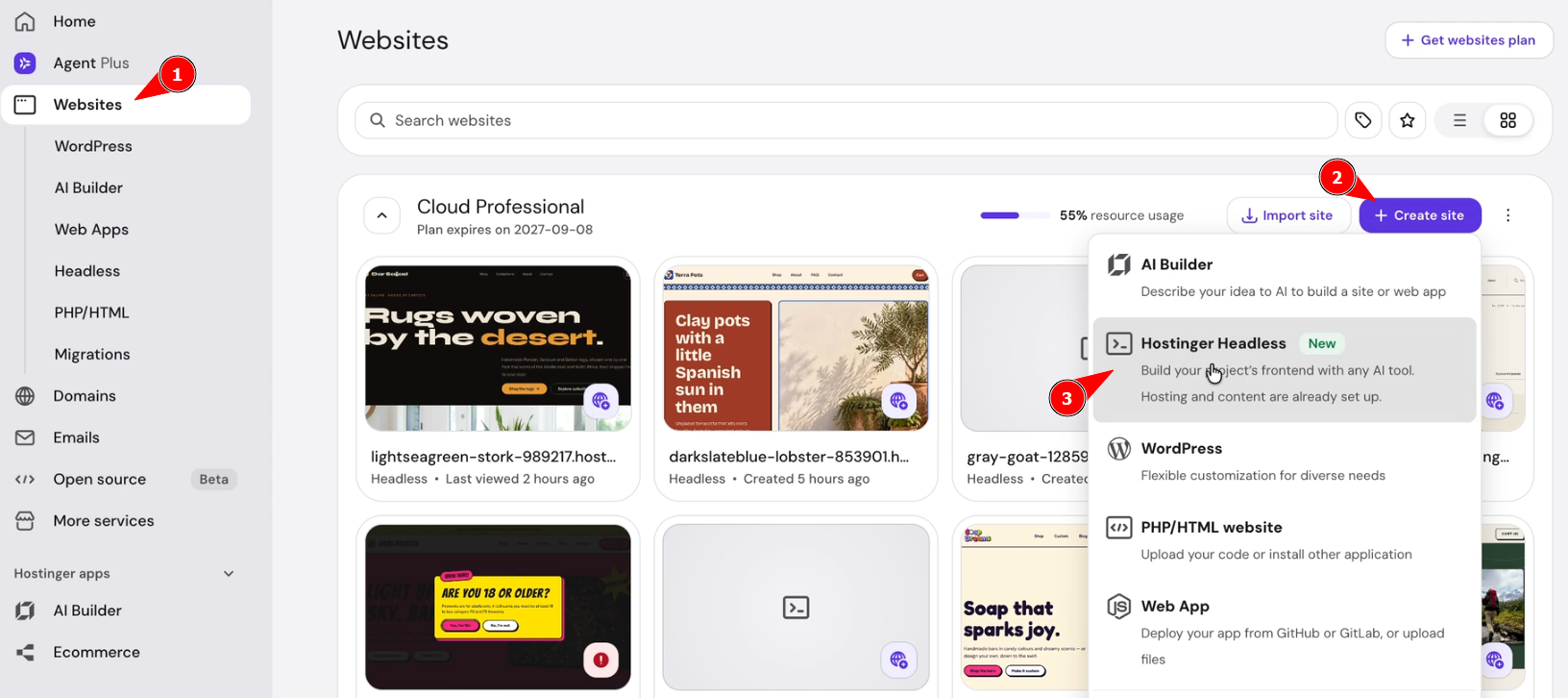
- Go to Websites and select Create site.
- Select Hostinger Headless.
- Type the domain you want to use, then select Start building. To start without a domain, select Use temporary domain instead.
You can claim a free domain, buy a new one, or confirm a domain you already own. If you start with a temporary domain, you can connect a preferred domain name instead of the temporary one later.
Step 2 – Choose your AI coding tool
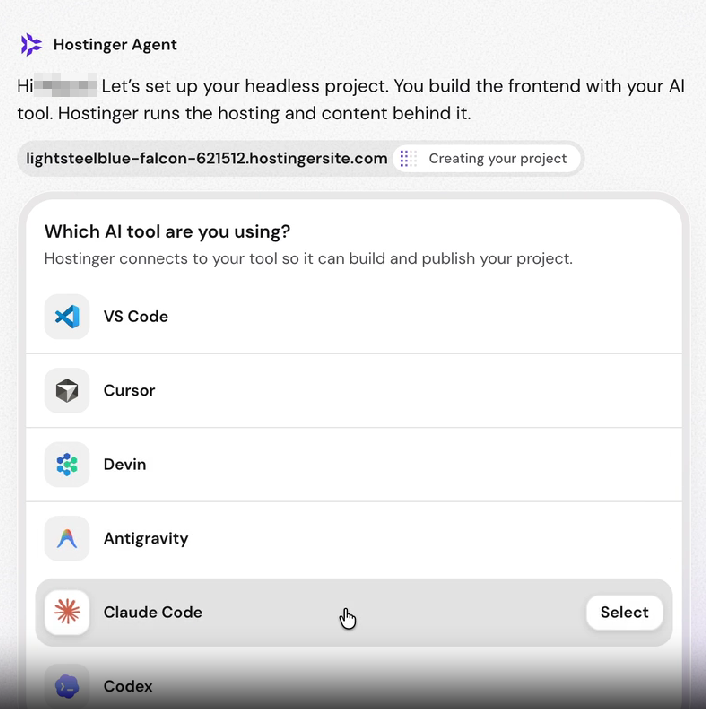
Hostinger Agent creates your project and asks Which AI tool are you using? Select your tool from the list, for example Claude Code, Codex, or Cursor.
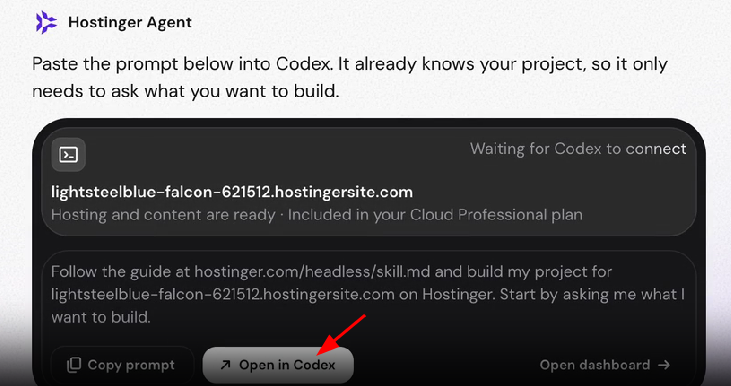
Hostinger Agent then shows a prompt for your tool. The prompt tells your tool to follow the Hostinger Headless guide, build your project for your domain, and start by asking what you want to build.
Step 3 – Send the prompt to your AI coding tool
- Select Open in [your tool], for example Open in Claude Code. To use the prompt somewhere else, select Copy prompt and paste it into your tool.
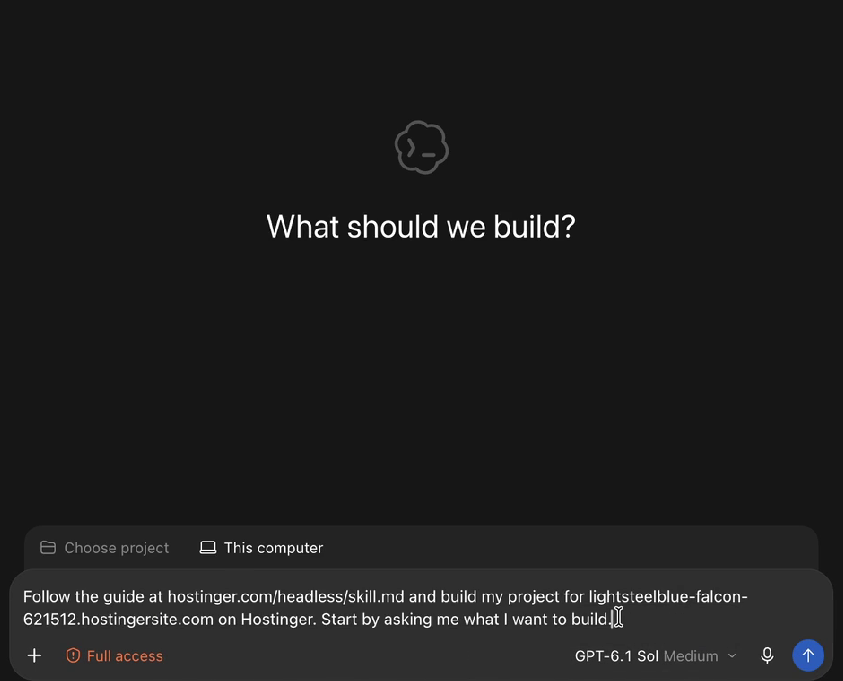
- Confirm when your browser asks to open the application. The prompt appears in your tool’s message field.
- Send the prompt.
While your tool connects, the Hostinger dashboard shows Waiting for [your tool] to connect.
Step 4 – Describe your project and let your AI tool build it
Your AI tool asks what you want to build. It then asks follow-up questions, plans the work, builds the frontend, deploys it to Hostinger, and checks that the site is live. For example, it may ask you to choose a design direction or an image source, or to enter an admin email for a WordPress backend.
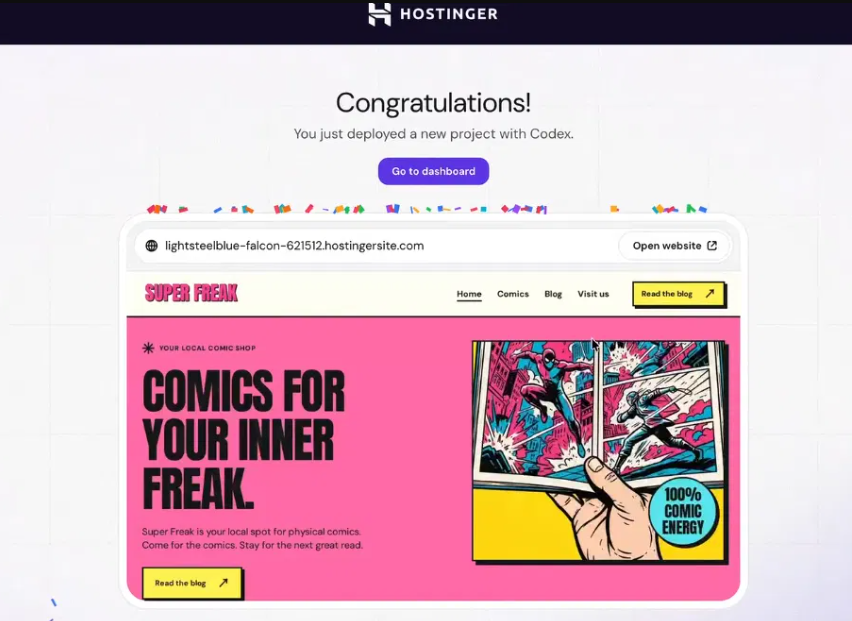
When the deployment finishes, the Hostinger dashboard shows Congratulations! You just deployed a new project with [your tool]. Select Open website to view the live site, or Go to dashboard to manage it.
Hostinger Headless backends: WordPress and Hostinger Ecommerce
A Hostinger Headless project uses one of two backends for its content. Your AI tool builds the frontend on top of it.
- Headless WordPress stores your posts and pages. You edit them in the WordPress Admin area, and the custom frontend displays them. Find your admin address in How to find your WordPress login URL at Hostinger.
- Hostinger Ecommerce stores your products for an online store. Learn more in Hostinger Ecommerce: Product overview.
Manage your Hostinger Headless website
Hostinger Headless websites appear in the Websites list with the Headless label. You can also find them under Websites → Headless in the left sidebar.
The frontend code is yours. Keep building on it with your AI coding tool, and it deploys your changes to Hostinger.
Your Hostinger Headless website is now live, with Hostinger running the hosting and backend behind your custom frontend.
NOTES
- If you already built a project with another AI tool, see Host your Lovable, Bolt, or any other vibe-coded website on Hostinger.
- To build a website another way, such as with WordPress or Hostinger AI Builder, see How to create a website in Hostinger.