Setting up payments for your online store should be straightforward, but regional restrictions, account requirements, and configuration details can sometimes get in the way. This guide walks you through the most common payment gateway and checkout issues in Hostinger Website Builder, with clear steps to identify and resolve each one.
Payment gateway not appearing
If a specific payment provider is missing from your store settings, it is often due to regional or account-type restrictions.
-
Stripe: Verify that your store’s country is supported by Stripe. If Stripe isn’t connected yet, see Enabling Stripe Payments.
-
PayPal: You must connect a PayPal Business account; personal accounts are not supported.
-
Razorpay: Ensure your store location is set to India.
-
Paysera: Ensure your store location is set to Lithuania.
-
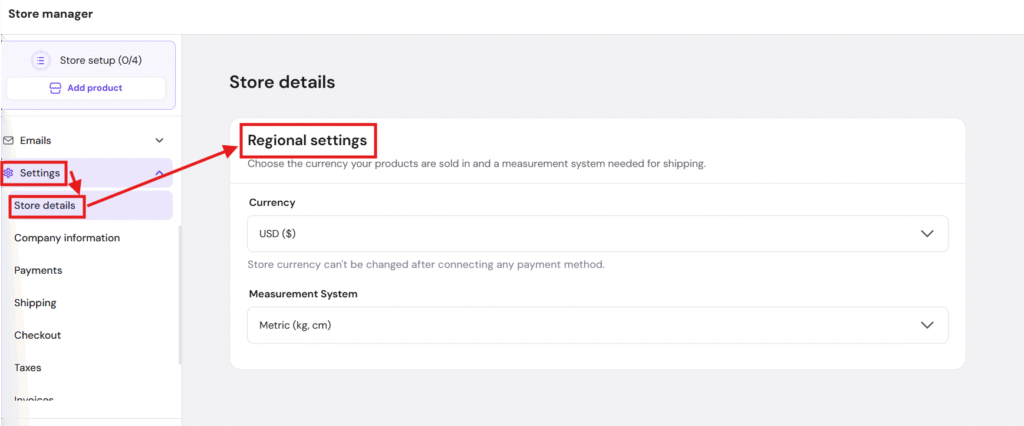
Currency selection: If the currency setting is greyed out, disable all active payment methods first, change the currency, and then re-enable your providers.
To update these details, go to Store settings → Store details → Regional settings.
Stripe and Express Checkout issues
Stripe offers various payment methods like Apple Pay and Google Pay, but they require specific configurations within the Stripe Dashboard.
-
Apple Pay and Google Pay: These can now be toggled on or off directly from Store settings → Payments → Stripe, without going into the Stripe Dashboard.
-
Apple Pay not showing: Your domain must be submitted to Stripe for Apple Pay to work. This now happens automatically when you enable Express checkout — no need to go into Stripe manually. If you had Express checkout enabled before this update, you can submit your domain with one click from Store settings → Payments → Stripe. Make sure you have a Hostinger domain connected — Apple Pay requires a verified domain.
-
Express Checkout warning: If a yellow warning appears in the editor, ensure your Publishable key is correct and that your Stripe account connection is fully completed.
-
Testing limitations: Stripe payments may not function correctly in Preview mode. Always test payments on your live, published website.
Shipping and checkout display
Errors at the final checkout step usually relate to shipping rules or header configurations.
-
Shipping options missing: This occurs if product weights or price bounds are misconfigured. For a full breakdown of common shipping configuration mistakes, see Troubleshooting Shipping Options. If you haven’t set up shipping zones yet, start with How to Set Up Shipping.
-
Lower bounds are inclusive; upper bounds are exclusive.
-
Example: For free shipping on orders over €50, set the minimum to €50 and leave the maximum blank.
-
Ensure all physical products and their variations have assigned weights.
-
-
Shopping bag missing: If the cart icon is not visible, go to your Header settings in the editor and enable the Shopping bag.
-
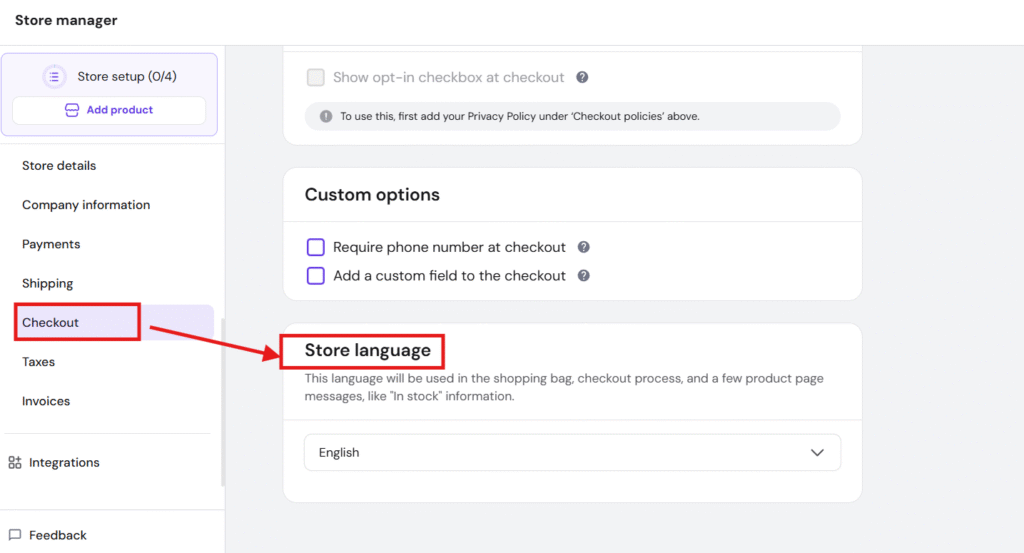
Checkout language: To change the language of the cart and invoices, go to Store settings → Checkout → Store language.
Buyer payment errors
If customers report failures during checkout, advise them to check the following:
-
3D Secure (3DS): Ensure pop-ups are allowed in the browser so the bank’s verification window can open.
-
Card Declines: Confirm the card is enabled for international/online transactions and has not expired.
-
Device Requirements: Apple Pay requires the Safari browser, while Google Pay requires a configured Google Wallet.
-
Retry limits: If a customer has too many failed attempts, they should wait 24 hours or try a different payment method.
Most checkout issues are resolved by verifying regional settings or ensuring external accounts (like Stripe or PayPal) are correctly configured. To verify your setup, we recommend creating a manual payment method to place a free test order before launching your store.