Adding a Hostinger Reach form to your WordPress site now takes a single click, with no theme file edits or manual code pasting required. Using the Hostinger Reach plugin, you can select any form built in Reach Form Builder and place it on a new or existing page directly from the Hostinger Reach plugin page, the WordPress Block Editor, Elementor, or an HTML code snippet. Once embedded, updates made to the form in Reach are reflected on your WordPress site automatically.
Before you start
- The Hostinger Reach plugin installed and activated on your WordPress site.
- A form created in Reach Form Builder. If you haven’t created one yet, you can build it directly from Hostinger Reach plugin described below.
- It’s recommended to use WordPress Block Editor or Elementor for easier way to add the form.
Create a new form from the Hostinger plugin
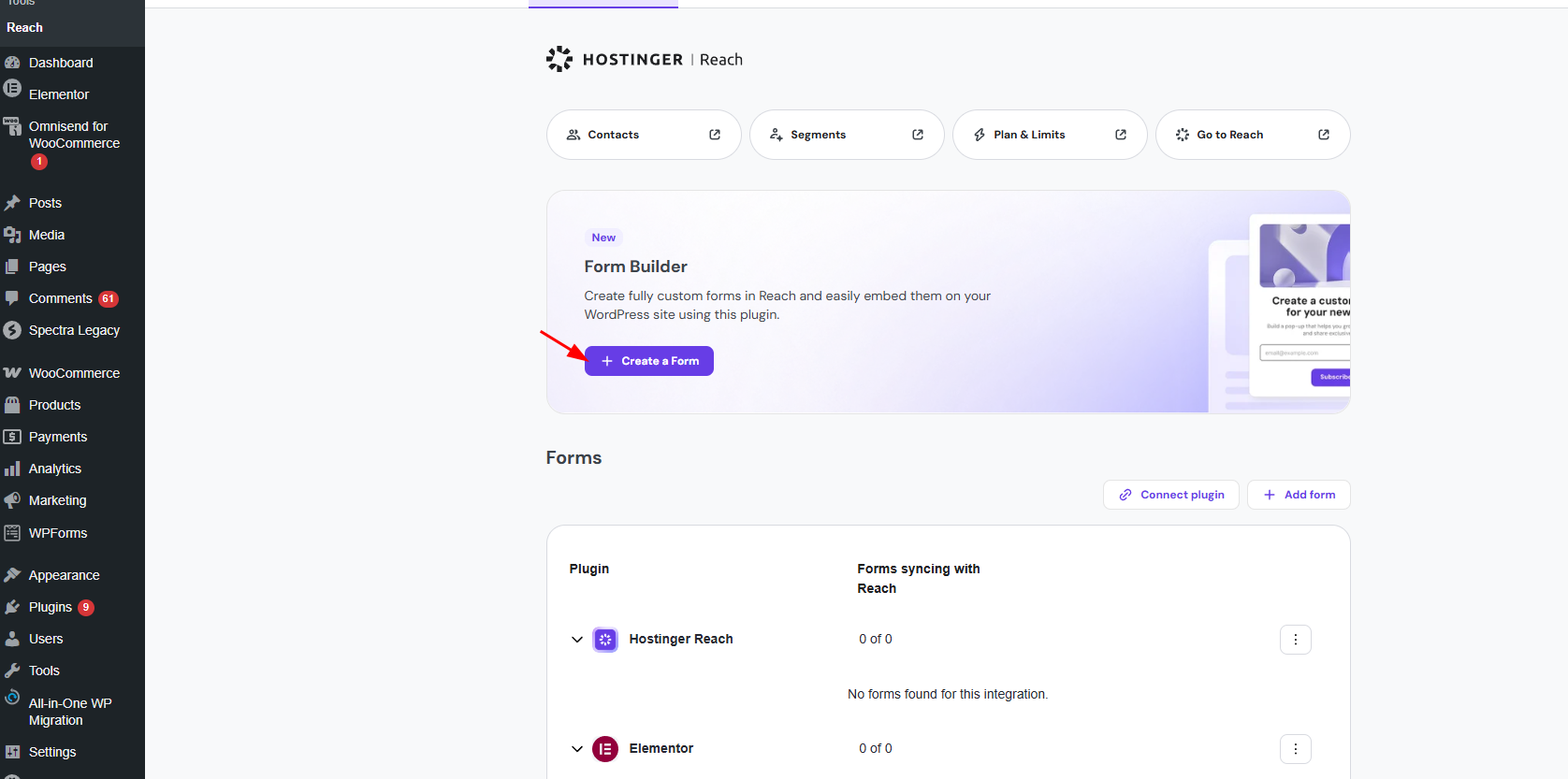
- In the WordPress Admin area, go to Hostinger → Reach.
- Under Form Builder, click Create a Form.
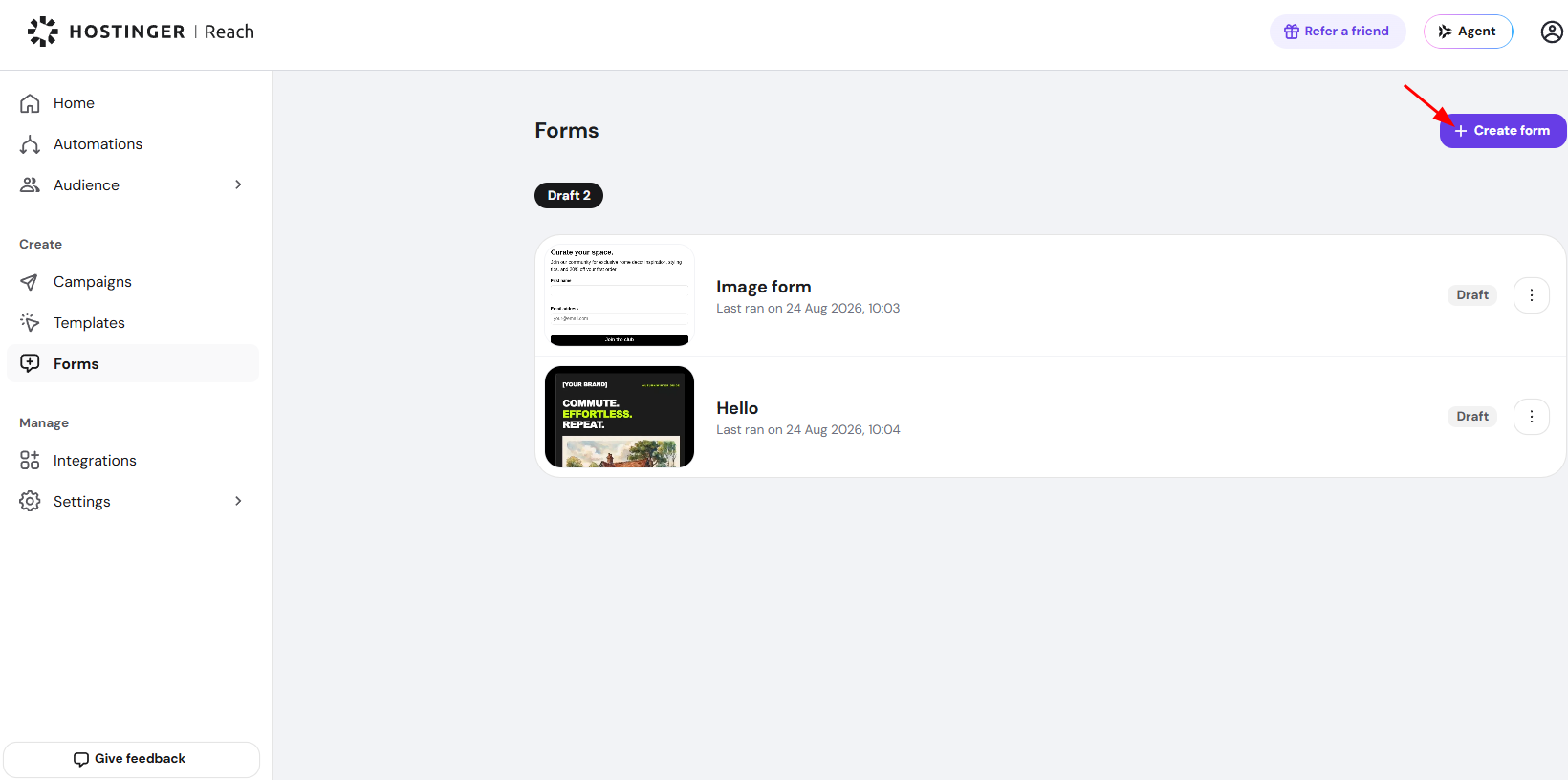
- In Reach dashboard, click Create form.

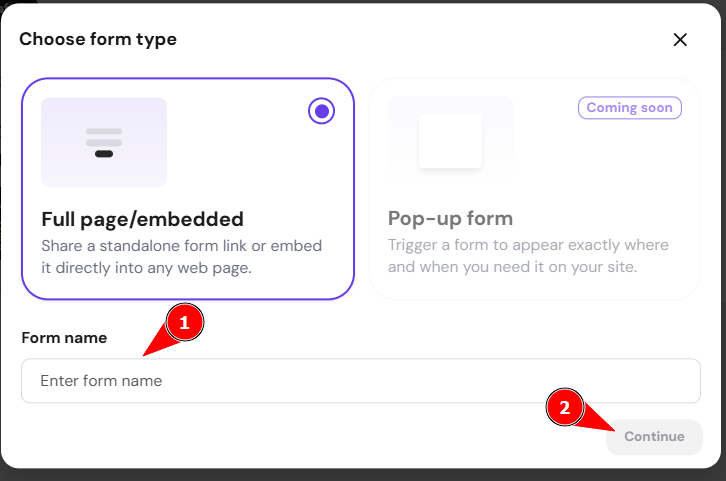
- Enter a form name and click Continue.

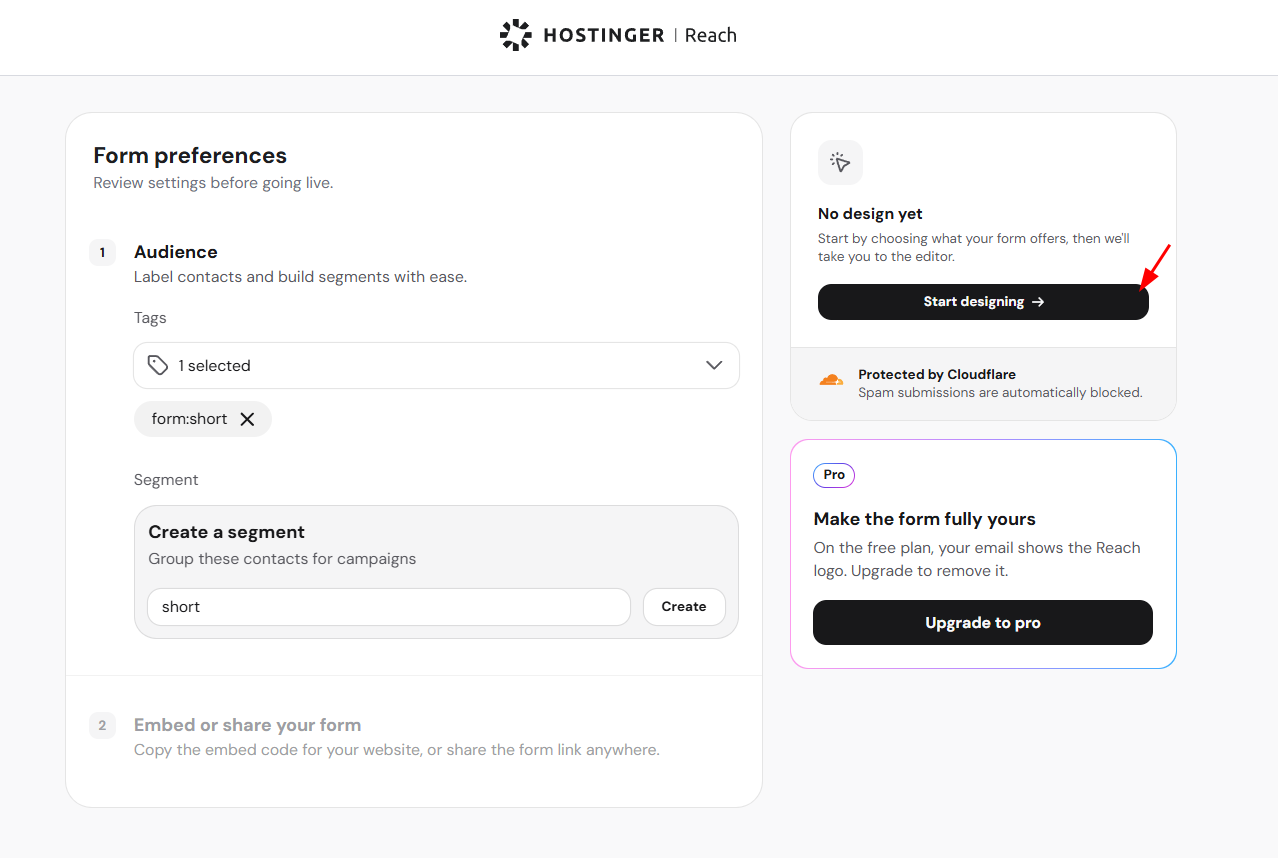
- Click Start designing to design your form.

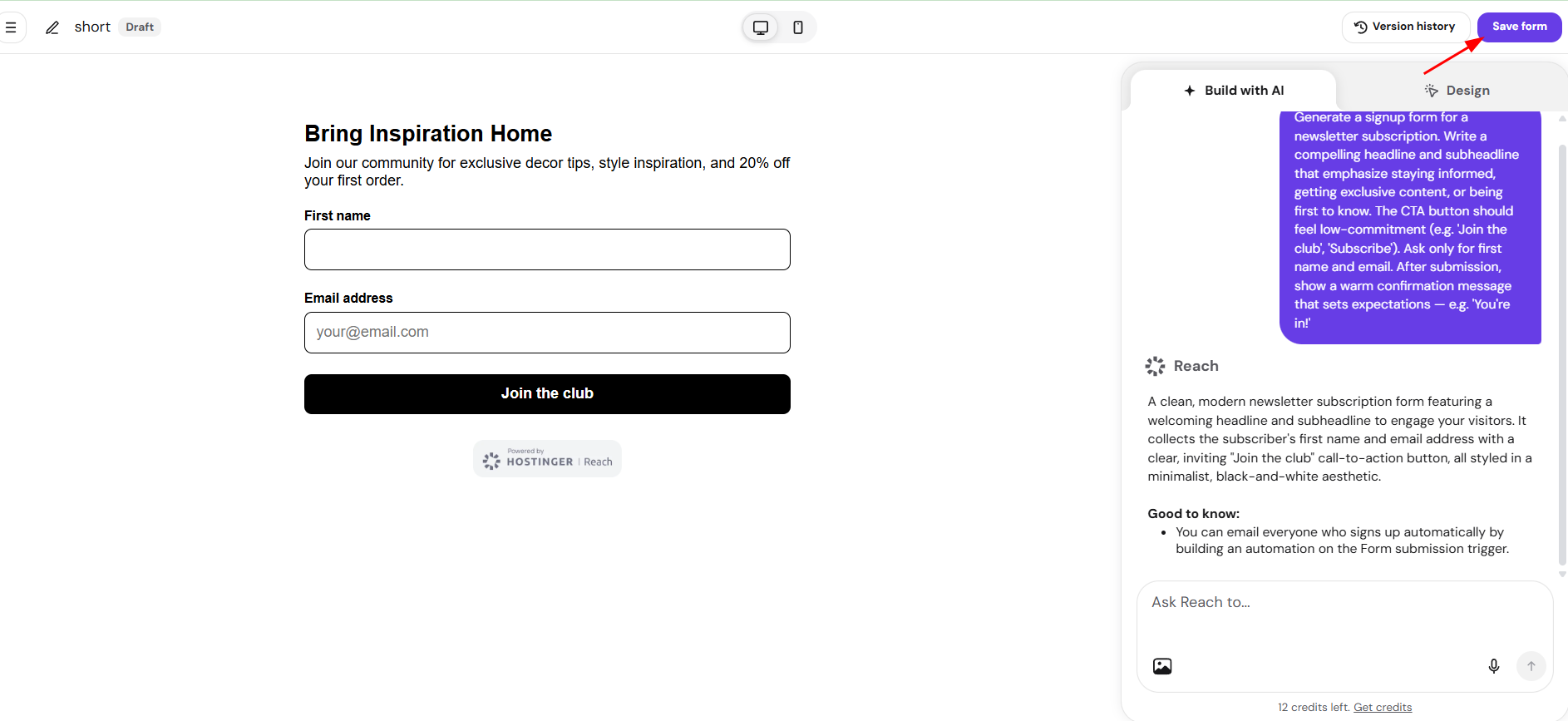
- Design the form in Reach Form Builder, using Build with AI if needed, then click Save form.

- Return to your page in the Block Editor or Elementor and select the new form using the steps above.
NOTE
- The Forms list under Hostinger → Reach shows every form synced with Reach across the Block Editor and Elementor, with a toggle to enable or disable syncing for each form.
Add a form directly from the Hostinger Reach plugin page
- In the WordPress Admin area, go to Hostinger → Reach.
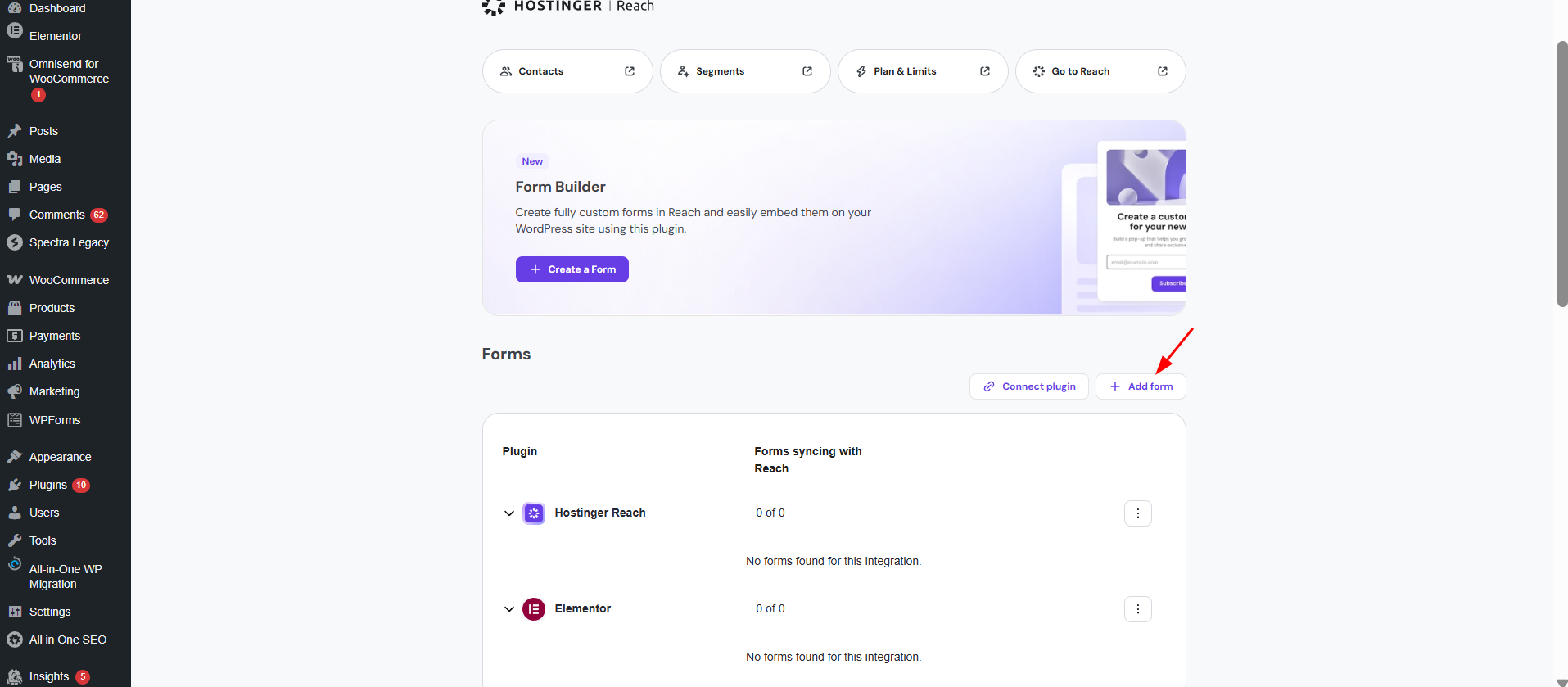
- Under Forms, click Add form.

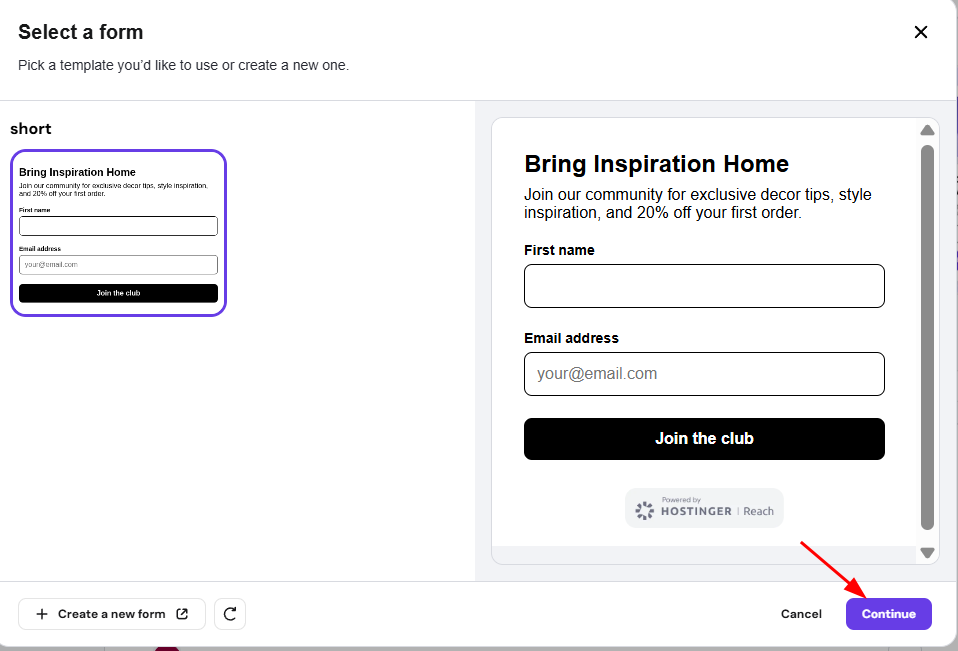
- In the Select a form window, choose an existing form template, or click Create a new form to build one in Reach. Click Continue.

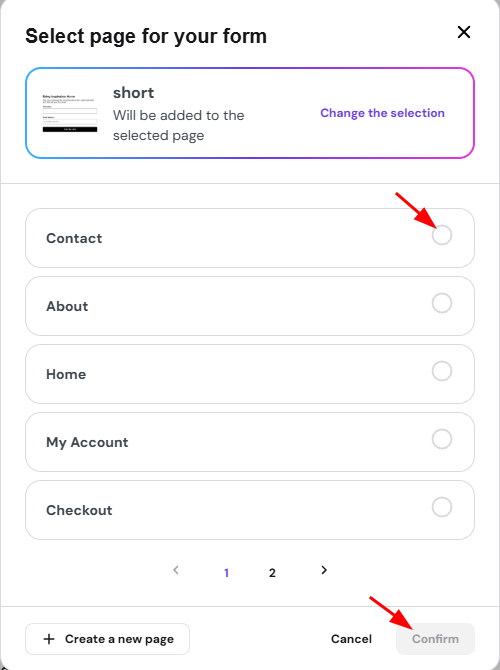
- In the Select page for your form window, choose the page where the form should appear, or click Create a new page to add it to a new page. Click Confirm.

- The form will be added in the page, then click Publish to save the page.
Add a form using the WordPress Block Editor
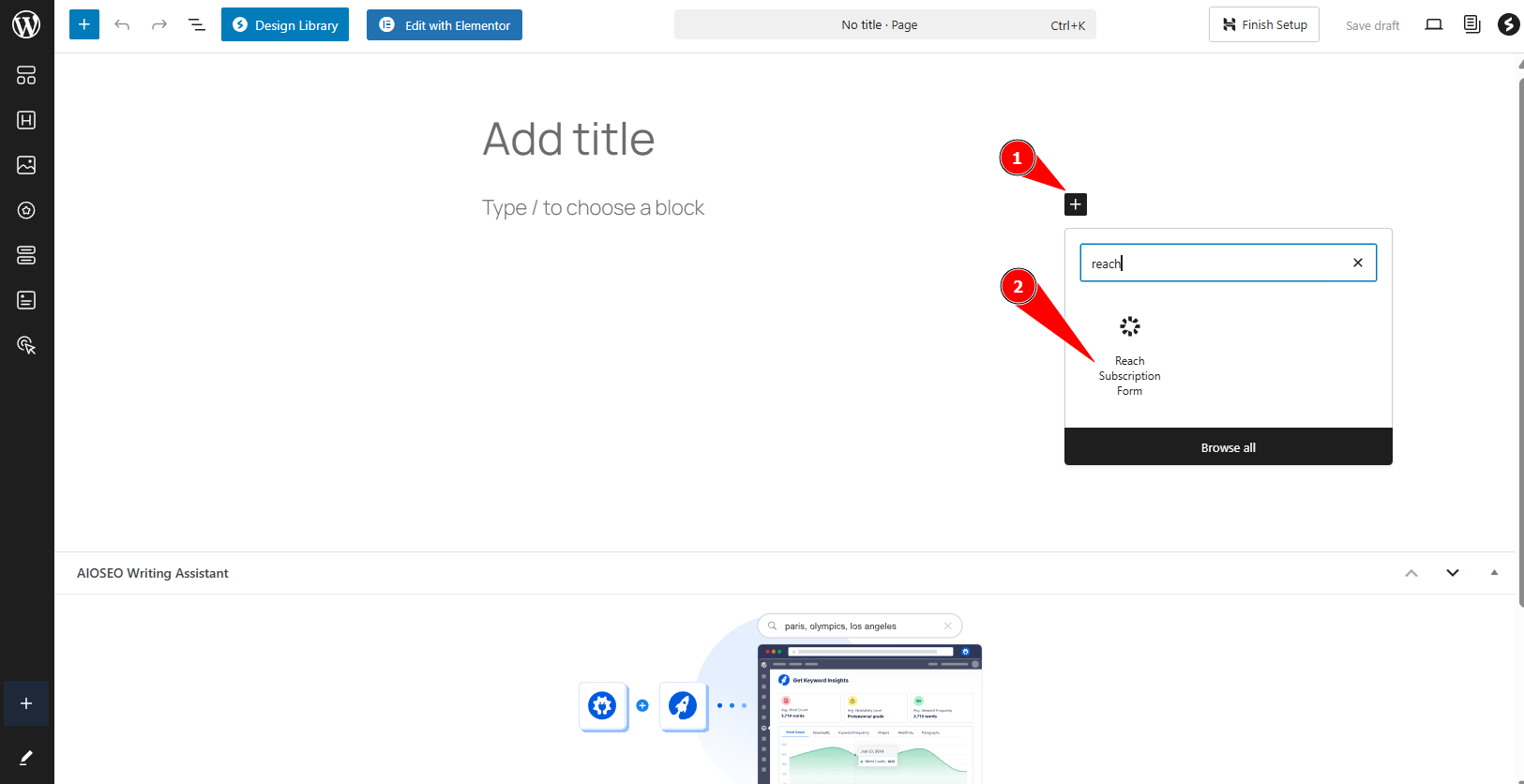
- Open the page in the WordPress Block Editor and click the block inserter icon.
- Search for the Reach Subscription Form block and add it to the page.

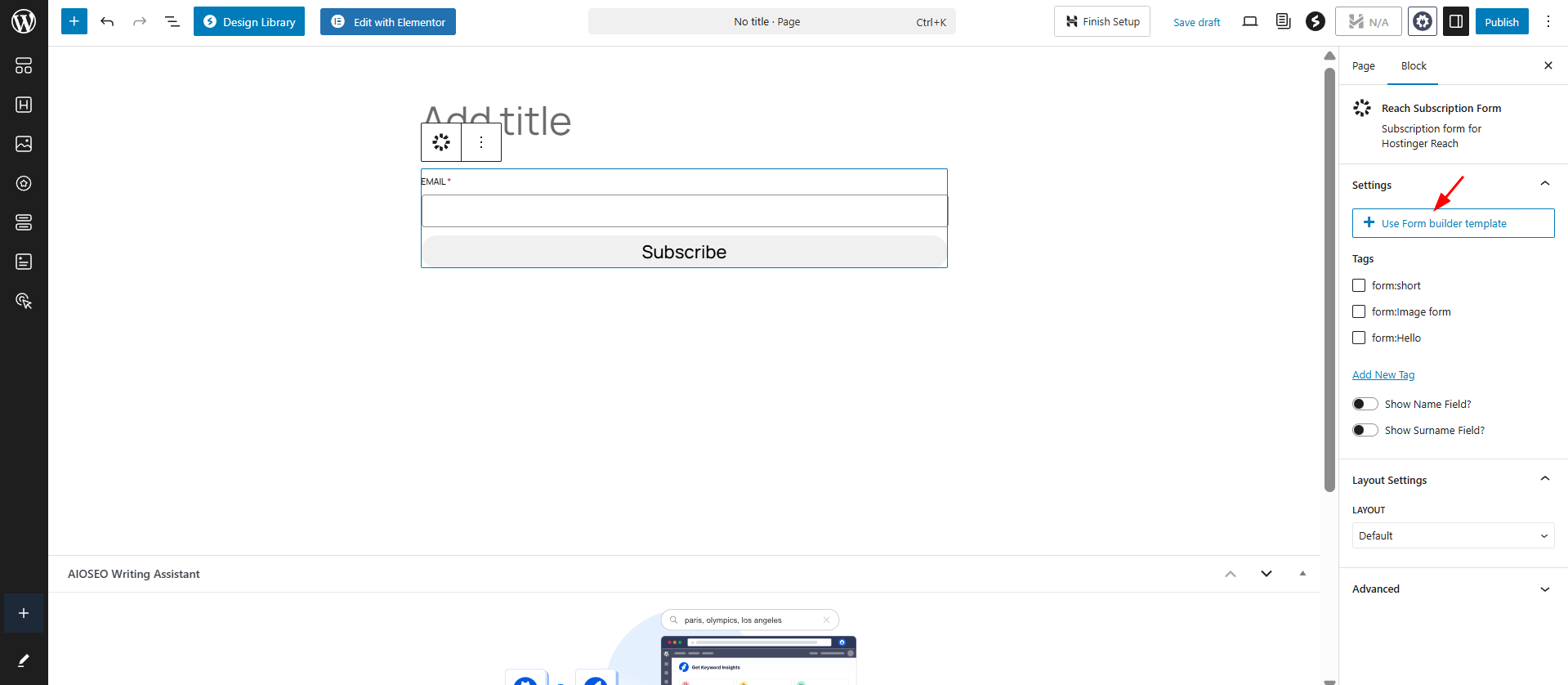
- Click Use Form builder template.

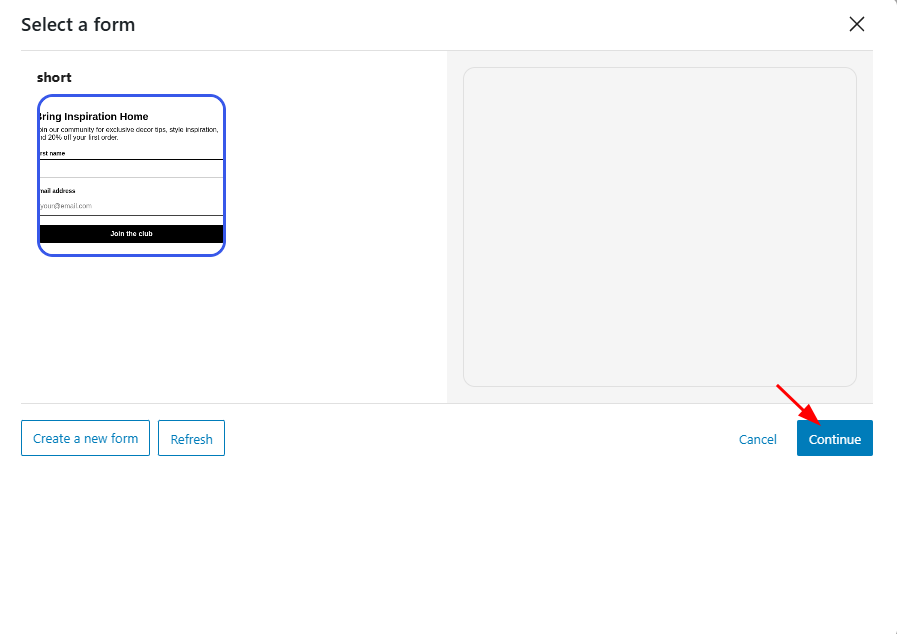
- In the Select a form window, choose an existing form template, or click Create a new form to build one in Reach.
- Click Continue.

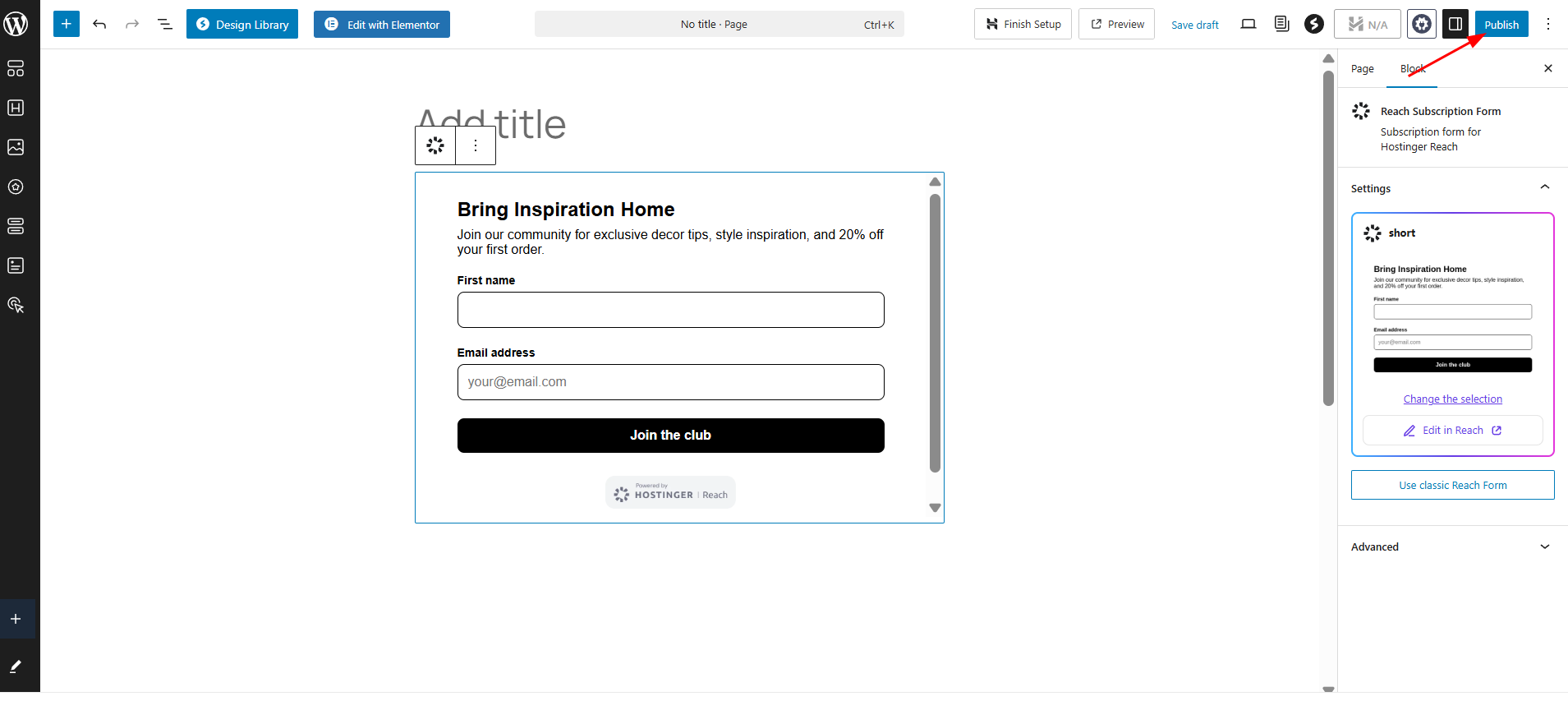
- Click Publish to save the page.

Add a form using Elementor
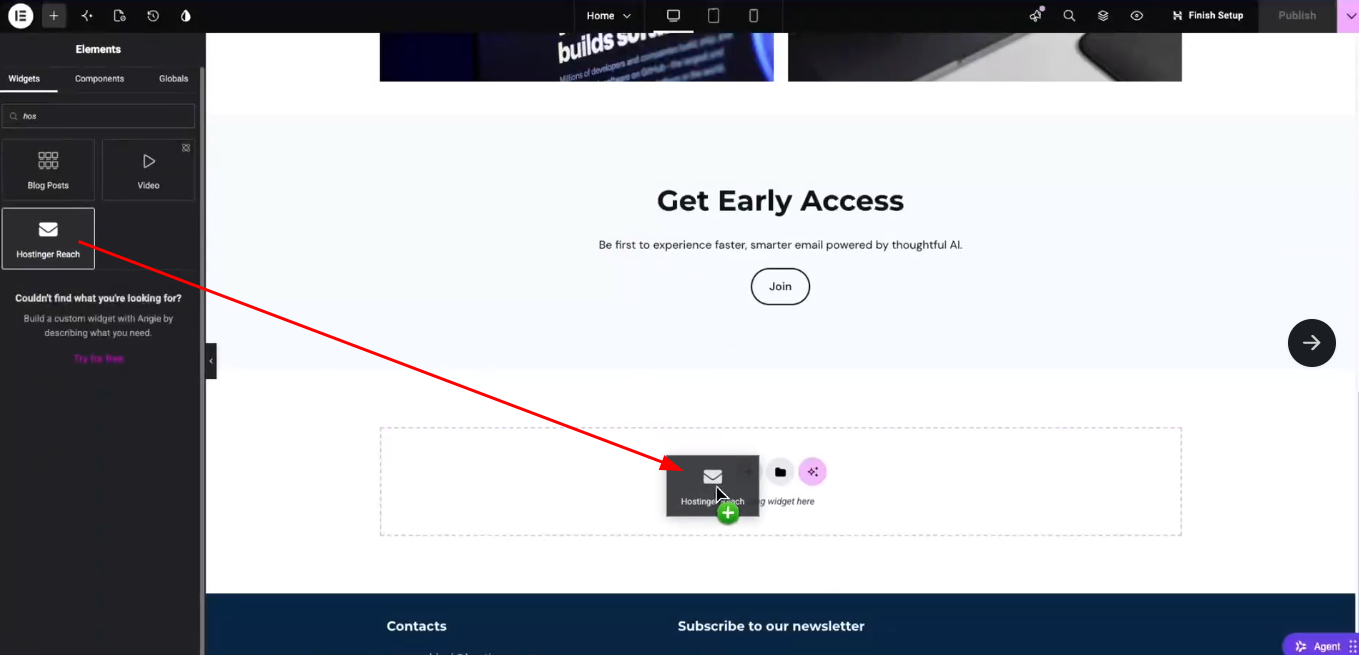
- Open the page in Elementor and search for the Hostinger Reach widget in the Elements panel.
- Drag the Hostinger Reach widget into your layout.

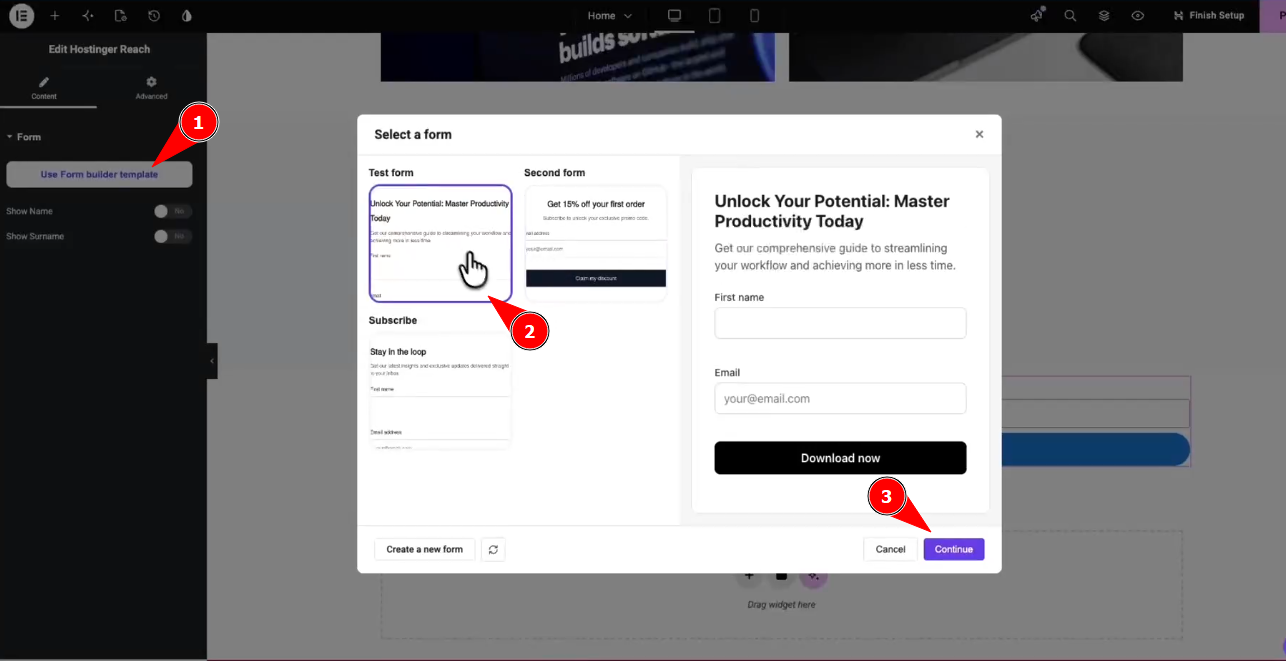
- Click Use Form builder template.
- In the Select a form window, choose an existing form template, or click Create a new form to build one in Reach.
- Click Continue.

- Click Publish to save the page.
Add a form using a HTML code
If you don’t use WordPress Block Editor or Elementor in your website, you can use HTML code as alternative to add the form.
Step 1- Add the on-site tracking script
To display your form on a WordPress site, start by adding a tracking script to your website (one-time setup):
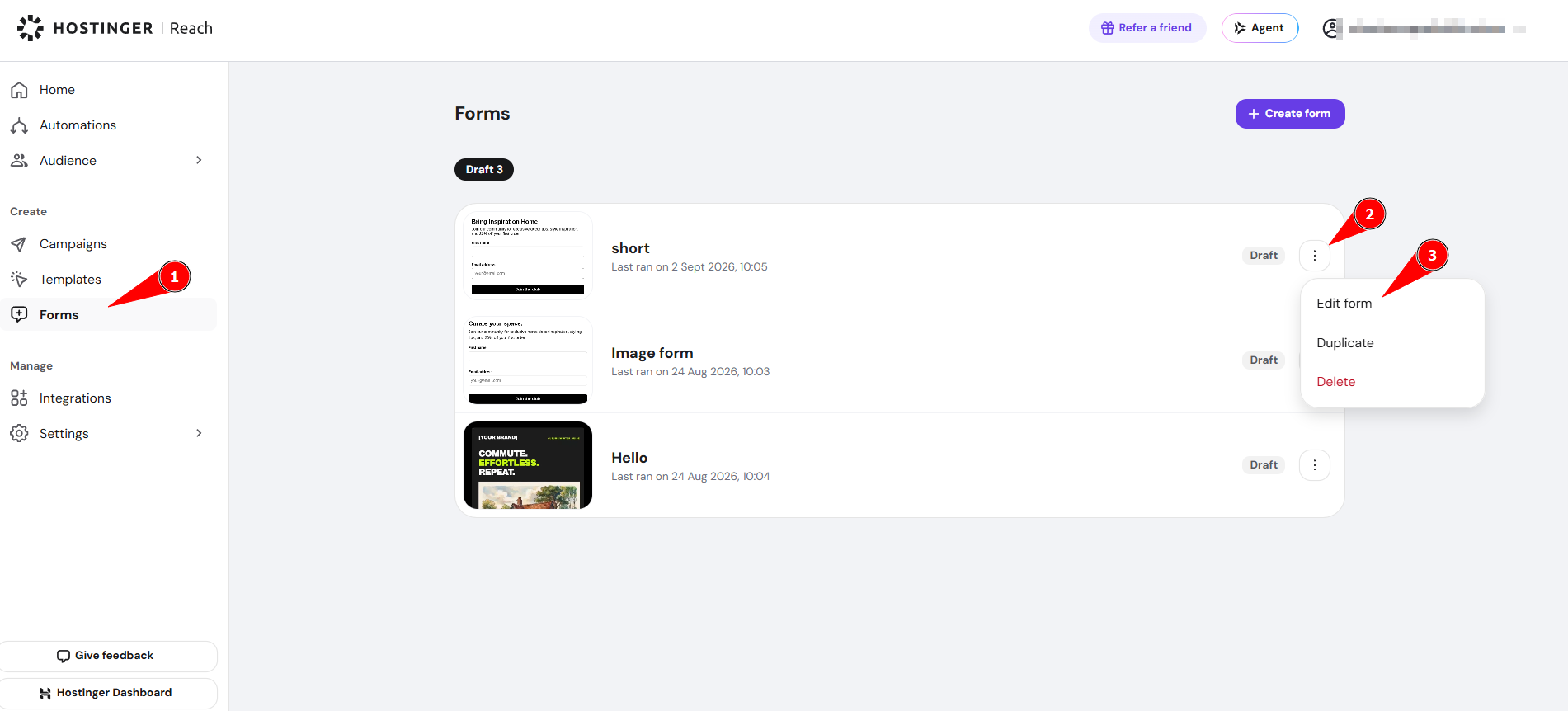
- Go to Reach dashboard, then Form.
- Choose the form you want to add, click ellipsis, then Edit form.

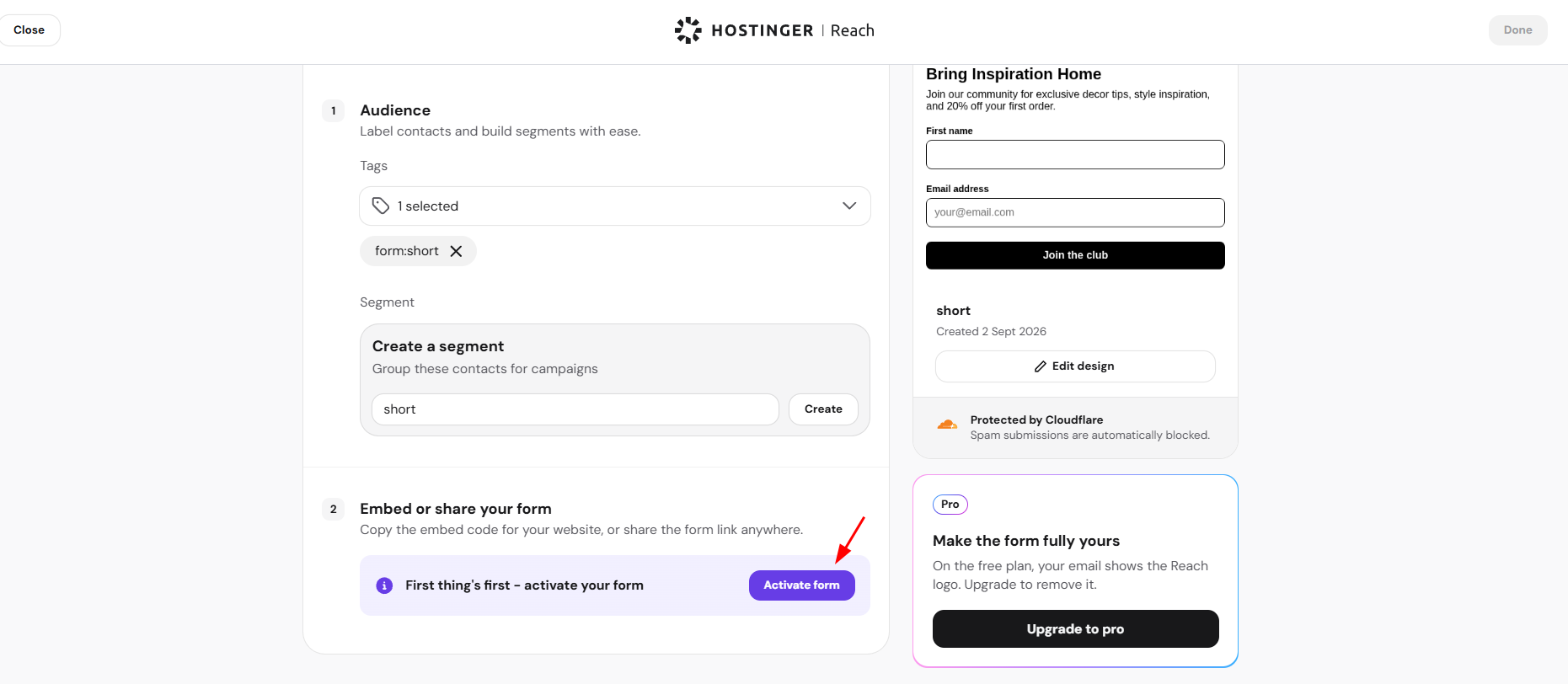
- Under Embed or share your form, click Activate form.

- Choose Embed and copy the onsite tracking script.

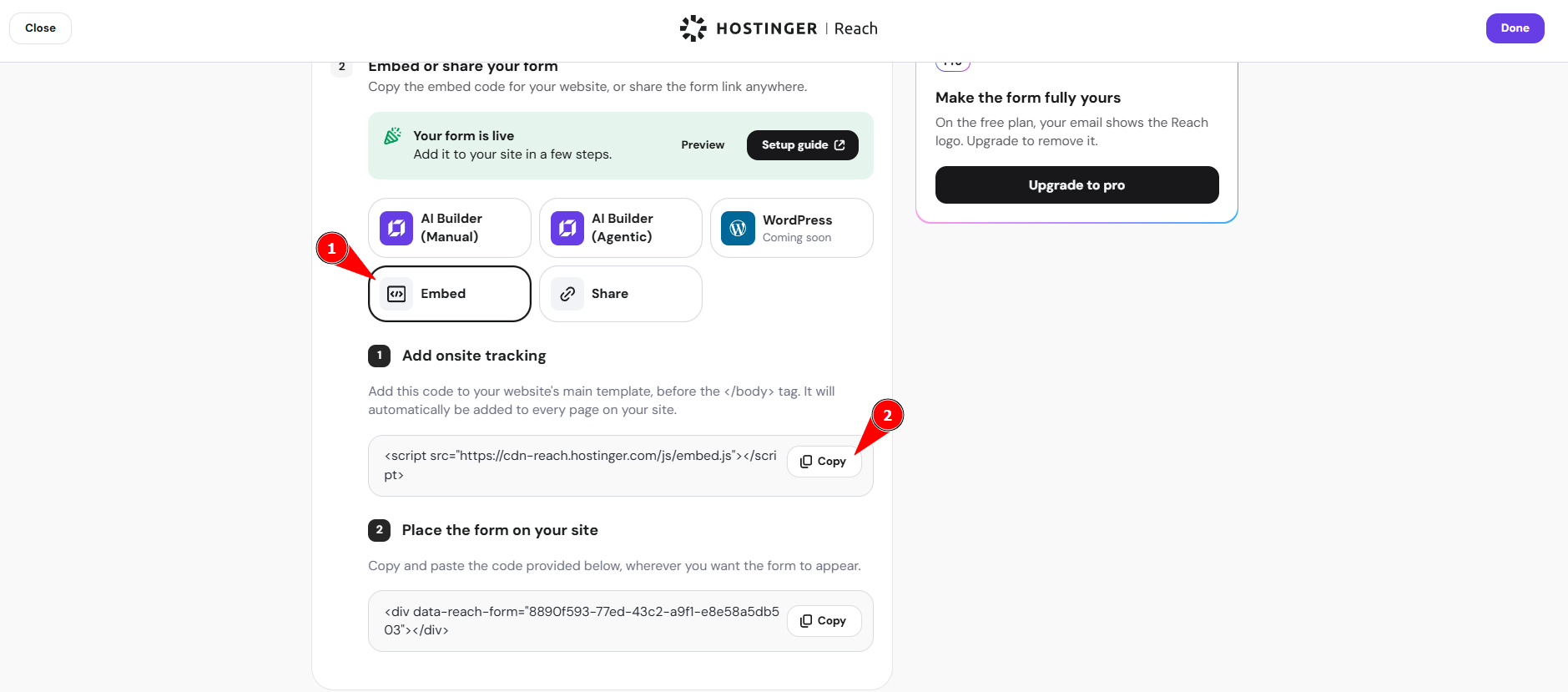
Before your form can load on your site, you need to add a script from Reach to your website files.
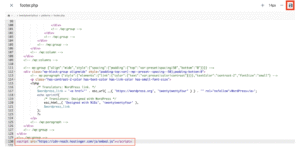
This code snippet should be placed in the footer.php file, right before the closing </body> tag. If the </body> tag is not present, you can paste the script at the very end of the file.
Option 1 – Using WordPress Theme File Editor
- Log in to your WordPress admin dashboard
- Go to Appearance → Theme File Editor

- Open the footer.php file

- Scroll to the bottom of the file
- Paste the script from Hostinger Reach (the snippet starting with <script>)
- Place it just before </body>, or at the end of the file if the tag is not present

- Place it just before </body>, or at the end of the file if the tag is not present
- Save your changes
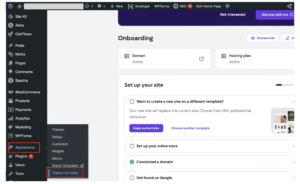
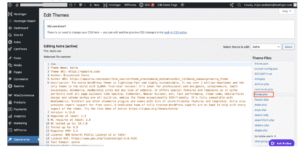
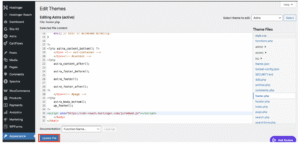
Option 2 – Using Hostinger File Manager
- Log in to your Hostinger account
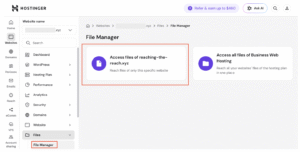
- Go to Websites → Dashboard (for your WordPress site)
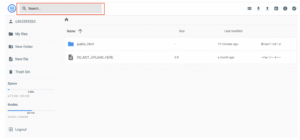
- Open File Manager and click Access Files

- Search for footer.php


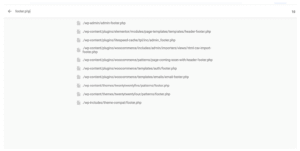
You may see multiple footer.php files. Make sure to:
- Select the file that belongs to your active theme
- Open the file and scroll to the bottom
- Paste the code snippet from Hostinger Reach:
- before the </body> tag
- If the tag is not present, paste it at the end of the file

- Save the changes
Step 2- Place the form on your page
Once the tracking script is added, you can place the form anywhere on your site.
Start by copying the form embed code from Reach following the steps before.
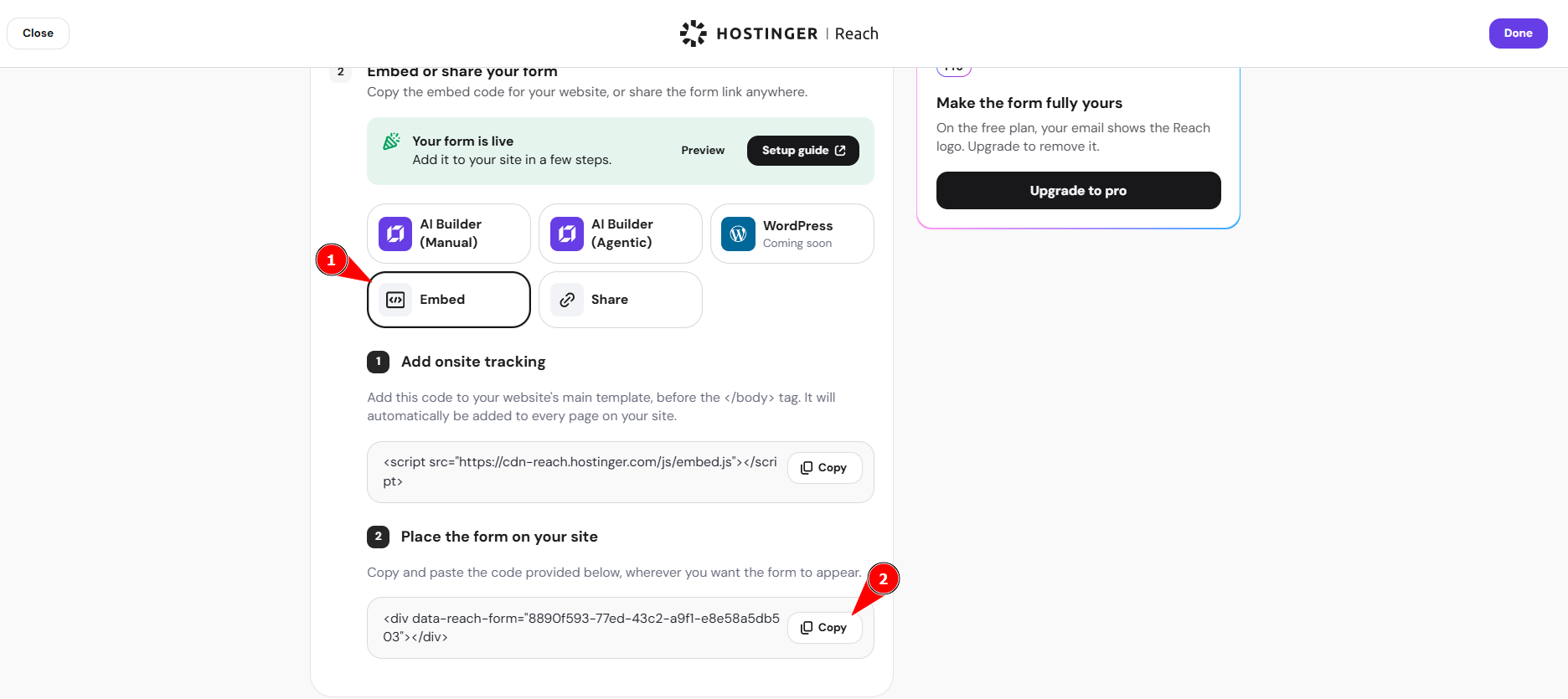 Then go to your WordPress editor and add it to the page where you want the form to appear.
Using WordPress Block Editor
- Open Pages in your WordPress dashboard
- Edit the page where you want to display the form
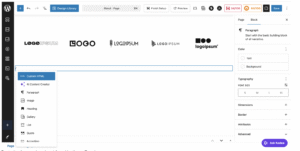
- Add a Custom HTML block

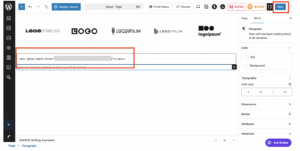
- Paste the form code snippet from Hostinger Reach

- Update or publish the page
Using Elementor
- Open your page in Elementor
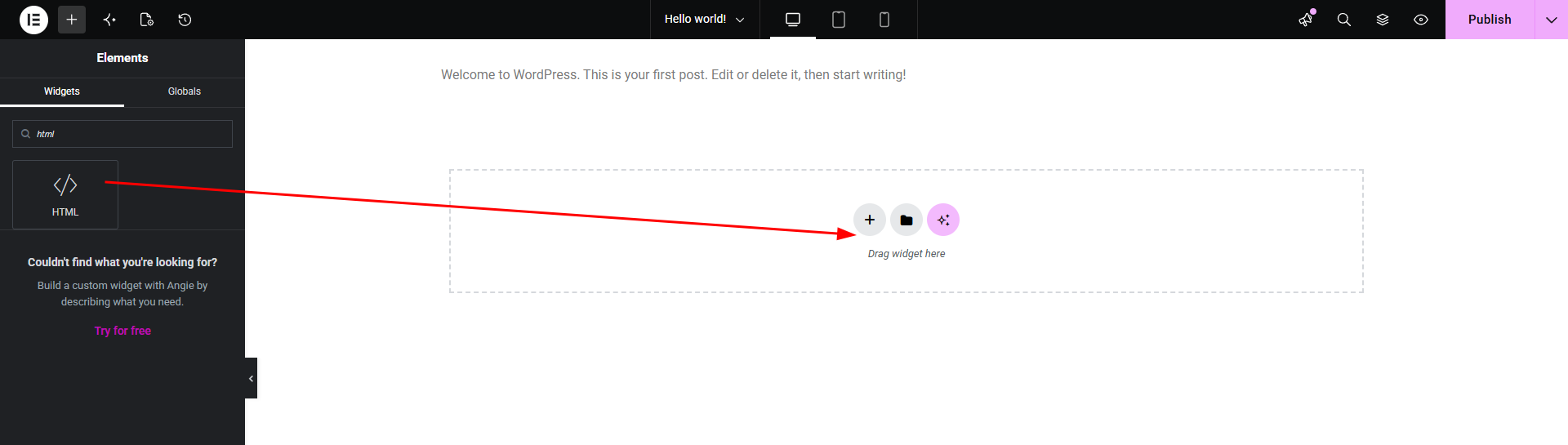
- Search for the HTML widget

- Drag it into your layout
- Paste the form code snippet
- Update the page
Final check
After publishing your page, open it in your browser and confirm that the form is visible and loads correctly.
If the form is not displaying:
- Make sure the form is activated in Reach
- Confirm the tracking script is added correctly
- Check that the embed code was pasted and saved in HTML block
Your Reach form now appears on your WordPress page and updates automatically whenever you edit it in Reach, so you don’t need to re-embed it after making changes.