Once your form is created in Hostinger Reach, you can add it to your website to start collecting subscribers directly from your pages.
If you haven’t created a form yet, refer to Form Builder overview & setup guide
This guide explains how to add your form to a Hostinger AI Builder agentic mode site or any other vibe-coded website.
Add your form to your site
Hostinger AI Builder agentic mode allows you to add elements to your site using AI prompts.
- Open your AI Builder editor
- Use the prompt input to describe what you want to add
For example, you can enter:- “Add a form to my site using these code snippets:”
- Then paste both code snippets from Reach in the prompt
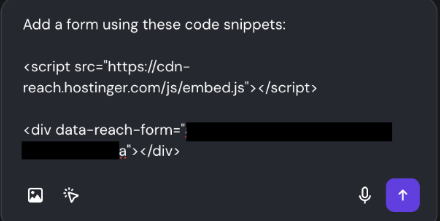
You can also be more specific, such as:
- Where the form should appear (e.g., homepage, contact section)
- How it should be positioned on the page
- Submit your request
Hostinger AI Builder agentic mode will place the form on your site based on your instructions.
Final check
If the form is not displaying:
- Make sure the form is activated in Reach
- Check that both code snippets were added into your prompt