Manage your project’s code, data, and user-uploaded files in Hostinger AI Builder agentic mode using the built-in code editor and integrated backend. The AI handles the architecture, but you may need to access the codebase for manual edits or manage your project’s data storage.
How to access the code editor
You can view and modify the underlying code of your project directly within the platform.
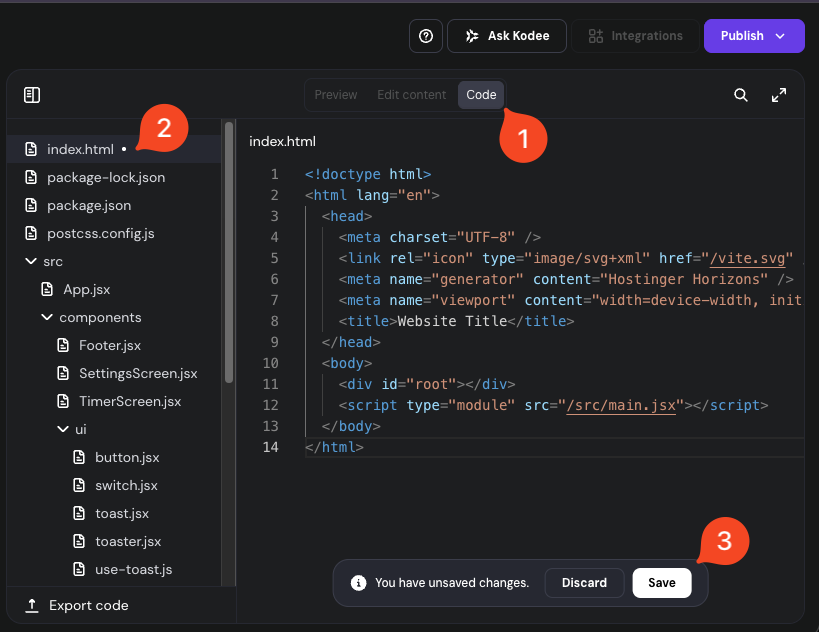
- In the top navigation bar, click the Code button. The file structure appears on the left, with the code editor on the right.
- Select the file to edit.
- Make your desired changes and click Save. If you wish to cancel, click Discard.
NOTES
- Changes to system files can cause website errors.
- Once saved, changes cannot be automatically reverted.
For more details, refer to the Hostinger AI Builder code editor guide.
How to manage data and user-uploaded files
Hostinger AI Builder does not support traditional file management via FTP, SSH, or a standard File Manager. Instead, it uses an integrated backend with a database-like structure to store and manage data and user-uploaded files.
This backend automatically handles information from features like user logins, forms, or dynamic content. To store user-uploaded files (such as images or documents) in this system, you must have the Data tab enabled.
If the Data tab is not available, enable integrated storage:
- In your Hostinger AI Builder project, enter a prompt similar to the following: “Store all user-uploaded files using the integrated backend file storage instead of the local filesystem.”
- Hostinger AI Builder will automatically configure the storage system for your project.
Once data storage is enabled
- In the top navigation bar, click the Data button to access your project’s data.
- Select Test data or Live data depending on which environment you want to manage.
- Select the relevant collection to store the files and click Add New record.
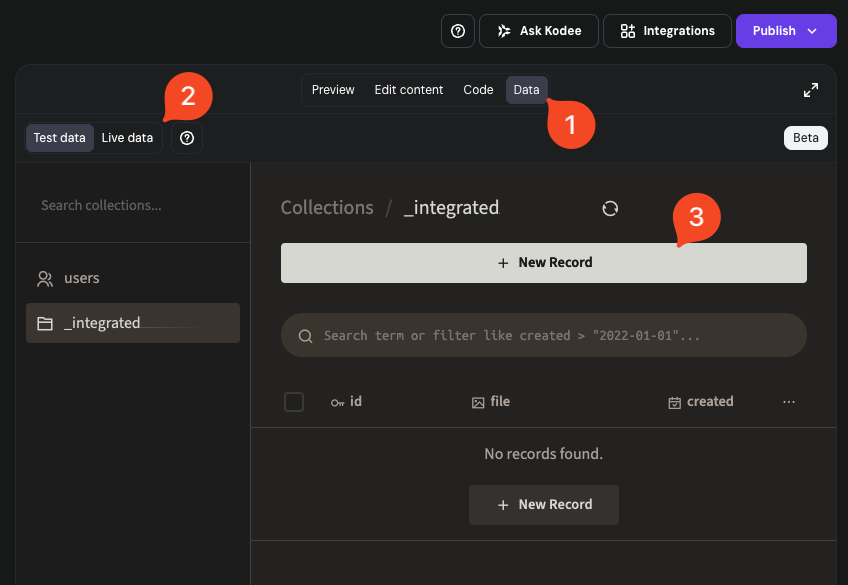
- Enter a custom ID for the file or leave it empty to autogenerate one.
- Upload the file and click Create.
NOTES
- The folder structure is autogenerated by the AI and cannot be manually customized.
- Not all file formats may be supported.
- To change an existing image on your website without using the data backend, you can use the Hostinger AI Builder visual editor.
File management limitations
Because Hostinger AI Builder uses an AI-driven architecture, there are specific limitations compared to traditional hosting.
- Restricted access: System and internal configuration files are not accessible via the code editor.
- File operations: You cannot create, upload, or delete entire code files manually through the code editor. File-structure changes via prompt is not recommended and may not work or generate unintended output.
- No traditional access: There is no support for FTP, SFTP, or SSH.
- Storage limits: The integrated backend includes up to 5GB of storage per project during the beta period.
Alternatives for custom file management
If your project requires high flexibility or large-scale file handling, consider these options.
- External providers: Services like AWS S3, Cloudinary, or Supabase Storage can be integrated to your Hostinger AI Builder project using prompts.
- Hostinger hosting plan storage: You can host files on a separate website on your Hostinger hosting plan and reference them in Hostinger AI Builder via URL.
- Add a new empty custom PHP/HTML website to your hosting plan.
- Connect the new website to a custom domain or subdomain.
- Upload files using File Manager.
By using the integrated backend and code editor, you can maintain control over your project’s data and logic without needing external databases.
Additional resource