Access and modify your Hostinger AI Builder agentic mode project data using the integrated backend, which automatically creates and manages your project’s data storage without external database setup. The backend automatically stores and manages data when you add features like user logins, forms, or dynamic content, and the Data section is where you view and manage that information.
Describe what you need, and Hostinger AI Builder sets up the required data storage automatically, removing the need to connect third-party databases or authentication providers.
With project data, you can:
-
Manage user accounts and logins
-
Review and edit form submissions
-
Store and update dynamic content
-
Support automated emails and authentication flows
This data management works alongside the broader integrated backend, and alongside file and code management — see how to manage files and data in agentic mode for those.
Accessing your project data
- Open your project
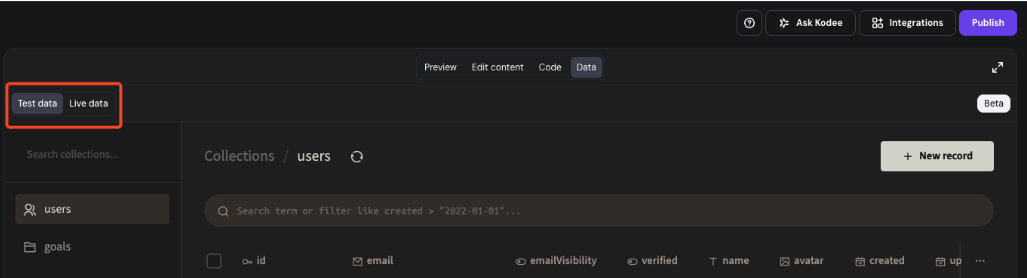
- Click the Data toggle at the top of the preview screen.

You’ll see 2 data environments available. See how to use test and live data in the integrated backend for more on the distinction between the two:
Test data
Use Test data to safely experiment. Any actions you take in preview mode (for example, submitting a contact form) appear here. Hostinger AI Builder copies new Test data records to Live data when you publish your project. Learn more about publishing test data to live data.
Live data
Use Live data to view real information collected from your published site: customer signups, form submissions, blog entries, or anything else visitors have created. Live data also includes the Test data records copied to your website when you publish.
Browsing and editing data
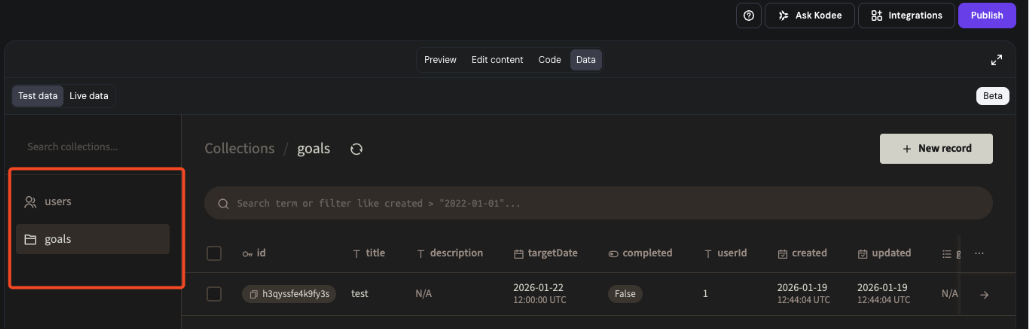
Collections are groups of related data automatically created by Hostinger AI Builder when your project needs them. For example: users, form responses, blog posts, or custom content. Each collection contains individual records.
On the left panel when ‘Data’ is toggled , you’ll find your Collections: groups of records such as contacts, posts, or users.
- Click any collection to view its records on the right side.
- Use filters to quickly find specific entries.
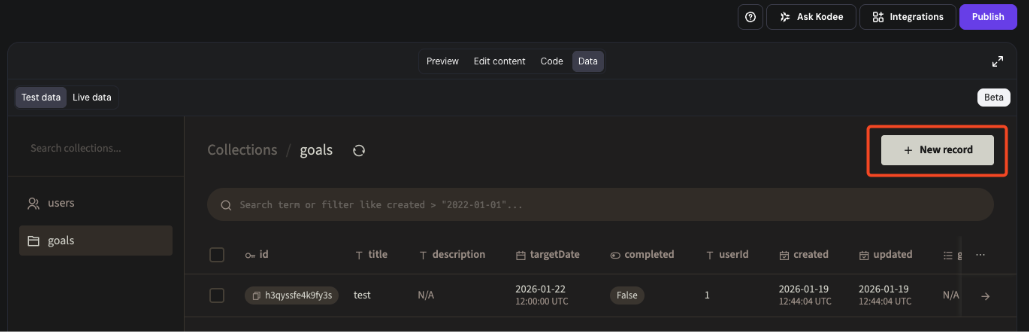
- Click Add record to manually create new data in any collection.
- Click on relevant data record to make changes.
- Click on ⋮ after clicking on relevant record to see an option to delete data record.
NOTE
- Confirm that the Live data tab is active before you edit or delete a record, because Live data holds the real information collected from your published site. See how to use test and live data in the integrated backend for more details.
Making structural changes
Hostinger AI Builder handles the underlying database structure, security, and updates automatically. You don’t need to manage migrations, connections, or schemas manually, and changes won’t affect your live site unless published.
To modify your data model (for example, add collections or fields), describe the change you want in the prompt. E.g., “Add a new collection for support tickets with fields: title, email, status.” Hostinger AI Builder will apply the update automatically behind the scenes.