Hostinger AI Builder agentic mode stores test and live data in two environments of the integrated backend: Test data and Live data. Test data holds records created while you preview your project in the editor. Live data holds records created by visitors on your published website. When you publish, Hostinger AI Builder copies new Test data records to Live data without changing records that already exist on your live website. Switch between the environments, manage records, and update your data structure directly from the editor.
The integrated backend activates automatically when your project includes features requiring data storage, such as contact forms or user accounts. Access your data directly from the editor using the Data toggle once active.
Understanding data environments
Hostinger AI Builder stores development and production data in two separate environments:
Test data: This is generated when you interact with the application in Preview mode. Submissions made during testing are stored here. New Test data records are copied to Live data when you publish your project.
Live data: This is generated by real visitors on your published website. For example, a form submission from a live user is stored in the Live environment.
The system automatically assigns data to the correct environment based on whether the action occurs in the editor or on the published site.
Publish test data to live data in Hostinger AI Builder
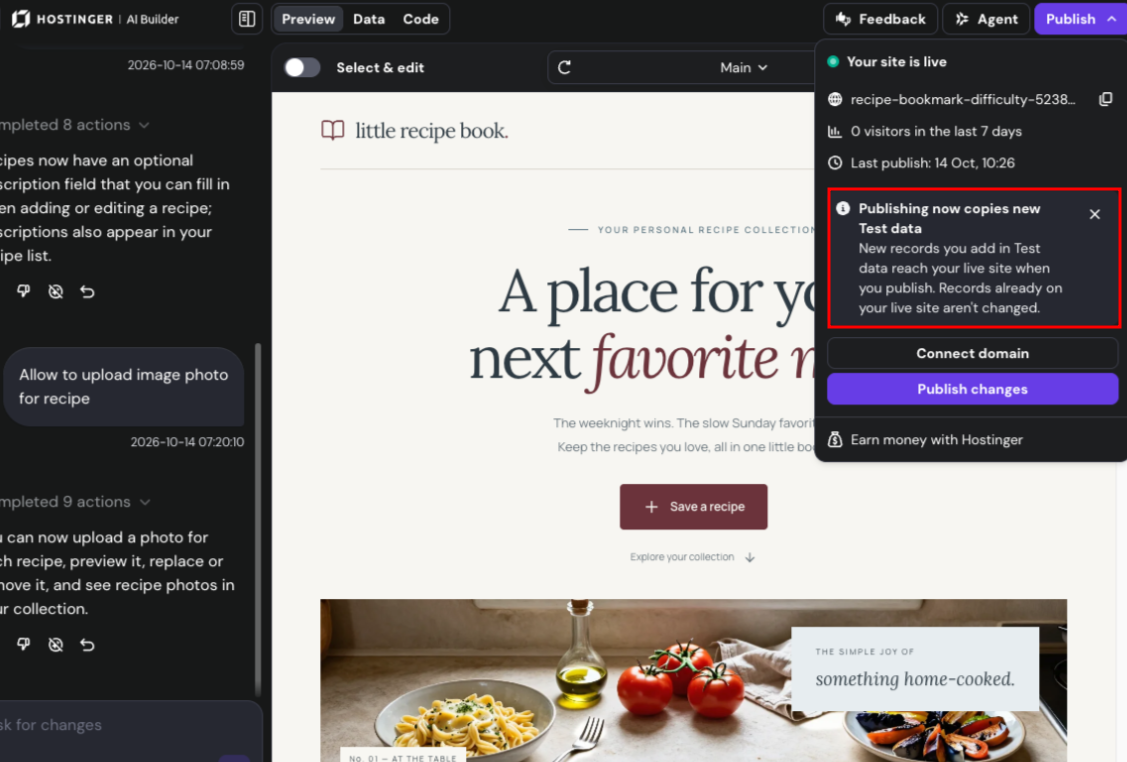
Publishing your Hostinger AI Builder agentic mode project copies new records from Test data to Live data. Publishing never changes or deletes records that already exist in Live data. Live data records are never copied back to Test data.
Publishing copies Test data differently depending on whether your website has been published before:
- First publish – Hostinger AI Builder copies all records you created in Test data to Live data, including user accounts.
- Later publishes – Hostinger AI Builder copies only new records added to Test data. Edits and deletions made to existing Test data records are not copied to Live data.
Copied records include records you create in the Test data tab and records created through your website in preview mode. Seed data that Hostinger AI Builder adds with your data structure is set up on your live website separately.
On projects that existed before October 15, 2026, copying starts once your project is updated. Test data records created before your project was updated aren’t copied to Live data. Websites published before October 15, 2026 show a one-time Publishing now copies new Test data notice in the Publish dropdown.
How to switch between environments
- Open your project in Hostinger AI Builder.
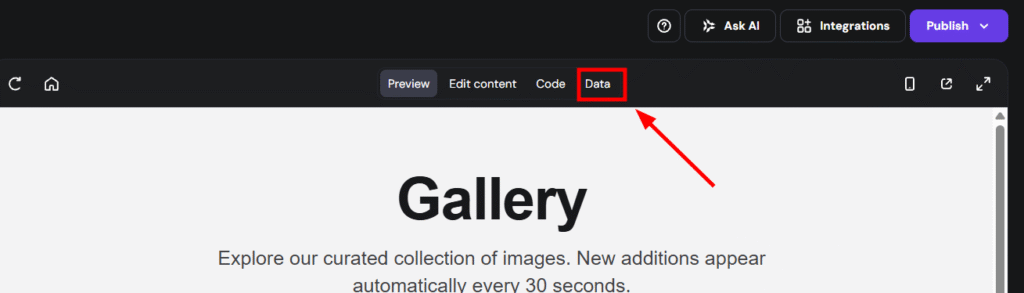
- Click the Data toggle at the top of the preview screen.
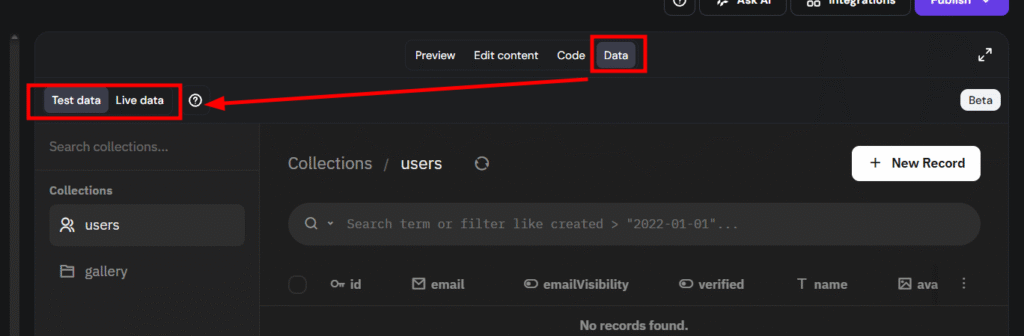
- Locate the Data section in the left panel.
- Select either Test data or Live data at the top to switch between the environments.
How to manage records
Once you have selected an environment, follow these steps to manage your information:
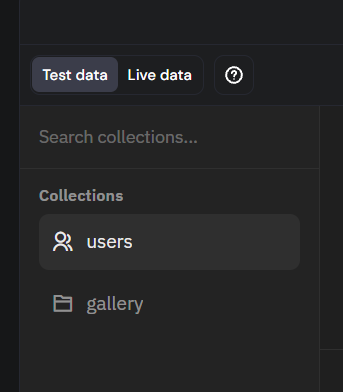
- Click a Collection (e.g., Contacts or Users) from the left panel to view its records.
- Click on a specific record to view or edit the details.
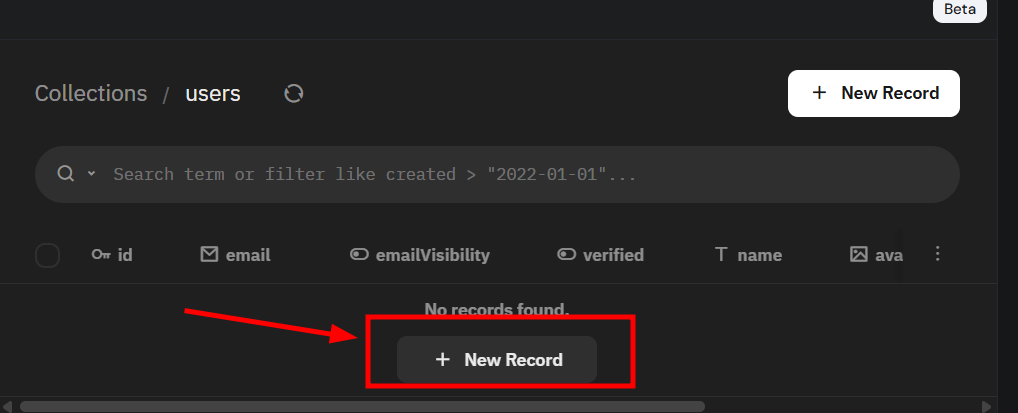
- Click Add record to manually create a new entry.
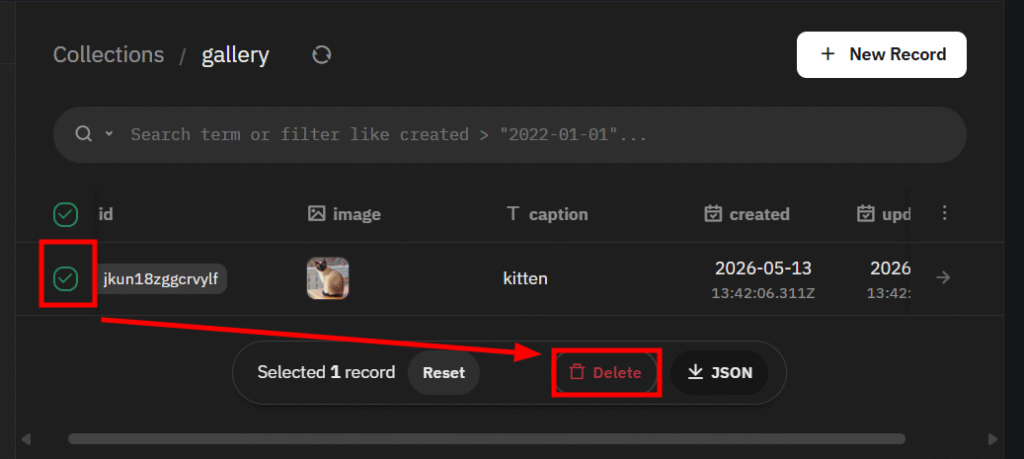
- To remove data, select the record and select Delete.
How to modify data structure
You do not need to manually create fields or collections. To update your data model, type a prompt in the AI chat to request structural changes:
- “Add an email field to the contacts collection.”
- “Create a products collection with name, price, and description fields.”
- “Add a date field to blog posts.”
Structural changes do not affect your live site until you click Publish.
The integrated backend simplifies data management by keeping your testing and production environments separate until you publish. Use Test data to experiment with new features, and Hostinger AI Builder adds your new test records to Live data when you publish. Always confirm your active environment label before editing records to ensure your live data remains accurate. If records aren’t appearing where you expect between environments, see how to troubleshoot data synchronization in Hostinger databases.