To sell your Hostinger Ecommerce products on TikTok Shop, connect your TikTok Shop seller account from Integrations in Store Manager. The integration is currently available for businesses in Brazil only.
Before you start
- A Hostinger Ecommerce business located in Brazil. TikTok Shop integration is currently available for businesses in Brazil only.
- Make sure your Ecommerce business settings — location, language, and currency — match your TikTok Shop account. Mismatched settings are the most common reason a connection attempt fails.
- New to TikTok Shop as a platform? See what is TikTok Shop and how does it help merchants sell.
Connect your Ecommerce to TikTok Shop
- In your Store Manager, go to Integrations.
- Find the TikTok Shop card and click Get started.

- On the TikTok Shop overview page, review the benefits and click Get started again to begin the connection.

- Select to Connect TikTok Shop to your Ecommerce. Review the permissions TikTok Shop needs:
- View order data: orders and customer shipping information.
- Manage shipping: create labels and update tracking information. See how to manage shipping for TikTok Shop orders for more on this.
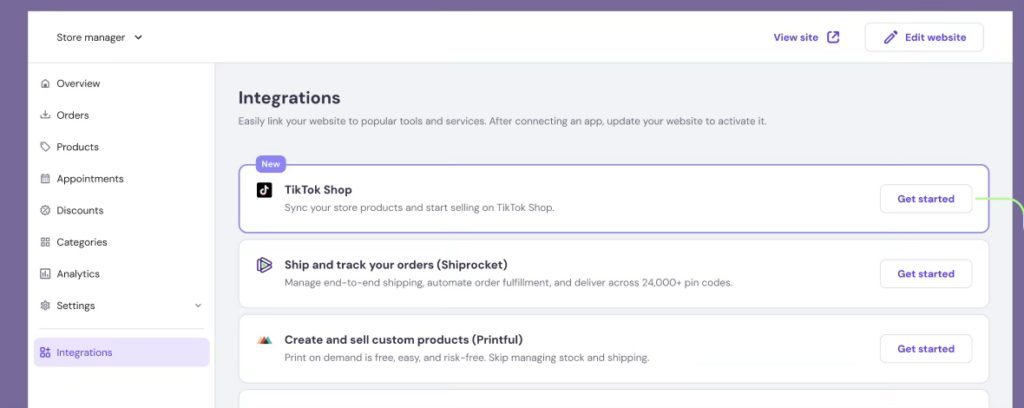
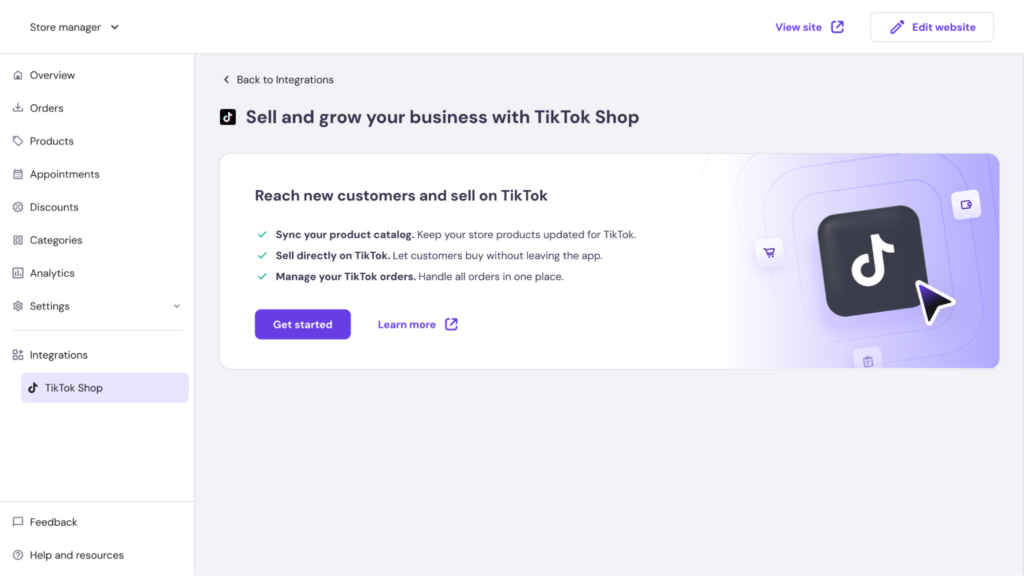
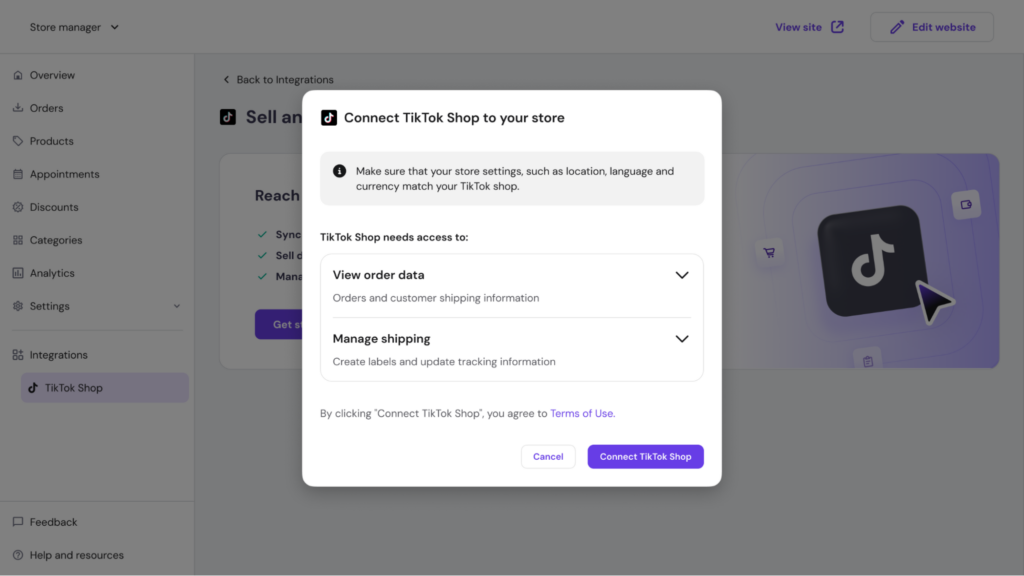
- Click Connect TikTok Shop to confirm. This opens TikTok’s own login and authorization flow in the same window.
- Log in with your TikTok Shop seller account and complete TikTok’s authorization steps.
- Once authorized, you’ll be redirected back to your Ecommerce Manager automatically.
Connection successful
When the connection succeeds, you’ll see a confirmation message and land on the TikTok Shop dashboard inside Ecommerce Manager, where you can track orders and manage your product catalog.
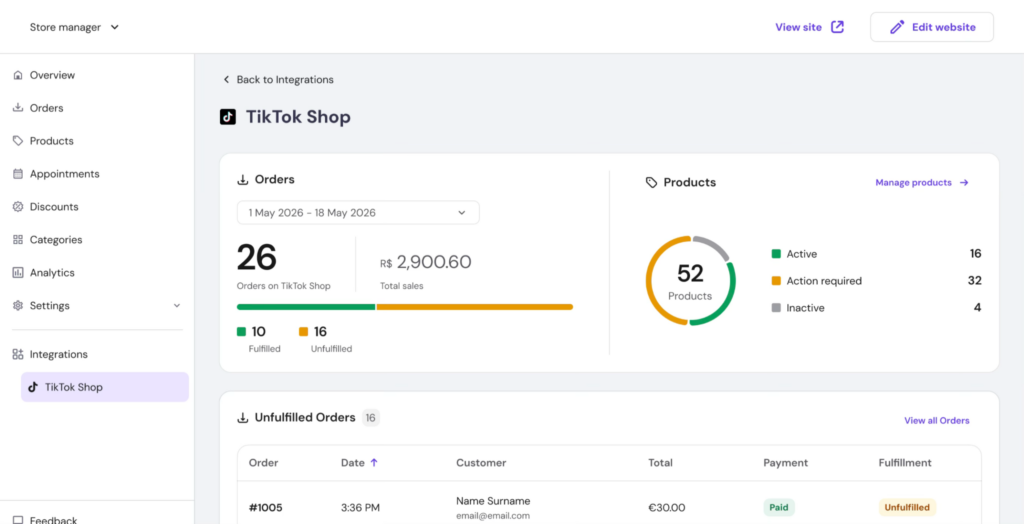
The TikTok Shop dashboard after a successful connection, showing order and product summaries.
If the connection fails
If your business settings don’t match your TikTok Shop account — for example, if your ecommerce business country doesn’t match your TikTok Shop account region — you’ll see an error message instead. Go to Store Settings to review and correct your business location, language, or currency, then try connecting again.

An example connection error shown when store and TikTok Shop account settings don’t match.
What’s next?
Once connected, learn how to create and edit products to get your catalog live on TikTok Shop.