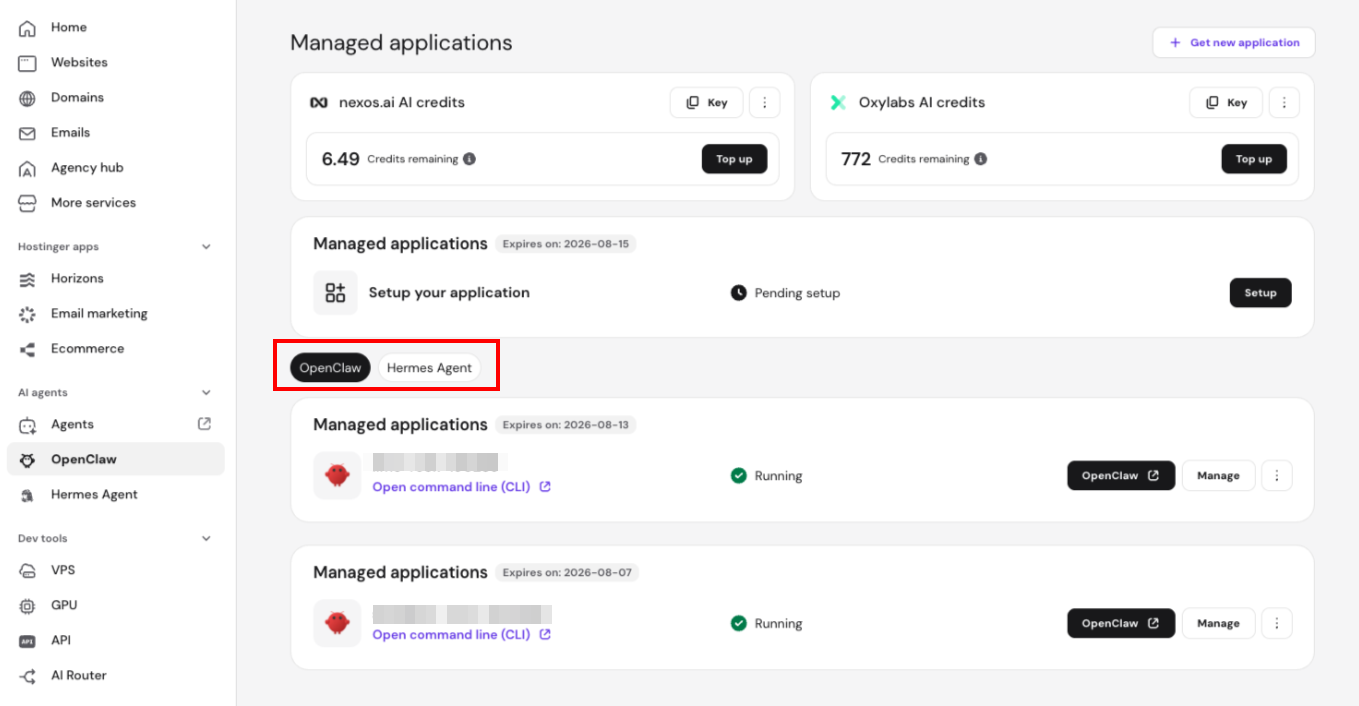
You can manage your Hostinger Managed OpenClaw and Managed Hermes applications directly from the OpenClaw section on the hPanel sidebar. This interface allows you to monitor nexos.ai and Oxylabs credit usage, access your environment, and perform maintenance tasks such as restarting your application or renewing your subscription across both OpenClaw and Hermes Agent instances.
Before you start
The OpenClaw section of hPanel will be displayed after you purchase a managed Hostinger Managed OpenClaw plan or Managed Hermes plan on the Hostinger page; either purchase unlocks both apps under the same plan.
- The option to purchase a Managed OpenClaw plan is currently not available through the hPanel Marketplace.
- This guide covers the managed solution; for self-managed, refer to the VPS guide.
Manage your Managed OpenClaw application
To access your management options, log in to hPanel and navigate to the OpenClaw section
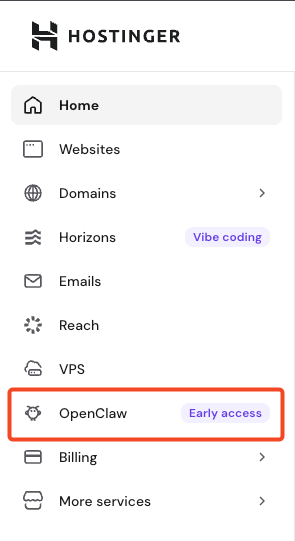
The main page provides an overview of your AI resources and active installations.
AI integrated credit management
OpenClaw requires AI credits to respond to interactions and perform automated tasks. You can manage these directly from hPanel.

-
nexos.ai credits: These allow you to use models like Claude, Gemini, and GPT without separate API keys. You can use the initial credits included with your plan and add more by clicking Top up. If your balance shows a negative amount or a
402 budget reachederror, a top-up is required. For a detailed overview, refer here: How to use nexos.ai credits. -
Oxylabs credits: These enable your application to access live web content and extract data. If you chose this option upon purchase, you will start with 1,000 free credits, which can be topped up at any time. More information: Oxylabs credits overview.
-
API keys: Each provider includes a Key button that copies your API key to your clipboard. This key is used to authenticate requests and link them to your account credits. You may need it when connecting OpenClaw to external tools, integrations, or custom setups.
- Rotate key: Click Rotate key next to a provider to generate a new API key and immediately invalidate the current one. This is useful if you suspect your key has been exposed. Since a single nexos.ai or Oxylabs key can be shared across your Managed OpenClaw and Hermes applications, rotating it will restart all connected applications so they pick up the new key. Any application still using the old key will stop working once you confirm the rotation.
Application list
Each of your Managed OpenClaw plans is listed on a separate card with the following details: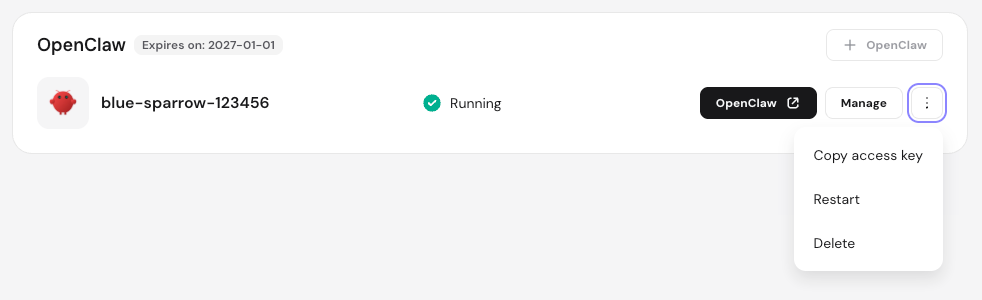
- Expires on: Displays the next renewal date for your hosting plan.
- Instance name: An automatically generated name associated with your application URL. This name is fixed and cannot be changed.
- Status: Indicates if your server is online. If the status is Running but you encounter errors, you may need to check your internal OpenClaw settings.
- Quick access: Click the OpenClaw button to open your application interface.
- You can also access it via your browser through your instance’s URL and entering your gateway token.
- Manage: Access the Managed OpenClaw dashboard.
- Options (⋮): Click this button to copy your access key (gateway token), reboot, or delete your application.
Managed OpenClaw dashboard
After clicking Manage next to your Managed OpenClaw installation, you will access the following options:
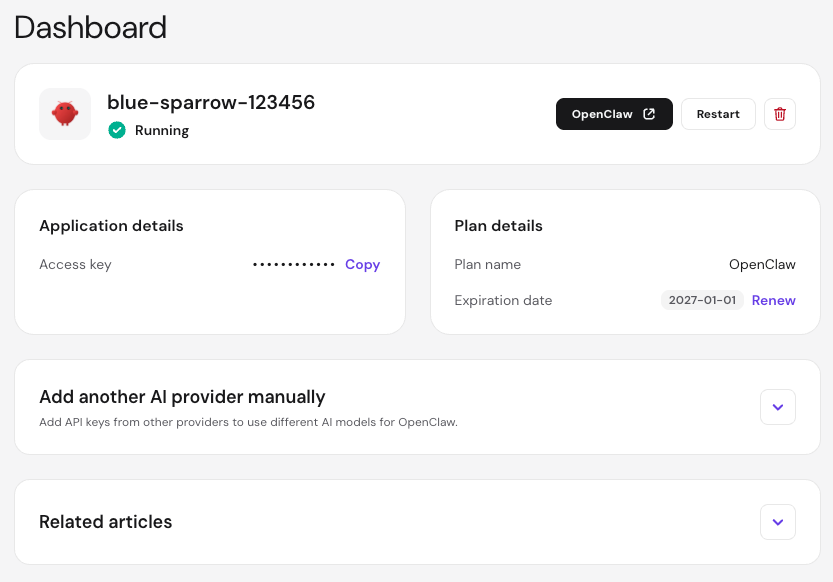
- OpenClaw quick access button to open your application’s control panel
- Maintenance: Use the Restart button to reboot your instance.
- Delete application: Click the bin icon to permanently remove the application. This action cannot be undone.
- Once deleted, you can create a new application from the OpenClaw main page on hPanel by clicking Setup.

- Once deleted, you can create a new application from the OpenClaw main page on hPanel by clicking Setup.
- Access key: Copy your OpenClaw gateway token. You can view or change this token at any time from the Environment section.
- Plan details: View your current plan name and expiration date. Click Renew to extend your subscription
- Select a renewal period and payment method, and click Complete payment.
- AI providers:
- Manage your AI provider settings from this section, including entering API keys and selecting your AI model. For nexos.ai, a key is provided by default — click the eye icon to reveal it, or use Restore key to revert back to it. For step-by-step instructions on switching providers, entering API keys, selecting a model, or connecting your OpenAI subscription via OAuth, see How to change the AI model for Managed OpenClaw.
- Environment: Manage the environment variables your application uses directly from hPanel. This includes:
- Viewing all current keys and values — values are hidden by default; click the eye icon next to an individual value to reveal it, or use Show all values to reveal them all at once.
- Editing an existing variable’s value using the pencil icon — this is how you change your gateway token/password.
- Adding a new environment variable by clicking Add environment variable, for any additional secrets or settings your application needs to run.
- Deleting a variable using the bin icon. Note that core system variables (such as your gateway/webUI password and default provider API keys) cannot be deleted — only edited.
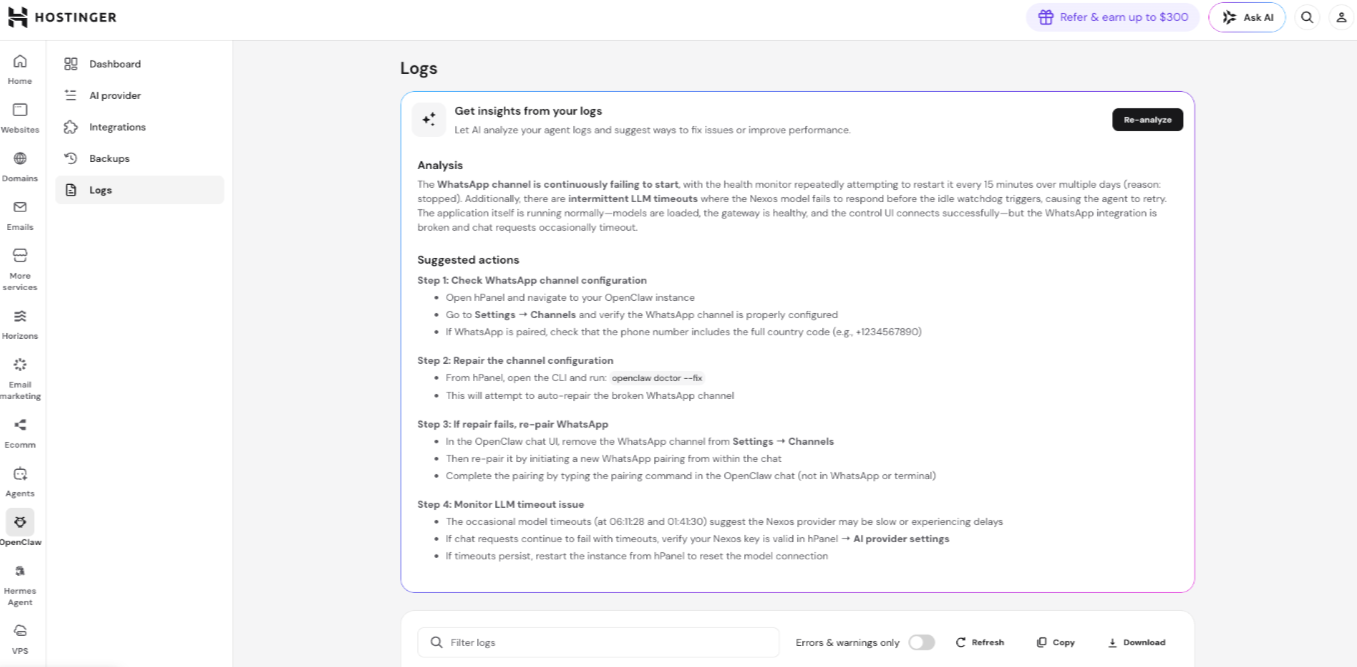
- Logs: View real-time application output directly from the dashboard. The Logs section displays your application’s activity, which can help you diagnose issues and understand what is happening when errors occur. Click Get insights from your logs to have AI analyze your log entries and suggest ways to fix issues or improve performance — the results will appear as an Analysis summary and a list of Suggested actions. Click Re-analyze to run a fresh analysis at any time. You can also click Refresh to load the latest entries, Copy to copy the log contents, or Download to save the log file locally.
- Storage upgrade: You can upgrade your application storage to 50 GB directly from hPanel. Select the upgrade option and complete the purchase. The upgrade is applied to your application immediately.

Managing your Managed OpenClaw hosting plan ensures your AI applications remain active and your resources are correctly allocated. By monitoring your expiration dates and credit balances in hPanel, you can maintain uninterrupted service and scale your AI capabilities as needed.