You can change the AI model used by your OpenClaw by updating your API provider settings in Hostinger dashboard. With Managed OpenClaw, you can use Hostinger AI Router, OpenAI, Anthropic, xAI, or Gemini as your provider, and pick different models within each. Hostinger AI Router uses your Hostinger AI credits, while other providers need their own API key.
Use Hostinger AI Router in Managed OpenClaw
Hostinger AI Router is set up automatically in Managed OpenClaw and spends your Hostinger AI credits, so you don’t need an API key from each AI vendor.
- Go to the OpenClaw section in Hostinger dashboard.
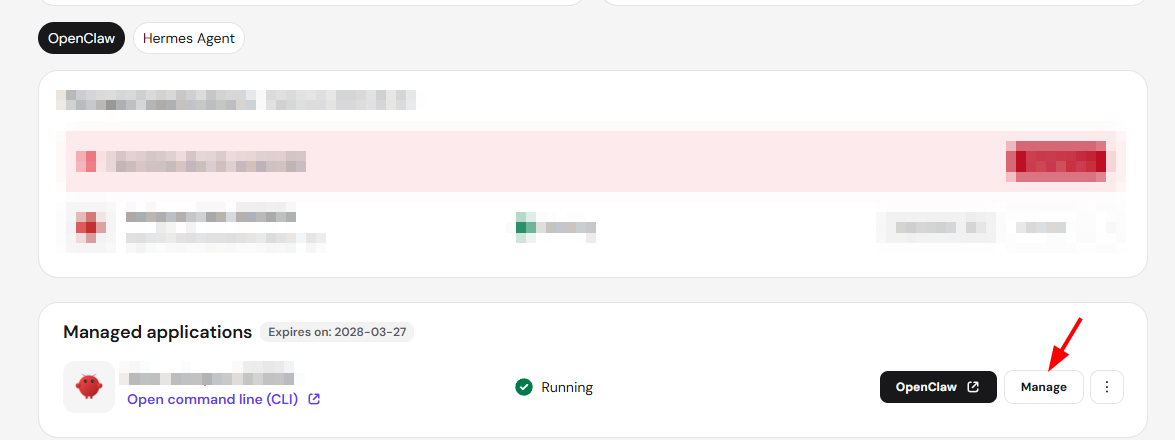
- Click Manage next to your application.
- In the left sidebar, click AI provider.
- Select the Hostinger AI Router tab.
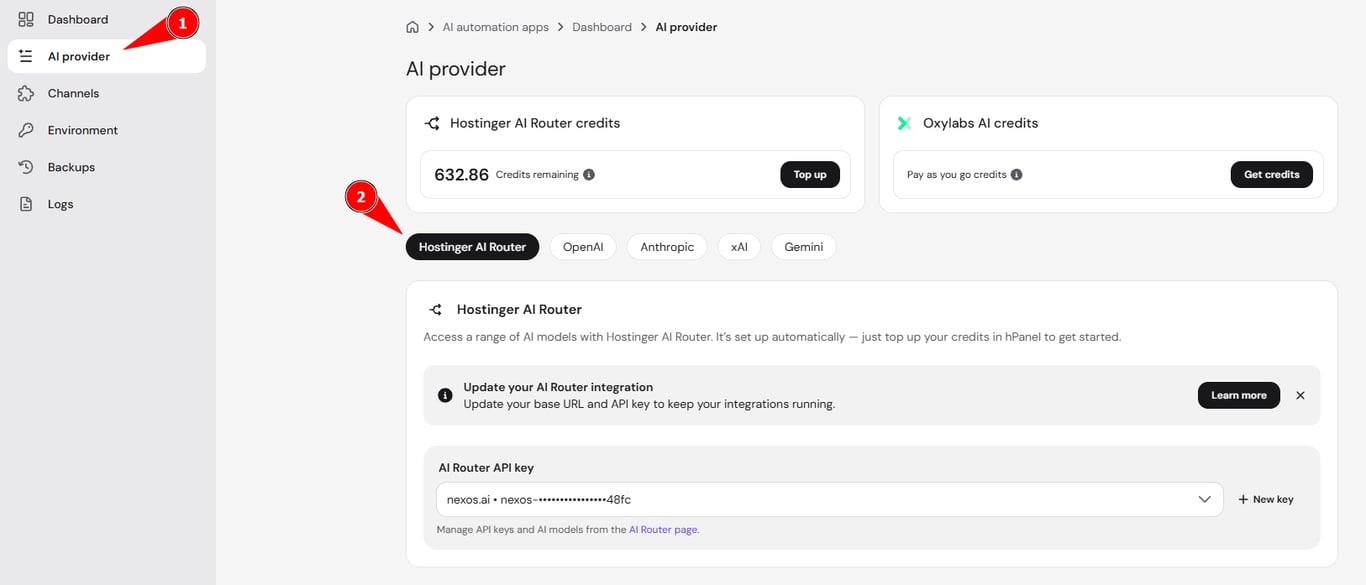
- Under AI Router API key, select a key from the dropdown, or click New key to create one.
To manage your Hostinger AI Router API keys and choose which AI models each key can use, open the AI Router page in Hostinger dashboard. To add Hostinger AI credits, click Top up on the Hostinger AI Router credits card. If you have no Hostinger AI credits yet, top up and create a Hostinger AI Router API key before your app can use AI.
NOTES
- If you still have nexos.ai credits, your app keeps using your nexos.ai key, and the Top up and Hostinger AI Router API key options stay unavailable until your nexos.ai credits run out.
- If you switch an older OpenClaw application to a Hostinger AI Router API key, OpenClaw updates automatically to a newer version that supports Hostinger AI Router.
Use your own API key in Managed OpenClaw
To use a model from a different provider, you can manually update your API key.
- Go to the OpenClaw section in Hostinger dashboard.
- Click Manage next to your application.
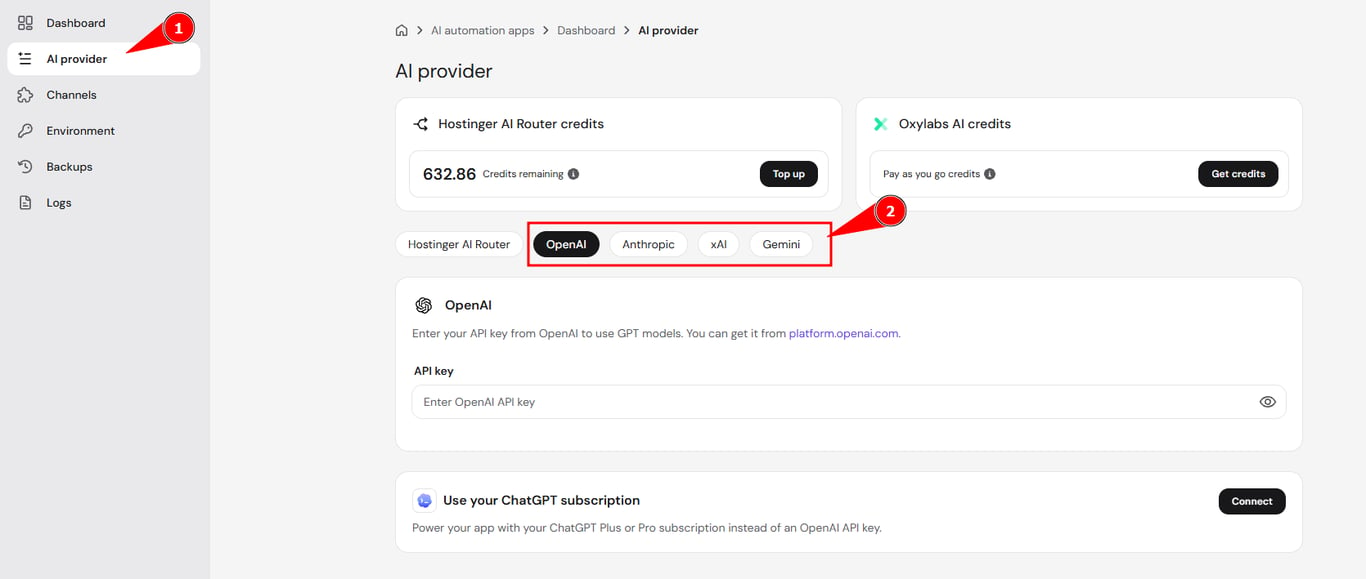
- In the left sidebar, click AI provider.
- Select the provider tab for your chosen vendor (OpenAI, Anthropic, xAI, or Gemini).
- Enter the API key obtained from your chosen vendor, such as OpenAI, Anthropic, or Google Gemini.
Without an API key and purchased credits, OpenClaw will not be able to function properly. - Once the API key is saved, the AI Model dropdown becomes available. Select the model you want to use.
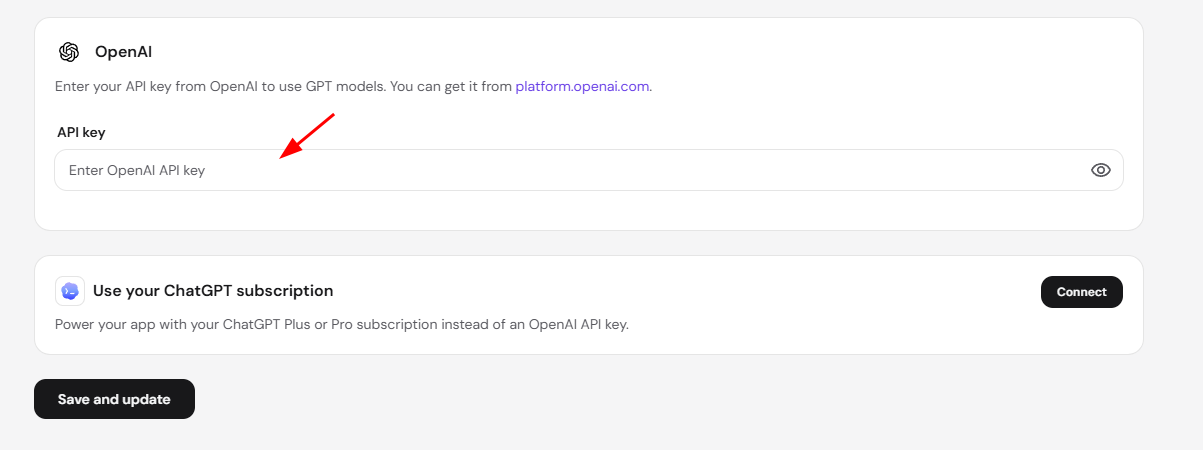
- Save the changes.
After adding a new API key, click OpenClaw to launch the application. A Starting OpenClaw window will appear while the system automatically identifies the new key and runs the necessary configurations.
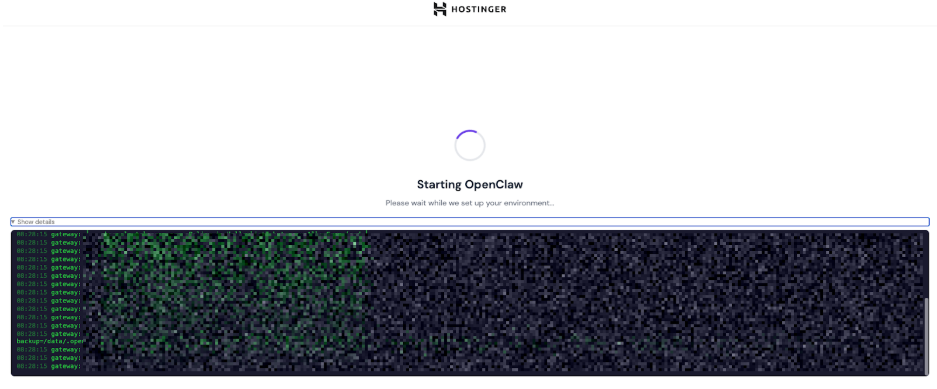
Once the process is complete, your assistant will be ready for use with the new model.
Connect via OAuth (OpenAI)
If you have a ChatGPT Plus or Pro subscription, you can connect it directly instead of using an API key. Credits are drawn from your connected ChatGPT subscription, and tokens are refreshed automatically.
- Go to the OpenClaw section in Hostinger dashboard.
- Click Manage next to your application.
- In the left sidebar, click AI provider, then select the OpenAI tab.
- Under Use your ChatGPT subscription, click Connect.
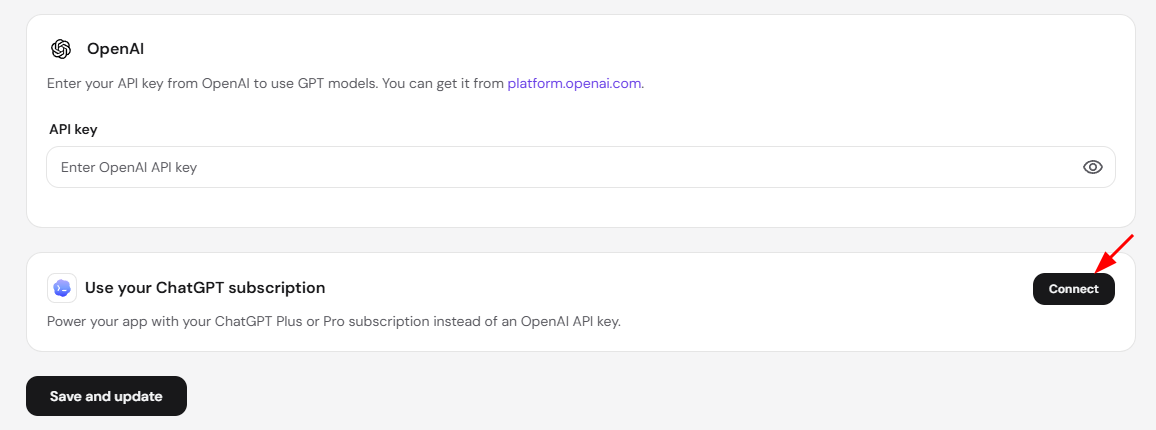
- A window will appear with a link to https://auth.openai.com/codex/device and a verification code. Open the link, sign in with your ChatGPT Plus or Pro account, enter the code shown in Hostinger dashboard, and complete verification.
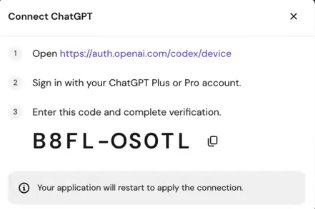
- Once connected, your application will restart automatically to apply the connection.
Your Managed OpenClaw application now uses the provider and AI model you selected in the AI provider section of Hostinger dashboard, whether through an API key or your connected ChatGPT subscription.