Resize elements, sections, and the navigation menu on your Hostinger AI Builder manual mode website.
Resizing elements
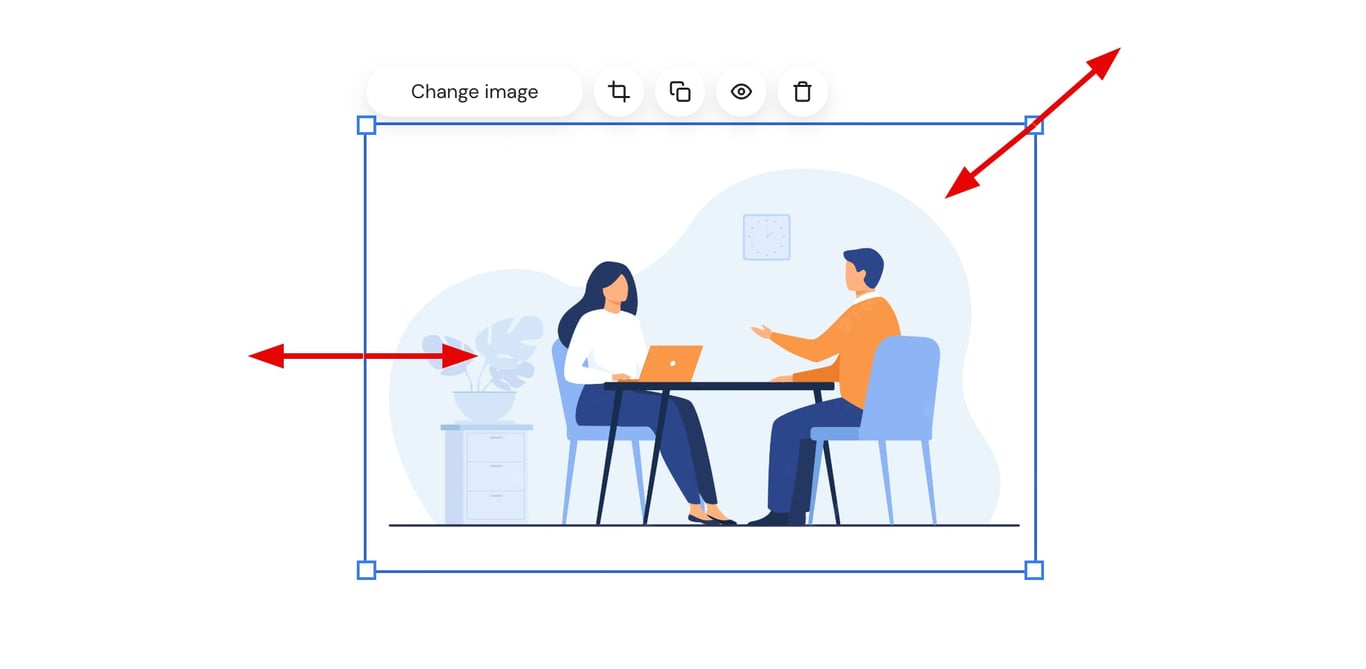
To resize an element, drag it by the borders or the handles on the image corners:
Some elements, e.g., social media icons or button elements, have additional size settings: click on the element, select Edit, and explore the Style settings tab,
Resizing sections
To resize a section, look for a blue handle on the bottom border of a section and drag it up or down:

Resizing the website’s menu section
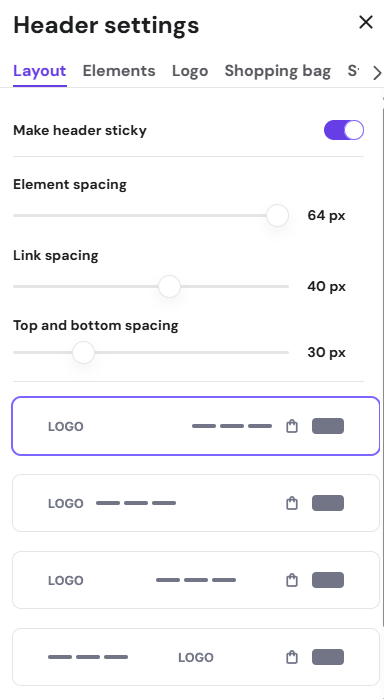
To resize the website’s menu section, open the header layout settings and change the top and bottom spacing:
Your elements, sections, and navigation menu are now resized to fit your website’s layout.
NOTES
-
To change the text size, open the global style settings and change the navigation text size
-
To resize the logo, change the logo width