Hostinger Agency Hosting lets you add a collaborator to your website by securely granting account access to another person, such as a developer or a client, using the Account Sharing feature.
Granting Access
There are two ways to grant access to a website: via Websites list or via Account Sharing page.
Granting Access via Websites list
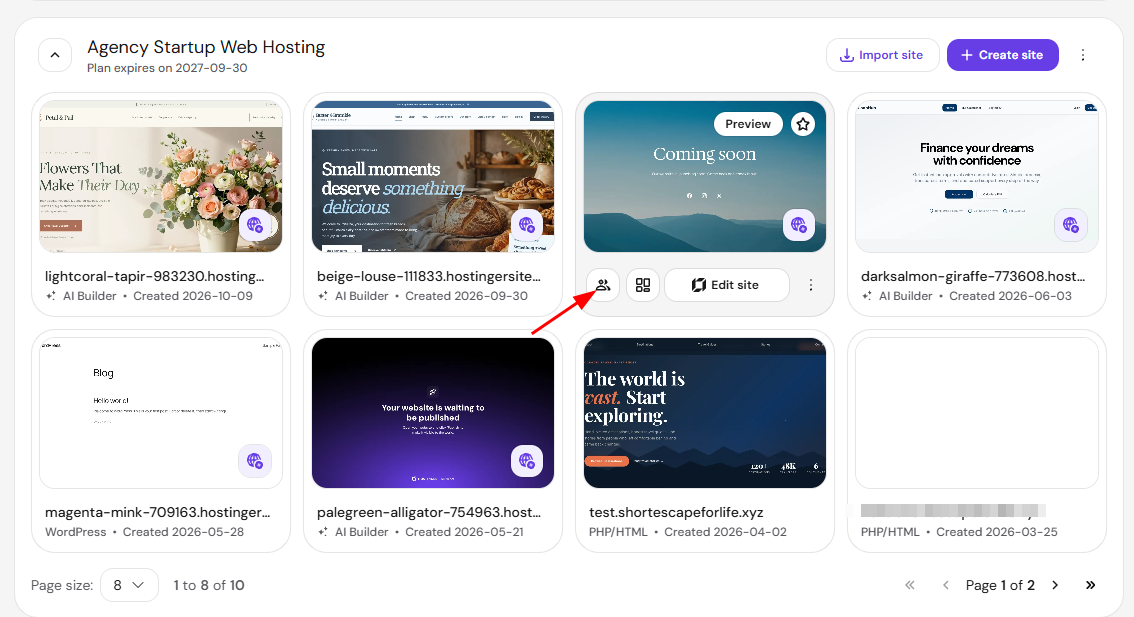
To grant access, go to Websites in the side menu, hover over the website you want to share access to, and click the team member icon:
Then, you will be presented with a field where you can insert the email of the person you want to grant access to:
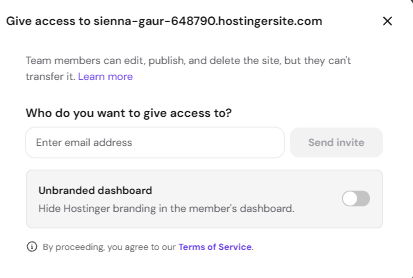
When everything is good to go, click on Send invite.
A confirmation message will be sent to the user; they must click on the link to be granted access to your account.
NOTE
- Per-website access sharing is available for WordPress sites, Node.js sites, custom sites, and sites built with Hostinger AI Builder manual mode. Sites built with Hostinger AI Builder agentic mode support access sharing at the order level only, not per website.
- If you want to hide the Hostinger name from a collaborator or client’s view, you can turn on Unbranded dashboard toggle, see how to hide Hostinger branding from your client’s dashboard for more details.
Granting Access via the Account Sharing page
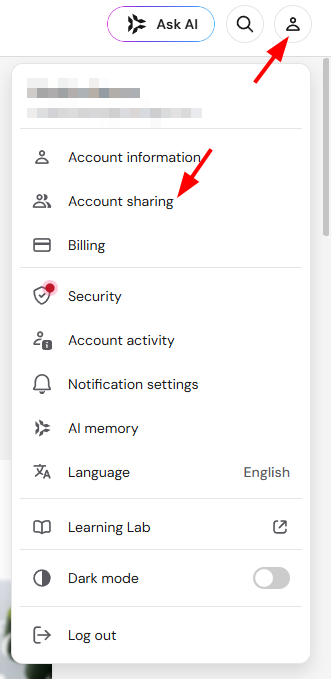
To grant access, click on the Profile, then “Account Sharing”:
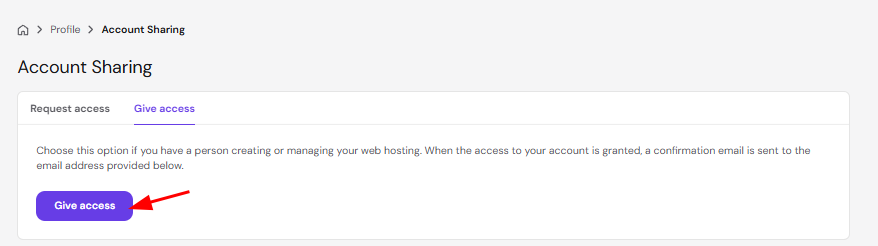
Now, on the Account Sharing page, click on the Give Access button:
Then, you will be presented with further options:
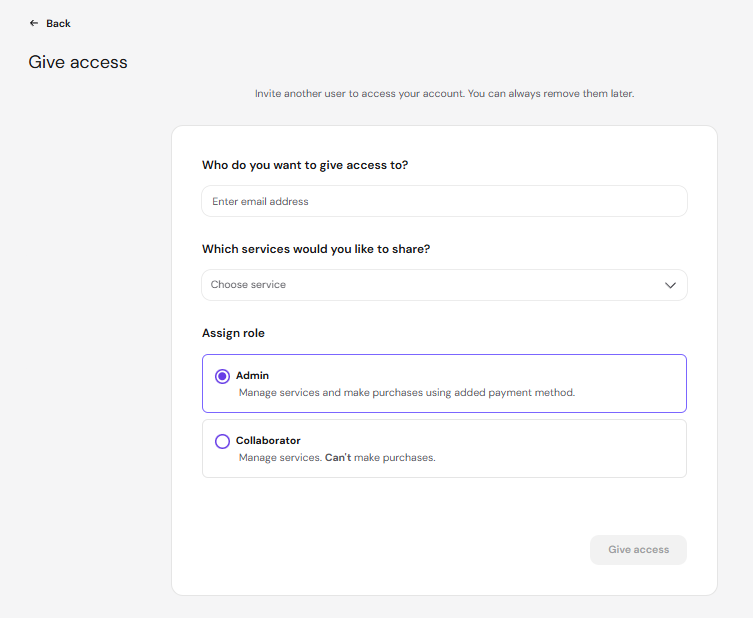
Here, you can determine an access level: select the services or specific websites you wish to share.
When everything is good to go, click on Give Access.
A confirmation message will be sent to the user; they must click on the link to be granted access to your account.
Once access is granted, your collaborator or client can securely work within the websites and services you’ve shared. For more on your plan’s features, see how to get started with Hostinger Agency Hosting plans.