If you manage websites for your clients, you can invite them to access their own site through a dashboard without Hostinger branding. This white-label feature ensures your clients only interact with their website and its settings, without disclosing the hosting platform it runs on.
Before you start
- This feature is in Beta and available exclusively for Agency hosting plans.
- This feature applies only to WordPress and custom PHP or HTML websites. It does not apply to Hostinger AI Builder environments.
- The invited user must not have an existing Hostinger account.
Set up the unbranded Hostinger dashboard
You can create the white label dashboard from the Websites section or the Account Sharing area in hPanel. To set it up from your websites list, follow these steps:
- Log in to hPanel.
- Navigate to the Websites section and locate the specific website.
- Click the Team member icon (represented by a person with a plus sign) located in the action bar of the website card.

- On the Give access modal, enter your client’s email address.
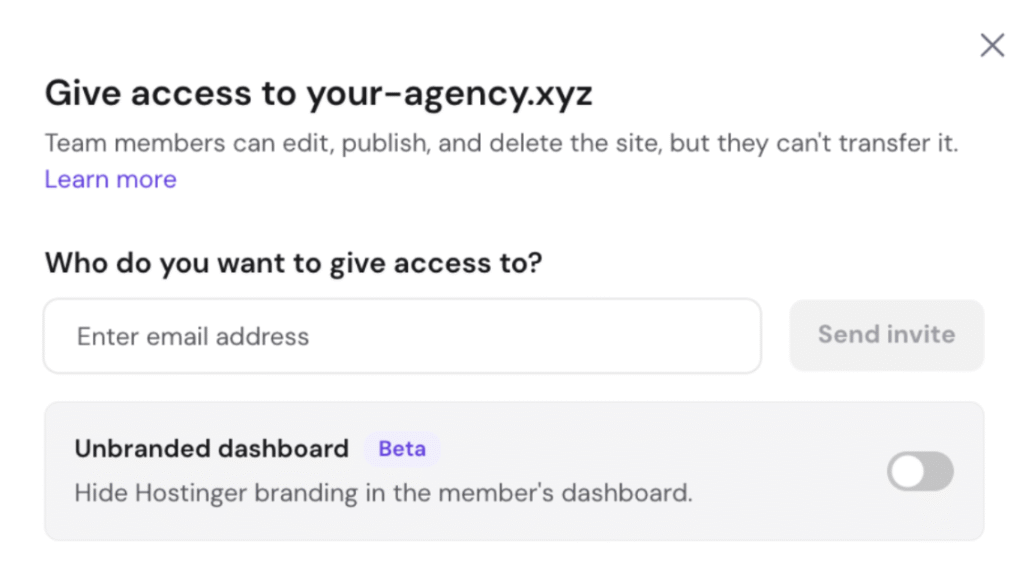
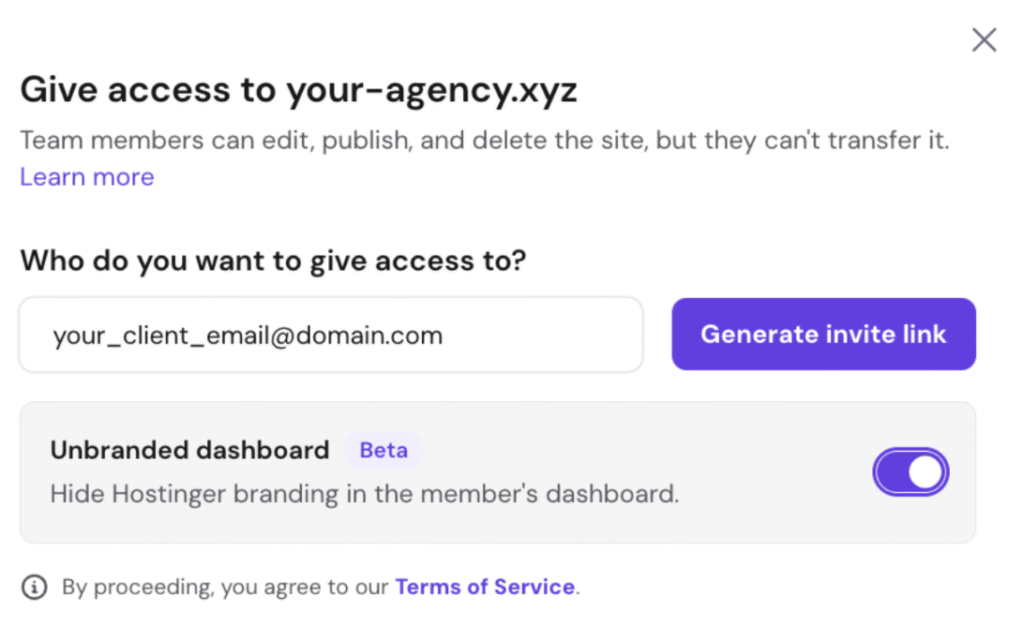
- Locate the Unbranded dashboard toggle at the bottom of the modal and switch it on. The toggle turns purple when active.
- Click Generate invite link
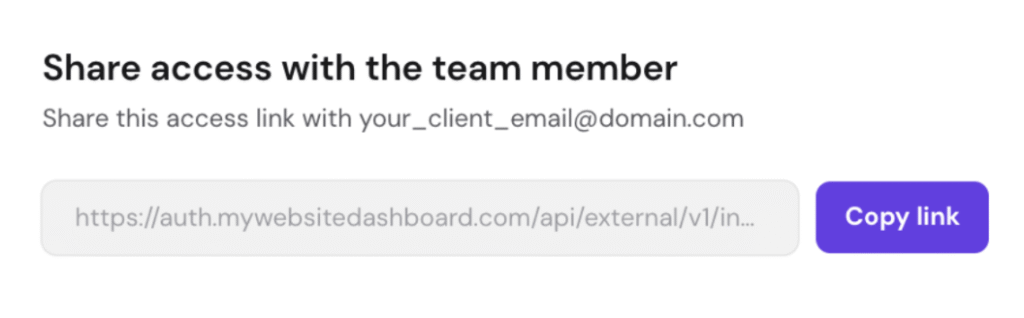
- Click Copy link and send it directly to your client.
How the unbranded dashboard works for clients
When you share access with your clients, their experience follows this workflow:
- Access and login: Clients must use the specific link you generated and sent to them. Upon clicking it, they are directed to the unbranded login URL:
https://mywebsitedashboard.com. Their email address appears pre-filled on the page, and they only need to create a unique password during their initial login. - Managing multiple sites: You can grant a single client access to multiple websites. When they log in, a website dropdown menu appears in their side menu, allowing them to switch between their different sites seamlessly
- Available capabilities: Once logged in, a clean dashboard view appears showing only their website and specific management tools. This includes daily backups, file manager, databases, security settings, and domains. No Hostinger logo, main navigation, or brand assets appear anywhere.
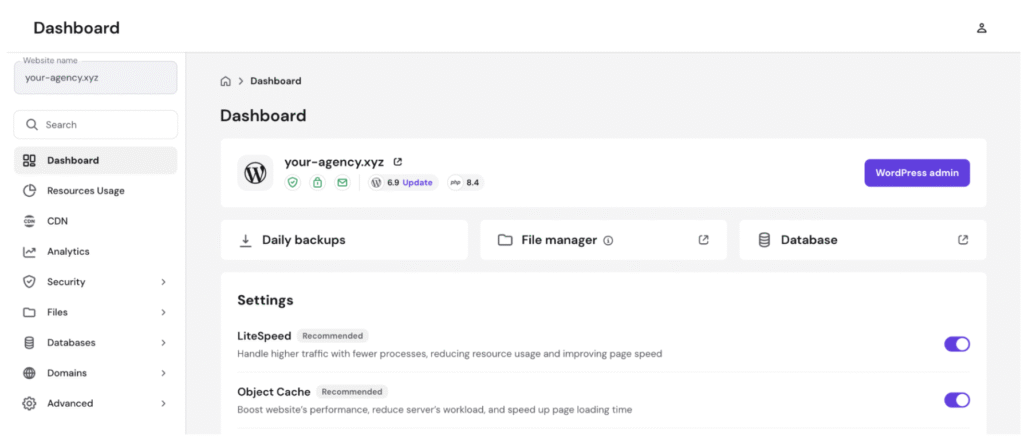
- Access permissions: Clients with dashboard access can edit, publish, and delete the site. However, they cannot view or perform any billing-related actions. If your agency hosting plan is suspended or deleted, the client automatically loses access to this dashboard.
Your clients can now manage their websites seamlessly within a fully brand-less environment.