Hostinger AI Builder Secrets stores API keys and other credentials for agentic mode projects outside your project code and chat history. Add, edit, and delete secrets from the App menu, give each secret a Test value for the preview and a Live value for your published site, and save keys pasted into the chat as secrets in one click. Keys already in a project’s .env file move to Secrets automatically.
Before you start
- These steps apply to Hostinger AI Builder agentic mode projects.
- Have the API keys you want to store ready, such as your Stripe secret key or OpenAI API key.
What Hostinger AI Builder Secrets does
Hostinger AI Builder Secrets keeps API keys for services like Stripe or OpenAI out of the chat and out of your project files. When you save a key from the chat, the AI works with a reference to the secret, never the raw value.
Each secret has two values:
- Test value: used by the preview in the editor.
- Live value: used by your published site.
This keeps test and production keys separate.
Add a secret in Hostinger AI Builder
Add a secret from the Secrets panel in the Hostinger AI Builder editor.
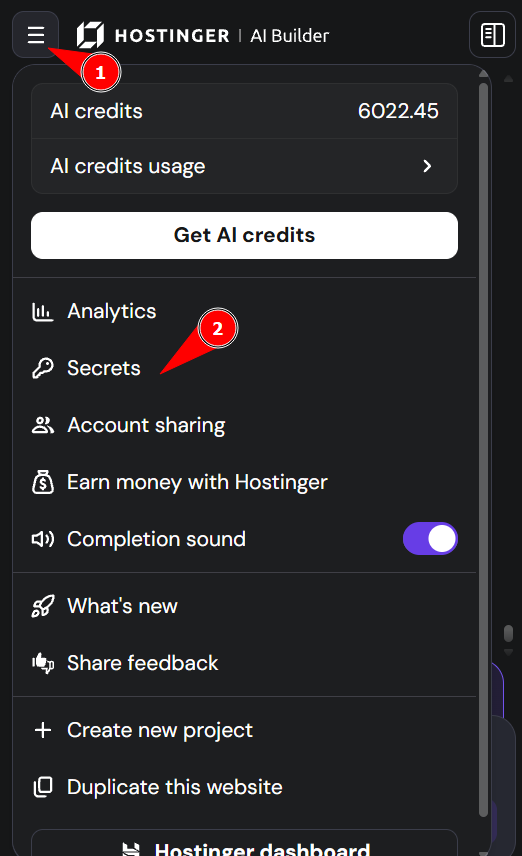
- Open your project in Hostinger AI Builder and go to App menu → Secrets.
- Click Add secret.
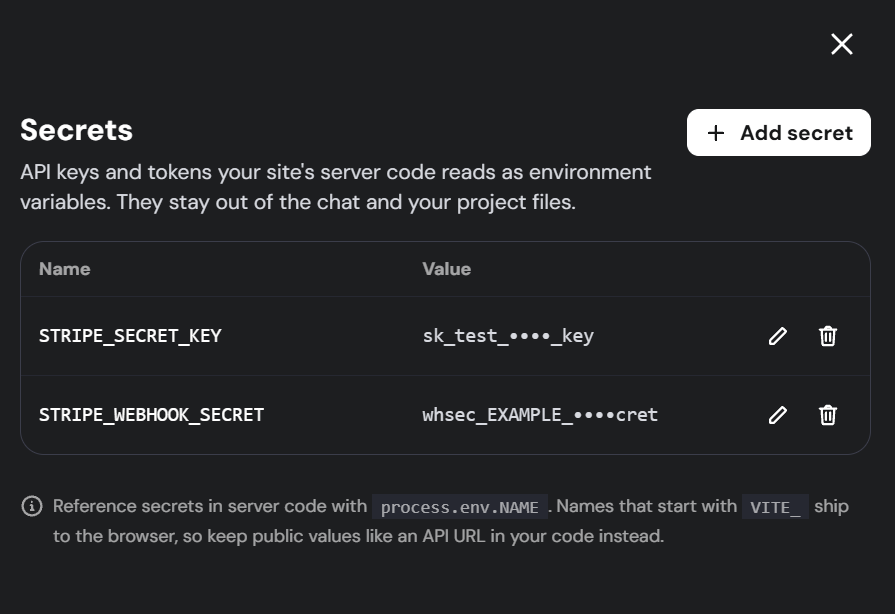
- Enter the key’s name and its Test value.
- Add a Live value before you publish your website.
Use the name your integration expects, such as STRIPE_SECRET_KEY. The AI uses this name to find the secret.
Edit or delete a secret in Hostinger AI Builder
Edit or delete secrets in the same Secrets panel.
- Go to App menu → Secrets.
- Edit the Test value or Live value of a secret to replace a key, or delete a secret you no longer use.
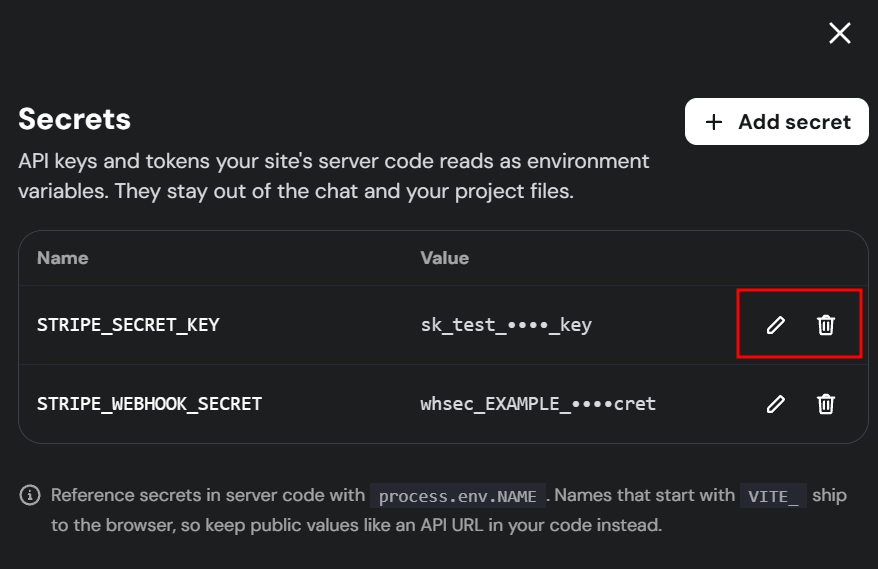
Replace a key by editing the existing secret rather than adding a new one with a different name, so your integration keeps working without changes.
Save API keys from the chat as secrets
Hostinger AI Builder protects keys you enter in the chat in two ways: a secure card when the AI asks for a key, and a security warning when you paste a key into a message.
Enter a key in the Add your API key card
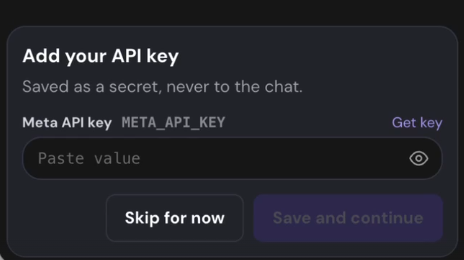
When Hostinger AI Builder needs a key for an integration, it shows an Add your API key card in the chat. The card shows the secret name, such as META_API_KEY. Paste the value into the Paste value field, and it’s saved as a secret instead of being sent to the chat.
Store pasted keys from the security warning
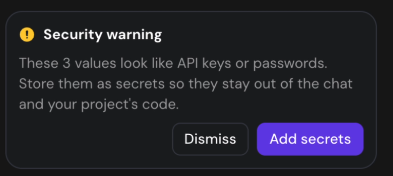
If you paste a key into your message, such as a Stripe, OpenAI, Anthropic, GitHub, AWS, or Google key, a Security warning appears before you send it.
- Click Add secrets.
- In the Store secrets securely window, check the name for each value.
- Click Add secrets.
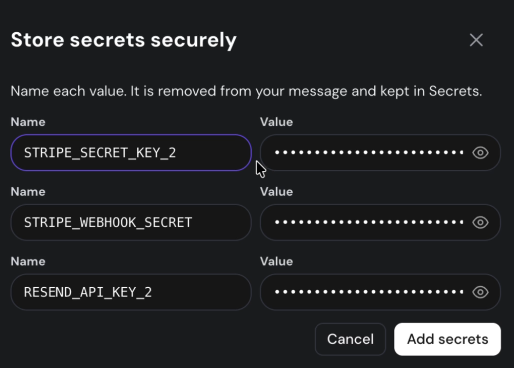
The values are removed from your message and kept in Secrets. If a secret with the same name already exists, the window suggests a new name, such as STRIPE_SECRET_KEY_2. To replace the existing key instead, edit it in the Secrets panel.
Use secrets on your published Hostinger AI Builder site
Your published site uses the Live value of each secret, while the preview keeps using the Test value. Publishing syncs your secrets to the live site automatically, so you don’t need to add them again.
Add a Live value for each secret before you publish your project. If a secret has a Test value but no Live value, a warning appears when you publish.
Move keys from a .env file to Hostinger AI Builder Secrets
Keys stored in a project’s .env file move to Secrets automatically the first time you open the project after Secrets became available. Non-sensitive settings, such as a site name or feature flag, stay in the .env file.
Your API keys are now stored in Secrets, separate from your project code and chat history, with test and live values kept apart. To connect a service that uses these keys, see How to integrate a third-party API in agentic mode.
NOTES
- Exporting a project includes your secret values, so keep exported files private.
- To sell subscriptions with stored Stripe keys, see How to sell subscriptions with Stripe in agentic mode.