Check your Hostinger credit balance on the Hostinger credits page in Hostinger dashboard, which shows your available credits, the date they expire, and how many credits you spent this month. Open the page from the account menu, top up credits from the same page, and open Usage & spending to see where your credits went and every credit transaction.
Open the Hostinger credits page
The Hostinger credits page is available from the account menu on any page of Hostinger dashboard.
- Click your profile icon in the top-right corner of Hostinger dashboard.
- Select Hostinger credits. The number next to it shows your current credit balance.
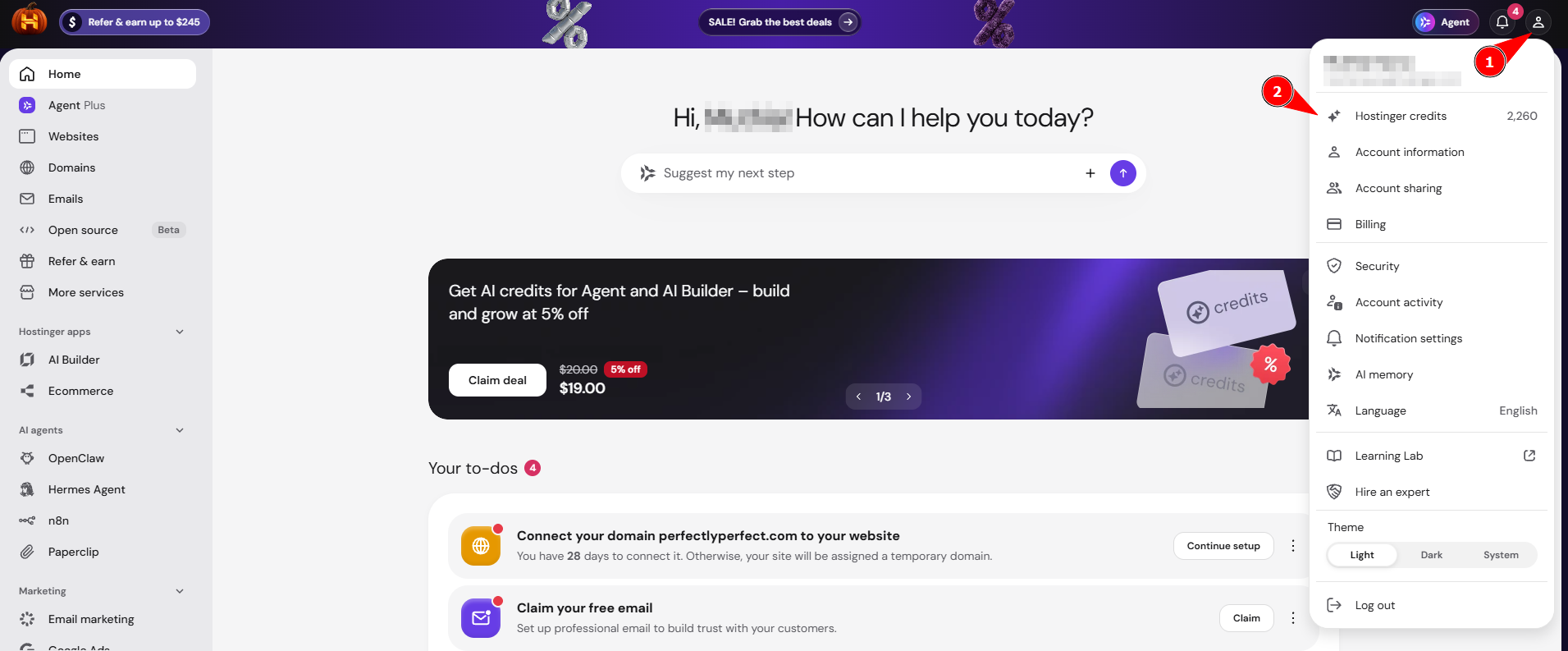
Check your Hostinger credit balance and expiration date
The Available balance card at the top of the Hostinger credits page shows how many credits you can spend. You can use these credits in any Hostinger product that supports Hostinger credits, such as Hostinger AI Builder, Hostinger Agent, Hostinger Reach, Hostinger AI Router, and Hostinger GPU instances, as explained in Hostinger AI credits: How the shared balance works.
- Credits expire – the date below the Top up credits button shows when your credits expire.
- All credits available – this status appears when none of your balance is reserved, so your full balance is ready to spend. Some products reserve credits before using them. For example, Hostinger Reach reserves the estimated credits for a WhatsApp campaign when you send it.
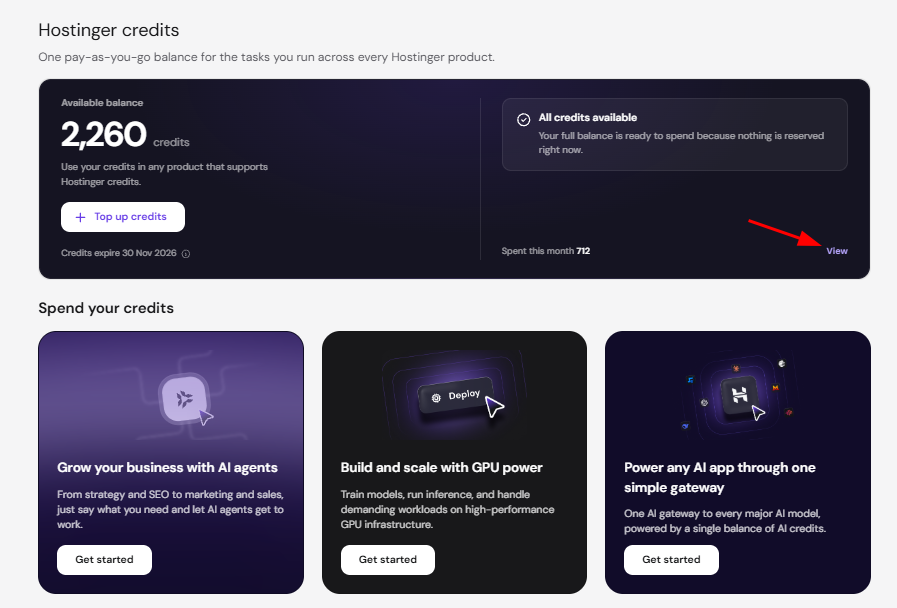
- Spent this month – the number of credits you spent in the current month.
Top up Hostinger credits
Click Top up credits on the Available balance card to buy more credits. Top-up credits go into the same Hostinger credit balance as your other credits.
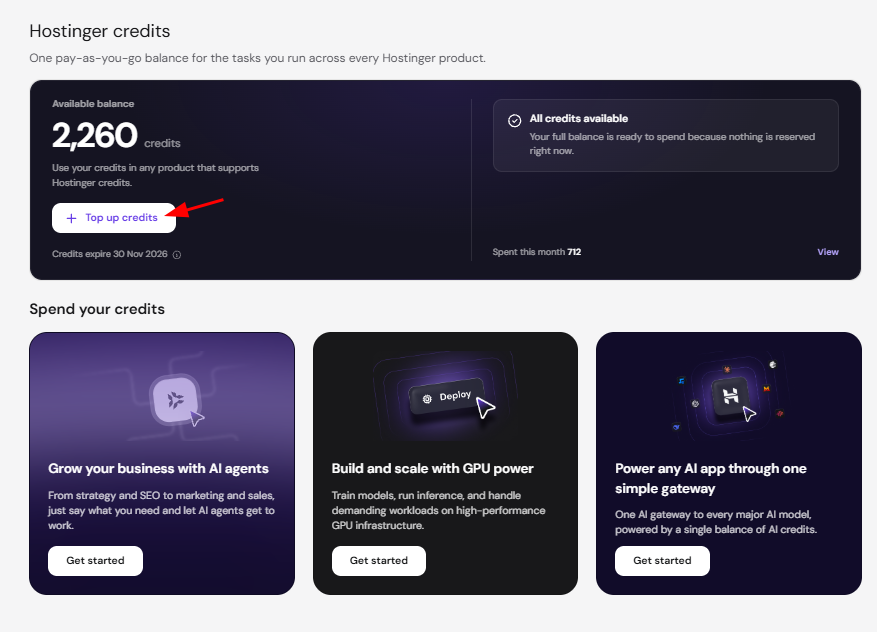
You can also top up from individual products. For Hostinger AI Builder, see Hostinger AI Builder: AI credits and top-ups in agentic mode. For Hostinger GPU instances, see How to manage billing and credits for your Hostinger GPU instance.
View Hostinger credit usage and transactions
The Usage & spending window shows where your credits went this month, plus every credit transaction. To open it, click View next to Spent this month on the Hostinger credits page.
Usage & spending has two parts:
- Spend by product – a chart of the credits you spent this month, split by usage type, for example Ai usage and Tool usage image generation.
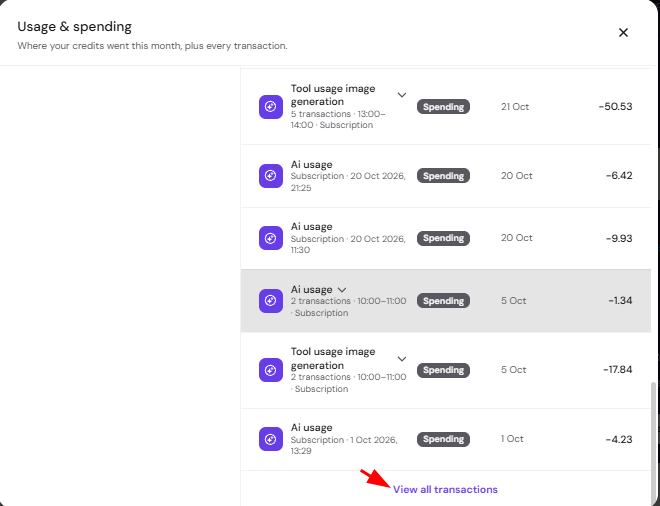
- Transactions – a list of credits added and spent, with the description, type, date, and amount of each transaction.
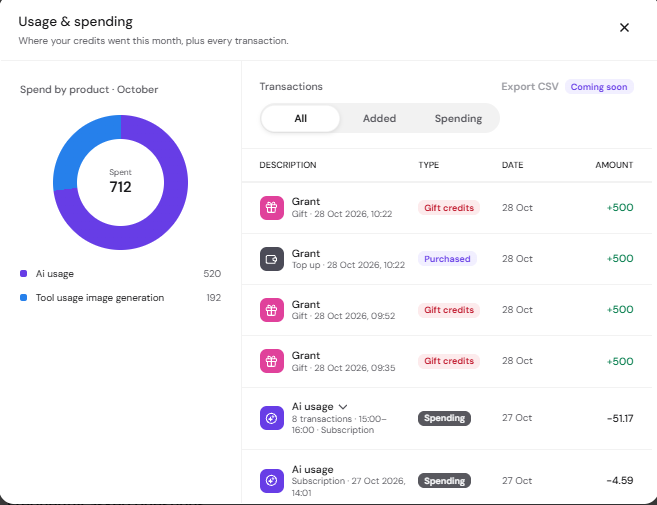
Filter the Transactions list with three tabs:
- All – every credit transaction.
- Added – credits added to your balance, with the type Gift credits or Purchased.
- Spending – credits spent, with the type Spending.
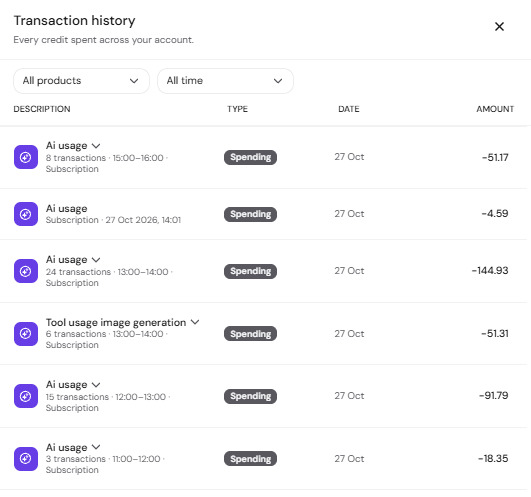
Spending transactions from the same hour are grouped into one row. The row shows the number of transactions and the time range, for example 24 transactions between 13:00 and 14:00.
View your full Hostinger credit transaction history
Usage & spending shows the current month. To see older transactions, scroll to the bottom of the Transactions list and click View all transactions. The Transaction history window opens and lists every credit spent across your account.
Filter the list with the two dropdowns at the top:
- All products – show transactions from one product only.
- All time – choose the time period to show.
Each product spends credits differently. Hostinger AI Builder deducts credits per request under the dynamic credit model, Hostinger Reach uses credits for WhatsApp campaigns, and Hostinger GPU instances use credits for every hour they run.
With the Hostinger credits page, you can keep track of your credit balance, top up before you run out, and see exactly which tasks used your credits.