A Quick link store is a Hostinger Ecommerce sales channel that launches a live store within seconds, without building a custom website. Create one from Sales channels, customize its handle, and manage product suggestions, Express Checkout, cookie consent, and appointment booking directly from your store settings.
What is a Quick link store?
A Quick link store generates a ready-to-share store link that customers can use to browse and buy directly, without you designing pages or choosing a layout. This makes it the fastest way to start selling with Hostinger Ecommerce, compared to building a storefront with Hostinger AI Builder. A Quick link store is one of several sales channels you can connect to your business — see Hostinger Ecommerce: Product overview for how it compares to other options.
How to create a Quick link store
- Go to Sales channels on the side menu.
- Select Add sales channel.
- Choose Instant store with a Quick link.
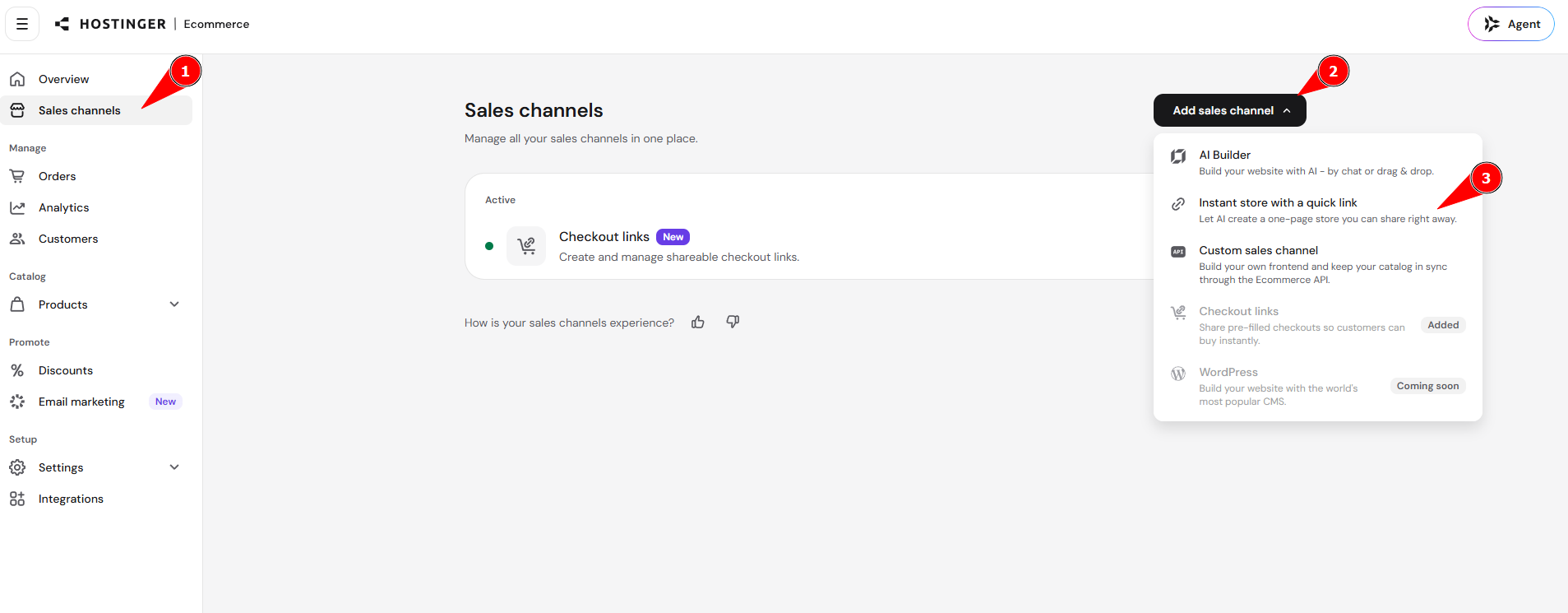
Your store appears immediately and is ready to use.
How to customize your Quick link store handle
You can customize your Quick link store handle at any time — you’re not limited to the one auto-generated from your business name during onboarding. To update it:
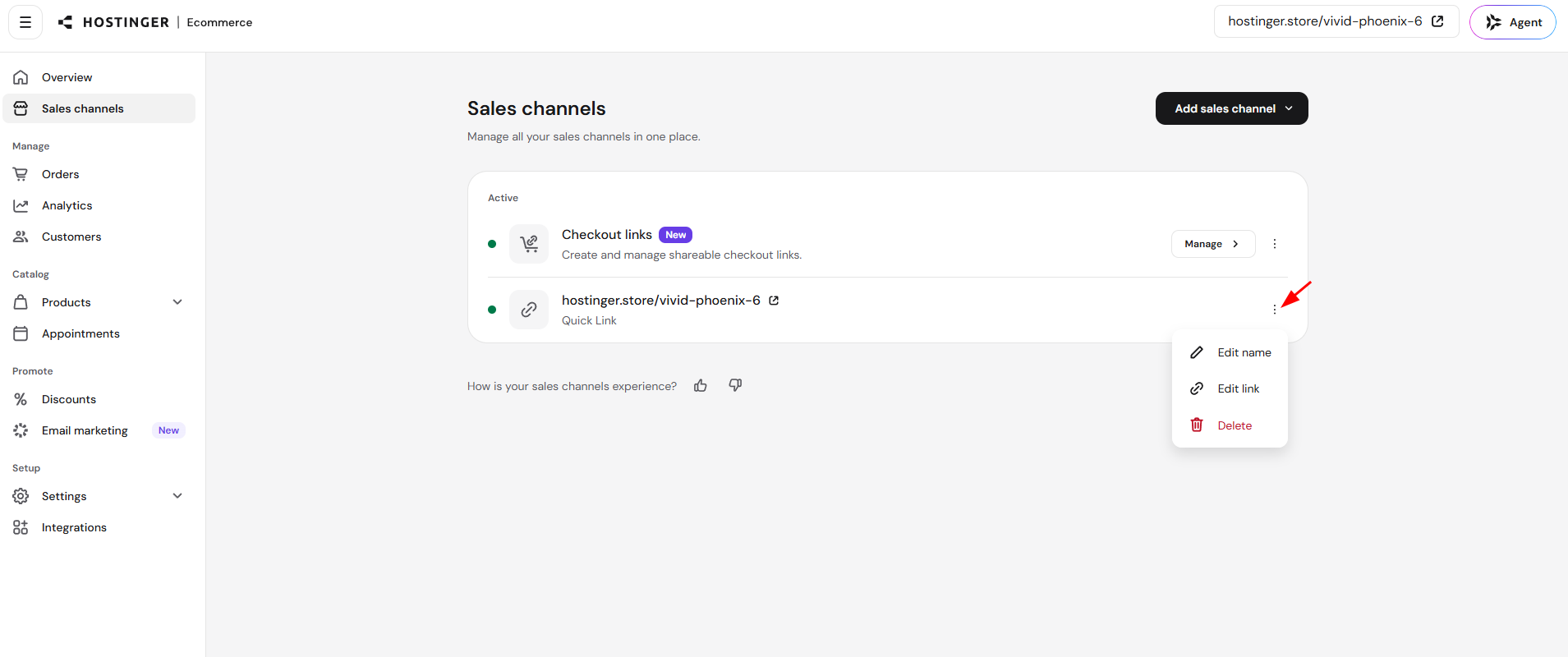
- Go to Sales channels on the side menu.
- Find your Quick Link store in the Active list.
- Click the options menu (⋮) next to it.
- Select Edit link.

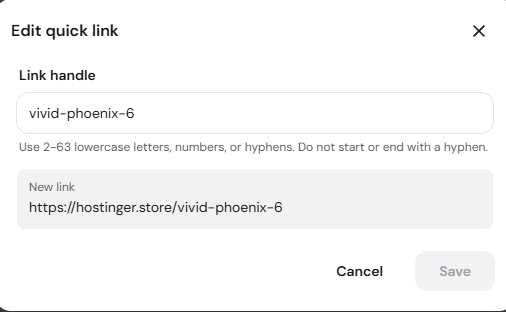
- In the Edit quick link window, update the Link handle field. The handle must use 2 to 63 lowercase letters, numbers, or hyphens, and can’t start or end with a hyphen.
- Check the New link preview to confirm the updated URL.
- Click Save.

Keep in mind:
- Handles are globally unique — no two stores can share the same one.
- Changes take effect instantly after saving.
- The old handle is freed up right away and becomes available for others to use.
Product suggestions in Quick link stores
Quick link stores show product suggestions on the product page and in the cart, giving shoppers ways to keep browsing and add extra items before checkout.
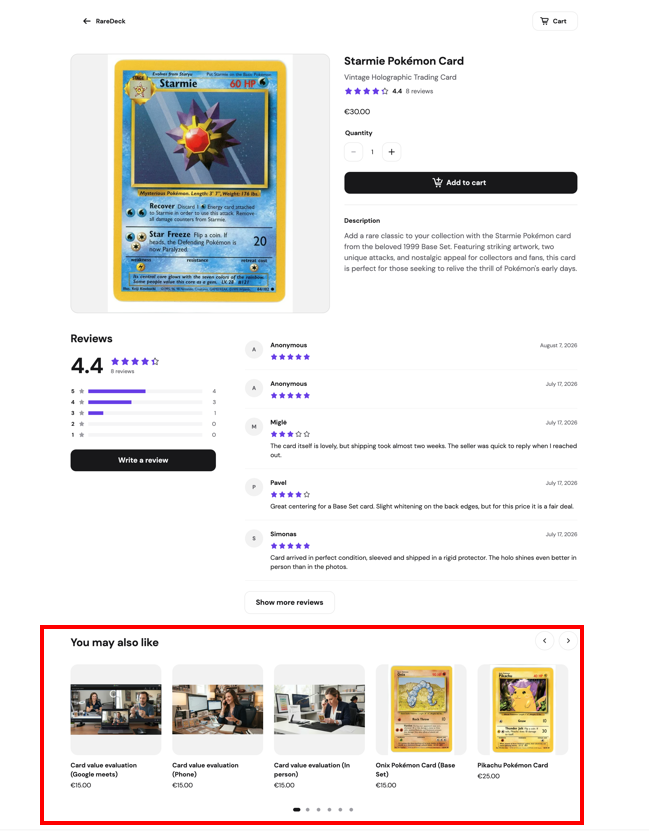
On the product page, Quick link stores show a You may also like carousel with other items from the same store, so shoppers have a way to keep browsing instead of hitting a dead end after landing on one product. Shoppers can navigate the carousel using the left/right arrows or the pagination dots.
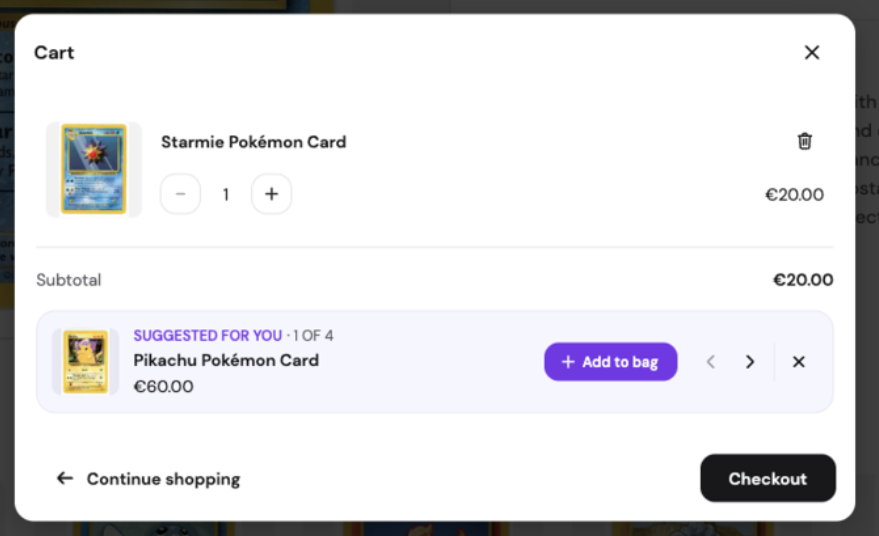
In the cart, Quick link stores show a Suggested for you product suggestion, letting shoppers add another item without leaving checkout. The cart displays one suggestion at a time, with a counter (for example, 2 of 4) showing how many suggestions are available. Shoppers can use the arrow buttons to move to the next or previous suggestion. Clicking Add to bag adds the suggested product to the cart. Clicking the X dismisses the suggestion.
Express Checkout in Quick link stores
Express Checkout lets customers complete a purchase directly from the product page, without visiting a separate checkout page. It’s powered by Stripe and appears automatically as a payment button (for example, Google Pay or a saved card) whenever the customer’s browser or device has a supported digital wallet configured.
To enable it:
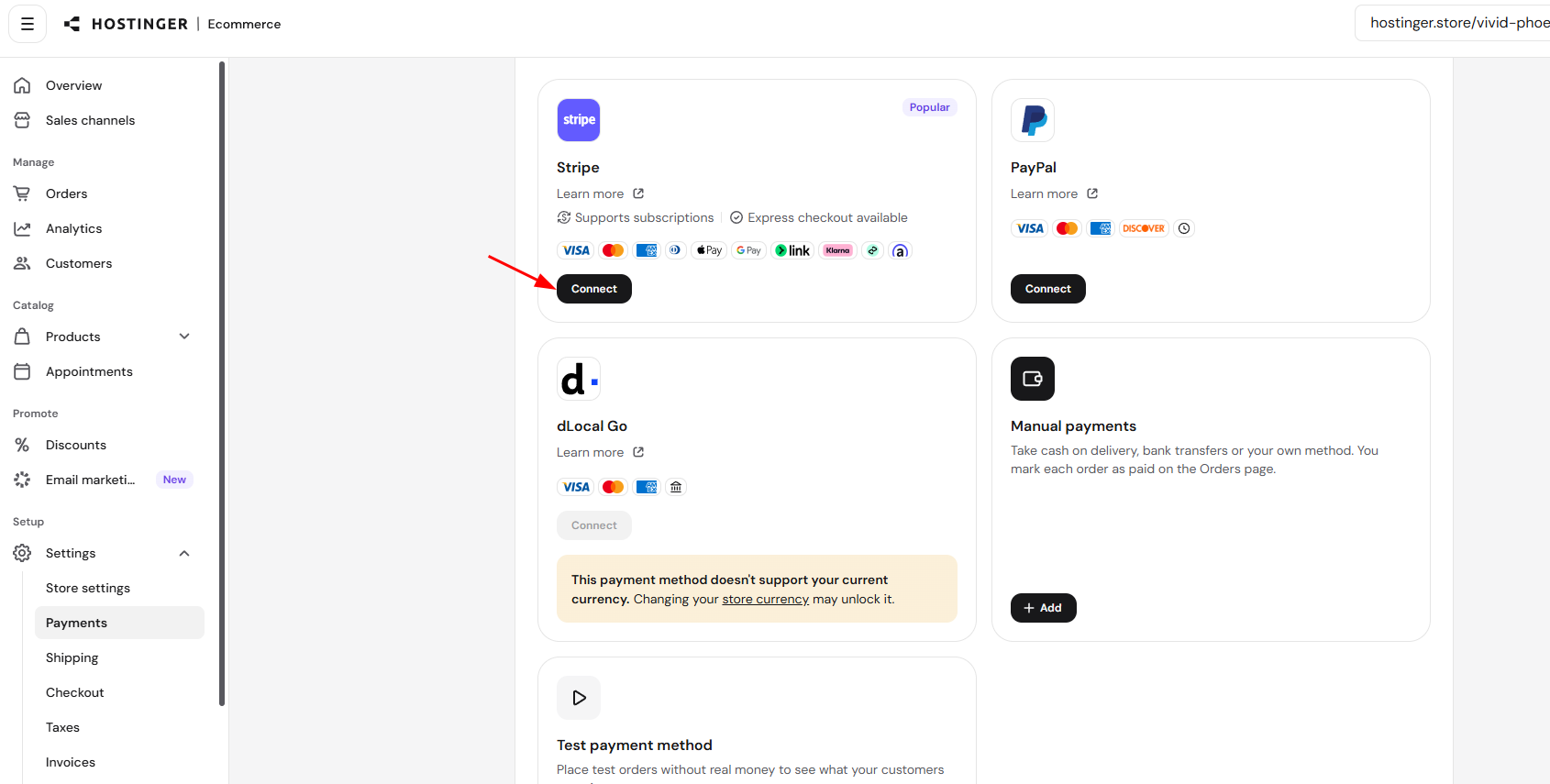
- Go to Settings → Payments.
- Connect Stripe as a payment method.

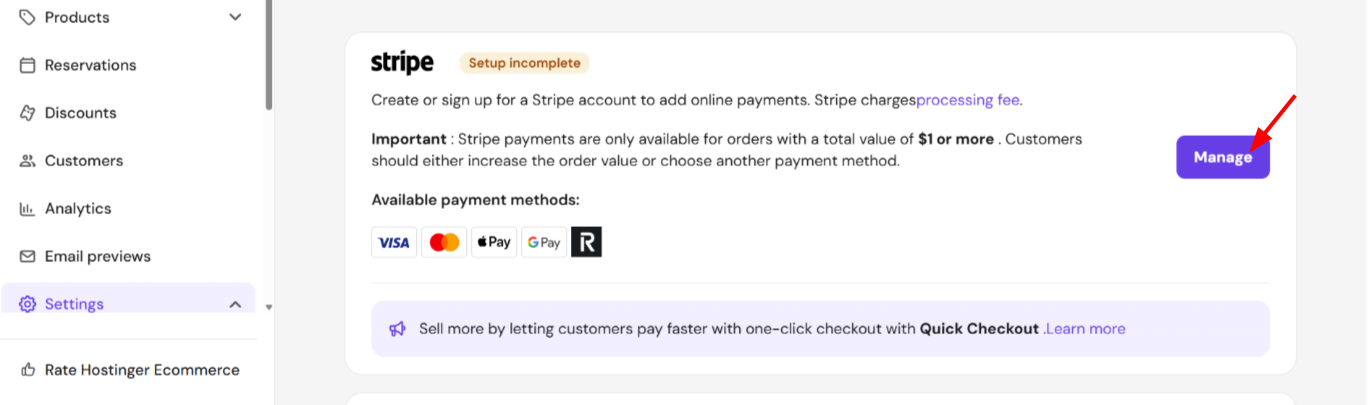
- Once it’s connected, click Manage.

- Turn on Quick payment.

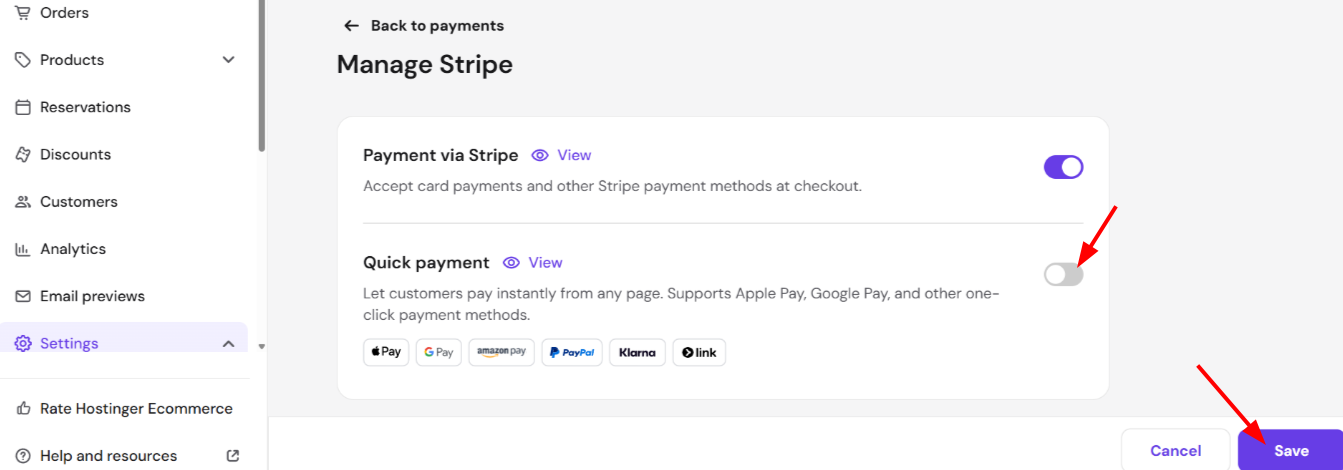
Once enabled, eligible customers will see the Express Checkout option beneath the regular Add to cart button on the product page. Customers without a supported wallet will not see this option and can still check out normally.
Cookie consent and footer in Quick link stores
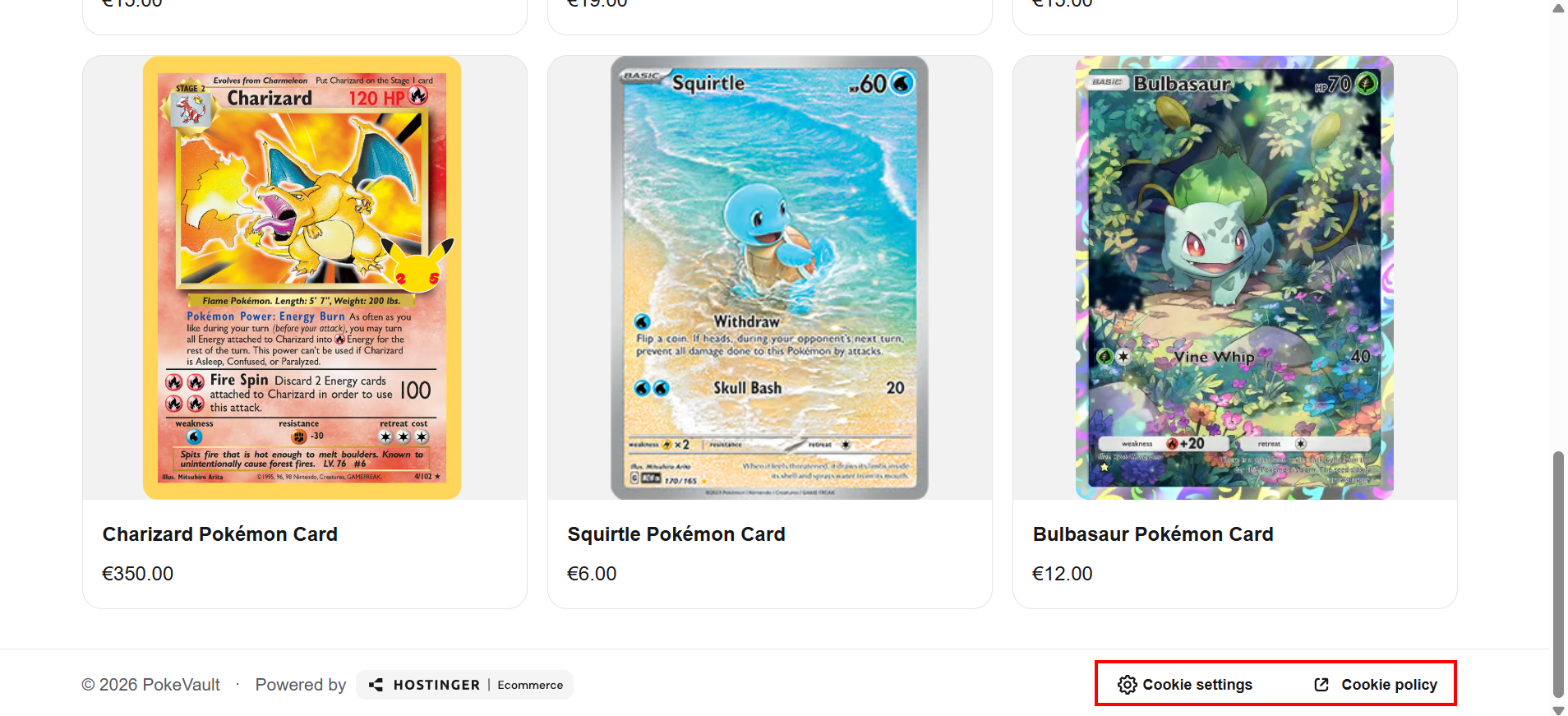
Quick link stores display a cookie consent banner on a shopper’s first visit. Shoppers can Accept all, Reject all, or click Cookie settings to choose which cookie categories to allow:
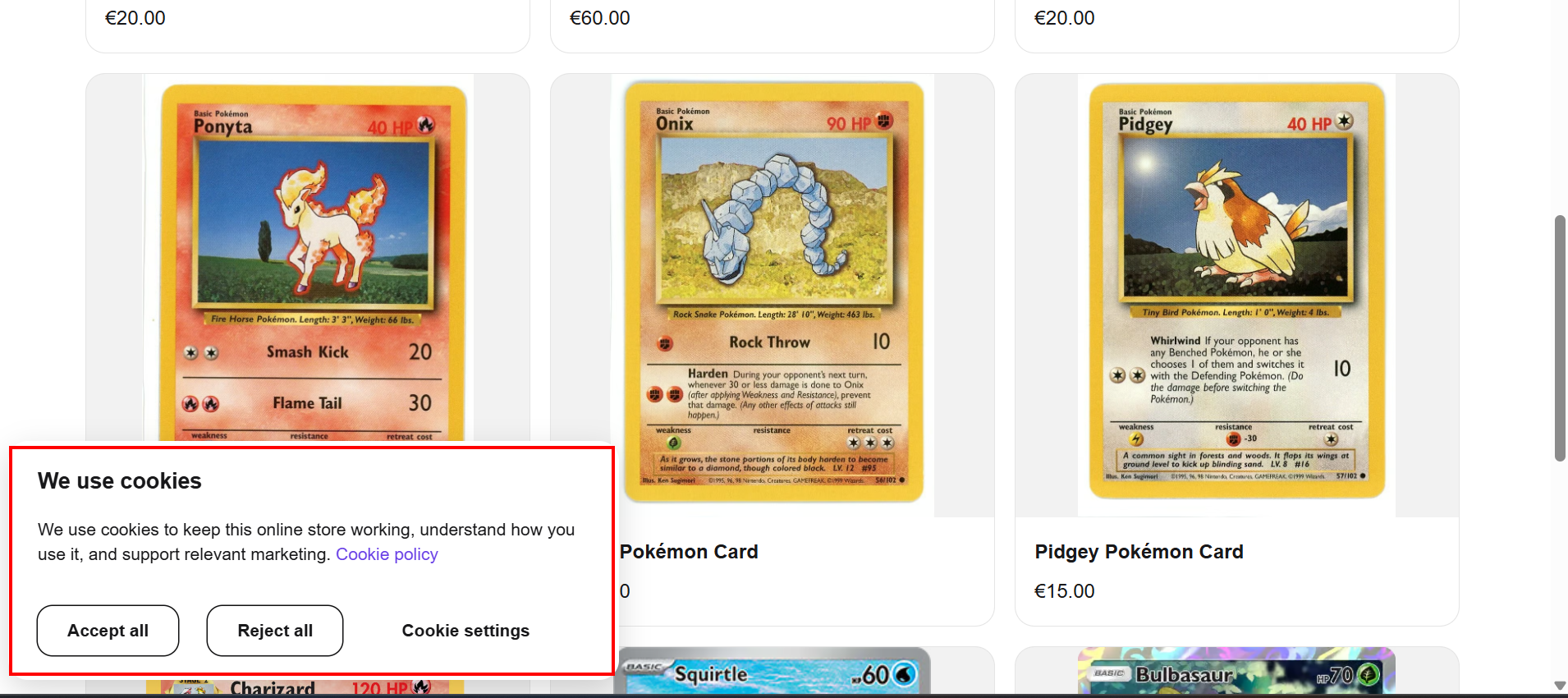
- Necessary — required for the shopping cart, checkout, payments, and security. These cannot be turned off.
- Platform analytics — helps Hostinger understand and improve how the store and checkout work.
- Analytics — helps you, the seller, understand visits and shopping activity.
- Marketing — helps measure advertising and show relevant promotions.
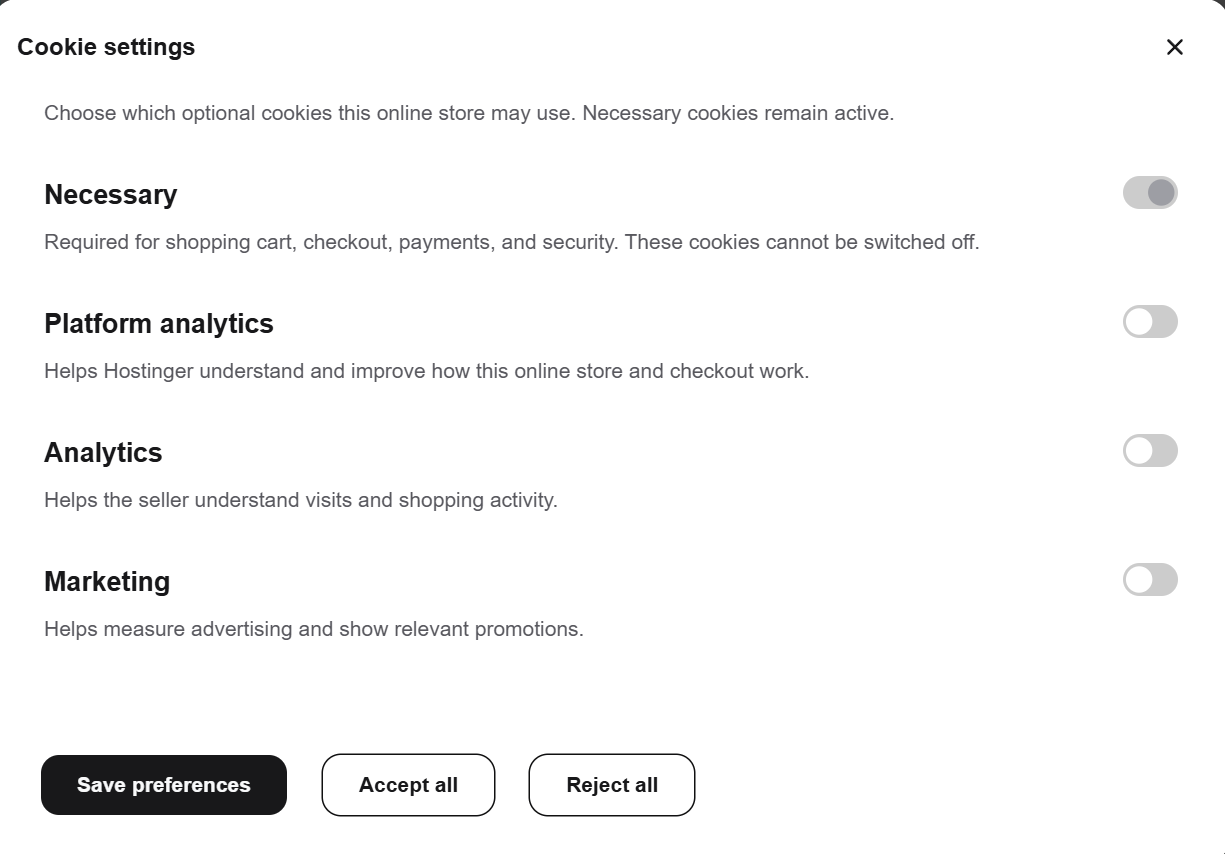
Every Quick link store also has a footer showing the store’s copyright, a Powered by Hostinger Ecommerce badge linking to the Ecommerce landing page, and Cookie settings and Cookie policy links so shoppers can revisit their preferences at any time.
Appointment booking in Quick link stores
Quick link stores can sell appointment-based products, the same as Hostinger AI Builder storefronts.
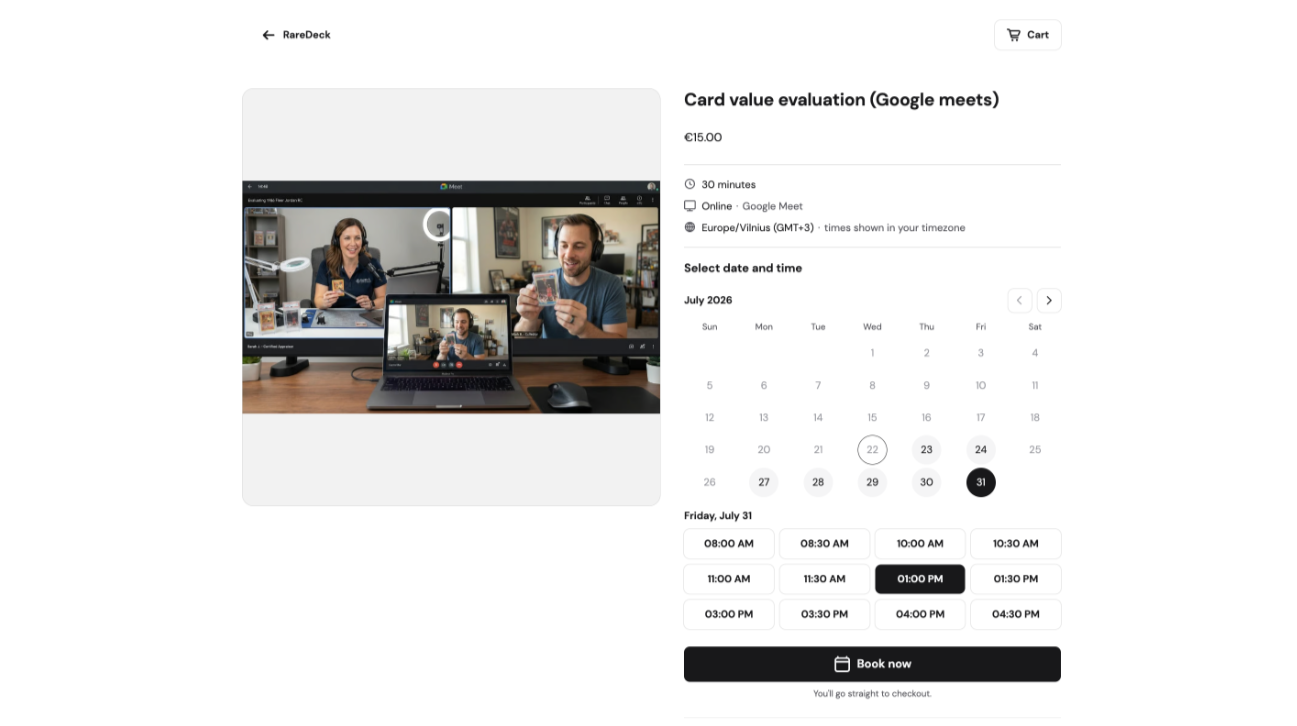
On the product page, shoppers pick a date and time from a calendar and time-slot picker, then click Book now to go straight to checkout with the selected slot pre-filled.
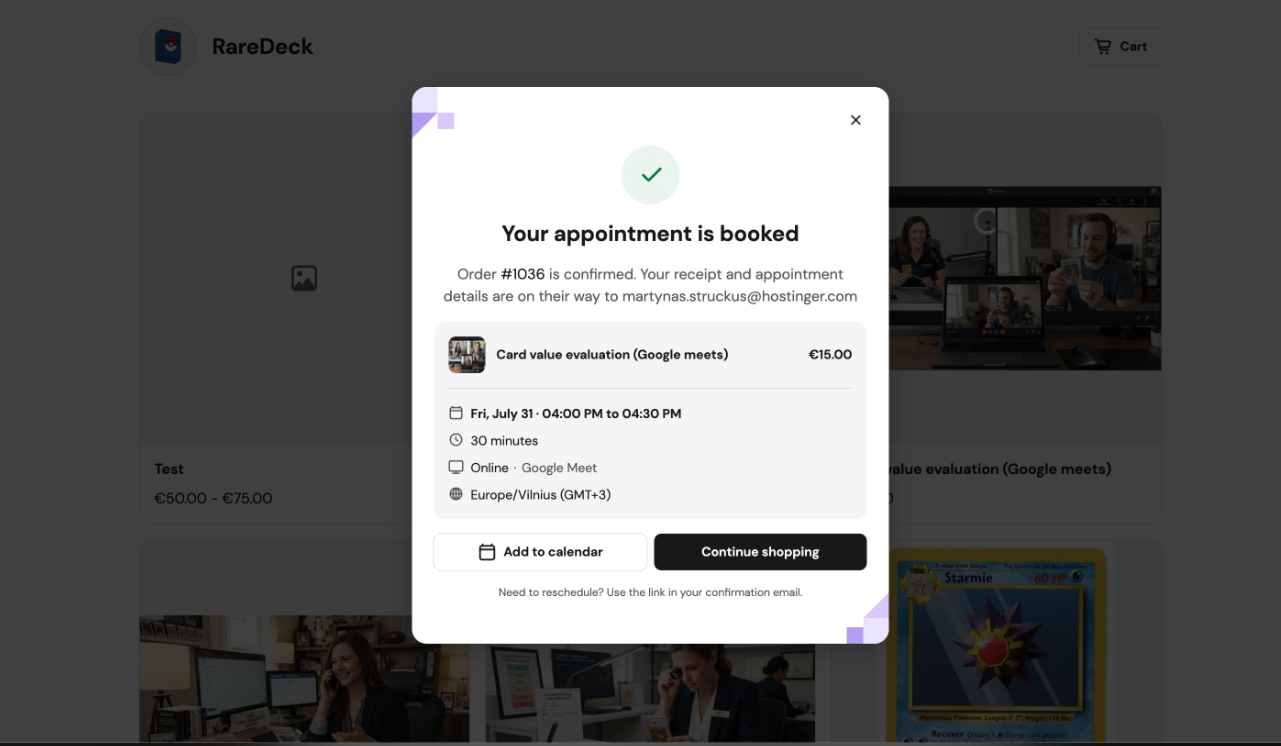
After checkout, shoppers see a confirmation with the service name, price, date/time, duration, location (Google Meet or in-person), and timezone, along with an Add to calendar (.ics) download.
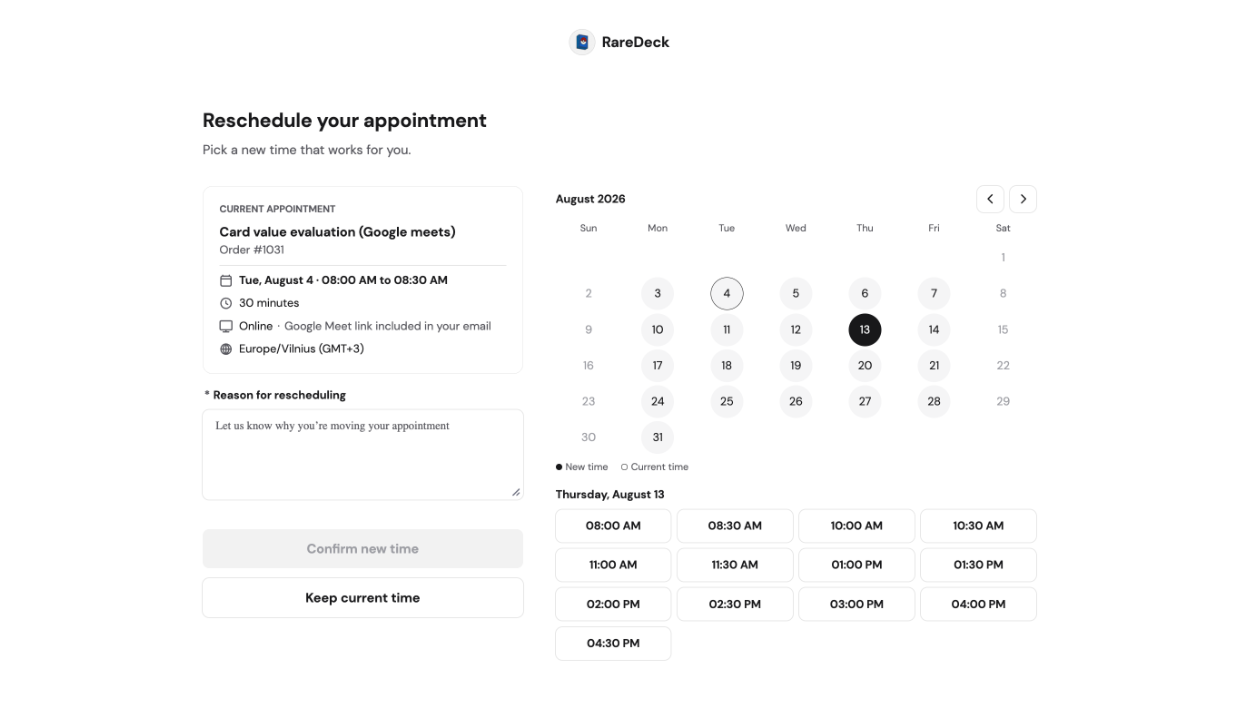
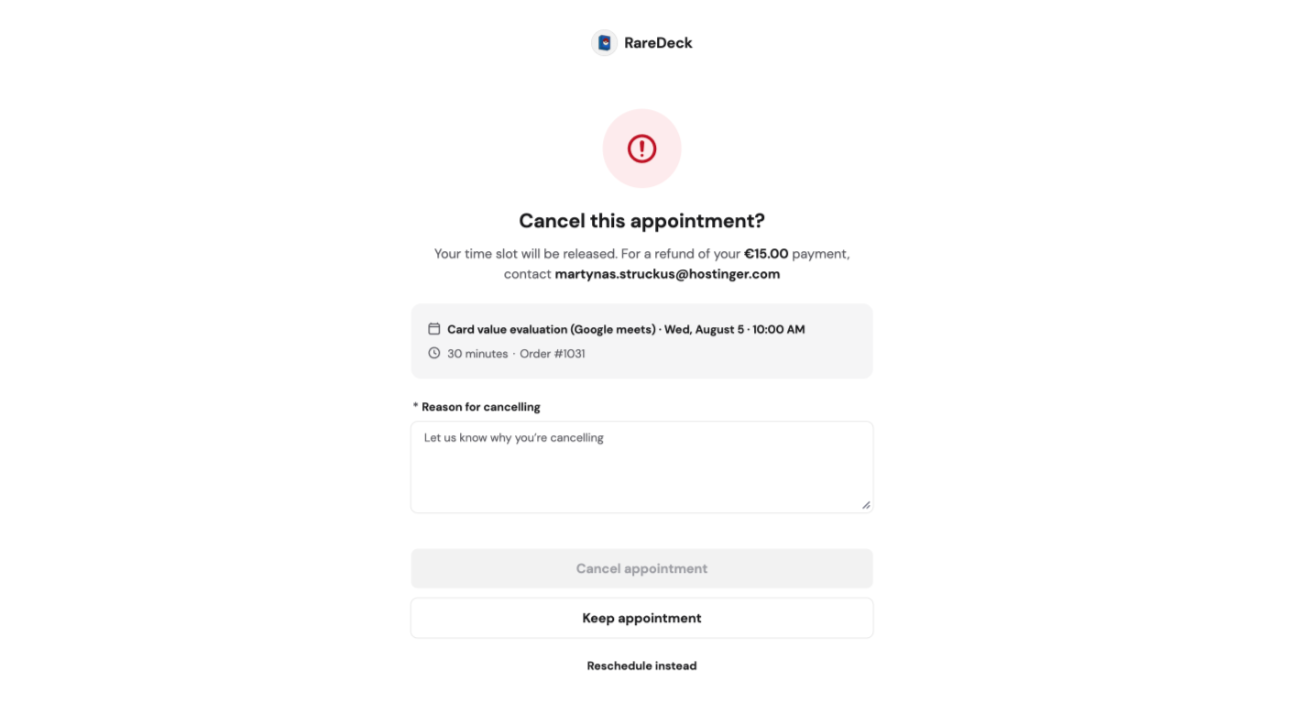
Shoppers can manage their appointment using the link in their confirmation email:
- Reschedule — pick a new time from the picker, with the current slot highlighted, and provide a reason.

- Cancel — provide a reason; refund guidance is shown if a payment was captured. Rescheduling is offered as an alternative to cancelling.

If an appointment has already started, was cancelled, or the store has disabled online changes, shoppers see an explanation page instead of a generic error. Expired or invalid links show their own dedicated state.
On mobile, booking and rescheduling actions stay accessible in a sticky footer while scrolling.
With these settings configured, your Quick link store is ready to accept orders, take appointments, and recommend products automatically as customers shop.