Create a .htaccess file at Hostinger with File Manager, or reveal an existing hidden one in your FTP client. A .htaccess (hypertext access) file sets server rules for a website, such as forcing HTTPS or setting up redirects. Because the file is optional, it may not exist until you create it.
Before you start
- This guide applies to web, cloud, and agency hosting plans.
- Hostinger web servers fully support
.htaccessrules, but they are not mandatory. Ensure your website application requires this file before creating it. - Hostinger AI Builder do not use a file-based structure, so
.htaccessconfigurations do not apply to them.
Option 1 – Find or create the file using File Manager
Since the Hostinger File Manager displays all files (including hidden dotfiles) by default, a missing .htaccess file means it does not exist yet and needs to be generated.
- Access the Hostinger File Manager for your website.
- Open the
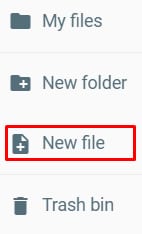
public_htmlfolder. - Check the file list. If the file is missing, click the New File icon in the sidebar.
- Name the file
.htaccessand click Create. Always include the period at the beginning of the filename (.htaccess), or the server will not recognize it.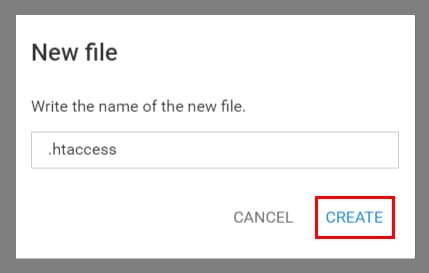
On the file editor, enter the content for the file and save the changes.
Option 2 – Reveal hidden files in an FTP client
If you are managing your website files via an FTP client like FileZilla, hidden files may be filtered out by default.
- Connect to your hosting plan via FileZilla.
- Navigate to the top menu bar and click Server.
- Select Force showing hidden files.
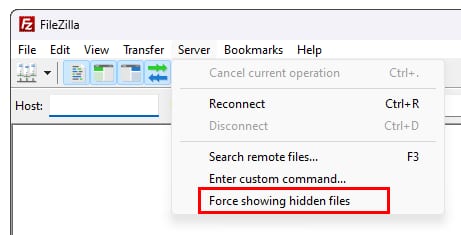
The file listing will refresh, and your .htaccess file will appear in your website directory. If the file is still missing, create it using the steps outlined in Option 1.
Common .htaccess configurations at Hostinger
Once your .htaccess file exists, use it for configurations such as these:
- How to enable GeoIP at Hostinger.
- How to parse PHP in HTML files.
- How to add a file extension to MIME types at Hostinger.
- How to make files downloadable upon a click on a link.
Your .htaccess file is now accessible, allowing you to manage your website’s server configurations and permissions.