You can easily create and manage domain redirects from a domain added to your hosting plan to another domain or IP address.
Not sure whether a redirect is what you need? See what are the differences between subdomain, parked domain, and redirects.
How to create a redirect
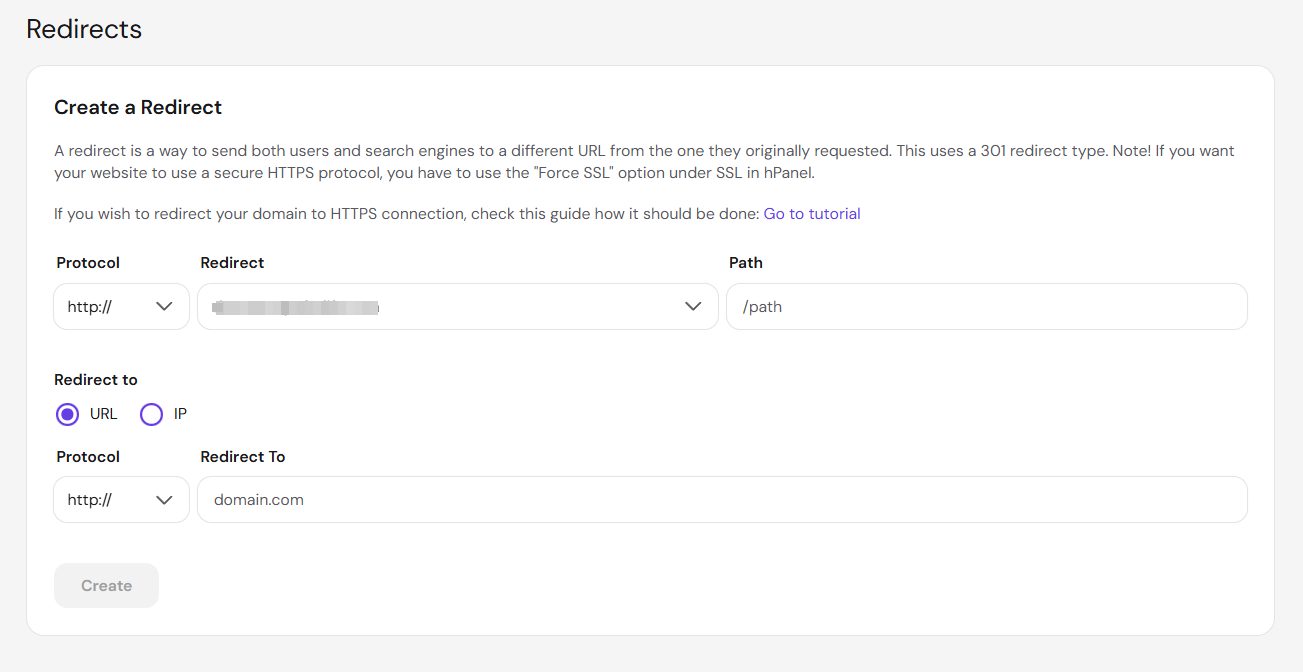
Navigate to Websites → Manage site, it will redirect to Dashboard section, search for Redirects on the sidebar, and click on it. Then, fill in the following:
-
Redirect — select a domain to redirect from the dropdown list.
-
/path — specify a custom path to be redirected (if needed).
-
Redirect to URL or IP — choose the type of destination.
-
Redirect to — enter the destination to where the domain will redirect.
Once everything is ready, click on Create:
To redirect your domain to HTTPS, ensure that the SSL is installed beforehand.
How to remove a redirect
To delete a redirect, navigate to Websites → Manage site, search for Redirects on the sidebar, and click on it. Locate the desired redirect in the List of Redirects section. Next, click on the trash bin icon to cancel the redirection:
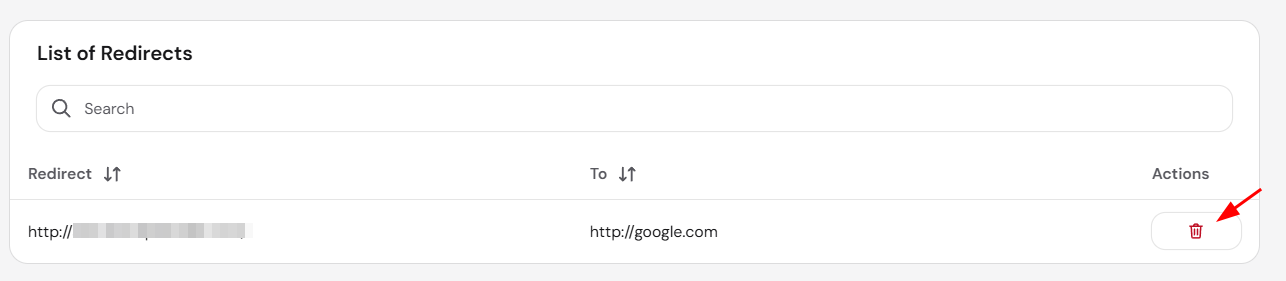
Once deleted, the domain will stop redirecting and point to its original destination record according to its DNS zone.
Create redirect for Hostinger AI Builder
The Redirects tool isn’t available for domains connected to a Hostinger AI Builder website. To keep your AI Builder website and redirect the domain or a specific path, set up the redirect in Cloudflare by following how to redirect a domain in Hostinger AI Builder. To use the Redirects tool instead, delete the AI Builder website and add your domain to a hosting plan as an empty website or using a different CMS, such as WordPress.
NOTES
- For more details and an alternative method to redirect via .htaccess, refer to this comprehensive tutorial: How to redirect to another domain.
- See how to create a redirection via HTML in Hostinger to create a redirect using HTML.