Access phpMyAdmin at Hostinger to manage your MySQL database content on web and cloud hosting plans. There are four ways to open phpMyAdmin: from the Databases Management page, from the phpMyAdmin page, from the WordPress Dashboard, or with a direct link.
Option 1 – From the Databases Management page
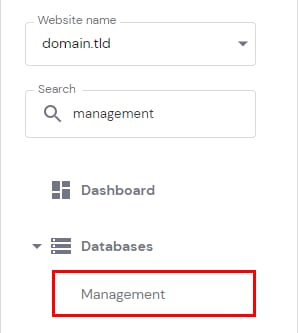
Navigate to Websites → Dashboard, search for Databases Management on the sidebar and click on it:
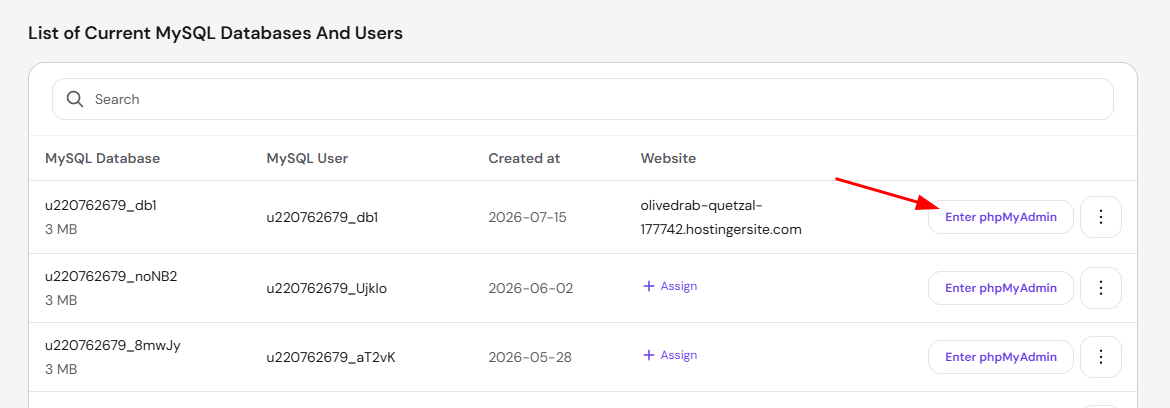
Select the database and click on phpMyAdmin:
Option 2 – From the phpMyAdmin page
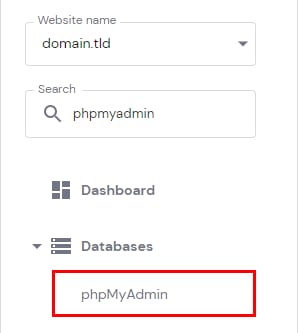
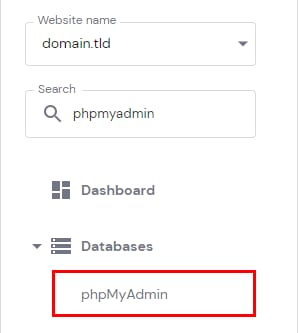
Navigate to Websites → Dashboard, search for phpMyAdmin on the sidebar and click on it:
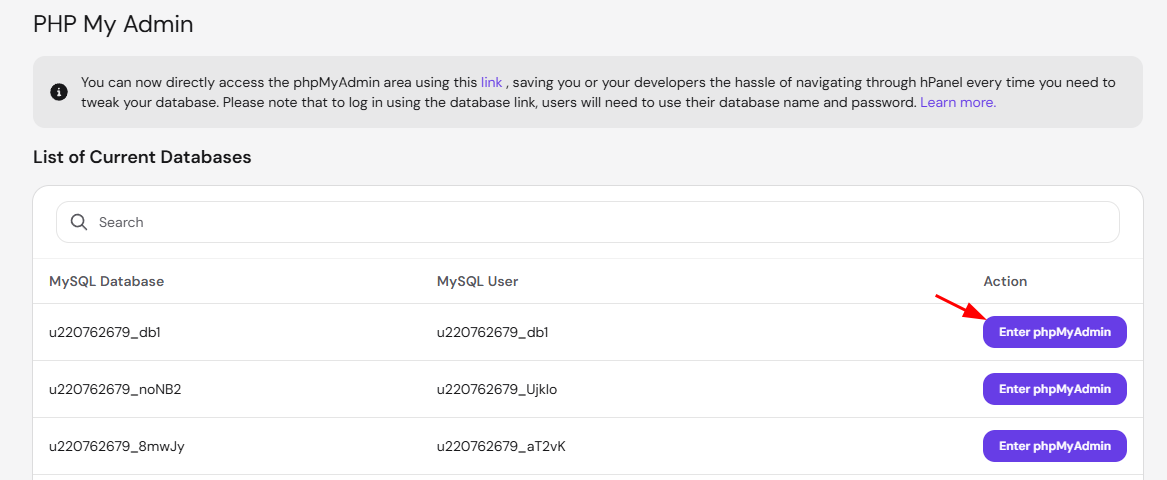
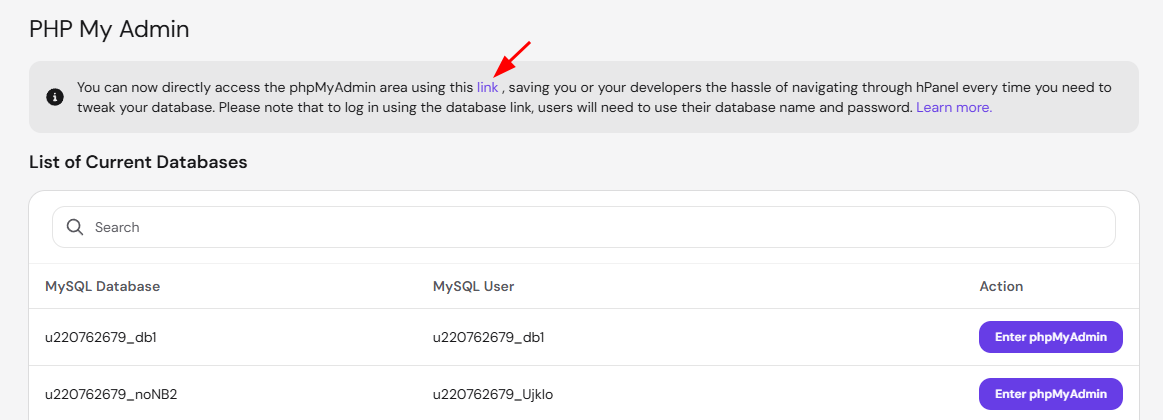
Next, click on Enter phpMyAdmin next to the database:
Option 3 – From the WordPress Dashboard
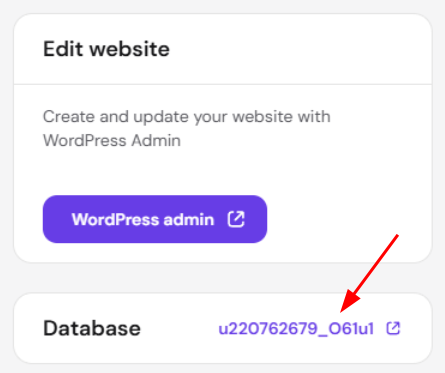
If you are using WordPress Dashboard, you can easily jump to phpMyAdmin by clicking on your database just below the Edit website section:
Option 4 – Using a direct link
Accessing phpMyAdmin via a direct URL makes accessing the database easier for developers or collaborators as they won’t need to enter your Hostinger account.
To obtain the direct link to your phpMyAdmin, navigate to Websites → Dashboard and search for phpMyAdmin on the sidebar:
Next, click on the link mentioned on the top banner. This is the link you can share to access directly:
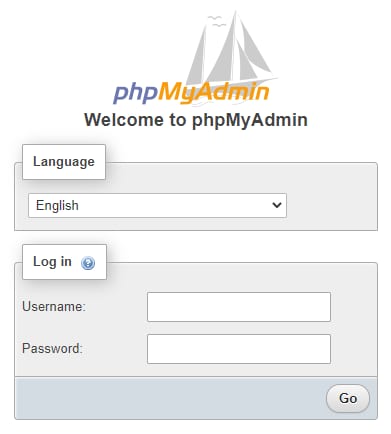
It will open the phpMyAdmin login page on a new tab:
-
Select the language from the dropdown list
-
Enter your database username and password
-
Click Go
You will not be required to enter your database name, as it is associated with your database username.
Manage your MySQL database in phpMyAdmin at Hostinger
Once phpMyAdmin is open, use these guides for common database tasks:
- How to export a database with phpMyAdmin in Hostinger.
- How to import a database with phpMyAdmin in Hostinger.
- How to change the database timezone on phpMyAdmin at Hostinger.
- How to delete all database tables in phpMyAdmin in Hostinger.
- What is the database information_schema on phpMyAdmin.
- How to check your database version in phpMyAdmin at Hostinger.
With any of these four options, you can open phpMyAdmin and work with your database content directly.